- SysMain analyzes your usage habits and preloads frequently used applications into RAM to reduce opening times.
- On modern computers with sufficient RAM and SSDs, it usually improves fluidity, but on older or very basic PCs, it can worsen performance.
- It is advisable to keep it enabled except in cases of 100% disk usage, stuttering, or very limited hardware, where you can try disabling it.
- The behavior of SysMain should be evaluated alongside other factors such as telemetry, disk health, drivers, and background tasks.

¿What does the SysMain service actually do, and when should it be turned off? If you've been using Windows for a while, you've probably come across the service at some point. SysMain is using a lot of disk or memory. Or perhaps you've encountered the System process in Task Manager and wondered if it actually serves any purpose or if it's better to disable it. Many users remember it by its old name, SuperFetch, and aren't entirely sure what it does or how it affects computer performance.
The doubt is logical: Does SysMain improve speed or does it just keep the hard drive at 100% usage? Furthermore, all sorts of advice circulates on forums and social media, from "always leave it enabled" to "disable it because it breaks Windows." Let's take a closer look at what this service does, how it works on HDDs and SSDs, when it's advisable to keep it on, and in what specific cases it might be better to turn it off.
What is SysMain (formerly SuperFetch) and what is it used for?
SysMain is a A service integrated into Windows 10 and Windows 11 that analyzes your usage habits It anticipates your needs by loading your most frequently used applications into memory. Its main goal is to reduce program loading times and speed up system startup by making smarter use of RAM.
This service relies on two internal Windows technologies called “prefetch” and “superfetch”Prefetch stores information about the files that are loaded when you start Windows or open a program, while SuperFetch (the original name of the service) goes a step further and predicts which applications you will use next so that they are ready in memory.
In practice, what SysMain does is Fill the free RAM with data from the applications you use most oftenIt doesn't steal memory from other programs, but rather occupies the part that would be "empty" so that, when you open a frequently used app again, it starts up much faster because it's already preloaded.
A very typical example: if you open every day Google Chrome as soon as I turn on the PCSysMain detects this pattern and begins loading the necessary Chrome files into RAM shortly after startup. When you click the icon, the browser opens almost instantly because much of its data is already in memory.
It's important to understand that Windows considers that Free RAM is wasted memoryThat's why services like SysMain try to take advantage of it by filling it with useful data; if at any point you need that memory for another heavy program, the system removes what it had preloaded on the fly and replaces it without you having to do anything.
How SysMain affects PC performance
The big question is whether there's really a noticeable difference with SysMain enabled or disabled. On most modern computers with sufficient RAM, this service It helps the system run more smoothly and reduces opening times.especially in the applications you use every day — as performance comparisons in Windows 11 vs Windows 10 show.
On computers with balanced hardware, SysMain helps both in the Windows startup as in the loading of common programsThe system feels "lighter" because many actions are completed with less waiting. It's not a miraculous improvement, but the experience does become noticeably more agile when working with several frequently used apps.
It should also be noted that, when using prefetch techniques, the service Optimizes the way Windows reads data from the diskInstead of randomly "jumping" between files, it attempts to organize reads more efficiently, improving performance on mechanical disks and reducing unnecessary waiting.
However, not all systems react the same way. On PCs with limited resources, especially those with very little RAM or a very limited processor, the fact that SysMain is always running can be problematic. it can produce the exact opposite effect to the one sought.: overall slower performance, peak disk usage, and a feeling that the system is "freezing".
This behavior leads many users to believe that disabling SysMain "fixes" all performance problems. In some specific cases, it does improve the situation, but the impact should be carefully evaluated. type of equipment and usage pattern before deciding to turn off the service definitively.
SysMain with HDD vs SSD: Impact on disk usage
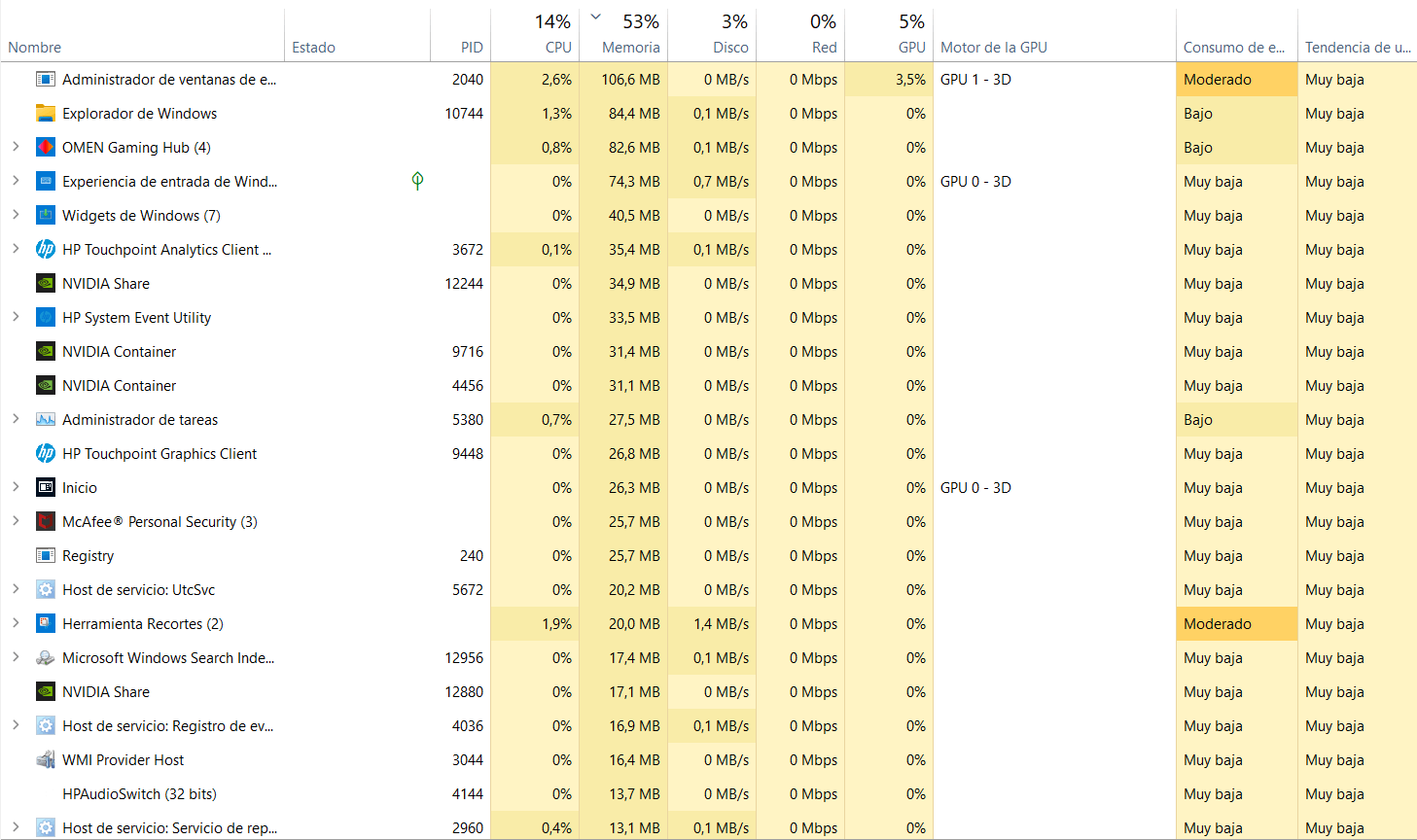
One of the most frequently asked concerns is whether SysMain causes 100% disk usage for a long timeEspecially in computers with a mechanical hard drive (HDD), it is common to see that, right after starting Windows, the disk is saturated and everything stutters for a few minutes.
It's relatively normal for disk usage to spike to 100% for a few seconds, or even a little longer, right after the system starts, while services, antivirus software, and background applications load. SysMain is part of that set of processes that They read and write to the disk at startup to get everything readyBut that peak should soon drop to very low values (around 0-2% at rest).
On a slow HDD, when the disk remains at 100% usage for extended periods due to multiple simultaneous services, the penalty is much more noticeable: Windows that take a long time to open, games that stutter, the mouse that moves jerkily… In situations like this, SysMain can contribute to that feeling of being stuck because it's doing extra reads to preload applications.
With an SSD, the picture changes considerably. These drives have much shorter access times and can better handle simultaneous requestsTherefore, the impact of SysMain on disk usage is less dramatic. There may still be spikes after startup, but the system recovers much more quickly.
Furthermore, for years Windows has been managing work on solid-state drives more intelligently, so that There's no need to obsess over minimizing writing for fear of wear and tear.A modern SSD is ready for many years of normal use even with background services like SysMain running constantly.
When is it advisable to keep SysMain enabled?
In the vast majority of scenarios, especially with current equipment, It is recommended to leave SysMain running as it comes by defaultand review the Windows 11 Start Menu settings which improve its speed. Microsoft enables it by default in Windows 10 and Windows 11 because it assumes that most users benefit from its presence.
If your computer has at least 4 GB of RAM, a reasonably modern processor, and preferably an SSDThe service should generally help everything run more smoothly. You'll notice that your usual programs open faster and that the system responds better after logging in.
It's also a good idea to keep it active if you're one of those who use always the same productivity apps or the same gamesThe more predictable your usage routine, the easier it is for SysMain to anticipate and preload what you need, maximizing its usefulness.
On systems that don't experience crashes or extreme disk spikes, disabling SysMain often doesn't provide any noticeable improvement, and can even cause problems. Windows takes a little longer to start up, or certain apps take longer to launch.In those cases, it's best to leave things as they are.
Many users with 16 GB of RAM or more and an SSD drive They say their computer works perfectly with SysMain turned on, without stuttering or stability problems, so there wouldn't be much point in touching the configuration just as a precaution.
When might it be beneficial to disable SysMain
There are specific situations where disabling this service can be worthwhile, especially in old or very low-end equipment They are already short on resources, and every extra process has a significant impact on overall efficiency.
If your PC has less than 4 GB of RAM, a very limited processor, and a mechanical hard driveSysMain can end up being more of a hindrance than a help. In these cases, it can cause constant disk usage, slow response times, and, in general, the feeling that Windows freezes at the drop of a hat.
Some users are also reporting problems with stuttering or brief pauses while playingeven on machines with 16 GB of RAM and an SSD. In these scenarios, when everything appears to be in order but the stuttering persists and SysMain appears very active in the Task Manager, trying to temporarily disable it can be a good diagnostic test.
It's important to keep in mind that there is no 100% universal rule: What improves the experience for one user may worsen it for another.That's why it's reasonable to run a test: disable SysMain for a few days and see if the disk spikes or stuttering disappear in demanding games or programs.
However, although it is sometimes said that turning off SysMain "breaks Windows", the reality is that It does not usually cause serious damage or render the system unusable.What you will notice, if your computer is moderately powerful, is that removing it could cause you to lose some speed when opening your most frequently used applications.
How to check, activate or deactivate SysMain step by step
SysMain is coming enabled by default in Windows 10 and Windows 11So if you haven't touched anything in the service settings, it's most likely working without you having to do anything.
If you want to ensure it's enabled or disable it for testing, you can manage it from the Windows Services console. The procedure is simple and doesn't require installing third-party programs or applying complicated configurations.
To access the list of services, press the keys Press Windows + R to open the “Run” windowType services.msc and press Enter. This will open the Local Services console with a fairly long list of system processes; this also allows you to locate processes such as the hidden consoles at startup that sometimes consume resources.
Within this window, scroll through the list until you find the entry called “SysMain"(in older versions it may appear as "SuperFetch")Click on it and look at the left side or the top, where you will see the basic options for managing the service.
If SysMain is active, it will appear with a status of “Running” and you will be able to Stop it momentarily by pressing on “Stop”If you double-click on the service name, the properties window will open, where you will find the "Startup type" section to choose between Automatic, Manual, or Disabled.
To permanently disable it, select the option Select “Disabled” in the startup type and confirm with OKIf you want to make it operational again, change the startup type to "Automatic" and click "Start" before closing the properties window.
100% disk usage issues and the role of SysMain
One of the most annoying symptoms in Windows is opening Task Manager and seeing the disk usage locked at 100% for extended periodseven if you barely have any applications open. In these situations, the computer becomes almost unusable at times.
Although SysMain can contribute to that workload on the disk, He is not always the only one responsible, nor the main cause.The problem may be due to a combination of factors: search indexing, antivirus, telemetry, disk errors, drivers, scheduled tasks, and other system services.
Before blaming only SysMain, it's worth taking some precautions. basic maintenance and diagnostic tasksA helpful first step is to run the Disk Cleanup tool to remove temporary files and unnecessary data that may be slowing down your computer.
To do this, you can use the shortcut again. Press Windows + R, type cleanmgr and press EnterSelect the drive where Windows is installed, click on "Clean up system files", check all the boxes for temporary items you want to delete and accept to start the cleanup.
Another recommended action for mechanical discs is Analyze and optimize the drive where Windows is installed. Using the defragmentation tool (or “Optimize Drives”). Do this manually, first analyzing the drive and then optimizing it, so that the data is organized to speed up subsequent reads.
If disk usage continues to spike after these tasks, then it makes sense. Consider disabling specific services such as SysMain or Windows Search.Check storage-related drivers or check for physical disk errors using CHKDSK.
Other settings that may help if your PC is running very slowly

When the computer becomes increasingly sluggish and background programs and tasks accumulate, it's not enough to just focus on SysMain. There are Other adjustments and checks that can greatly improve or worsen performance if they are not managed properly.
A common recommendation is to review the energy plan that you have selected. In some cases, switching to a higher-performance plan (if available) can reduce certain aggressive power-saving measures that affect processor or disk responsiveness, improving the feeling of agility; you can also learn how to enable hidden power plans in Windows 11 to get more performance.
It can also help to partially disable some tasks telemetry and data collection that run in the background. For example, from the Task Scheduler (taskschd.msc) you can locate tasks like “Microsoft Compatibility Appraiser” in the path Microsoft > Windows > Application Experience and disable them to reduce the load.
It's important to remember that the condition of the hardware has a significant impact. That's why it's recommended. Check the disk health with CHKDSK, running commands such as CHKDSK /SCAN or CHKDSK /SPOTFIX in an administrator console and then restarting to apply the necessary fixes.
Other measures that may have an impact are Update system drivers, check virtual memory, uninstall overly resource-intensive third-party antivirus software (leaving only Windows Defender) or, if you suspect infections, run specific tools to detect malware and spyware.
In the specific case of some SSDs, it's advisable to make sure that The drive is correctly recognized as a “Solid State Drive” in the BIOS and that there are no problems with the storage controller (for example, storahci.sys and MSI mode). Certain incorrect configurations can cause Task Manager to show 100% disk usage even though the hardware is not at its limit.
In reality, SysMain is just one more piece of the puzzle: review the set of services, drivers, and scheduled tasks It is often the key to restoring acceptable performance in systems that are barely functioning or that have been suffering from configuration problems for a long time.
When you put into context everything SysMain does and how it interacts with RAM, the disk, and other services, it becomes clearer why it's a boon on some computers and a hindrance on others. On modern computers with sufficient memory and SSDs, it usually improves performance, while on very limited or poorly configured PCs, it can be the final straw, making everything seem frozen. Therefore, rather than blindly following advice to "turn it on" or "turn it off," the sensible approach is to assess your hardware specifications, observe system behavior, and, if necessary, try disabling it temporarily to see if disk spikes, stuttering, or general slowness improve. Combine this adjustment with other tasks such as cleaning, optimization, and system health checks.

Passionate about technology since he was little. I love being up to date in the sector and, above all, communicating it. That is why I have been dedicated to communication on technology and video game websites for many years. You can find me writing about Android, Windows, MacOS, iOS, Nintendo or any other related topic that comes to mind.