
Cloud recovery in Windows 11 is a process used to reinstall or restore the operating system Downloading a clean copy directly from Microsoft's servers is primarily used when the operating system is corrupted or won't boot properly. You can also use this option if you simply want the most up-to-date version of Windows. Let's look at this in more detail.
What is cloud recovery in Windows 11?
Cloud recovery in Windows 11 is a method for reinstalling or restoring the operating system. It involves downloading a system image from the internet instead of using files stored on your computer. Simply put: Your system connects to the servers of Microsoft and download an official copy of Windows 11, which is then installed on your PC.
Why perform a cloud recovery in Windows 11? Because this way you get a clean and updated installationIt's similar to using a USB installation media, but without needing to create or have one. This way, you don't depend on physical media for reinstallation; you only need an internet connection.
When to use it
Now then, When is it appropriate to use cloud recovery in Windows 11? Here are some situations in which it is appropriate to use it:
- Damaged local filesIf the recovery partition or internal system files are corrupted and do not allow a traditional reinstallation (using local files).
- When the PC won't startCloud recovery is useful when Windows 11 fails to boot due to critical errors that prevent it from starting or from starting correctly.
- Clean and latest installationThis procedure ensures that the downloaded copy is the latest available version of Windows 11, including recent security patches and improvements. Furthermore, it is a clean and fresh installation of the operating system.
- Without the need for external resourcesIf you don't have a USB drive or any physical installation media on hand, this is an excellent alternative.
- Critical environmentsIdeal if you need speed and reliability, as you avoid depending on local files that could be damaged or outdated.
How to perform a cloud recovery in Windows 11
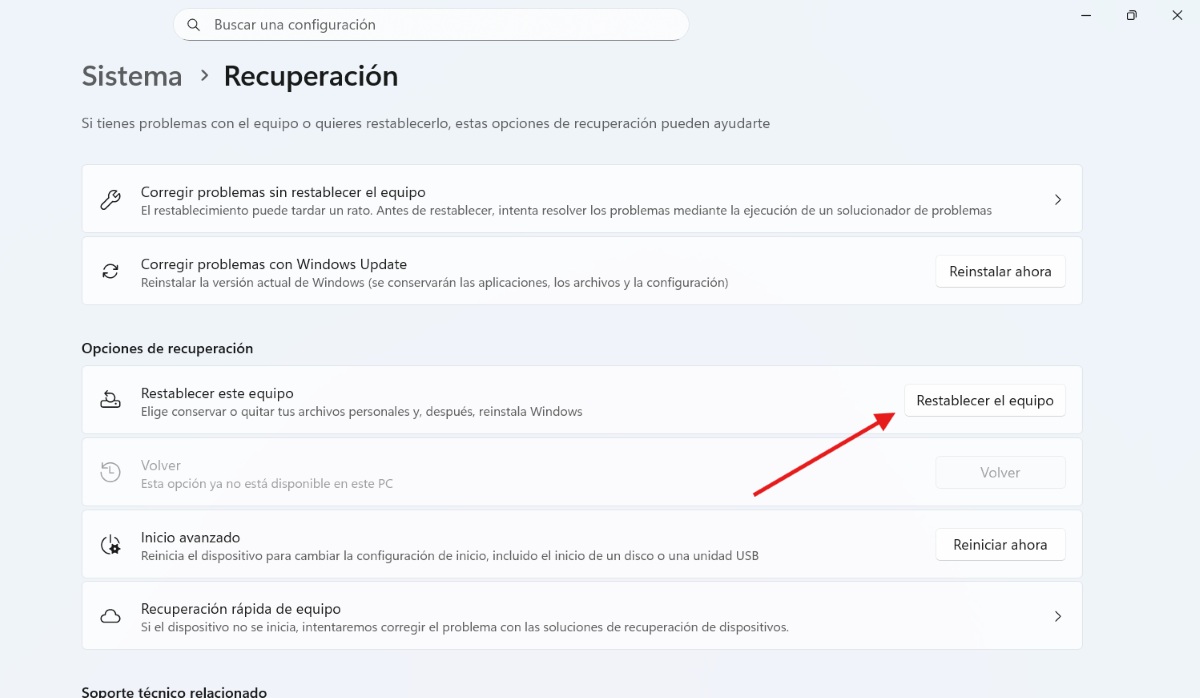
Performing a cloud recovery in Windows 11 is quite simple. It's done through the system reset options within Windows Settings. The path you need to follow is: Configuration – System – Recovery – reset this computer – “Download to the cloudBut, to make it easier for you, here's a step-by-step guide to the procedure:
- Open Configuration (press Windows + I).
- Select System in the side menu.
- Click on Recovery.
- In the Recovery Options section, click on Reset the device.
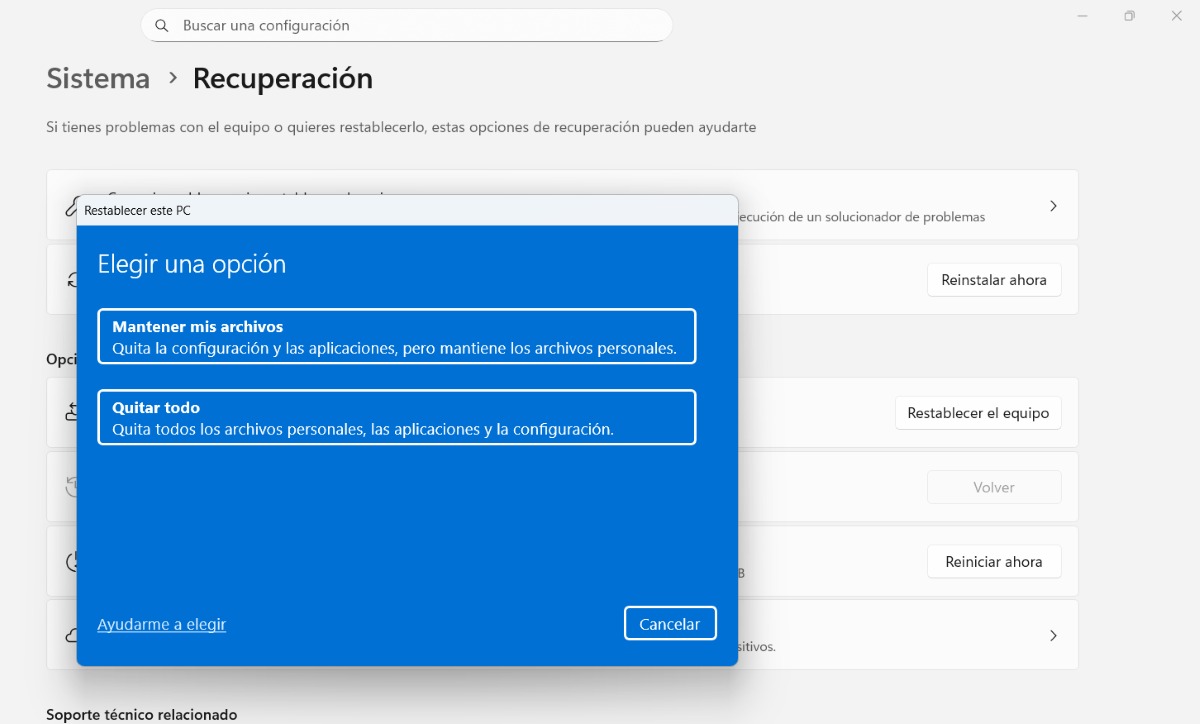
- Select the reinstallation type. Two options will appear: Cloud download, to download a clean copy of Windows 11 from Microsoft servers (this is the one we are interested in) and Local reinstallation, which uses the files already present on your device.
- Decide what you are going to keep: you can choose between Keep my fileswhich will keep your documents and personal data safe when you reinstall Windows or Remove everythingThis option removes applications, settings, and personal files, leaving the device like new.
- Confirm and begin: the system will show you a summary of what will happen. Click on Restore to begin the process.
- Wait for the download and installation process to complete: Windows will download several GB of data and, once the download is complete, the operating system will be automatically reinstalled.
Considerations when performing a cloud recovery in Windows 11
Performing a cloud recovery in Windows 11 has significant advantages: you don't need physical media for reinstallation, it's more reliable, it's ideal for critical failures, and you download an official, up-to-date image. However, there are some drawbacks. Important considerations to keep in mind before carrying out the procedure:
- You need an internet connectionA stable and reliable internet connection is essential for downloading Windows installation files from the cloud. Additionally, a relatively fast connection is recommended, as the download can be several gigabytes in size.
- Reinstallation timeThe process may be slower compared to a local reset, as it depends on your internet connection speed and the amount of data to be downloaded.
- Personal dataWhile it is possible to choose to keep your personal files when performing the recovery, it is always recommended to make a backup before proceeding.
- Data consumptionIf you have a limited data allowance or use pay-as-you-go data services, downloading the operating system can be expensive. Therefore, if possible, it's best to use a stable, fast, and unlimited internet connection.
Local reinstallation vs. recovery from the cloud in Windows 11: Which is better?
Both methods of resetting your operating system have advantages. However, it's worth comparing them side-by-side to determine which one best suits your needs. to you. Here Here are its main features so that you can choose between one and the other objectively:
- File sourceLocal reinstallation uses files saved on the PC, while recovery from the cloud uses Microsoft servers.
- SpeedLocal reinstallation is faster than cloud recovery, as it does not depend on an internet connection.
- Update: Cloud recovery always provides the latest version of the operating system, whereas a local reinstallation may be outdated.
- Reliability: Local reinstallation can fail if the files are corrupted, whereas a clean copy is guaranteed from the cloud.
- Which is betterIf you have minor problems, a local reinstall is ideal. But if your computer has serious errors or corrupted files, cloud recovery is the best option.
In summary, cloud recovery in Windows 11 is especially advantageous when you're looking for security, reliability, and immediate system updates. Your best option if local files are corruptedThis is useful if you don't have physical media or if you want to reinstall the latest version. Essentially, it's a reliable backup plan if a local PC restore fails.

From a young age, I've been fascinated by all things scientific and technological, especially those advancements that make our lives easier and more enjoyable. I love staying up-to-date on the latest news and trends, and sharing my experiences, opinions, and tips about the devices and gadgets I use. This led me to become a web writer a little over five years ago, focusing primarily on Android devices and Windows operating systems. I've learned to explain complex concepts in simple terms so my readers can easily understand them.