- It is an MSI process responsible for managing the RGB lighting of components such as motherboards and keyboards.
- It is not essential for Windows and can be uninstalled if the Mystic Light features are not used.
- Its location on the disk should be monitored; if it is in system folders such as System32, it could be malware.
- Its high CPU consumption can be mitigated by updating MSI Center or disabling it from system startup.

What is LightKeeperService.exe and why does it appear in Task Manager? It's probably happened to you before: you're peacefully playing your favorite game or watching a YouTube video, and suddenly your computer starts running incredibly slowly. The cursor jumps around, the image freezes, and you feel like your PC has run out of power. When you open the Task Manager To see what the heck is going on, you come across a process called LightKeeperService.exe devouring your CPU resources and leaving your system practically unusable.
These kinds of situations are a real headache, especially when you try to close the process and Windows throws up that dreaded message. Access deniedIn this article we're going to break down exactly what this file is, why it might be causing your processor to malfunction, and how to solve the problem so your computer can fly again without you having to format the device.
What exactly is LightKeeperService.exe?
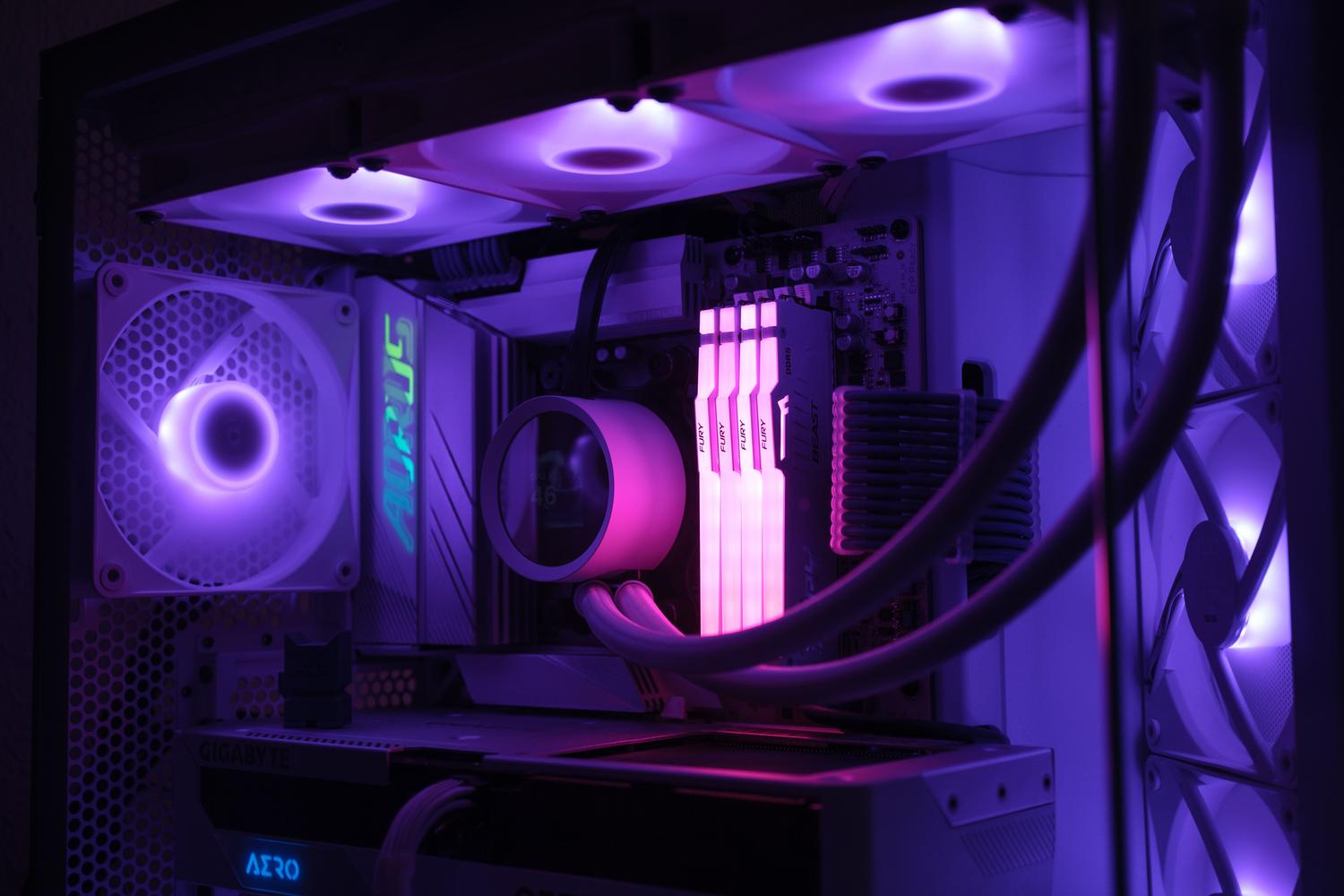
To get straight to the point, this executable is not a native part of the Windows operating system, but rather belongs to third-party software developed by Micro-Star INT'L CO., LTD, better known as MSI. Specifically, it is a component of LED Keeper Servicewhich is closely linked to tools such as Mystic Light and the old One DragonCenter or the current one MSI Center SDK.
Its main function is quite simple but visual: it is responsible for manage RGB lighting of MSI hardware components, such as motherboards, keyboards, or mice. Basically, it's the process that allows you to change the colors of your lights and synchronize their effects. If you don't have MSI hardware or simply don't care about the lights being bright, this process is completely unnecessary for the operation of the system.
Location and security: Is it a virus?
This is where things get interesting. Under normal circumstances, the file should reside in paths like C:\Program Files (x86)\MSI\MSI Center\Mystic Light\ or similar folders within Program Files. If the process is located in these paths and has a valid digital signatureIt is most likely legitimate MSI software, even though it is malfunctioning and consuming too much CPU.
However, caution is advised. Some types of malware or Trojans They often disguise themselves by using familiar process names to go unnoticed. If you notice that LightKeeperService.exe is located in the folder C:\Windows or in C:\Windows\System32You have reason to worry, since the original software is never installed there. In such cases, it's essential to run a powerful antivirus or tools like [insert tool names here]. Malwarebytes to clean the equipment.
How to manage the problem from the Task Manager
Task Manager is your best friend when your PC is running slowly. To access it, you can use the following key combination: Control + Alt + Delete or simply right-click on the taskbar. Once inside, in the tab of ProcessesYou'll be able to see in real time how much CPU, RAM, disk, or GPU each application is consuming.
- Complete task: If the MSI process is causing lag, you can try right-clicking on it and choosing Finish taskHowever, as we have seen, sometimes the system denies access.
- Search online: If you see a strange process, the Administrator allows you to right-click and select Search online to quickly identify whether it is a safe component or a threat.
- Startup Management: On the tab of StartYou can disable LightKeeperService from running automatically when you turn on your PC, which will help to Windows boot faster.
Definitive solutions to eliminate CPU consumption

If you've confirmed it's not a virus but it's still draining your system's processing power, you have several options. The most drastic is to uninstall it. MSI Center SDK or the MSI SDK from the Control Panel in the Programs section. Note that by doing this, You will lose control over the RGB lights of your hardware, but you will regain the stability of your processor.
If you prefer to keep the lights on, try update the software Visiting the official MSI website. Often, these spikes in power consumption are due to bugs in older versions that are fixed with a patch. It's also advisable to keep the system clean using commands like sfc /scannow o DISM.exe /Online /Cleanup-image /Restorehealth to repair corrupted system files that may be interfering with the service.
For those who want a more in-depth analysis, there are tools such as Security Task Manager that offer a risk rating based on the behavior of the process, allowing detection of whether the executable is logging keystrokes or connecting to external networks in a suspicious manner.
To resolve the lag caused by this MSI process, the best solution is to update the RGB control software or, if you don't need the lights, uninstall the corresponding SDK from the Control Panel. It's crucial to verify that the file is located in the Programs folder and not in the Windows root folders to rule out any malware infection, thus ensuring smooth processor performance and greater overall system stability. Now you know what LightKeeperService.exe is and why it appears in Task Manager.

Index