- SysMain optimizes startup and application launch using available RAM.
- On computers with limited hardware, it can cause slowness and high resource consumption.
- Deactivation is simple and recommended for older or very slow computers.

SysMain It is one of those Windows services that usually goes unnoticed by most users, until one day the computer's performance begins to suffer and everyone starts to wonder: What is this process that consumes so many resources? If you've ever opened Task Manager and found that your hard drive or CPU is at 100% full and one of the culprits is "SysMain" (formerly known as SuperFetch), this article is for you.
In this article, we'll explain everything related to SysMain in detail, from how it works, the benefits and risks of having it enabled, who should disable it, and how to do it step by step.
What is SysMain and what is it used for in Windows?
SysMain is a Windows-managed service designed to improve overall system performanceIts main function is to anticipate the programs and files you're going to use and preload them into RAM, speeding up the launch of the applications you use most frequently.
This service is not really new. Since the Windows Vista era it was known as SuperFetch, and since Windows 10, it's been renamed SysMain. It works in the background, constantly monitoring your usage patterns and "learning" which programs you open daily: your favorite browser, office programs, games, etc. If it detects that you open, for example, Google Chrome as soon as you turn on your PC, SysMain tries to preload the necessary files so that, when you click on it, the application launches almost instantly.
The key is how you use RAMSysMain takes advantage of the unused memory to preload applications. If you ever need that RAM space to open other programs, the service automatically frees up what it preloaded, preventing serious system disruption.
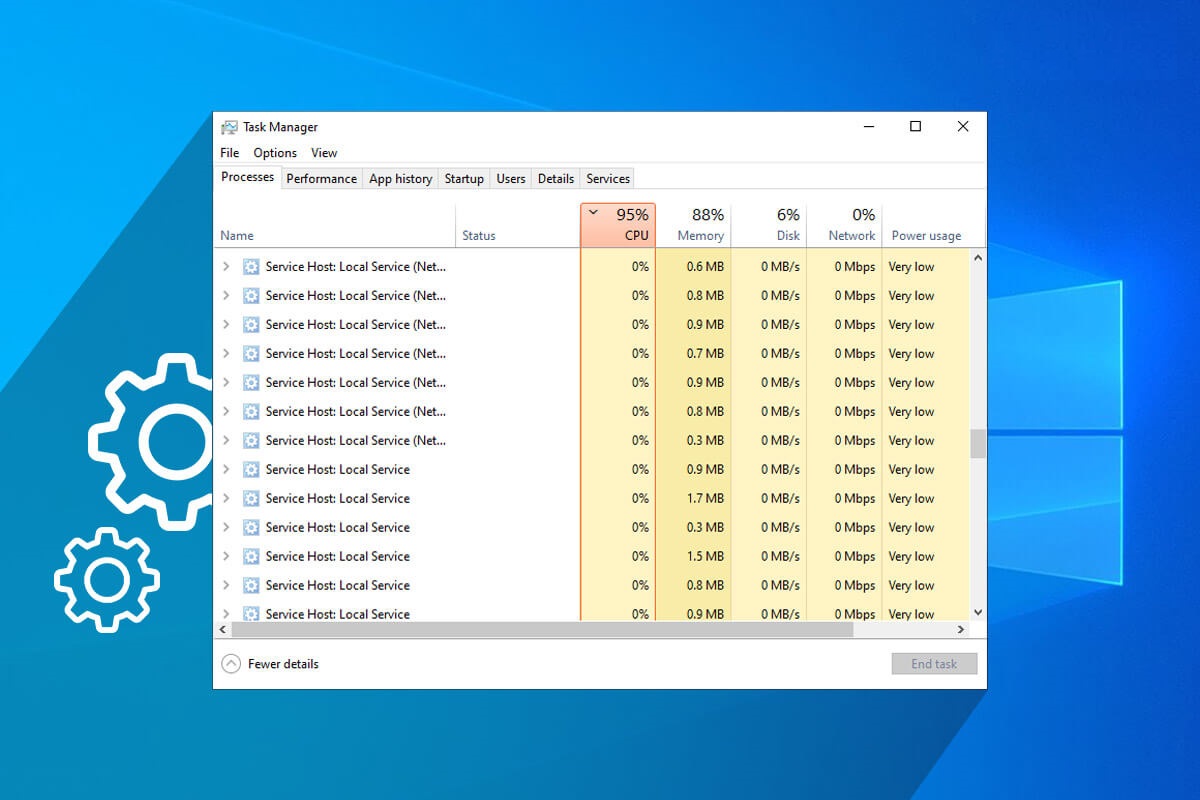
SysMain's main objective: to improve the user experience
The purpose of this service is clear: reduce loading times of common applications and make the operating system more efficient. This means opening your browser, file explorer, or even your favorite photo editor should take less time and your PC should feel smoother.
This feature may go unnoticed because SysMain only uses free RAM and does not interfere with RAM already used by other processes.That is, if you have 8GB of RAM and you only use 4GB with what you have open, the rest can be used by SysMain for its preloading task.
When the system needs more memory for other tasks, SysMain frees up resources instantly. Therefore, in theory, it shouldn't negatively impact overall computer performance except in specific situations, which we'll discuss later.
Why does SysMain appear to be consuming excessive resources?
SysMain does not always work perfectly.On some computers, especially older ones or those with limited hardware, this service can cause problems such as:
- Spikes in hard drive and CPU usage, especially when starting the operating system or after an update.
- General slowness when trying to use the system, with sporadic crashes.
- Hard drive (usually HDD) working at 100% for several minutes, slowing down any other task.
The cause of these problems is in How SysMain manages access to system resources. When trying to preload many programs in computers with little RAM or mechanical hard drives (HDDs), can saturate bandwidth and leave other applications without room to operate. On modern computers with SSDs and sufficient RAM, this doesn't usually happen.

Situations where it is recommended to disable SysMain
Although the main objective of SysMain is positive, It doesn't work equally well on all computers.In fact, if your computer meets any of these characteristics, you may want to consider disabling the service to improve performance:
- Low-end PC or with less than 4 GB of RAM.
- Mechanical hard drive (HDD) instead of an SSD.
- Old or underpowered processor.
- Teams in which Slow boot times and excessive disk usage by SysMain.
In these cases, the cure may be worse than the disease, and SysMain can cause your computer to run even slower, making it downright frustrating when trying to work or enjoy your computer. If you notice that Task Manager shows the disk or CPU at 100% and the "SysMain" process is listed as one of the busiest, disabling it can revive your PC.
Advantages of having SysMain enabled on suitable computers
If you have a modern PC, with SSD and at least 4 GB of RAM, Keeping SysMain enabled usually provides more advantages than disadvantages.:
- Faster startup of Windows and programs: The most used files are already preloaded into RAM.
- Better user experience: Less waiting when opening common apps.
- Taking advantage of all RAM: Prevents part of the memory from going unused.
- Almost imperceptible impact potentially, thanks to dynamic memory management.
The decision to enable or disable it should be based on how you experience the actual performance of the system., rather than what any general guide says.
How to identify if SysMain is causing slowness?
The first step is to open the Windows Task Manager (Ctrl+Shift+Esc or right-click on the taskbar). Look at the “Processes” and “Performance” tabs:
- If the hard drive is constantly near 100% and you see “SysMain” or “Service Host: SysMain” among the most active processes, it is very likely causing bottlenecks.
- On computers with SSDs, this symptom usually lasts a short time and is barely noticeable, but on HDDs it can be unbearable.
- Other processes such as “svchost.exe” may also reflect consumption by hosting SysMain in the background.
If after disabling SysMain the computer runs more smoothly, the cause was clear. However, you may notice that apps take a couple of seconds longer to launch, as you lose RAM pre-loading.
How to enable or disable SysMain step by step
By default, SysMain is enabled in Windows 10 and Windows 11., so you usually won't need to do anything to "take advantage of it." But if you're experiencing slowness or just want to experiment to see if disabling it improves performance, here are the steps you should take:
Via Services application
- Click the start button and search for the "Services" app. You can type "services" into the search box.
- Alternatively, press Windows + R, writes services.msc and click “Accept”.
- Once on the list, look for the entry called “SysMain”.
- Double-click on it to open its properties.
- In the window that opens, click on "Arrest" to stop it immediately. Then, in the field “Start type” select “Disabled”.
- Click "OK" to save the changes. This will prevent SysMain from restarting the next time you start Windows.
What are the side effects of disabling SysMain?
Disabling SysMain can provide benefits on older or limited computers., but it has certain side effects that you should be aware of:
- Windows and frequently used applications will start more slowly..
- RAM management will be more “manual” and Windows will not proactively optimize its use.
However, on PCs where the hard drive is always full, those extra seconds of boot time are more than compensated for by the improved fluidity.
Ideally, Test for a few days how the computer responds after deactivationIf you notice that everything is going better and you don't miss the preload, you can leave it as is. If not, reactivate it using the same procedure.
What are the differences between SysMain and other optimization programs?
Unlike third-party tools that promise to speed up your PC by uninstalling bloatware or tweaking system settings, SysMain is a native service built into Windows, optimized by Microsoft and running seamlessly and automatically. It doesn't require any complicated downloads or configuration, and in most cases, its use is justified by the benefits it provides on modern computers.
If you decide to disable it, you do not need to install any additional application to make up for its absence.Windows will continue to function correctly, although without the intelligent preloading of commonly used applications.
SysMain is one of those services that, when managed properly, can make the difference between a slow and inefficient Windows or a computer that responds like new. The key is to know your hardware and adapt the configuration to your real needs.If your computer is bogged down to the max and the hard drive is giving no more power, disabling it may be the solution you were looking for. But if you have a current PC, leaving it enabled will help you enjoy a much smoother and faster experience, taking advantage of all the advancements Microsoft has introduced in its operating systems over the years.

Editor specialized in technology and internet issues with more than ten years of experience in different digital media. I have worked as an editor and content creator for e-commerce, communication, online marketing and advertising companies. I have also written on economics, finance and other sectors websites. My work is also my passion. Now, through my articles in Tecnobits, I try to explore all the news and new opportunities that the world of technology offers us every day to improve our lives.