- 100% CPU usage is normal only during demanding tasks, but if it persists for a long time it indicates a problem that should be investigated.
- The most common causes include background processes, poorly optimized programs, malware, outdated drivers, or insufficient hardware.
- Solutions include closing unnecessary applications, scanning the system for viruses, optimizing power plans, physically cleaning the computer, and updating drivers.

¿What really happens when your CPU is at 100%? Have you ever noticed that your computer starts to slow down, the fans become louder than usual, and everyday tasks take forever to complete? Many users experience this problem without really knowing the reason. In most cases, the cause lies in a phenomenon that is as well-known as it is dreaded: Your computer's CPU has reached 100% usageBut what does this actually mean? Is it always a bad thing? Can it damage your PC? If you've ever wondered, you'll find all the answers here, explained in a simple and straightforward way.
When your CPU is at its maximum capacity, it's not just a high number in Task Manager, but a symptom that your entire system is working at its limit.The causes of this crash can be many and varied: from hidden processes and poorly optimized applications to viruses or even hardware issues. In this article you will discover in detail what really happens in these situations, what risks there are, how to identify the problem and, above all, what solutions you have at your disposal to regain control of your computer.Get comfortable because we're going to break down, step by step, everything you need to know about the dreaded 100% CPU usage.
What does it mean when your CPU is at 100%?

The CPU (Central Processing Unit) is the brain of your computer: it executes calculations, interprets instructions and coordinates all system tasks.. When you see the usage percentage reaches 100%, it means that is working at full capacity, without rest, managing all the commands it receives from programs, background services, system processes, and any tasks that are currently running.
No modern processor is designed to constantly run at 100%.Yes, they can occasionally reach this peak during very demanding tasks, such as rendering a video, playing next-gen games, or compressing large files. But if this continues for too long and without a clear reason, Something isn't working as it should..
High CPU usage can cause anything from extreme slowness and hang up until a considerable increase in internal temperature, which in the long run can lead to damage to components if not managed correctly.
Is it normal for the CPU to reach 100%? Yes, in certain specific situations it is absolutely normal: video editing tasks, 3D modeling, scientific calculations, or even during very demanding games. However, If everything remains the same even with the computer apparently inactive or doing simple tasks (surfing, checking emails), it is time to investigate..
What actually happens to the CPU when it runs at 100%?
When your processor is overloaded, All programs, even the most basic ones, have to wait their turn for the CPU to allocate resources to them.This results in stuttering when moving the mouse, sluggish typing, unresponsive applications, and, if you're unlucky, even unexpected reboots or complete freezes.
Some consequences of keeping the CPU at 100% for a long time are:
- Loss of overall performance: The system becomes clumsy, slow and inefficient.
- Increase in temperature: The heat generated can cause the fans to work at maximum speed to prevent overheating. If cooling is insufficient, the CPU protects itself by lowering its frequency (known as throttling). throttling), and the team is going even slower.
- Component wear: Constant heat and stress can shorten the life of the processor and other nearby components.
- High energy consumption: The computer uses more electricity and, if it is a laptop, the battery lasts much less.
Most of the time, the operating system or the processor itself activates protection mechanisms. trying to maintain stability. For example, if the temperature rises, the CPU slows down, sacrificing performance to avoid damage.
What are the most common causes of high CPU usage?
When talking about processors at full performance, it is not always the fault of the physical partThe origin is usually in the software and is usually due to a combination of these factors:
- Background processes: Apps or services that are still running even if you don't see them, such as updates, cloud syncing, file indexing, or automatic checks.
- Poorly optimized programs: Some apps (especially those that haven't been updated in a while) may have bugs or not manage resources well.
- Too many applications open at the same time: Having dozens of browser tabs open, along with several demanding programs, can overwhelm the capacity of any CPU.
- Virus or malware: Malicious software often wastes resources, either for malicious purposes (such as mining cryptocurrency) or simply because it is poorly programmed.
- Problems with antivirus: Sometimes the antivirus itself consumes too many resources with constant scans or internal conflicts.
- System services with errors: Processes like the WMI Provider Host (responsible for managing tasks and system monitoring) can become bogged down and increase processor usage.
- Outdated or incompatible drivers: An old driver can cause conflicts, errors, and high power consumption.
- Faulty or poorly connected hardware: Although less common, a physical failure in the motherboard, power supply, or CPU itself can cause abnormal spikes.
Knowing the specific origin is the first step to solving the problemWe will see how to identify it later.
It must be emphasized that, On older laptops or those with outdated systems, internal Windows processes (such as Superfetch or Windows Search) can also be major culprits. from high consumption, especially after installing new versions of the operating system.
What really happens when your CPU is maxed out? How can you prevent it?
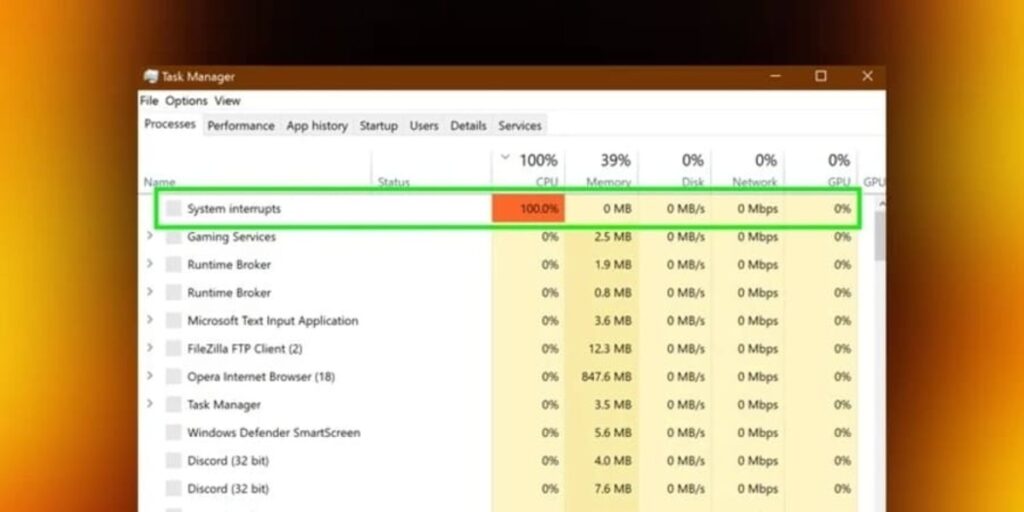
Windows Task Manager is your best ally to find out what's happening on your PC. If you notice your computer experiencing the symptoms described, try these steps:
- Press Ctrl + Shift + Esc to open Task Manager.
- Go to the tab Processes and click on the “CPU” column to see which programs consume the most resources.
- Observe if any process appears with very high percentages constantly. If it's your browser, try closing tabs. If it's a specific app, try closing or restarting it.
- If you see unfamiliar names, search for them online (often you may discover they are malware or problematic processes).
In the details tab you can also sort by "PID"This is useful when you've identified a problematic process using Event Viewer, as you can search for the exact process number.
If the process consuming the CPU is "System Idle Process," don't worry: the higher it is, the more free your processor is. It's not a fault.
In case it is a system process like "Service Host" or "WMI Provider Host" who is saturating the usage, it is advisable to check the Windows Event Viewer to find out the specific service or program that is behind it.
Methods to reduce 100% CPU usage
At this point, it's time to take action.There are numerous methods to reverse the high CPU usage situation, some faster and others requiring a little more patience. Here are the most effective, ordered from least to most complex:
1. Close unnecessary applications and processes
The most immediate thing is to close everything you are not using: Browsers, editors, games, or services that have been left open for no reason. Go to Task Manager, look for programs that are consuming a lot of power, and press "End Task."
Many browsers like Chrome or Edge warn you if a tab is using too many resources. Reduce the number of open tabs, especially if you have many with dynamic content (videos, social networks, advanced web applications…).
2. Identify and disable background processes
Many times the problem is in processes that you neither see nor use, but they are still active occupying CPU. To identify them:
- In Task Manager, check the Startup tab and disable programs you don't need to run at startup.
- In the "Services" tab, hide Microsoft services and disable non-essential third-party services (sound drivers, printers, etc.).
After making these changes, Restart your computer to check if the problem persists.
3. Scan your computer for viruses and malware
Malware is often one of the biggest culprits of constantly overloading the CPU.Run a full scan with your trusted antivirus. If you're unsure whether your current solution is working properly or suspect it's consuming resources, try temporarily uninstalling it (as long as you have Windows Defender active, which is usually sufficient for most users).
If you detect infections, delete the harmful files and restart your PC. If after cleaning everything the consumption is still high, continue with the following steps.
4. Update drivers and programs
Many CPU overhead issues stem from outdated drivers, especially network (WiFi, Ethernet) and graphics drivers.. Go to your manufacturer's website, download the latest versions, and install them. Do the same for your most important programs and Windows Update.
Keeping software up-to-date prevents conflicts and improves efficient resource management.
5. Adjust power plans
In some cases, a poorly adjusted power plan can limit the CPU's capacity or, on the contrary, force it to always work at its maximum.To check this:
- Access the Energy options from the Control Panel or Windows Settings.
- Set the plan to “Balanced” and restore it to its default settings.
- From "Advanced Power Settings," adjust "Maximum Processor State" to values between 90% and 100%, depending on your needs.
For laptops, make sure the plan you choose is right for your usage, especially if you're using it plugged into a power outlet or on battery power.
6. Check for physical and hardware problems
Not everything is software's fault. A power supply failure, bent processor pins, or poor contact with the socket can cause errors and power surges.If your computer has been damaged or the CPU is new, check that everything is installed correctly.
Besides, An insufficient power supply can cause the motherboard to apply undervolt (less voltage than necessary) to the CPU, causing instability or the processor to work at 100% even when there are no really demanding tasks.In those cases, consider changing the power source or adjusting your power plan.
7. Clean the equipment physically
Dust is the number one enemy of internal cooling.If the processor and case fans are dirty, the temperature will rise and the CPU will protect itself by lowering performance (which generates even more load and more heat, in a vicious cycle).
Open your PC and clean it carefully using a brush or compressed air. Never touch the components with wet hands or use vacuum cleaners other than those specifically designed for electronics.
8. Disable problematic system services
On older systems, Windows has services like Superfetch (SysMain) and Windows Search that can spike CPU usage for no apparent reason.To deactivate them:
- Open “Services” from the start menu.
- Find "SysMain" (formerly Superfetch) and "Windows Search." Double-click each, select "Startup type: Disabled," and apply the changes.
- Reboot and see if the situation improves.
With the latest versions of Windows, this problem occurs less, but it is still recommended on older computers.
9. Restart the WMI provider host
If you find that the WMI Provider Host process is using too much CPU, restart it:
- Go to "Services".
- Find “Application Management” and press “Restart.”
If it remains the same, another app may be interfering.
10. Reset the system or format
As a last resort, if nothing has worked and you can't identify the source, consider reinstalling Windows.Before doing so, back up your data. A clean install usually eliminates any lingering conflicts, hidden viruses, or configuration errors that haven't been resolved through other means.
How to avoid excessive CPU usage in the future
Preventing these types of situations is much easier than solving them once they occur. Here are some key tips:
- Disable programs you don't need from startupYou can do this from Task Manager or by using cleaning utilities like AVG TuneUp.
- Scan your computer regularly for malware and update your antivirus.
- Always close heavy programs after using them and avoid opening too many applications simultaneously..
- Update all drivers and the operating system to correct compatibility errors..
- Physically clean your equipment every few months to prevent overheating linked to dust.
Finally, if your computer tends to run out of resources, consider upgrading your RAM or installing an SSD drive.This way, you'll reduce the load on your CPU during everyday tasks.
Frequently Asked Questions about 100% CPU Usage
What is normal CPU usage? It is normal for the CPU to be below 10% while idle, rising to 10-30% when browsing the Internet or using simple programs. Gaming and video editing can easily push it to 80-100%, but only for the duration of the task. If the peak is temporary, there's no danger.
Is it dangerous to reach 100%? No, as long as it's temporary and the temperature remains under control. Such constant and prolonged use can cause crashes and overheating, shortening the CPU's lifespan if left unchecked.
Can the idle process cause high usage? No. The "Idle Process" indicates the percentage of the CPU that's idle. Seeing it at 99% indicates that the computer is quiet, not the other way around.
Can a game max out the CPU? Yes, if it's a demanding game or your computer is mid-range or low-end. The important thing is that the percentage drops after closing the game.
How long can a CPU be at 100% without risk? As long as the temperature doesn't exceed 90°C and there's good cooling, you can stay in it for hours without danger. However, for long sessions, it's best to monitor the heat and prevent it from becoming habitual.
Lesser-known causes of high CPU usage

In addition to the usual causes, there are less obvious reasons that can cause high processor usage, such as:
- Bloatware: Useless pre-installed software that consumes resources even if you never use it.
- Background Windows Updates, which sometimes generate intensive indexing or preparation processes even days after installation.
- Cloud sync tools (OneDrive, Dropbox, Google Drive) if you have large volumes of files pending upload or synchronization.
- Extreme environmental temperatures: A very hot environment can reduce the heat dissipation capacity of the equipment.
That's why you should not only look at the applications that appear in the Task Manager, but also at those that may be hidden or integrated into the system..
When is it worth changing hardware?
If after all the optimizations the use of the CPU If it keeps tripping with normal tasks, your computer may simply have lagged behind.. In such case:
- Expand RAM It can help if you work with several applications at once.
- Install an SSD drive speeds up program loading and reduces waiting times.
- Change the CPU or the entire computer It is the ultimate solution if you perform heavy tasks and your current hardware is already many years old.
Of course, many times cleaning, updating and taking care of the equipment is enough to recover it and give it many more years of useful life.. If you want to know more about optimizing your PC, we leave you guides like this one for check out how to upgrade your gaming PC.

Passionate about technology since he was little. I love being up to date in the sector and, above all, communicating it. That is why I have been dedicated to communication on technology and video game websites for many years. You can find me writing about Android, Windows, MacOS, iOS, Nintendo or any other related topic that comes to mind.