- Check that your mobile device and Chromecast are actually on the same Wi-Fi network and band, with location permissions enabled.
- Check router configuration: MAC filtering, isolation, UPnP, multicast, and IGMP.
- Improve connection quality with better coverage, changing the channel, or using an Ethernet adapter.
- Use restarts and, if necessary, reinstall or change the Chromecast's Wi-Fi network to resolve persistent issues.
¿What to do if Chromecast doesn't appear even though it's on the same network? You're holding your phone, the Chromecast is connected to the TV, everything is on the same Wi-Fi network... and your phone can't see it, while another phone in the house can. Don't worry, you're not the only one experiencing this, and it doesn't necessarily mean the device is broken. This type of issue is quite common and is almost always due to the network, router settings, the Google Home app, or small details that aren't immediately obvious.
In this guide you will find a very comprehensive compilation of all known problems and solutions When your Chromecast doesn't appear or connect even though it's on the same network: from the basics (restarting, checking Wi-Fi bands and location) to advanced router settings like UPnP, IGMP, MAC filtering, or client isolation. You'll also see what to do if your network is hidden, if you're using a guest network, if the cast icon doesn't appear on YouTube, or NetflixOr if everything seems fine but the connection is unstable and the videos are choppy.
Why doesn't Chromecast appear even though it's on the same network?

When a Chromecast doesn't appear in the Google Home app or in apps with the cast icon, there's almost always a communication problem on the local network. This doesn't simply mean that one of the two is not connected to Wi-Fi, but that there may be different bands (2,4 GHz and 5 GHz), separate networks by the router itself, device isolation, or a temporary software failure in both the Chromecast and the mobile phone.
It's also important to keep in mind that not all Chromecasts are the same.The classic models (1st, 2nd, and 3rd generation, Audio, and Ultra) work differently than Chromecast with Google TV, which has its own interface and is controlled with a remote. The reasons it doesn't appear can be the same, but some menus and network check steps vary depending on the model; if you need an introduction, see [link to relevant documentation]. What is Chromecast and how does it work?.
Another key point is the quality of the Wi-Fi connection and, in some cases, also the Bluetooth connection.A Chromecast with a very weak signal may stop appearing in the app, lose connection intermittently, or display messages indicating no internet access, even if you have Wi-Fi on your phone. Add to that router firmware errors or outdated versions of the Google Home app, and you've got a recipe for disaster.
Finally, some phones, due to location permissions or system settings, have more difficulty detecting the Chromecast.This explains some very frustrating situations: your main mobile phone doesn't see the device, but another older mobile phone or a tablet detects it without any problem, even though they are all on the same wireless network.
Basic checks before touching the router
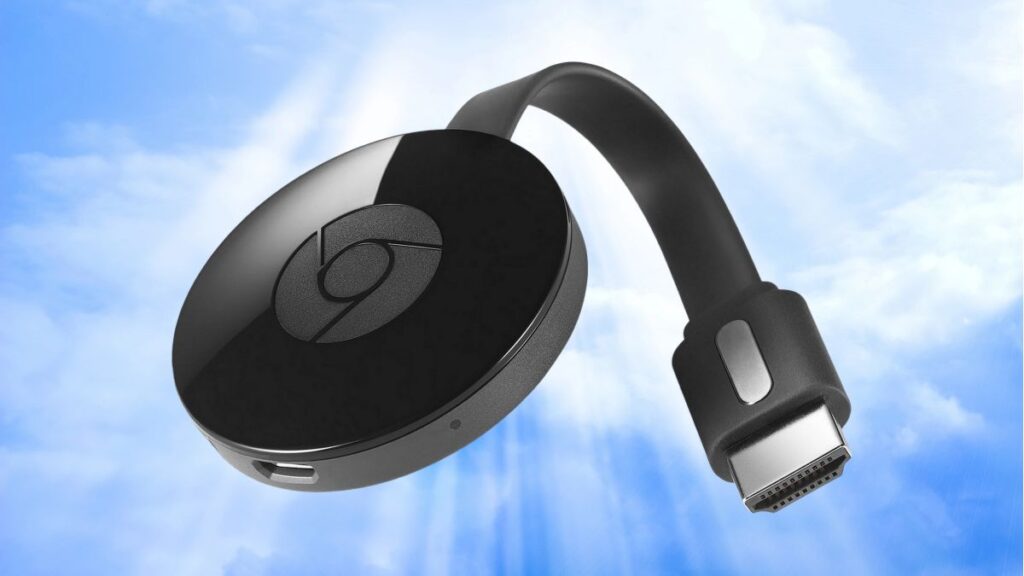
Before getting into unusual configurations, it's a good idea to review the basics that often go unnoticed. Often the problem can be solved with a simple restart or by correcting a mobile setting you had forgotten.
1. Make sure Chromecast is turned on and has a stable power supplyCheck that the power cable is properly plugged in and that the Chromecast LED is lit (usually white or flashing white in settings). If it's not lit, try a different USB port or use the official power adapter.
2. Check that the mobile phone is not using mobile data only.Go to your phone's settings and make sure Wi-Fi is turned on and connected. If you had mobile data on and Wi-Fi turned off, the send icon won't appear because your phone isn't even on the local network.
3. Confirm that Chromecast and mobile are on the same network (and not on a separate Wi-Fi network)Some routers create multiple networks (main, guest, extenders, etc.). If your Chromecast is connected to the main router's Wi-Fi network, for example, and your phone is connected to a repeater network that isolates devices, they won't be able to see each other even if their names are similar.
4. Close the app you use to send content and reopen it.Whether it's Google Home, YouTube, Netflix, Spotify, or similar apps, try closing the app completely and then restarting it. Sometimes the cast icon gets stuck and doesn't refresh the list of available devices.
5. Try another compatible deviceIf you have another phone or tablet handy, use the Google Home app to check if it detects the Chromecast. If one device detects it and the other doesn't, the problem clearly points to the "conflicting" phone (permissions, cache, system version, etc.), not the Chromecast or the network.
Check location permissions and mobile settings
From Android 6.0 onwards, the system requires that the location service be enabled in order for Google Home to detect nearby devices such as Chromecast. It is a security and privacy requirement that many people disable without realizing the consequences.
On Android, go to Settings > Location and enable global device location.Next, go to Settings > Apps > Google Home (or tap and hold the icon and tap App info) and check that it has permission to access your location. Without this permission, the app won't be able to properly scan the network or detect the Chromecast during the initial setup process.
If you already have Chromecast set up but the cast icon doesn't appear in the appsAlso check the permissions of those applications (YouTube, Netflix, etc.), as well as any battery saving settings or background restrictions that may interrupt communication on the local network.
On iOS, although the behavior is different, it is also recommended to check that the Google Home app has sufficient permissions. to work on the local network and use Bluetooth, especially in recent versions of iOS that request extra permissions to discover devices on Wi-Fi (see usage on iOS systems).
Check your Wi-Fi network: bands, coverage, and hidden networks
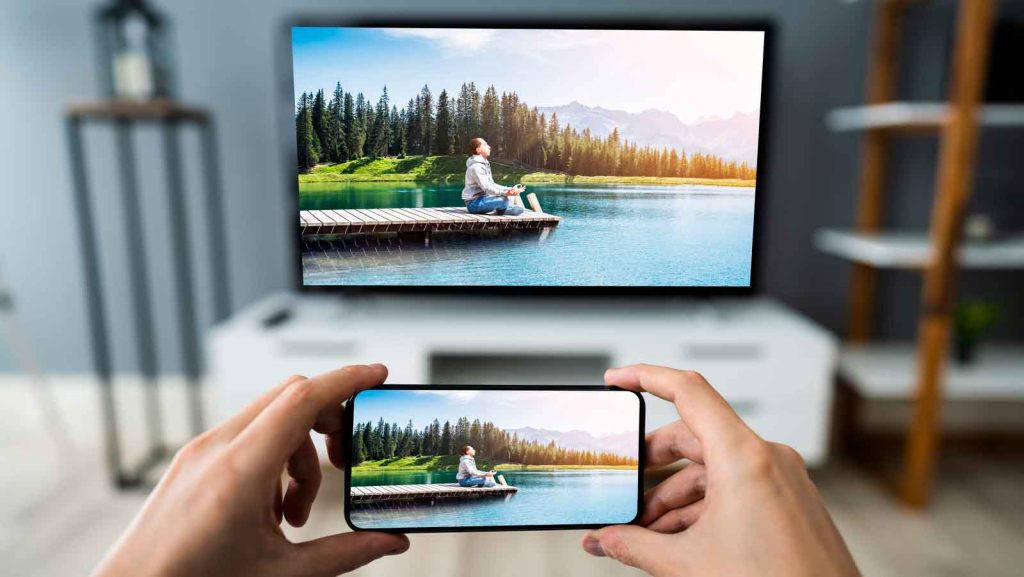
One of the most common reasons why Chromecast "disappears" is the way the Wi-Fi network is configured. You may be on a different band, the network may be hidden, you may be using a guest network, or the signal may be so weak that the device intermittently loses connection.
Differences between 2,4 GHz and 5 GHz
The first generation of Chromecast only supports 2,4 GHz Wi-Fi networks (802.11 b/g/n), while later generations and models like Chromecast Ultra or Chromecast with Google TV do support 5 GHz. If your router is dual-band and your Chromecast is older, you must connect it to the 2,4 GHz network; if you try to use only 5 GHz, it won't connect or appear in your network.
Check on the router which bands are active and what network name each one has.Many carriers add suffixes like "_5G" or "_Plus" to distinguish the 5 GHz band, while others use a single name and let the router decide which band each device connects to. In this second case, it's possible for the mobile phone to be on one band and the Chromecast on another, which the router isolates internally.
Insufficient coverage and continuous outages
If the TV is far from the router (for example, in another room, with several walls in between), the Wi-Fi signal is likely to be very weak. This can result in the Chromecast disconnecting, disappearing from Google Home, or videos buffering.
Improving coverage may involve moving the router to a more central locationUse Wi-Fi repeaters, mesh systems, or powerline adapters with built-in Wi-Fi. The stronger the signal the Chromecast receives, the more stable playback will be and the less often it will disappear from the list of available devices.
Hidden Wi-Fi network: Enter the SSID manually
If you have configured your router so that the network name (SSID) is not publicly broadcast, i.e., you have a hidden Wi-Fi, that network will not appear in the list during the Chromecast setup process.
On classic Chromecasts (1st, 2nd, 3rd generation, Audio and Ultra)When the Google Home app asks you to choose a Wi-Fi network, select the "Other" option and manually enter the exact SSID name and password. If you make a single mistake, it won't connect.
On Chromecast with Google TV and Google TV StreamerFrom your TV screen, go to Settings > Internet & networks > Add new network, and manually enter the SSID and password. You can do this using the directional pad on your remote or by dictating the text while holding down the Google Assistant button or the microphone button, depending on your remote.
If you don't remember the exact network name or password, you'll need to contact your internet provider. or access the router's control panel to view that information. Without that information, the Chromecast won't be able to connect to the hidden Wi-Fi network.
Specific problems during initial setup
In the first step of the setup, Google Home tries to detect the newly plugged-in Chromecast. If the device doesn't appear at that point, you won't be able to proceed. This is where power, mobile permissions, and the Chromecast's own stability all come into play.
If Google Home doesn't find the Chromecast in the first step, check the following:
- Confirm that the Chromecast is properly powered. and with the white LED flashing (or the color that indicates configuration mode on your model).
- Close the Google Home app completely and reopen it. to force a new scan.
- Double-check that location and permissions are enabled. on your mobile phone, especially on Android 6.0 or higher.
- Unplug the Chromecast power cable, wait about a minute, and plug it back in.Sometimes it gets "frozen" and this restart returns it to pairing mode.
- Try setting up Chromecast from another compatible phone or tablet.If another device does detect it, then you know where the problem is.
When Chromecast appears in Google Home but your Wi-Fi network is not listedSeveral scenarios are possible:
- You're only using a 5 GHz network and your Chromecast is first generationwhich it doesn't support. Go into your router's settings and make sure the 2,4 GHz network is enabled.
- The network is hidden and must be added manually. with the "Other network" or "Add new network" section, as we have seen before.
- You are trying to use a VPN, proxy, or an isolated guest networkwhich are not compatible with the standard Chromecast setup.
When Chromecast sees the network but can't connect
Another very typical scenario is that the Google Home app detects the Chromecast, you choose the correct Wi-Fi network, enter the password… and there is no way to establish the connection. If you are sure the password is correct, there are several options you should check on the router.
MAC address filtering
Some routers allow you to restrict which devices can connect based on their MAC address. If this filter is enabled and your Chromecast isn't on the whitelist, it will never connect to the network.
You can see the Chromecast's MAC address at the bottom of the device settings within the Google Home app.Go into your router settings, locate the MAC filtering section, and add the Chromecast's MAC address as allowed. If you're unsure how to do this, it's best to consult your router's manual or contact your internet service provider.
Client isolation / access point isolation
Many routers, and almost all guest network access points, incorporate a "client isolation" or "AP isolation" option. This feature prevents connected devices from seeing each other, for security reasons.safety tips), but that completely prevents your mobile from discovering the Chromecast on the same network.
If you have this isolation enabled on your router or repeater, disable it on the network where your mobile device and Chromecast connect.Otherwise, even if they both display the same Wi-Fi name, they will remain "blind" to each other.
VPNs, proxy servers, and other special configurations
Chromecast is not compatible with home networks configured through VPNs or with forced proxies on the router. If your access point forces traffic through a proxy or has VPN tunnels that affect the entire network, Chromecast will most likely fail to complete setup.
Check that your home router is not using a VPN or proxy for the network where your Chromecast is connected.If you want to use a VPN, the most practical way is to do it at the device level (for example, on your mobile phone) and not on the router that manages the home Wi-Fi network.
UPnP, Multicast and IGMP disabled
For your router to properly announce the presence of your Chromecast on your local network, protocols such as UPnP (Universal Plug and Play), multicast, and IGMP (Internet Group Management Protocol) are used. If any of these are disabled or misconfigured, your phone may not detect the device or may lose track of it after a while.
Enter the router's configuration interface and look for the UPnP and Multicast sections.Enable UPnP if it's disabled and ensure multicast traffic handling is allowed. For IGMP, enable the protocol if it was disabled, or disable "IGMP proxy" options if it's explicitly listed as a cause of blocking.
Keep in mind that modifying your router's settings without fully understanding what you're doing can have unwanted side effects.If you have any doubts, talk to your operator or the equipment manufacturer before adjusting advanced settings.
If your Chromecast is already set up but the cast icon doesn't appear
It's possible that you set up your Chromecast a while ago, it worked fine, and then, from one day to the next, the cast icon disappeared from YouTube, Netflix, or other apps. In that case, the focus is more on daily communication than on the initial pairing process.
First, check that your mobile phone is connected to the same Wi-Fi network as the Chromecast.It's not enough to have them on different networks of the same router, or for the mobile phone to be using mobile data or an alternative access point.
Next, close and reopen the application you are trying to send content from.If the icon still doesn't appear, try another app that supports Chromecast (for example, YouTube). If you see it in one app but not another, the problem is with that specific app.
If the icon doesn't appear in any app, you'll need to restart both your Chromecast and your phone.Unplug the device's power cable, wait a few seconds (ideally a full 30 seconds), and plug it back in. Then restart your phone, and once both have booted up, try sending content again.
In more stubborn cases, reinstalling the Chromecast often works like a charm.Press and hold the physical button on your Chromecast (next to the power port) until it performs a factory reset. Then open Google Home, tap the "+" button, select "Set up device," and follow the steps as if it were a new device. Make sure you select your usual home Wi-Fi network and that the code displayed on your phone matches the one shown on your TV.
Problems changing the Chromecast Wi-Fi network
When you change your internet service provider, replace your router, or change your Wi-Fi name and password, your Chromecast may get stuck on the old network. In many cases, if it stops detecting its usual network, it automatically enters configuration mode so you can reconnect it. But it doesn't always do so correctly.
If it doesn't detect the network change on its own, you can force it to forget the network from the Google Home app.Open the device list, press and hold the Chromecast icon, go to Settings > About device > Wi-Fi and tap Delete or Forget network.
Once the saved network is removed, update the Google Home app. (Scroll down to refresh, for example) and a message like “Set up Chromecast” or similar should appear. From there, repeat the wizard as you did the first time, but this time selecting your new Wi-Fi network.
If that still doesn't give you any options, the last resort is a full reset. Press and hold the physical button on the Chromecast until the LED changes state, indicating that it has been reset. After this factory reset, any trace of the previous network will disappear.
Weak connectivity: weak Wi-Fi or Bluetooth signal
Google warns on its own support page that sometimes the problem is not that the Chromecast is not set up, but that its connection is so weak that it behaves as if it does not exist. The light flashes, the TV indicates there is no connection, or Google Home says the device is offline.
Clear signs that the Chromecast connection is poor They can be:
- Chromecast light blinking abnormally beyond the normal startup blinking.
- The device does not appear in Google Home or it appears and disappears intermittently..
- The television displays messages indicating that the Chromecast is not connected. or that the network has been lost.
- The videos play in a choppy manner, with constant pauses, or with very pixelated quality for too long..
In these cases, it's advisable to recheck the physical distance to the router, network congestion, and, if possible, connect the Chromecast to the 5 GHz band. when coverage allows. Conversely, if the router is far away, the 2,4 GHz band is usually more stable, although sacrificing some speed, especially if you want to watch 4K content.
Another curious cause of problems is having the Chromecast too close to the TV or other cables.This can cause interference. If your model allows it, use a small HDMI or power extension cable to separate it a few centimeters from the TV casing and other nearby electronic devices (see also overheating problems).
If you suspect errors in the router itself, updating its firmware can make all the difference.Access your router's control panel from a computer connected via Ethernet cable. Enter the IP address indicated on the device's sticker, log in with your username and password, and look for sections such as Firmware, Update, or Upgrade. Click the button to check for new versions, and if an update is available, apply it following the manufacturer's instructions. Also, check if your Chromecast needs any updates. patch or specific update.
Advanced solutions: Ethernet adapter and network upgrade
When your home Wi-Fi is very congested or unstable and you're tired of dealing with disconnections and disappearances, there are more decisive solutions. One of the most effective solutions is to stop relying on Wi-Fi for the Chromecast and use a wired connection.
Chromecast devices are compatible with Ethernet via a specific adapter.They don't have a built-in network port, but you can buy the Google adapter (or other compatible ones) that combines power and network cable into a single connector for the device. This way, the Chromecast connects directly to the router via cable, without wireless interference.
This solution is usually very effective in homes with many Wi-Fi networks nearby. (buildings with dozens of neighbors, for example) or when the wireless signal has to pass through several walls. By removing the Chromecast from the Wi-Fi "battle," a good portion of the problems are eliminated at a stroke.
Another option, if you suspect that the specific network it's connected to is the problem, is to switch it to a different Wi-Fi network. that you have available (for example, the signal from a repeater closer to the living room). To do this:
- Open Google Home and select your Chromecast device on the list.
- Tap the Settings gear iconGo to General > Device Information and then to Wi-Fi.
- Select “Forget connection” in the menu that is displayed.
- Update the Google Home app and wait until the option to reconfigure the Chromecast appears.
- During the new wizard, select the other Wi-Fi network you want to test.This way you can check if the fault was with the original network.
Performing this test using a mobile network in router mode (tethering) can be useful To rule out a faulty Chromecast, check the settings. If it works perfectly with your mobile hotspot, the problem lies with your home router or your internet service provider's configuration.
What to do if videos are choppy or of poor quality
Even if the Chromecast is properly connected and appears without problems in all apps, the experience may be poor: pauses, constant buffering, or a very pixelated image. Here we are no longer talking about it "not appearing", but about connection problems that often share a common cause.
First, make sure the streaming service isn't the culprit.Check if YouTube, Netflix, Prime Video, or the platform you use is experiencing general issues (you can check on other devices or consult status pages). Sometimes the drop in quality or interruptions are due to their servers, not your connection.
If it only happens at your house, check the speed and stability of your internet connection.With a standard fiber optic connection, you should be able to watch Full HD and even 4K content without major problems, but with ADSL or very limited download speeds, videos may have to lower their resolution often or stop loading.
Placing the router as close to the television as possible helps a lotReducing distance and obstacles improves both network speed and stability, and this is immediately noticeable in Chromecast performance.
It's also advisable to check which Wi-Fi channel your router is broadcasting on.In areas with many neighbors, some channels are congested and cause interference. Using a "Wi-Fi analyzer" app on your phone, you can see which channels are less congested and switch your router to a less busy one. If you don't want to complicate things, enabling automatic channel selection can be a reasonable solution, although it doesn't always choose the best option.
Finally, if you usually send local high-definition files from your mobile phone or PC to the ChromecastKeep in mind that this requires significantly more bandwidth and stability than simple cloud streaming. In these cases, any network weaknesses are more noticeable, and it might be worthwhile to switch to an Ethernet cable or upgrade your Wi-Fi infrastructure.
By putting all these points together—checking that your phone and Chromecast are actually on the same network, verifying location permissions, ensuring good coverage, disabling filters and isolation on your router, keeping firmware and apps updated, and using Ethernet or another network when necessary—it's very rare for a Chromecast to still not appear or connect correctly.It may take a while to rule out causes, but once you find the problematic setting, the device usually behaves stably for a long time.
Index
- 1 Why doesn't Chromecast appear even though it's on the same network?
- 2 Basic checks before touching the router
- 3 Check location permissions and mobile settings
- 4 Check your Wi-Fi network: bands, coverage, and hidden networks
- 5 Specific problems during initial setup
- 6 When Chromecast sees the network but can't connect
- 7 If your Chromecast is already set up but the cast icon doesn't appear
- 8 Problems changing the Chromecast Wi-Fi network
- 9 Weak connectivity: weak Wi-Fi or Bluetooth signal
- 10 Advanced solutions: Ethernet adapter and network upgrade
- 11 What to do if videos are choppy or of poor quality
