
If Google won't let you recover your account, even though the password was correct, it's really frustrating. This problem usually happens when Google detects suspicious changes in your location or device by activating automatic security locks. Let's look in more detail at why this happens and how to regain access to your information without getting frustrated in the process.
Why won't Google let you recover your account even though the password is correct?

Why won't Google let you recover your account, even though the password is correct? It's incredibly frustrating to enter your password correctly and still be locked out of your own account. While this can be very stressful, there's a logical explanation: For Google, the security of the ecosystem is more important than the coexistence of a user. individual.
Even with the correct password, if the system cannot verify with 100% certainty that it is you trying to log in, it will block access to prevent potential hacking. These are the Main reasons why Google won't let you recover your account even with the correct password.
Absence of the "Trust Device"
Did you know that for Google The password is just one of several layers of securityThat's right. If you try to log in from a new device (or from your device, but one that was recently factory reset), the system loses what allowed it to trust that device.
- Why does this happen? Google associates your account with unique hardware identifiersIf these change, the password is no longer sufficient and the system requires a second factor such as an SMS code or a recovery email.
Unusual location and IP address
A second reason why Google won't let you recover your account even with the correct password is that You are trying to access from a different network than usual.For example, if you are connected from a different Wi-Fi network or if you are outside your city or country, the anomaly detection algorithms are triggered.
- Possible riskGoogle may believe that an attacker has stolen your password and is trying to use it from their own location. The system blocks access, waiting for you to try from your usual location.
Two-Step Verification
If at any point you activated the two-step verificationBut if you don't have access to the linked phone, you're stuck. What's the problem? Google concludes that if someone has the correct key but not the trusted physical device, it's an attempted theft.Therefore, you can ignore the correct password; it's an extra security measure.
What to do if Google won't let you recover your account

Now that you know the main reasons why Google won't let you recover your account, let's see what you can do to achieve this. There are effective technical methods to overcome these obstacles, regain access to your information, and secure your digital identity. Here they are. Technical steps to recover your Google account.
Use a known device and network
As we saw, Google relies heavily on familiar environments.To increase your chances of successfully recovering your account, try the following:
- Use a "Trusted Device"Try recovering your account from your usual phone or computer where the account used to be open.
- Connect from a known networkIf you're using mobile data, switch to your home Wi-Fi network or the one you usually log into. And if you're using a VPN, turn it off and try again.
- Use your usual browserYour browser history and cookies help the system recognize you. Therefore, do not attempt to use incognito mode to recover your account.
Use the Recovery Form
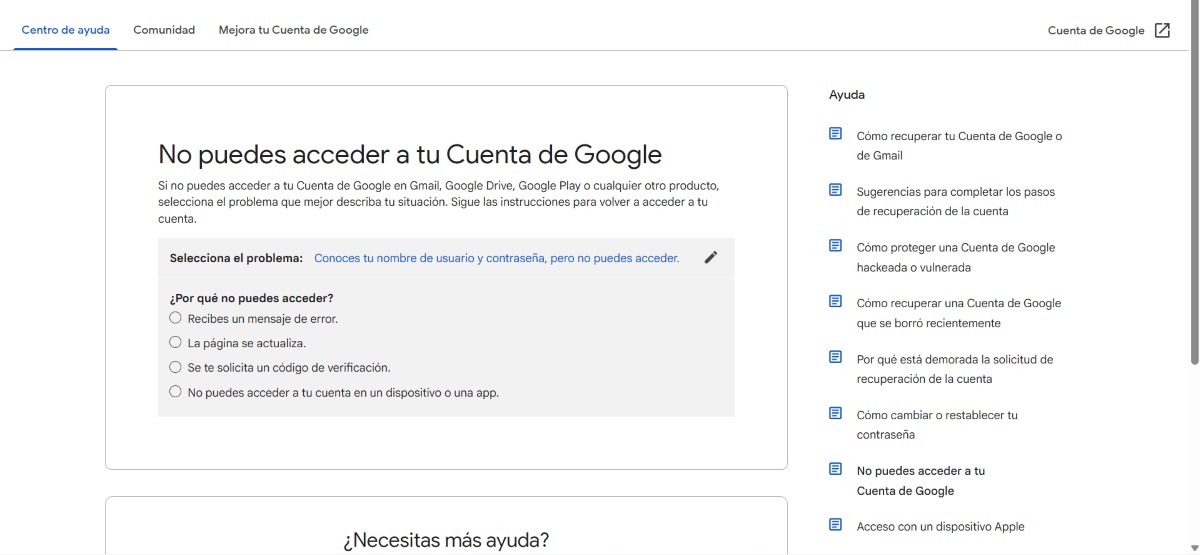
If Google won't let you recover your account, you can always use the recovery formTo do this, you must go to the website of g.co/recover and follow the instructions. In addition, here are some ideas that will help increase your chances of success:
- Don't skip questionsAvoid leaving fields blank. If you don't remember the exact answer, write the closest approximation.
- Use an old passwordIf you recently changed your password and the system isn't accepting the new one, try entering your old password. Sometimes Google can recognize it as valid proof of identity.
- "Try another method"If Google tries to send you a code to the same email address you're trying to recover, look for the "Try another method" option to use your phone number or an alternative email address you've set up before.
Check out other active services
Is your Google account still active elsewhere? If so, you might be able to authorize access from there. For example, you can check YouTube or Gmail on your phone. If you can't sign in on your PC, your phone might still be active. Check if you've received a notification. security notification or a code in the Google app.
Are you absolutely sure you're using the correct password to recover your account? If you haven't noticed, you can check your Google password manager or your phone's keychain to see if there are any minor typos you might be missing. If you find any errors, this is why Google won't let you recover your account.
Wait for the Cooling Period
If Google won't let you recover your account after many consecutive attempts and you receive the message "Too many failed attempts", the best thing to do is stop completely for 24 to 72 hoursIn this regard, keep the following in mind:
- Each failed attempt reinforces the suspicion that someone is trying to hack your account.
- When you let this time pass, the system usually relaxes the security restrictions.
Important reminderKeep in mind that Google does not offer human support for recovering free Gmail accounts.The entire process is automated through their identity verification algorithms. If someone contacts you claiming to be from Google technical support and asks for money to recover your account, it's a scam.
In conclusion, if Google won't let you recover your account, You need patience and technical precision.If you prioritize using known devices and respect the waiting times, your chances of success increase. Follow these steps carefully to overcome the system's security blocks and regain access to your account.

Index