
Does Windows delete your wallpaper after restarting your computer? This annoying error affects many users and can have various causes, from hardware errors to poorly synced settings. In this post, we explore the most common reasons behind the problem and We guide you step by step to recover your wallpaper without complications.
Why does Windows delete your wallpaper after restarting your computer?
There are several reasons why Windows deletes your wallpaper after restarting your computer. For one, it may be due to a problem with the physical connections of your equipmentIf you use multiple displays, your screen may be streaming to a second monitor. Even if your graphics card drivers are outdated, this could explain the problem.
Other possible reasons why Windows deletes your wallpaper are:
- Accidental deletion of the file.
- Incomplete or failed updates.
- Active theme synchronization in Windows.
What to do when Windows deletes your wallpaper
If Windows deletes your wallpaper after restarting your computer, but the icons remain, don't worry. You're not the first person this has happened to. Sometimes the taskbar disappears, other times the background, and sometimes even the icons disappear. Therefore, as a first suggestion: restart your computer againMaybe a simple reboot will fix the problem. But, of course, you've probably already done that, and your screen still has no background. Let's look at other practical solutions.
Check the computer's physical connections
If you have a desktop computer or use an external monitor, the first thing you should check is its physical connections. Make sure the device is fully charged or plugged in. Also, verify that the external monitor is properly connected and turned on. One thing that may solve the problem is: disconnect the HDMI cable and reconnect it.
Check the display mode
Leaving aside your computer's hardware, let's move on to simple configurations: check the screen modeThis is especially useful if you use multiple displays on your computer and suspect your screen may be streaming to a second monitor. To do this, do the following:
- Press the keys Windows + P to see the available screen modes.
- Again, press the letter P to move for each screen mode
- To change or select a different mode, simply press Enter.
Check if the background file still exists and its location
One of the most common reasons why Windows deletes your wallpaper is that the file you used has been moved or deleted. There are also common issues when saving the file to a cloud service like OneDrive and not locally on the computer. In that case, save the image to a permanent folder on your computer, such as Images. Once done, select the image from there and set it as your wallpaper again.
Rename the wallpaper file
Windows has a “transcoded” wallpaper file that can occasionally become corrupted. In that case, what you need to do is Delete or rename the TranscodedWallpaper.jpg file and to do so follow the steps below:
- Go to Windows File Explorer and copy this address: %USERPROFILE%\AppData\Roaming\Microsoft\Windows\Themes
- Once there, locate the TranscodedWallpaper.jpg file and rename it to TranscodedWallpaper.old
- Finally, Restart your computer. This way, Windows will recreate the corrupted file and the problem will be solved.
Resets personalization settings
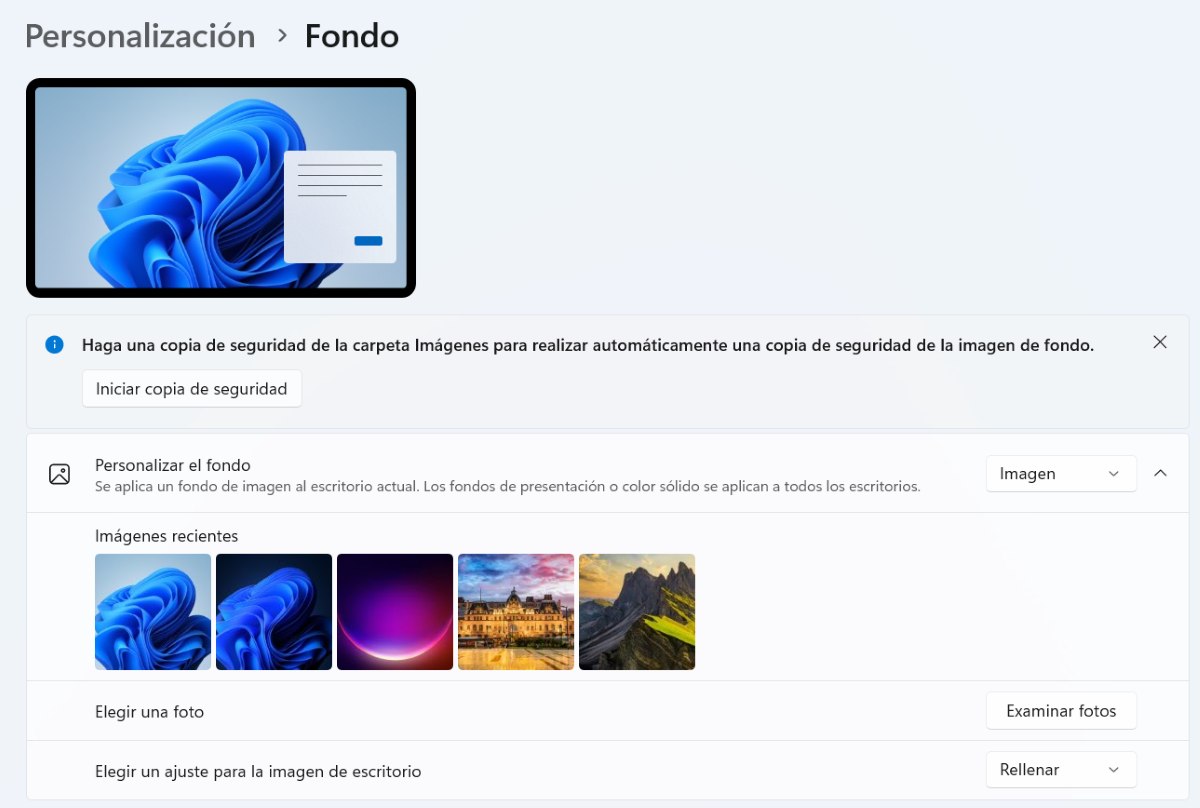
Another solution to the problem is to reset your personalization settings, or, in other words, manually reset the image you had as your wallpaper. To do this, go to Configuration – Personalization – Background – Image – browse photos and choose the image you want. Make sure the presentation mode (solid color, slideshow, etc.) is disabled if you don't want it.
Update display drivers
Updating your display adapter drivers can also fix the problem where Windows keeps erasing your wallpaper. To do this, You can take advantage of the Device Manager and check if there are any updates available.Keep in mind that an outdated driver can cause errors after restarting your computer. The steps to update it are:
- Right click on the Windows Start button.
- Select Device Manager.
- Expand the section Display adapters and locate your computer's graphics card.
- Right-click on it and select Update driver – Search for drivers automatically.
- Done. If the problem was due to an outdated driver, once you restart your PC you'll see your wallpaper as usual.
Turn on the display if Windows deletes your wallpaper
Something else you can try is to turn on the screen. To do this, Press Windows + Ctrl + Shift + B to reset the graphics driver. When you do this, you should hear a beep or see a flicker on the screen if done correctly. This will especially help if the problem occurred after a Windows or driver update.
Restart Windows Explorer
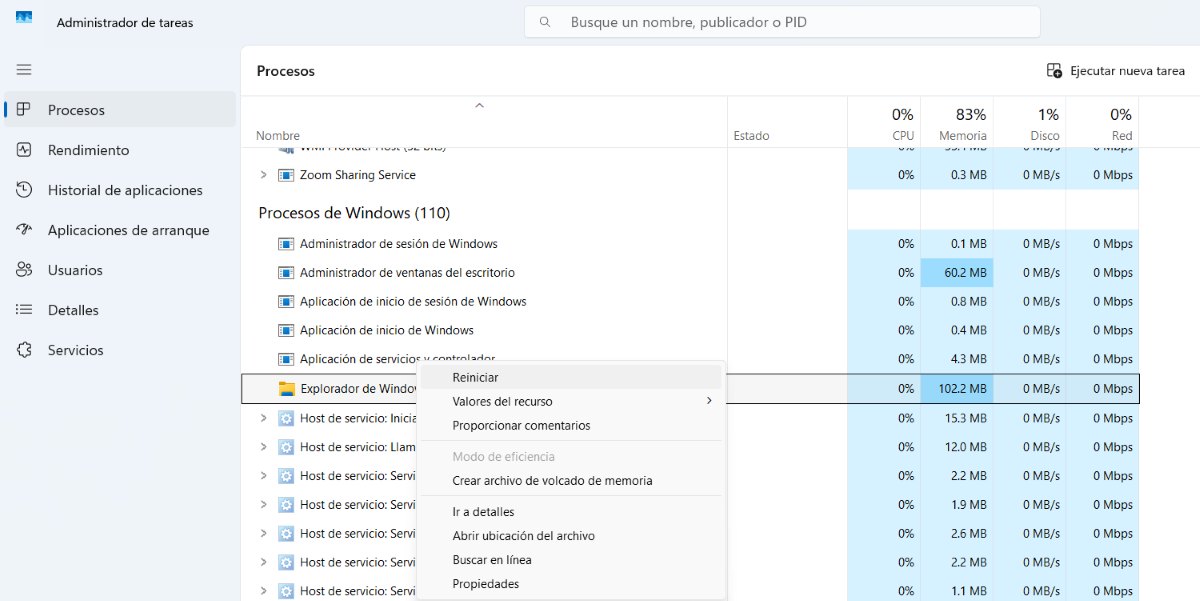
Restarting or resetting Windows Explorer (explorer.exe) can fix the problem when Windows deletes your wallpaper. It also helps when icons won't load or the menu doesn't respond. Here are the steps Steps to easily restart Windows Explorer:
- Press Ctrl + Shift + Esc to open Task Manager or search for it by right-clicking the Windows Start button.
- Seeks Windows Explorer in the tab Processes.
- Right-click on it and select Reboot.
- Done. This will close and reopen the taskbar, Start menu, and desktop.
- Don't forget that whenever you make a change in Task Manager, it's a good idea to restart your computer for the changes to take effect.
Adjust the contrast themes
Contrast themes can alter the display of your wallpaper and change the way your desktop looks. If you turn on high contrast, Windows will erase your wallpaper. To fix this problem, go to Configuration – Personalization – Background – Contrast themes – None to disable these types of themes.

From a young age, I've been fascinated by all things scientific and technological, especially those advancements that make our lives easier and more enjoyable. I love staying up-to-date on the latest news and trends, and sharing my experiences, opinions, and tips about the devices and gadgets I use. This led me to become a web writer a little over five years ago, focusing primarily on Android devices and Windows operating systems. I've learned to explain complex concepts in simple terms so my readers can easily understand them.