- Most synchronization failures in WhatsApp Desktop are due to a combination of network problems, outdated versions, and poorly managed device sessions.
- Checking the connection on your mobile device and PC, updating apps, and closing/re-linking your devices usually resolves most errors.
- Clearing the cache on Android, checking antivirus, VPN, and WiFi network limitations helps prevent blocks and endless message downloads.
- WhatsApp Web can be used to rule out account failures and confirm whether the problem lies with the desktop application or with WhatsApp's infrastructure.
If you've made it this far, it's because WhatsApp Desktop isn't syncing your chats properly or it gets stuck downloading messages while, oddly enough, on the mobile phone or even on WhatsApp Web Everything is going smoothly. It's a More common mistake than it seems and it affects both Windows 10 and Windows 11 users, with different versions of the official app.
Throughout this article we are going to review All the common reasons why WhatsApp for desktop might stop syncing (chats that don't appear, progress stuck at 1%, errors downloading messages, sessions that disconnect on their own, etc.) and, above all, the practical solutions that have worked for other users and what WhatsApp itself recommends. We'll see what to check on your PC, what to verify on your mobile device, and what network settings, cache, versions, and linked devices you should keep under control.
Why WhatsApp Desktop doesn't sync properly with my mobile phone
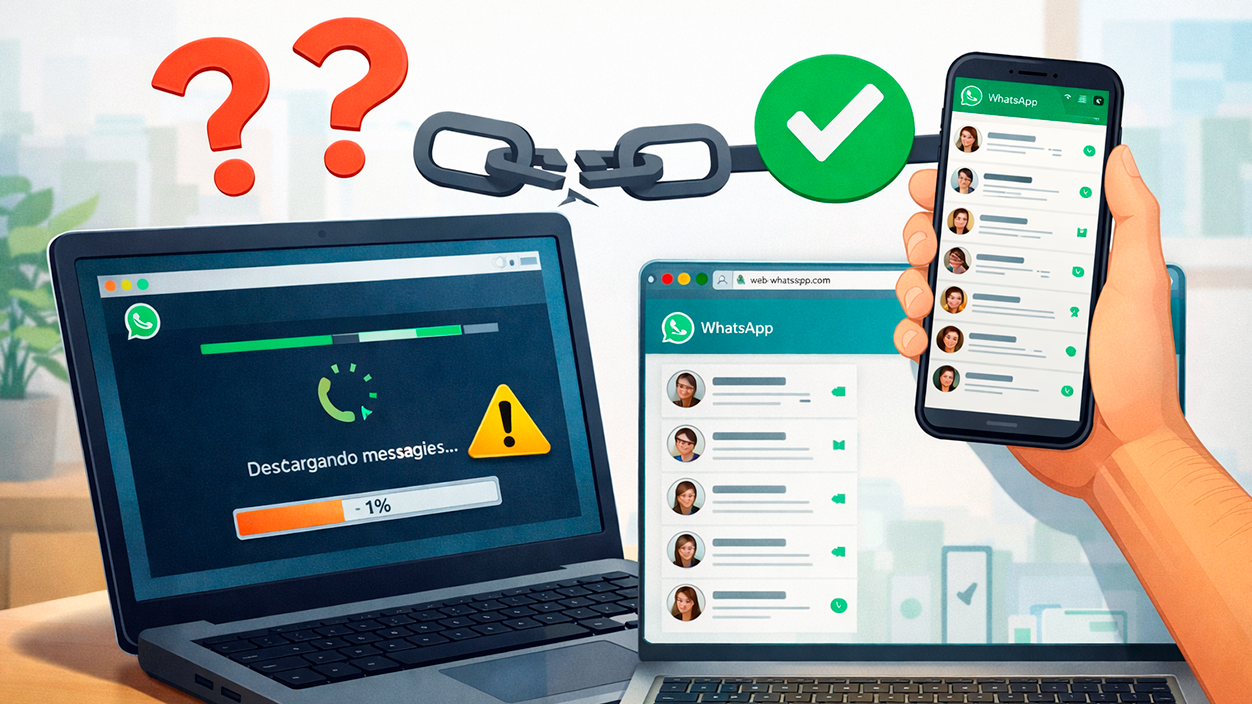
When you install the official WhatsApp app for Windows, normally the All chats, messages, and files are automatically synchronized. with what you already have on your mobile device. However, many users have found that only some chats appear on the desktop or that the synchronization progress bar freezes, even after reinstalling the application several times.
There are cases in which WhatsApp Desktop shows very few chats or incomplete conversationsHowever, if you open the web version in a browser (web.whatsapp.com), the entire history appears correctly and messages go in and out without issue. This makes it clear that the problem is usually with the desktop application, not the WhatsApp account itself.
There are also situations in which Synchronization always stops at the same pointFor example, at 1%, for days. The user logs out, re-links the device, reinstalls the app, and even updates the mobile application, and yet after a short time the problem returns: messages can be sent from the PC and do reach the phone, but incoming messages do not appear on the desktop.
In other cases, the Windows app It gets stuck indefinitely on “downloading messages” And after a few minutes, it displays an unexpected error message. The striking thing is that the Android phone correctly detects the session on the PC, the computer appears as a linked device, and yet the desktop application never finishes loading the history.
All of the above leads us to a key point: WhatsApp Desktop and WhatsApp Web share the same foundationHowever, the desktop client depends on the Windows version, the Microsoft Store, the PC's network configuration, and the number of paired devices to your account. Any small problem with one of these elements can lead to quite annoying desynchronizations.
Differences between WhatsApp Web and WhatsApp Desktop when it comes to synchronization
Although on the outside they may seem to be doing the same thing, WhatsApp Web and WhatsApp Desktop work differently.WhatsApp Web runs directly in the browser (Chrome, Edge, Firefox, Opera, Safari), while the desktop application is a standalone program installed from the official Microsoft store.
WhatsApp Web is usually more tolerant of some errors because It depends largely on the browser.If your browser is up to date, the page loads correctly, and your internet connection is stable, the QR code should appear quickly and everything should sync smoothly. When it fails, it's usually due to a connection issue, a problem with the browser, or a problem with the Wi-Fi network.
The desktop app, meanwhile, It adds an extra layer of potential failures: specific version installed from Microsoft Store, local application cache, permissions that may be blocked by antivirus or firewall, compatibility issues in older versions of Windows, or conflicting sessions if you have too many devices linked.
That's why many users comment that WhatsApp Web works perfectly for them, but WhatsApp Desktop doesn't.Despite using the same PC and the same connection. In these cases, the solution isn't just about "having internet access," but about review the Windows client in detail, the linking via QR code and the account status regarding active devices.
Check your internet connection on your PC and mobile device
The first thing WhatsApp always recommends is to make sure that The phone and computer have a stable connectionAlthough it may sound obvious, many synchronization problems are due to network micro-outages, restricted corporate WiFi, or the use of unstable shared data.
If you can't send or receive messages from your mobile phone, WhatsApp Web and Desktop will also not workOpen WhatsApp on your phone and try sending a message to any contact. If it doesn't go through, check your mobile connection: switch from Wi-Fi to mobile data or vice versa, restart your router, or contact your mobile provider if other apps aren't working either.
On the computer, when the network fails, a warning usually appears like this: “Computer offline” You'll see a message on WhatsApp Web or a similar message on the desktop app. In this case, open any simple webpage (for example, google.com) to confirm you have internet access. If no website loads, the problem is with your network and you'll need to fix it before proceeding.
If you're on a managed WiFi network (office, library, university), it may be configured to block or limit traffic to WhatsApp serversWhen this happens, WhatsApp Web may display warnings indicating that the network is preventing it from functioning correctly. In this context, It is advisable that the network administrator enable access to “web.whatsapp.com”, “.web.whatsapp.com” and “.whatsapp.net”.
Finally, some users have found that using VPNs or overly aggressive antivirus software On a PC, this can disrupt communication with WhatsApp servers. On iPhones and Windows PCs, it's recommended to temporarily disable any VPNs, and on Windows, try disabling third-party antivirus software to rule out the possibility that it's filtering or blocking the app.
Update WhatsApp on your mobile and Windows
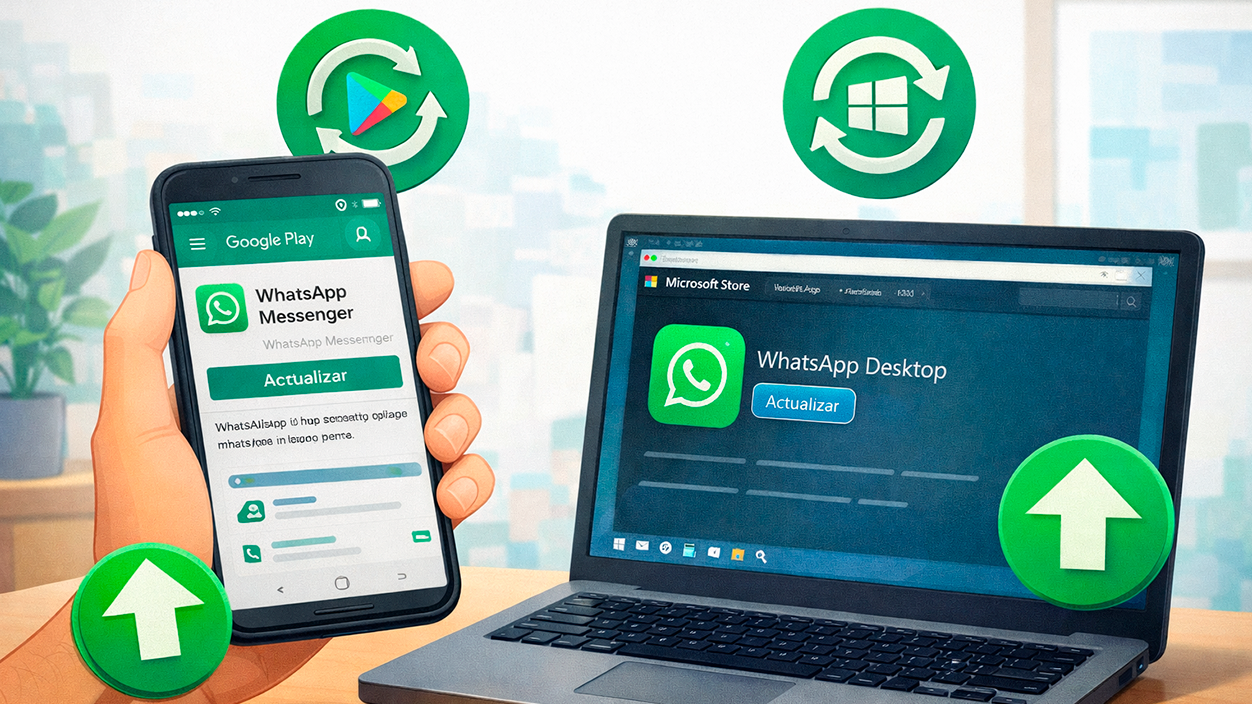
Another common cause of synchronization problems is having outdated versions of WhatsAppeither on the phone or on the PC. Sometimes, an older version introduces incompatibilities that prevent the desktop and mobile clients from working together.
On your mobile device, go to the app store (Google Play or App Store) and Check if there are any pending WhatsApp updates.New versions typically correct connection errors, problems with linked devices, and occasional synchronization failures that have been detected in previous versions.
On Windows, the official WhatsApp application is downloaded from Microsoft StoreIt's important to make sure you have the latest version available for your system. Open the Microsoft Store, go to the Library or Updates section, and check if there's a new version of WhatsApp to install. This can resolve issues that aren't fixed by simply reinstalling.
Additionally, it's advisable to keep the operating system up to date. For example, in Windows 11, recent builds are recommended (such as the 23H2 branch or later, and many users report improved stability on systems updated to 24H2) to avoid compatibility issues between the app and the systemIf your Windows is very outdated, the application may behave erratically.
There are documented situations where, for weeks, WhatsApp Desktop has been constantly showing “downloading messages” errors And, without the user changing anything, after an update to the app itself or the servers, the problem suddenly disappeared. In these cases, it's clear that part of the fault lay on WhatsApp's end and not in the user's settings.
Use of linked devices and open sessions
Since the feature was introduced “Linked devices”WhatsApp allows you to use the same account on multiple devices simultaneously: computers, tablets, etc. However, this system has its limits, and exceeding them can lead to some rather unusual synchronization errors.
The platform itself sets a maximum of four devices linked simultaneouslyIn addition to your main phone. If you exceed that limit, or if you have old sessions open on computers you no longer use, you may find that the new device doesn't fully sync, disconnects on its own, or only shows part of the chats.
To check this, open WhatsApp on your mobile, go to the settings menu and tap on the section of Linked devicesFrom there you'll see all the devices that currently have an open session with your account: desktop computers, laptops, etc. It's recommended that you close any sessions you don't recognize or no longer use.
Once you have the clean list, Tap on “Link a device”, Open WhatsApp Desktop or WhatsApp Web on your PC y scan the QR code that appears on the screenThis way you'll be creating the session from scratch, without carrying over potential conflicts with older equipment or expired sessions.
Also keep in mind that, although you may have several computers set up, Only one can be active at a time as the primary client in some scenarios. That is, if you use WhatsApp Web on one laptop and then open WhatsApp Web on another PC, when you start using one, you will stop receiving messages on the other. It's helpful to know which computer you're working on so you don't mistakenly think it "isn't syncing" when you've actually switched active sessions.
Scan the QR code correctly to avoid startup errors

The connection between the mobile phone and the PC is always made through a QR code that you must scan from your phoneIf this process is not completed correctly, the session may be interrupted, resulting in message synchronization issues, endless progress bars, or errors shortly after connecting.
To minimize problems, open the linked devices section on your mobile, tap on “Link a device”, point the camera at the QR code on the screen and Make sure the framing is sharp.If the phone's lens is dirty or fogged, clean it before scanning. Increasing the monitor's brightness can also help the phone's reader detect the code more effectively.
If you notice that the QR code takes a long time to load in the browser, it's possible that the PC connection is very slow or unstableWait a few seconds to see if it finishes appearing, press F5 to refresh the page, or check your internet connection. Without that QR code loaded, your phone won't be able to connect and the session won't activate correctly.
In the desktop application, if after scanning the code the app freezes stuck in the "downloading messages" state for a while and then displays “an unexpected error has occurred”, it is likely that The pairing has not yet been completedIn those circumstances, it usually helps Log out from your mobile device, clear the desktop app cache, and re-link. the PC after a few minutes.
Some users have observed that, after trying multiple times without success, The session suddenly started working After several days, without them having done anything special. This indicates that sometimes the problem lies with WhatsApp's servers and resolves itself over time, although it's always advisable to check the local side first (app, cache, network, devices).
Common problems with WhatsApp Web and how they affect Desktop
Although this article focuses on the desktop version, it's also useful to review The most common WhatsApp Web mistakesbecause many of the solutions also apply to the Windows app, or help rule out that the problem is in your account and not in the client.
The first typical mistake is the message “This website cannot be accessed” When you try to open web.whatsapp.com, there are usually only two possibilities: you've typed the address incorrectly, or your internet connection isn't working. Try opening other websites, such as google.com. If none of them load, restart your router or contact your internet service provider. If the other websites do work, Make sure the URL is exactly “web.whatsapp.com”.
Another recurring problem is the warning of “browser not compatible”WhatsApp Web is only compatible with a few browsers: Google Chrome, Mozilla Firefox, Opera, Microsoft Edge, and Safari. If you're using an outdated version of one of these, you might encounter problems. The solution is simple: update your browser to the latest version or try another one from the list.
It is also common for the QR code failed to load or it takes a very long time. This usually indicates a connection drop after opening the page or a very slow speed. You can wait a few seconds, press F5 to refresh, check the connection on your PC, or switch networks. Without that code, there will be no way to link the device.
Finally, when WhatsApp Web stops showing new messages and displays “Phone offline”, means that The mobile phone has lost its internet connection or has turned off.Although the linked devices system reduces dependence, it is still essential that the phone has network access and that WhatsApp is operational on it.
Errors with photos, videos, and files when syncing
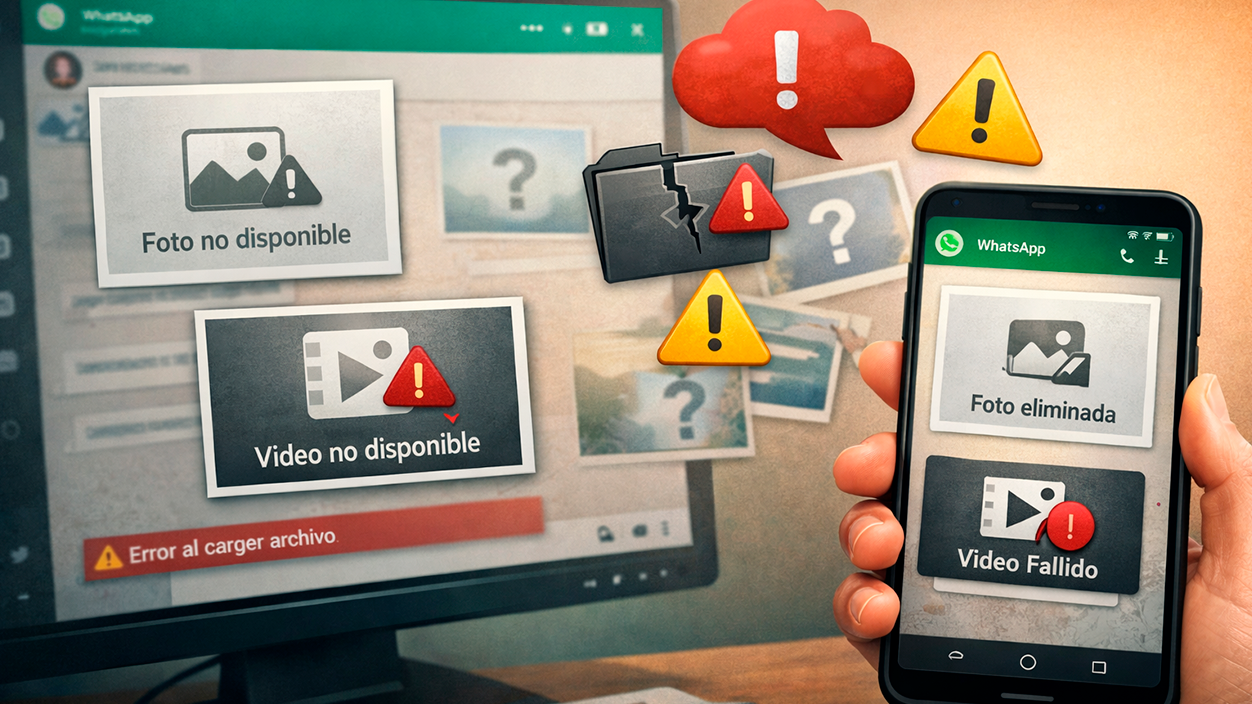
Beyond text messages, another common source of complaints is... photos and videos that don't load properly On WhatsApp Web or Desktop. If you're reviewing old conversations, many images may appear as unavailable or not open when clicked.
This is because all multimedia content It syncs from the devices. If the original photo is no longer present on the mobile phone or the other person's phone (for example, because it has been deleted, changed devices without restoring backups, or WhatsApp has been reinstalled), the platform cannot retrieve it from its servers and it appears as missing.
You can check on your PC if the image appears correctly on your mobile device. If you don't see it on your phone either, There is no longer a direct way to recover it from WhatsAppIn that case, you could only try using specialized data recovery tools or ask the sender to resend the original photo if they still have it.
There is an additional limit on videos in the web version: does not allow sending files larger than 64 MB And it doesn't include built-in cropping or compression tools like on mobile. If you try to attach a video that's too large from the browser, it will likely crash or prevent you from sending it.
The limitations are similar in the desktop app: if the connection is poor or the video is too large, the upload may fail and fails to sync correctly with the mobile phoneReducing the file size before sending it is usually the quickest way to avoid these types of errors.
Manage cache and data to resolve persistent failures
When synchronization problems recur and are not resolved by updating or logging out, a good strategy is clear the cache of the involved applicationsespecially on Android and in the desktop app itself.
On an Android phone, open the Settings app, go to the section for “Applications”, press on “View all apps” and search for WhatsApp. Within the app's information, Go to “Storage and cache” and use the option “Clear cache”This process does not delete your chats, it only removes temporary files that may be corrupted.
Clear WhatsApp cache on Android It usually solves many synchronization problems After changes to linked devices or major updates, reopen WhatsApp, check that it's working properly on your phone, and then try using WhatsApp Web or Desktop again.
On a PC, the desktop app also stores temporary data. While the exact process may vary depending on the version, uninstalling WhatsApp from the Microsoft Store... delete associated temporary data folders Reinstalling from scratch can clear up old conflicts. However, this step should be done carefully and with certainty about which folders will be deleted.
If you only use WhatsApp Web, you can try clear browser browsing data (cookies, site cache) related to web.whatsapp.com. Upon reloading, a new session will be generated and you will have to relink the device, but in return, corrupted data that was causing errors will be discarded.
Influence of the operating system, VPN and antivirus on Windows
On Windows 10 and Windows 11 devices, in addition to the connection and the WhatsApp app, several system factors can complicate synchronization. For example, some users have reported that have the PC connected using the iPhone's mobile data as a hotspot It caused frequent crashes in the desktop app, while using a stable home WiFi network made the problems disappear.
In the specific case of iPhone linked to WhatsApp for Windows 11, it is recommended Avoid using active VPNs This can happen on both your phone and PC while you're establishing a session or downloading many messages. VPN tunnels can redirect or filter traffic and cause your connection to WhatsApp servers to become unstable.
On the other hand, some antivirus or security suites in Windows 10/11 may partially block WhatsApp Desktop app trafficinterpreting it as a suspicious network application. If you suspect this, temporarily disable your third-party antivirus (keeping Windows antivirus active) or create an exception for WhatsApp to see if the problem is resolved.
It's also important that the operating system is up to date. On Windows 11, many users are using the WhatsApp app downloaded from the Microsoft Store without any issues. Modern versions of the system, such as 24H2A very old version of Windows or one with pending key updates can lead to compatibility issues that other users are not experiencing.
Finally, remember that WhatsApp has decided that the The official desktop app is distributed exclusively through the Microsoft StoreAlthough some users may dislike this decision, it is currently the recommended method, as it guarantees automatic updates and better system integration.
Throughout everything seen, it is clear that WhatsApp Desktop synchronization problems do not usually have a single causeInstead, the issues are almost always a combination of factors: an unstable network, a faulty mobile device, outdated versions, excessively linked sessions, corrupted caches, or even occasional WhatsApp server outages. Step-by-step review of your phone and PC connection, clearing old sessions, updating applications, checking antivirus and VPN settings, and, if necessary, clearing caches and reinstalling from the Microsoft Store, usually restores stability to the desktop app and allows chats to display on your computer with the same reliability as on your mobile device.

I am a technology enthusiast who has turned his "geek" interests into a profession. I have spent more than 10 years of my life using cutting-edge technology and tinkering with all kinds of programs out of pure curiosity. Now I have specialized in computer technology and video games. This is because for more than 5 years I have been writing for various websites on technology and video games, creating articles that seek to give you the information you need in a language that is understandable to everyone.
If you have any questions, my knowledge ranges from everything related to the Windows operating system as well as Android for mobile phones. And my commitment is to you, I am always willing to spend a few minutes and help you resolve any questions you may have in this internet world.