- The BitLocker recovery key is a 48-digit code that allows you to unlock encrypted drives when the system cannot do so automatically.
- Windows usually saves the key when you activate BitLocker in your Microsoft account, in a file, on a USB drive, on paper, or in corporate services like Active Directory.
- You can check if BitLocker is enabled and manage key copies from "Manage BitLocker" or with the manage-bde command in the Command Prompt.
- It is advisable to keep several copies of the key in secure locations to avoid losing access to the data after hardware changes, BIOS updates, or system failures.
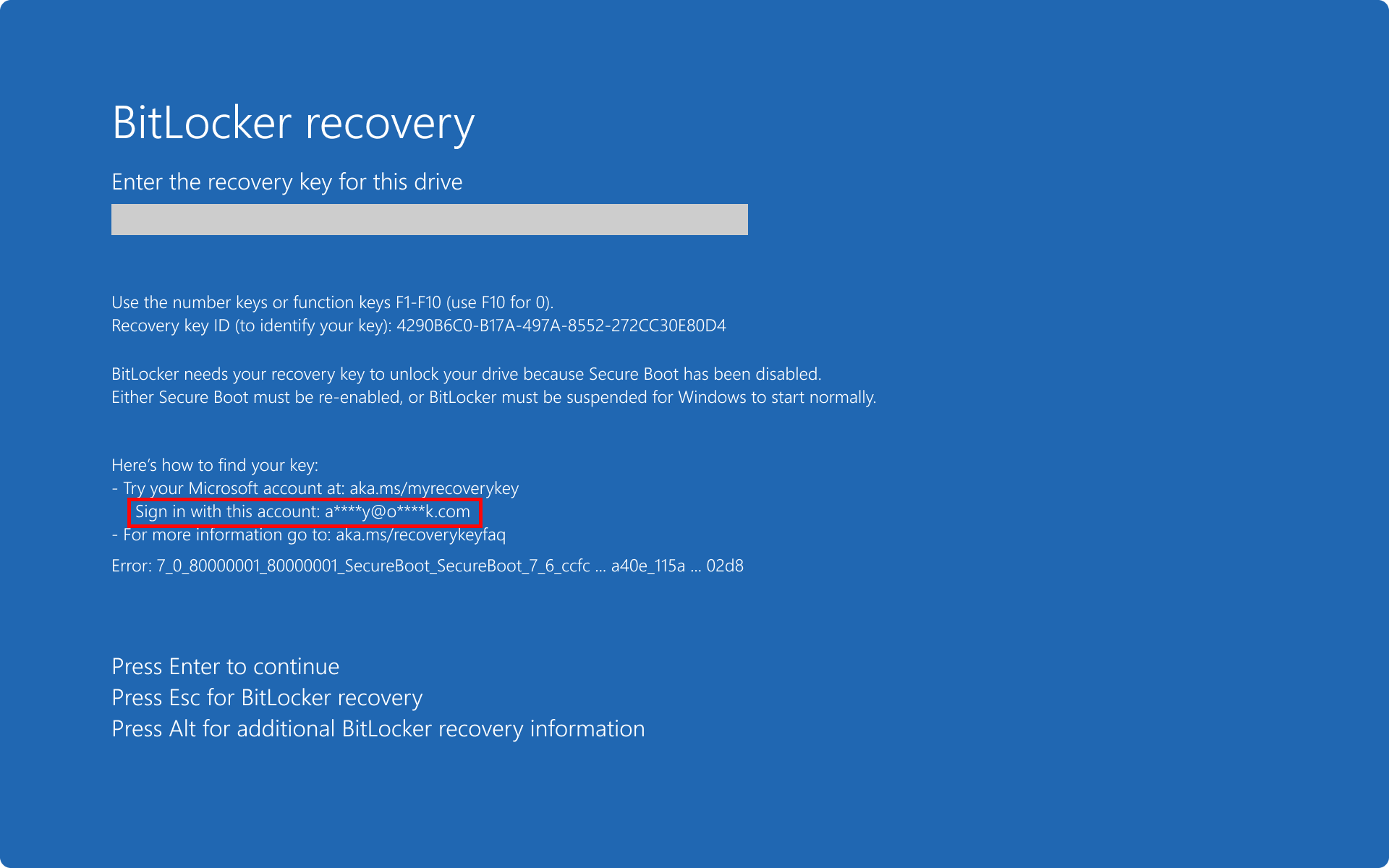
If you use BitLocker to encrypt your disk in Windows, sooner or later you're going to ask yourself the same question: Where on earth is the BitLocker recovery key stored and how can I find it if I lose it? This 48-digit key is what allows you to regain access to the computer when the system cannot unlock the drive automatically, for example after a hardware or BIOS change.
Losing it can be a real headache, especially if you have important data on your computer. The good news is that Windows and Microsoft offer Several methods for locating, saving, and backing up your BitLocker recovery keyThis applies to both home computers and business computers. We'll see, step by step and in detail, where it's stored, how to check if you have it, and what options you have to avoid getting stuck.
What exactly is the BitLocker recovery key?
The famous BitLocker recovery key is, basically, a 48-digit numeric code that serves as a “master key” to unlock an encrypted drive When the automatic BitLocker procedure fails or is unavailable, the encryption does its job: the disk data becomes inaccessible.
BitLocker is natively integrated into Windows 11 Pro, many editions of Windows 10, and professional computers from brands such as Dell, Alienware, Inspiron, OptiPlex, Vostro, XPS, Latitude, and various Dell Pro and Workstation lines. On all these computers, When you first activate BitLocker, the system usually forces you to choose where to store the recovery key. so you don't lose it at the first opportunity.
The key text itself usually contains two important pieces of information: a key identifier (key ID) and the associated recovery keyThe identifier helps you know which key corresponds to which drive, which is useful if you have several keys stored in different places or if an administrator has to search for it among many.
The key may have been automatically saved in several possible locations: your Microsoft account, a file, a USB drive, a printed copy, corporate services like Active Directory, or cloud-based management toolsIt all depends on how it was configured. BitLocker on the day and whether the equipment is personal or company-owned.
Where is the default BitLocker recovery key stored?
In most cases, Windows automatically backs up the key the first time BitLocker is activated.Unless the administrator or user disables that option, these are the most common storage locations.
1. Personal Microsoft account
If you sign in to Windows with your Microsoft account (email address @outlook.com, @hotmail.com, etc.), it's very likely that your recovery key is saved online and associated with that account. Microsoft maintains a "recovery key library" where BitLocker keys are stored for devices linked to your account.
To check it, simply go to the Microsoft BitLocker recovery keys page from any browser and log in with your Microsoft accountA list of devices and their associated keys will be displayed. On that page, you should see the device name and, for each one, the key identifier and the 48-digit numeric keyIf nothing appears, it means it was never saved there or another method was used.
2. Professional or educational account (company or educational institution device)
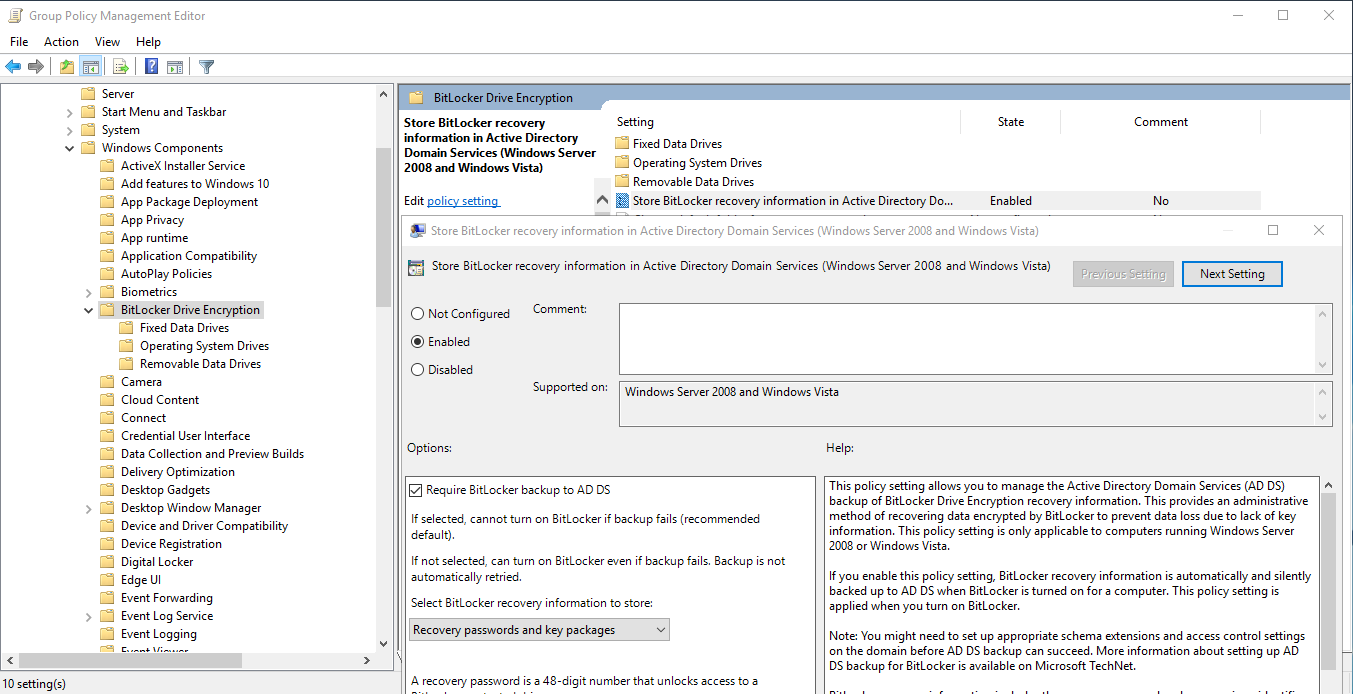
If the equipment is managed by your workplace or educational institution, it is very common that The BitLocker recovery key is stored in an organizational account or internal management systems.In these cases, there is usually an automatic copy in:
- Active Directory (AD), if the company uses this classic Microsoft service.
- Cloud management solutions such as Microsoft Intune, Azure AD, or other enterprise tools.
In these types of environments, The usual policy is that the IT department always has access to the recovery keys To help you if your computer freezes, replace the motherboard, the TPM fails, or the boot process becomes corrupted. If your computer is part of a domain, you should consult with your IT department before making any changes.
3. Paper copy or physical print
When setting up BitLocker, one of the options offered by the wizard is Print the recovery key on paperThese printed copies clearly show the key ID and the 48-digit string. If you previously opted into this option, you may still have one of these copies somewhere.
- Printed sheets with the title “BitLocker Recovery Key”.
- Documents filed with other equipment papers, warranty, invoice, etc.
Many manufacturer guides, such as those from Dell, strongly recommend it Save that printed copy along with other important documents on your computer.For example, in a technical documentation folder, in a safe, or with your warranty papers.
4. Text file saved on the computer or another drive
Another very common alternative when activating BitLocker is save the key in a plain text (TXT) fileThe wizard does not allow saving it to the same encrypted drive for security reasons, so that copy usually ends up in:
- Another unencrypted partition or disk on the same computer.
- An external hard drive or NAS.
- A local folder that you use for important documents.
That text file can be called many things, but it often includes something like “BitLocker recovery keyfollowed by the team name or an identifier. Open it with Notepad and the key will appear there.
5. USB flash drive (pen drive)
BitLocker also allows copy the key to a USB driveIn that case, the key is saved as a very small text file (it only takes up a few kilobytes), which you can carry on a USB drive or keep in a drawer. If at any point the system asks for the recovery key, you can:
- Insert that USB drive when the computer starts up and displays the BitLocker screen.
- Select the option to recover from flash drive, if available.
The USB drive doesn't have to be big; any old flash drive will do, since the key takes up hardly any spaceHowever, it's a good idea to label it or write down that the BitLocker key is there to avoid accidentally formatting it.
How to check if BitLocker is enabled and if you have a recovery key
Many people encounter the message "disable BitLocker before updating the BIOS" or something similar, but He's not even sure if BitLocker is enabled on his hard drive.Before frantically searching for the recovery key, it's a good idea to check it.
Check from the Control Panel
In versions of Windows that still include the classic Control Panel, you can do the following:
- Go to Start and type “BitLocker”.
- Click on Manage BitLocker in the results.
- The BitLocker window will open, where you will see each drive and its status.
If next to the system drive it says that encryption is enabled and you have options like “Back up your recovery keyIf you see "" or "Disable BitLocker", then it's in use. If you don't see BitLocker active on any drive, the BIOS message might be generic, or the encryption might be handled differently (for example, automatic device encryption on some computers).
Check using the Command Prompt
Another more “technical” but very reliable way is to use the command manage-bde:
- Search for “Command Prompt” in the Start menu.
- Right-click and choose Run as administrator.
- In the window that opens, run a command like:
manage-bde -status
This command will show you, for each unit, whether encryption is enabled, the type of protection, and other detailsIf you want to see the specific protectors and recovery key for a particular drive, you can use:
manage-bde -protectors H: -get
changing H: by the letter of the unit you want to consult (for example, C: (for the system disk). This command will display information about the BitLocker protectors on that drive, including identifiers and, in some cases, the data related to the recovery keyIt's a fairly straightforward way to check if a recovery protector is configured.
Typical situation: you want to update the BIOS and it asks for the key
It is very common that, when entering the BIOS of a modern motherboard (for example, an AsRock X570 Phantom Gaming 4 or similar ones), You may see a warning recommending that you disable BitLocker before changing the BIOS or certain boot options.The reason is simple: when sensitive parameters are touched or firmware is updated, the TPM chip or the boot system may consider that the machine "has changed" and, for security, BitLocker will ask for the recovery key on the next boot.
If you still have normal access to Windows (i.e., the system boots without problems), now is the perfect time to:
- Check if BitLocker is actually enabled in the system unit, as we have seen.
- Make one or more backups of the recovery key from Windows before touching anything in the BIOS.
This way, even if your PC asks for that key after updating the BIOS, You'll have it located and you can put it in without any problems.The danger lies in updating without checking anything and then discovering that the key is not readily available.
How to back up your BitLocker recovery key
Windows offers a fairly clear wizard for creating new copies of the recovery key in various formats. It is highly recommended to have at least two copies in different locationsin case one of them gets lost, the USB drive breaks, or you accidentally throw away the sheet of paper.
Step 1: Open BitLocker Management
From Windows, follow these steps:
- Click the button Start and type “BitLocker”.
- Select Manage BitLocker in the results list.
A window will open showing the drives and their status. Next to the encrypted drive you're interested in, you'll see the option “Make a backup of the recovery key”.
Step 2: Select the option “Back up recovery key”
Click on Back up your recovery key next to the corresponding drive. A wizard will open offering several possible destinations for saving the key. You can use one or more, as you prefer.
Step 3: Select where to save the key
The assistant will suggest different alternatives:
- Save to your Microsoft accountIf you choose this option, the key will be sent to the “recovery key library"associated with your Microsoft account. This allows you to view it online from any browser, by logging in with that same account."
- Save to a USB flash driveIf you have a USB drive handy, you can save the key there. In the future, if your device asks for the recovery key, simply connect that USB drive and follow the on-screen instructions. The key is only a few kilobytes in size, so the drive can be very small.
- Save to a fileThis allows you to store the key as a text file in any location other than the BitLocker-encrypted drive. You can save it on another unencrypted internal drive, an external hard drive, a NAS, etc. Later, if you need it, you can simply open the file with Notepad or another text editor to see the 48 digits.
- Print the recovery key: ideal if you want to have a physical copy, separate from the computer, for example in a document folder, filing cabinet, safe or similar.
For security reasons, Saving the key file to the same drive that is encrypted is not allowed.Because if that drive becomes inaccessible, you'd also lose the copy of the key. That's why, if you only have one hard drive, the most practical option is often to use a temporary USB drive.
Step 4: Finish and repeat if you want more copies
Once you have chosen the method (or methods), follow the instructions and click on FinishWindows will complete the process and the new backup will be ready. There is no limit. You can create as many copies of the recovery key as you deem necessary.For example, one in your Microsoft account, another on a USB drive stored at home, and a printed copy in your office.
Having multiple copies in different locations is a simple way to avoid surprises in the future, especially when you're going to update the BIOS, change hardware, or use the computer in critical environments where you can't afford to lose access.
BitLocker in corporate environments: Active Directory and IT
In professionally managed equipment (company laptops, office desktops, certified workstations, etc.), it is very common for The BitLocker recovery key does not depend solely on the user, but on centralized policies.Manufacturers like Dell, with ranges such as Alienware, Inspiron, Vostro, OptiPlex, XPS, Latitude and various Dell Pro and Workstation series, usually deliver equipment prepared for this type of configuration.
In this context, the recovery key is usually stored in infrastructure services such as Active DirectoryBitLocker is a central database that stores information about computers, users, and security policies on corporate networks. BitLocker can be configured so that when it is activated on a domain-joined computer, Automatically send the recovery key to the domain controller.
In addition to classic Active Directory, many organizations use modern solutions such as:
- Azure Active Directory or Microsoft Login IDwhere devices and their keys can be registered.
- Microsoft Intune or other MDM (Mobile Device Management) platforms that store and manage BitLocker keys centrally.
The main advantage is obvious: If the user loses the key or the computer is locked, the IT department can retrieve the BitLocker key from these systems and provide it to the user following internal procedures. Therefore, if your computer belongs to a company or educational institution, the normal procedure is:
- Do not attempt to disable BitLocker on your own without consulting us.
- Contact internal technical support and ask for help locating the recovery key.
Many corporate security policies, in fact, They require that the recovery key be stored in these repositories before allowing encryption.precisely to prevent a work laptop from becoming an inaccessible brick if something goes wrong.
In summary, if your device is joined to a domain or managed by your organization, it's very likely that The recovery key is stored in Active Directory or a similar system and only the IT team can access it.The best thing to do is always follow their instructions and not improvise.
Ultimately, your BitLocker recovery key is the last barrier separating your data from any unauthorized access attempts, but it's also your lifeline if something goes wrong; knowing where it might be stored (Microsoft account, file, USB, paper, corporate systems), how to check if BitLocker is enabled, and how to create multiple backups It makes the difference between a simple scare and completely losing access to your encrypted information.


Editor specialized in technology and internet issues with more than ten years of experience in different digital media. I have worked as an editor and content creator for e-commerce, communication, online marketing and advertising companies. I have also written on economics, finance and other sectors websites. My work is also my passion. Now, through my articles in Tecnobits, I try to explore all the news and new opportunities that the world of technology offers us every day to improve our lives.