Talking about Windows 11 processes might seem endless, or at least boring. However, if you're a user of this operating system, it's worth knowing... which of these processes are normal and which are notWe have prepared this comprehensive guide with the intention of clarifying any doubts you may have about it.
Windows 11 Processes: Definition and Types

Behind the smooth and polished interface of Windows 11 lies a whole host of running processes. Simply opening Task Manager reveals dozens, or even hundreds, of them. If you look closely, you'll notice that some consume a lot of memory, others appear duplicated, and still others seem to be doing nothing. Which ones are normal and which ones are not? How can you distinguish a legitimate process from a malicious one that tries to disguise itself?
Before answering, let's see exactly what Windows 11 processes are. In simple terms, A process is an instance of a program in execution.This instance contains the program's code, its data, and all the information necessary for the operating system to manage it. It is not the program itself (which is a static file stored on your disk), but a reflection of that program. in operation.
Let's take an example to understand it better. When You open an application Like Microsoft Word, a process is created. Right there, the system allocates resources (RAM, CPU), a number to identify it, and other elements for its proper management and execution. Of course, many processes run in the background without direct user intervention. They start as soon as you turn on the computer and enable Windows to function correctly.
Types of Windows 11 processes
The best way to take a look at Windows 11 processes is by opening the Task ManagerThis tool organizes processes into three main categories to help us understand what's happening within the team:
- Applications (Apps)Here are the programs the user has deliberately opened and is directly interacting with. If you open Chrome, Word, Spotify, or the calculator, you'll see their processes there; if you close them, the processes disappear.
- Background processes (Background ProcessesThese are programs and services that run without an open window or a graphical interface. They perform support, maintenance, or synchronization tasks. Examples include OneDrive, your graphics card software, and automatic update services.
- System ProcessesThese are low-level processes, essential for the operating system to function and be secure and stable. If you try to terminate them, the system may crash or restart for safety reasons. Examples: sms.exe (Session Manager), services.exe (Service Control Manager) and lsass.exe (Local Security Authority).
Complete guide to Windows 11 processes: which ones are normal and which ones are not
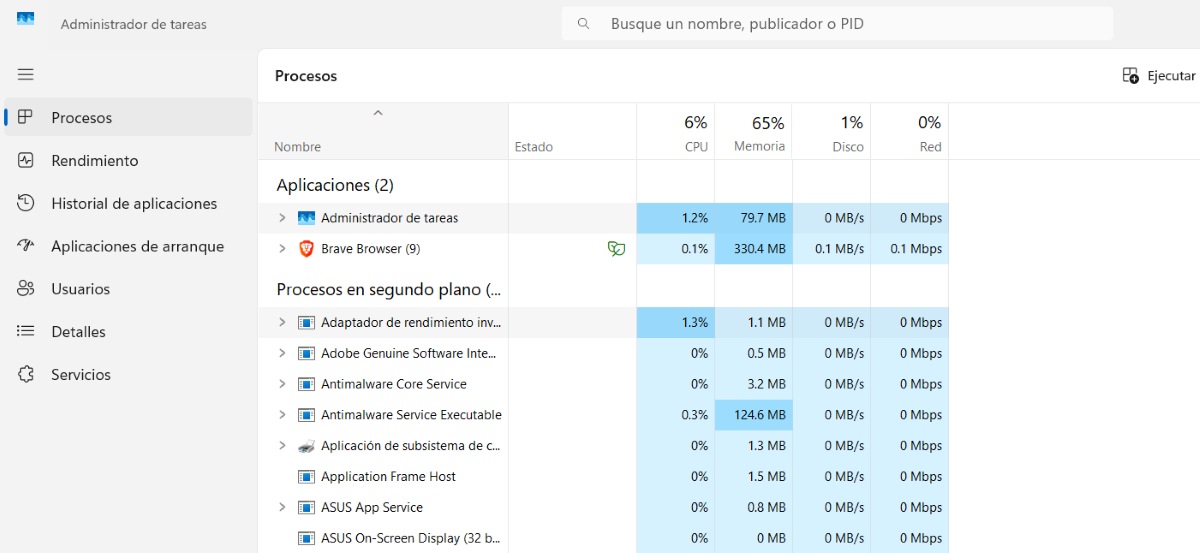
Of course, opening Task Manager and finding so many running processes can be overwhelming. Typically, you go there to identify and stop any processes that are slowing down the system or that seem suspicious. Now, among all the processes running in Windows 11, How can you tell which ones are normal and which ones are not?
It's worth noting that the vast majority of processes in Task Manager are legitimate and necessary. A few can be stopped without affecting the overall system performance. But others can be used by malware to disguise itself. How do you identify which is which? The key lies in the location, resource consumption, and behavior of the process itself.
Normal Windows 11 system processes
Let's begin by listing the Windows 11 processes that are 100% normal and essential for the system to function. We're talking about those instances that run in the background and should not be interruptedThere are also those processes that are activated when you run a program or applicationIt's not a complete list, but it includes the main processes of Windows 11.
- System (ntoskrnl.exe). It is the most fundamental process; it represents the Windows kernel. It is absolutely essential.
- System Idle ProcessIt's not an actual process, but a marker that shows what percentage of the CPU is idle. It usually displays high values (80-99%) when the system is idle.
- svchost.exe (Service Host)It hosts multiple Windows services. (Update, audio, network, printing, etc.), so it's normal to see dozens of instances of this process.
- explorer.exeControls the desktop, Start menu, file explorer, and taskbar.
- dwm.exe (Desktop Windows Manager)The person responsible for visual effects: transparencies, animations, shadows, etc.
- csrss.exe (Client Server Runtime Process)Critical process that handles console functions and essential subprocesses.
- winlong.exeAnother process that should never stop, as it manages login, screen lock, and session security.
- lsass.exe (Local Security Authority Subsystem Services). Verifies passwords, logins, and security policies.
- spoolsv.exe. Manage the print queue. Pause it if you're not using the printer.
- chrome.exe, msedge.exe, firefox.exeWeb browser processes. It's normal to see dozens of them if you have several tabs open.
And the list goes on. There are many. other Windows 11 processes that are normal and safe. For example: UserOOBEBroker.exe, Taskmgr.exe, StartMenuExperienceHost.exe, runtimebroker.exe, ctfmon.exe, regsvr32.exe, ApplicationFrameHost.exe, ShellExperienceHost.exe.
Others are the installed application processes (Adobe, Discord, Steam, Dropbox, etc.). They can run in the background and are perfectly legitimate. But if you don't use them, you can easily disable them.
How to recognize normal Windows 11 processes?
The question is: how do you recognize normal Windows 11 processes? First, keep in mind that The vast majority of legitimate Windows processes should be in the location C:\Windows\System32To verify this, open Task Manager, right-click on a process and click on "Open file location".
If the file is located in a temporary folder (%AppData% o Temp), Be suspicious immediately. Another way to clear up any doubts is verify the digital signature of the processAn official process must be signed by its respective developer: Microsoft Windows, NVIDIA, Google, Adobe, etc. If it's not signed, that's a red flag.
Windows 11 processes that may be suspicious
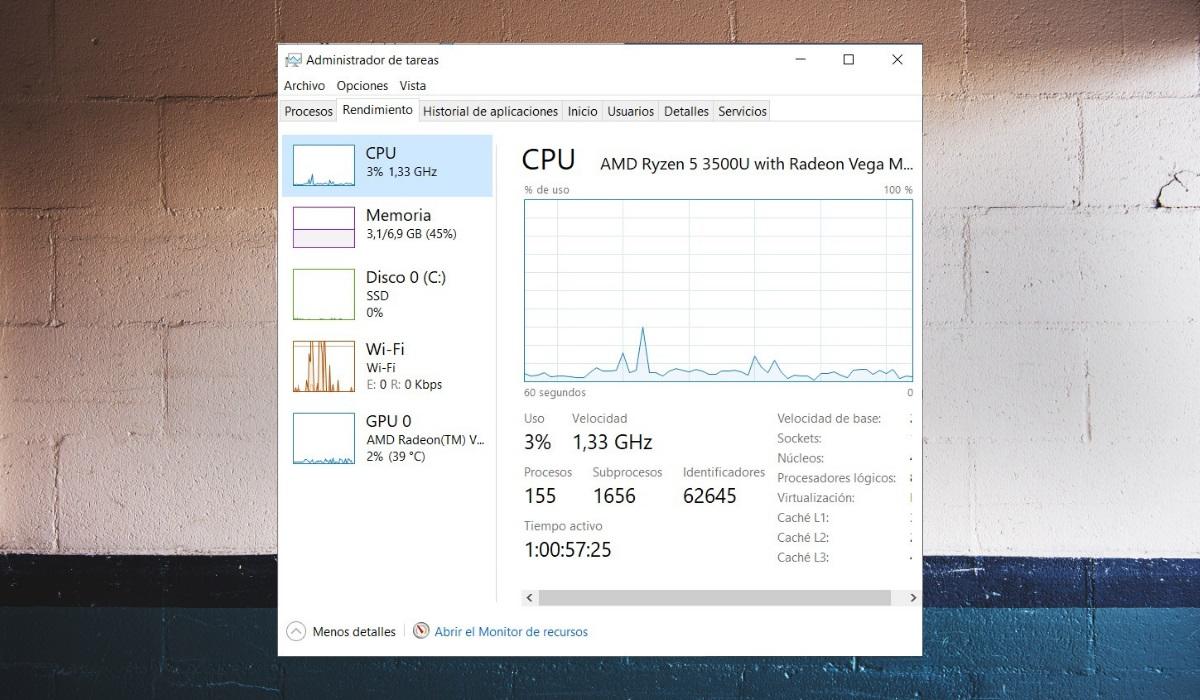
And what do suspicious Windows 11 processes look like? These have at least three distinctive characteristics:
- Have names with typos, generic names, or names that mimic legitimate processesFor example, expl0rer.exe instead of explorer.exe.
- They're in suspicious locations, such as temporary folders or user folders.
- They consume resources excessivelyIt's true that some legitimate processes may have temporary spikes. But constant CPU usage exceeding 25% or abnormal amounts of RAM is suspicious.
It's important that you're alert to some legitimate processes that are often supplanted by malwareFor example, the lsass.exe process, which is responsible for system security, should only be located in the folder. System32; If there's another instance in a different location, it's malware. The same applies to services.exe and winlogon.exe (there should only be one instance of the latter per session).
And remember this: the presence of many processes in Windows 11 is not a cause for concern. Most are essential to ensure the system's stability, security, and compatibility. If you have any doubts about a process, research it before completing it.With all these ideas, you can now identify which ones are normal and which ones are not, and what to do in each case.
Index

From a young age, I've been fascinated by all things scientific and technological, especially those advancements that make our lives easier and more enjoyable. I love staying up-to-date on the latest news and trends, and sharing my experiences, opinions, and tips about the devices and gadgets I use. This led me to become a web writer a little over five years ago, focusing primarily on Android devices and Windows operating systems. I've learned to explain complex concepts in simple terms so my readers can easily understand them.