- Closing background processes and programs frees up CPU, RAM, and disk space, which helps stabilize and increase FPS in demanding games.
- Adjusting Windows (Game Mode, power, GPU by hardware) and the game's graphics settings often greatly improves performance without changing hardware.
- Keeping GPU drivers up to date and using NVIDIA or AMD dashboards allows you to get the most out of your card and balance visual quality and FPS.
- When hardware falls short, adding RAM, switching to an SSD, moderate overclocking, or upgrading the GPU makes all the difference.

If you're in the middle of a raid, about to win a competitive match, or right before saving at that key checkpoint and suddenly the game starts stuttering, the FPS at rock bottom They can ruin your experience. We usually only think about our PC settings when the game freezes, stutters, or the mouse is unresponsive.
The good news is that, with a mix of tweaks in Windows, in-game changes, and some hardware upgrades where appropriate, you can Increase FPS and reduce lag Much more than it seems. Let's take a detailed look at what FPS is, why it drops, which Windows processes and background programs you should close, and how to get the most out of your PC or laptop for peak gaming performance.
What are FPS and when are they considered low?
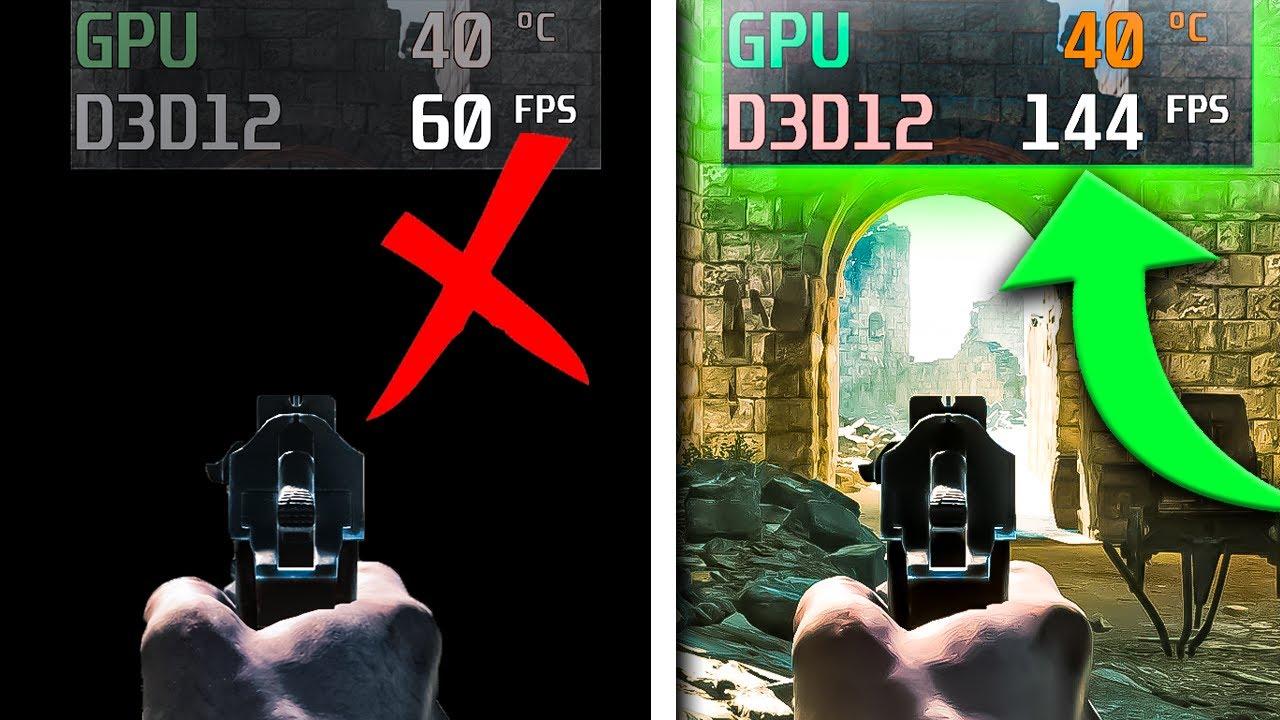
When we talk about FPS we are referring to the “frames per second” or frames per secondFPS: the number of images the GPU sends to the screen each second. If your game runs at 30 FPS, it means your monitor displays 30 complete images every second; at 60 FPS, it displays 60, and so on.
In addition FPS, the animation looks smootherThe movements are smooth and the transitions feel natural. When the frame rate drops too low, the animations start to stutter, visual lag is noticeable, and problems like [unclear] can even appear. screen tearing, where parts of two different frames are mixed on the same screen.
Most players consider that below 30 FPS The experience is already starting to get quite bad, especially with action titles. Many point to 60 FPS as a “sweet spot”, and competitive gamers look for 144 FPS or more to take advantage of monitors of 144 Hz, 240 Hz or even 360 Hz.
The role of the monitor: refresh rate and FPS limit
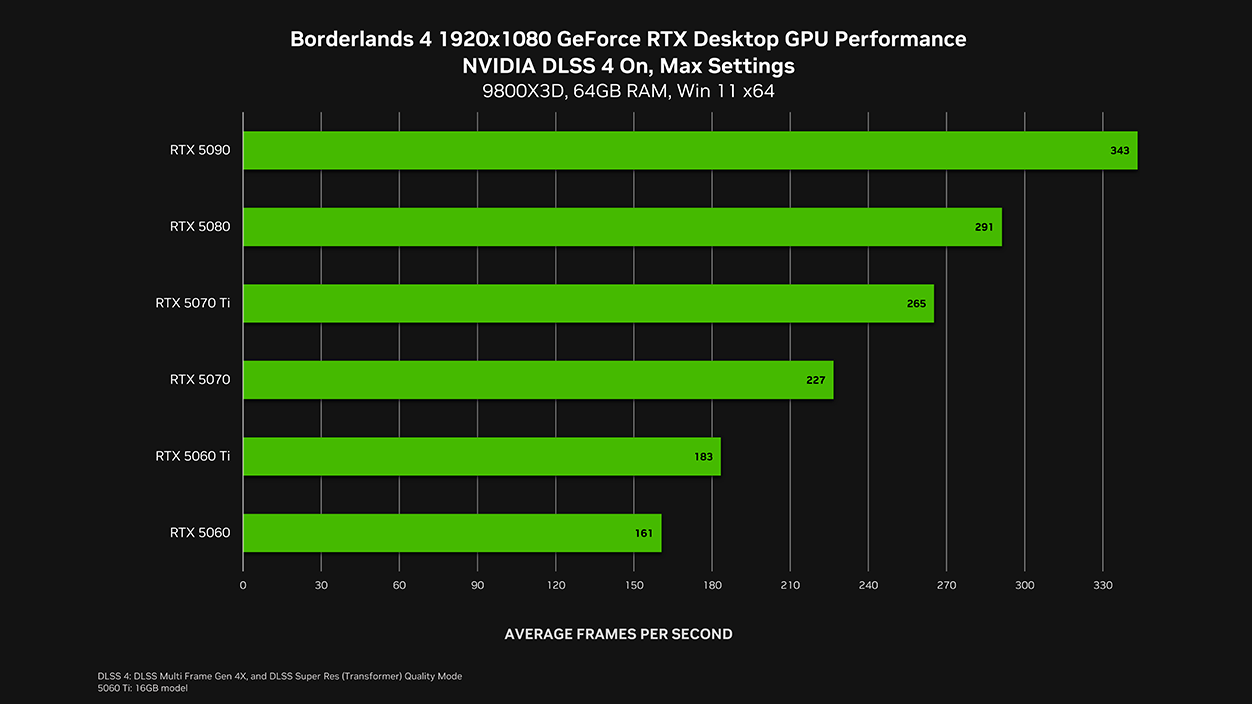
It's not very useful for your PC to achieve 200 FPS if your monitor can only display 60 frames per second. The screen has a fixed refresh rate measured in hertz (Hz)This indicates how many times per second the image can be updated. A 60Hz monitor will only display a maximum of 60 frames, even if the GPU is generating more.
This means that your goal when optimizing your equipment should be, at a minimum, match FPS to refresh rate of your monitor. If you have a 60Hz screen, comfortably exceeding 60 FPS allows for occasional drops without noticeable stuttering; with a 144Hz monitor, a PC capable of maintaining 100-144 FPS It makes a huge difference in competitive games.
Why FPS drops: main bottlenecks
When FPS drops, it's because one of the system's components or parts can't keep up. The most common causes of a Poor gaming performance are:
- Old or underpowered graphics card for the game requirements.
- CPU limited that cannot handle the load of physics, AI, and background processes.
- Low RAM (4 GB or less is barely enough for gaming nowadays) which forces you to use the disk as virtual memory.
- Slow mechanical hard drive with very low transfer rates that causes stuttering when the game loads map data.
- Graphics settings too high (maximum shadows, ultra textures, ray tracing, etc.) for the hardware you have.
- Lots of background processesUnnecessary services and applications hogging CPU, RAM, and bandwidth.
- High temperatures that force the CPU or GPU to do thermal throttlinglowering the frequency to avoid burnout.
Before thinking about spending money, it's best to first address everything that can be improved with Software configuration, process closure, and Windows settingsIn many systems, the problem is not the raw power, but how it is being used.
Which processes to close in Windows to improve FPS
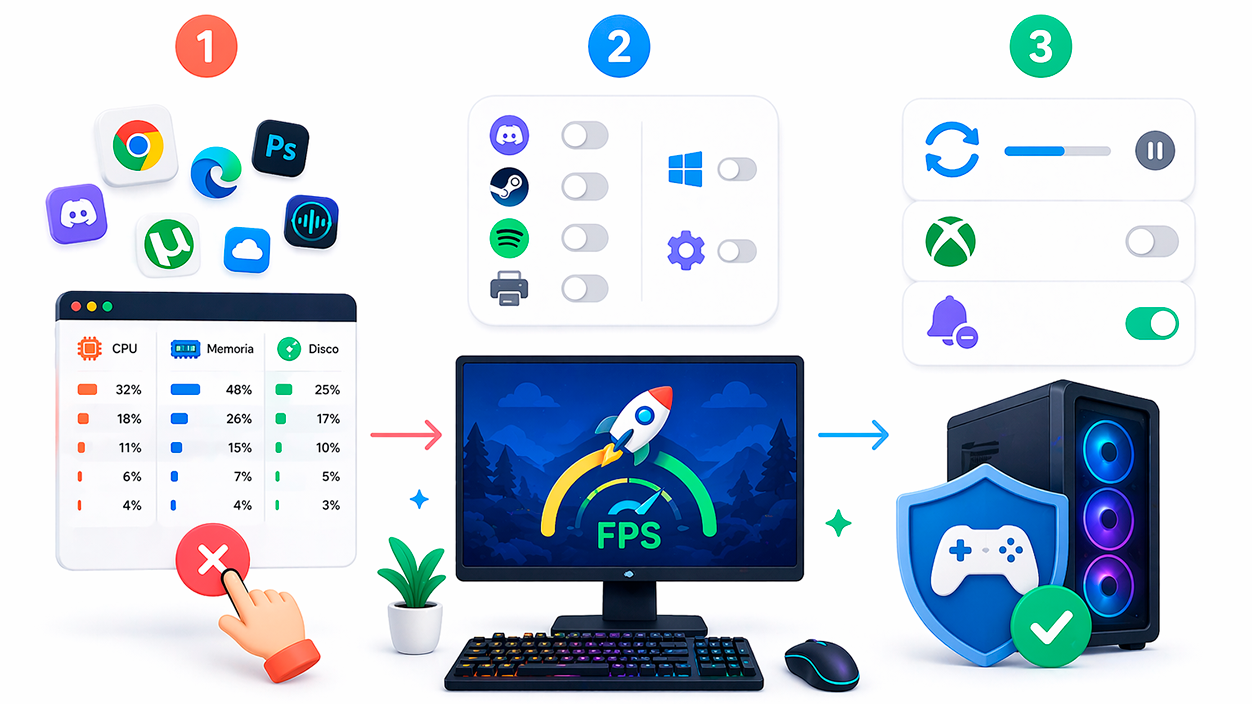
One of the quickest changes you can make is to reduce the number of programs running in the background that run while you play. Each additional process uses some CPU, memory, and disk resources, and if you accumulate many of them, the impact on FPS can be quite noticeable.
1. Close resource-intensive programs and bloatware before playing.
Before opening your game, check what you have loaded: browsers with 20 tabs, editors, download clients, messaging apps, secondary launchers…all of that adds up. Close manually:
- Browsers (Chrome, Edge, Firefox) that you don't need during the game.
- Video, image or audio editing programs.
- Download clients (torrent, etc.).
- Applications that sync in the cloud (if they can wait).
- Any software that doesn't add anything to your gaming session.
If you want to see it in more detail, open the Task Manager (Ctrl + Shift + Esc) and in the “Processes” tab, sort by CPU, memory, and disk usage. This way you can locate which applications are consuming the most resources and close them from there, always avoiding touching system processes you don't recognize.
2. Disable startup programs and background activity
Many programs automatically add themselves to Windows startup without asking permission, loading Resident services that hog RAM and CPU all the time. To lighten the system:
- Open Task Manager and go to the “Startup” tab.
- Disable Everything you don't need (messaging, secondary launchers, printer tools, etc.).
- In Settings > Privacy > “Background apps”, prevent Windows apps from running on their own if you are not using them.
Third-party optimization tools such as Winaero Tweaker They help automate this by "hibernating" programs when not in use, freeing up RAM for games and reducing background processes, but you can also do it manually if you prefer to control what runs yourself.
3. Delay automatic updates and disable Game Bar
While you're playing, you don't care if Windows starts up. download large updates nor that a storm of notifications will be generated on top of the screen:
- In Settings > Windows Update, pause or delay automatic updates during your gaming sessions.
- Turn off recording mode and Game Bar in Xbox Settings > Games, so it doesn't consume resources capturing clips unnecessarily.
- Configure the "Focus Assist" to "Alarms Only" mode or similar when gaming, reducing pop-up windows; you can also hide recommendations.
These processes don't always directly draw on the GPU, but they can generate disk and network usage peaks that result in micro-cuts and FPS drops in online games.
Quick Windows settings to gain FPS
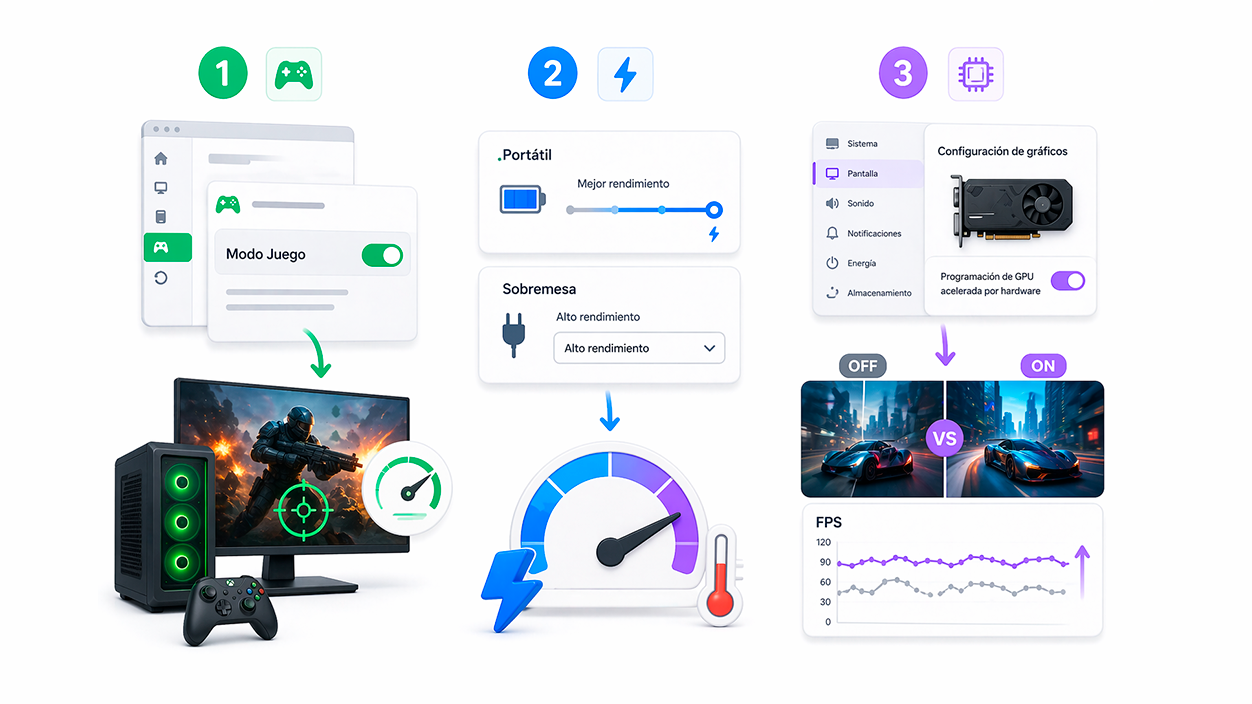
In addition to closing processes, Windows has several options designed to give priority to gaming performance which should be activated.
Activate Game Mode in Windows 10 and 11
"Game Mode" is a built-in feature that handles prioritize active play above other processes, reducing background activity, pausing some updates, and fine-tuning resources.
To activate it:
- Open Settings (Windows key + I).
- Enter the section "Games" and then in “Game Mode”.
- Make sure the Game Mode switch is set to “On”.
Windows will automatically detect when you're running a game and apply these settings so that CPU and GPU focus on gaming instead of in ancillary tasks.
Adjust the power plan to “High performance”
On laptops (and desktops too), it's important to tell Windows to prioritize performance over energy efficiency. A conservative power plan is recommended. limits CPU and GPU frequenciesAnd that shows in the FPS.
On laptops, do the following:
- Click on the battery icon in the taskbar.
- Move the slider to “Better performance”.
On desktop computers, go to Control Panel > Hardware and Sound > Power Options and select a power plan. High performance or its equivalent. Keep in mind that this will increase power consumption and temperature, but it will also give you more FPS.
Use hardware-accelerated GPU scheduling
In Windows 10 and 11 there is a setting called “Hardware-accelerated GPU programming” which allows delegating part of the render queue management to the graphics card itself, offloading some work from the CPU.
To see if it benefits you:
- Go to Settings > System > Display.
- Go to “Graphics settings”.
- Enable the hardware GPU scheduling option, if your GPU supports it.
In systems where the CPU is barely adequate, this change can reduce input lag and stabilize FPS, although the difference isn't always noticeable. It's worth testing it with and without the feature enabled using a frame counter.
Optimize the graphics settings of games
Even with all the settings fine-tuned, if your game is configured too high for your hardware, you'll still experience stuttering. You'll need to experiment a bit. the internal video options of each title.
Lower the resolution to reduce the load on the GPU
Resolution is one of the settings that most influences FPS, because it determines how many pixels the GPU should render per frame. Going from 1080p to 900p or 720p involves a significant reduction in graphics load.
If your PC is modest or you're trying to achieve a stable 60 FPS in a very demanding game, try:
- Enter the video or graphics menu of your game.
- Reduce the native resolution by one step (for example, from 1920×1080 to 1600×900).
- Check how it affects to the clarity of the image and the fluidity.
The image will be slightly less sharp, but in return you might gain 20 or 30 FPS suddenly, which is key in online shooters or competitive titles.
Key options: VSync, antialiasing, shadows, and draw distance
Almost all games include a number of advanced graphics settings. The ones that most affect performance are:
- VSync (vertical synchronization)This feature synchronizes the FPS with the monitor's refresh rate to prevent screen tearing. Disabling it can increase FPS and reduce input lag, but at the cost of potential screen tearing. Try both options.
- Antialiasing (MSAA, FXAA, TAA…)It smooths jagged edges. It's quite resource-intensive. Start with low settings or lighter techniques and only increase them if you have FPS to spare.
- ShadesTheir quality and resolution can consume a lot of resources. Lowering shadows from "Ultra" to "Medium" usually provides a good performance boost.
- Draw distanceThe further away objects and details are rendered, the harder the GPU has to work. Reducing this significantly reduces the load in open worlds.
- Extra graphic effects (motion blur, lens flare, very dense particles): disabling or reducing them improves FPS stability without ruining the overall look.
Most games offer preset settings like "Low / Medium / High / Ultra". In many cases, it's more worthwhile to play on [highest setting]. Medium with high FPS that in Ultra with constant stuttering, especially in competitive games where fast response is more important than visual appearance.
Update and optimize GPU drivers
Your graphics card relies on its drivers to get the most out of it. An outdated driver can be limiting performance even if you have powerful hardware. Manufacturers like NVIDIA, AMD, and Intel publish updates. driver versions that improve FPS and they correct errors frequently.
- NVIDIA GeForceYou can use GeForce Experience to search for and download the latest drivers, or go directly to the drivers website, choose your GPU model and your Windows version, and download the latest package.
- AMD RadeonFrom within the Radeon software itself, in the "Updates" section, you can install the latest drivers. They are also available on the official support page by selecting your graphics card.
- Intel GraphicsOn systems with modern integrated graphics, visit the Intel Download Center to ensure you have the latest version.
Many comparisons show that simply installing the latest driver achieves a increase of up to 20-25% in some gamesIn addition to fixing crashes and compatibility issues, keeping your GPU up-to-date is essential if you want to improve FPS without changing your hardware.
NVIDIA and AMD tools to get the most out of your graphics card
In addition to updating drivers, both NVIDIA and AMD offer very comprehensive control panels for fine-tune graphics quality and overall performance at the system level.
- In it NVIDIA Control PanelIn “Manage 3D settings”, you can adjust parameters such as the number of pre-rendered frames, global vertical synchronization, or optimization for multi-core processors.
- In it AMD Radeon softwareWithin Global Graphics Settings, you can control anisotropic filters, antialiasing modes, texture filtering quality, surface format optimization, and more.
These menus allow you to apply global or per-game profiles, so that the entire system is performance-oriented without having to touch each title one by one, in addition to facilitating access to moderate overclocking and temperature monitoring.
Advanced Windows settings that can help with gaming
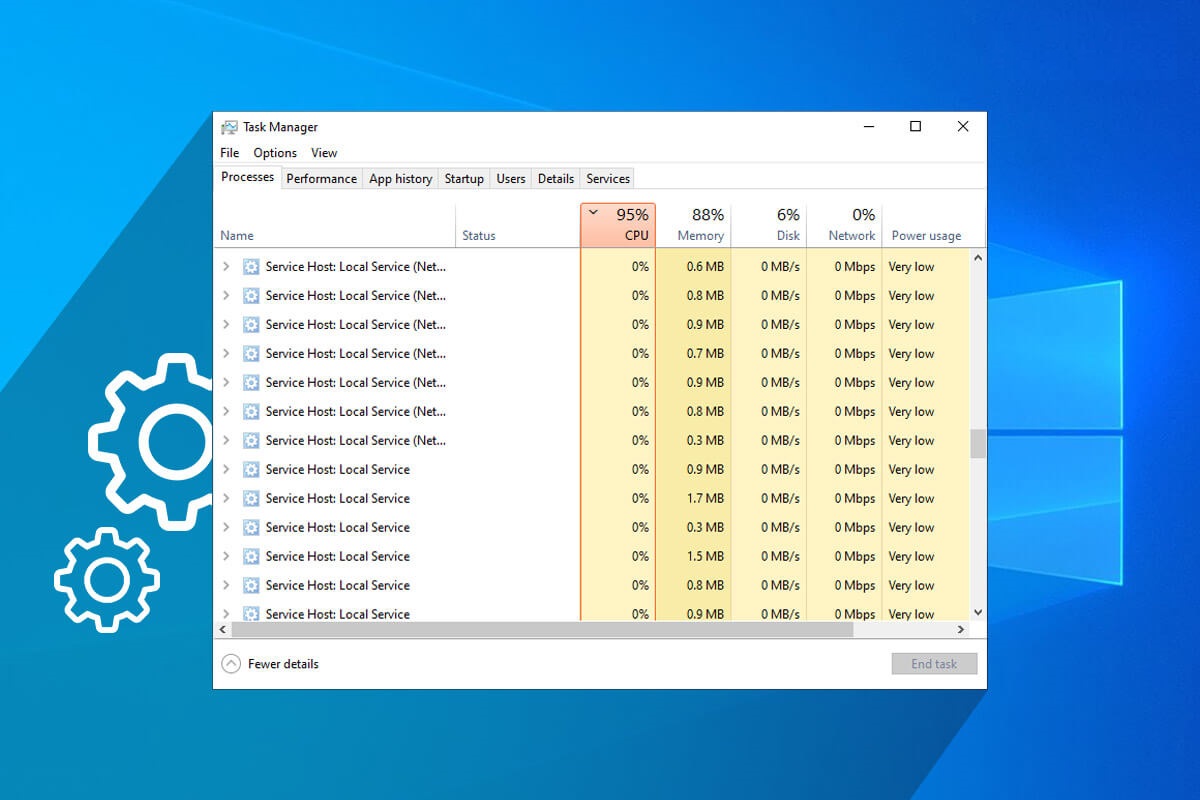
If you've already closed unnecessary processes and refined the graphics, you can go one step further with advanced tweaksSome are more noticeable than others, and it's best to apply them carefully:
- Disable SysMain (SuperFetch) and PrefetchThese features speed up Windows and application startup, but on some computers they cause a lot of disk activity while gaming. Stopping the SysMain service from "Services" and disabling Prefetch in the Registry may help. reduce read spikes on HDD in certain cases.
- Optimize or defragment drivesOn mechanical hard drives, using the Windows "Defragment and Optimize Drives" tool prevents game files from becoming too fragmented. On SSDs, the "Optimize" option runs TRIM to maintain stable performance.
- Enable TRIM on SSDChecking from the command prompt that DisableDeleteNotify is set to 0 ensures that Windows is using TRIM correctly and that the SSD can manage free space well.
- Disable background services and applications in WindowsFrom Settings > Background apps, you can prevent many "modern" apps from constantly sending and receiving data, and specifically prevent one The app runs in the background.
Some very specific settings, such as disabling Nagle's algorithm to reduce latency on certain connections, are only worth touching if you know exactly what you're doing and understand the risks of manipulating the Windows Registry.
Hardware improvements that directly impact FPS
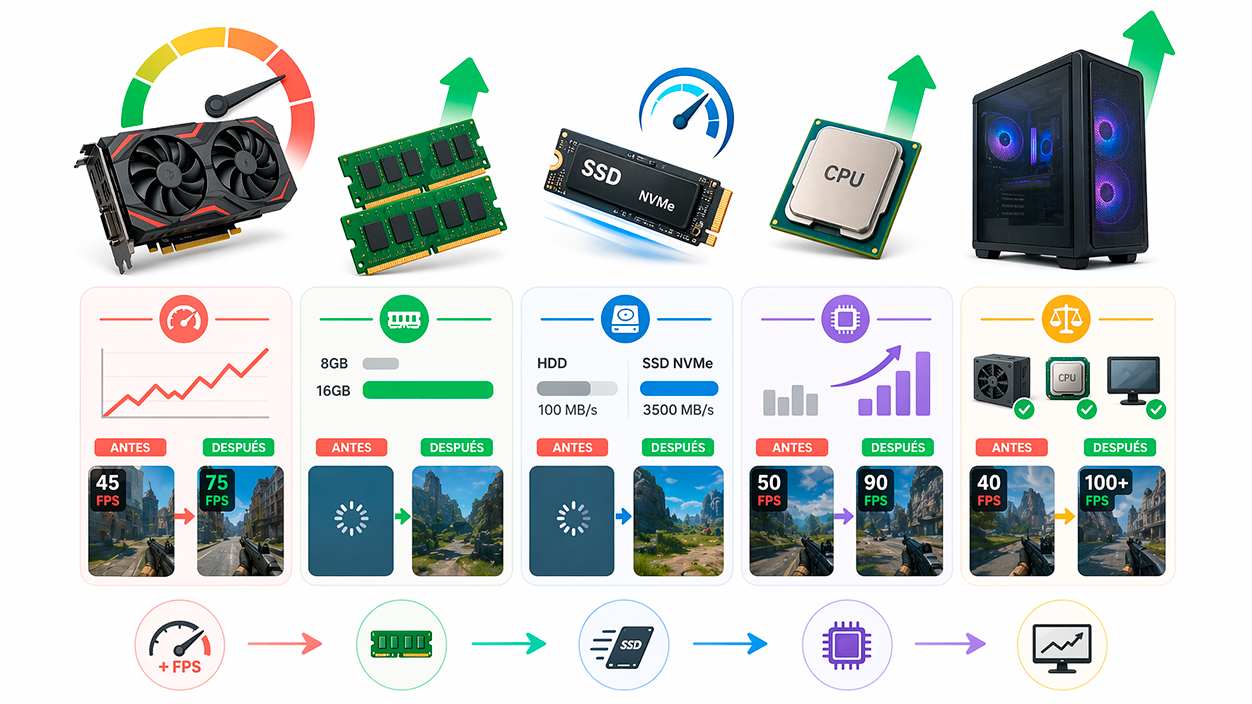
There comes a point where, no matter how many processes you close or settings you tweak, the hardware itself sets the limit. If your goal is to play new titles smoothly, you might need to... consider some physical upgrade.
Moderate overclocking of the graphics card
Many modern GPUs support a soft overclock of 10-15% Without too much hassle, you can use the manufacturer's software or tools like MSI Afterburner. By increasing the core clock speed and, in some cases, the memory clock speed, you boost processing power and can gain FPS without changing your graphics card.
However, each extra MHz also means more heat and higher power consumption. It's essential:
- Increase frequencies gradually and test stability in games or benchmarks.
- Watch GPU and CPU temperatures to avoid exceeding safe levels.
- Do not push the overclock to the limit, especially on laptops with tight cooling.
Increase system RAM
Play today with less than 8 GB of RAM It's a fair amount, and many modern games recommend 16 GB. If your computer is short on memory, the system will start using the hard drive as "virtual memory," causing a significant drop in performance.
By adding more RAM:
- Check the type and frequency your motherboard uses (DDR3, DDR4, DDR5, etc.) and, if necessary, consult Windows does not detect all the RAM.
- Try using twin modules (dual channel mode) and avoid mixing different memories.
- To play comfortably, aim for 16 GB as the current standard.
The direct impact on FPS isn't always as significant as changing the GPU, but on systems with limited RAM, the overall improvement in smoothness is noticeable. avoid jerks from constant exchange with the disc It's very obvious.
Switching to SSDs: from mechanical bottlenecks to fast charging
Although replacing a mechanical hard drive with an SSD doesn't increase pure FPS in most games, it does reduce it significantly:
- The loading times and waiting screens.
- The stuttering occurs when the game has to load textures or parts of the map on the fly.
- The general feeling of "lag" when moving through the system.
If you're still using a slow 50-60 MB/s HDD, upgrade to a 500 MB/s SATA SSD, or better yet, a NVMe SSD A speed of over 1500 MB/s completely changes how your PC feels. For modern games that exceed 50-100 GB, it's recommended to install at least 500 GB or 1 TB SSD if you want to have several installed without always reaching the space limit.
When all that's left is to change the GPU or the CPU
If your graphics card is very outdated (for example, models from many years ago) and none of the above adjustments make current games run smoothly even at lower quality settings, it's a sign that GPU upgrade is due.
When choosing a new graphics card, it is important to:
- Check that your power supply can handle the additional consumption.
- Make sure that the The CPU will not bottleneck. with a GPU that's too powerful for its level.
- Find a balance between the resolution you play at (1080p, 1440p, 4K) and the performance you expect.
In some cases, especially with very old PCs, it may be more interesting to consider a new platform (CPU + motherboard + RAM + GPU) that patch individual parts.
How to check if your changes actually improve FPS
To find out if closing processes, changing settings, or tweaking drivers is actually helping, it's very useful to use a... FPS counter And, if you want to get really precise, some benchmarking tools.
- Many games include a FPS counter in the options, which you can activate to see the figure on screen.
- On Steam you can display an FPS counter in the client overlay.
- Programs like MSI Afterburner with RivaTuner allow you to see FPS, GPU usage, CPU usage, and temperatures in real time in almost any game.
This way you can check if, for example, when closing certain Windows processes Do CPU usage spikes disappear, or does switching from "Ultra Shadows" to "Medium" give you those extra 15 FPS you needed for smooth gameplay?
Taken together, reducing background processes, properly tweaking Windows, fine-tuning graphics settings, and, when necessary, investing in a GPU, more RAM, or an SSD, allows you to transform a sluggish computer into a pretty decent gaming machine without spending a fortune. The key is to eliminate causes one by one, always starting with the software changes and process closure and leave hardware upgrades as a last resort when all other options have truly been exhausted.

Index
- 1 What are FPS and when are they considered low?
- 2 The role of the monitor: refresh rate and FPS limit
- 3 Why FPS drops: main bottlenecks
- 4 Which processes to close in Windows to improve FPS
- 5 Quick Windows settings to gain FPS
- 6 Optimize the graphics settings of games
- 7 Update and optimize GPU drivers
- 8 NVIDIA and AMD tools to get the most out of your graphics card
- 9 Advanced Windows settings that can help with gaming
- 10 Hardware improvements that directly impact FPS
- 11 How to check if your changes actually improve FPS
