
Are you browsing the internet and suddenly a website asks for access to your local network in Chrome? Before accepting, it's normal to wonder what exactly that request means. What could a website do with that permission?After all, visiting a website is one thing, but allowing it to communicate with devices connected to your Wi-Fi is quite another. All the details are below.
Why does a website request access to your local network in Chrome?

If you've recently seen a website requesting access to your local network in Chrome, you're not alone. It turns out that by the end of 2025 Chrome enabled this new request in its version 142 as part of its permissions and security system. The request is called "Local Area Network (LAN) Access" and It appears when a site requests permission to connect to a device on your home or work network.or a local program.
So it's not a virus or a browser bug, but it is It's important to understand what this warning means and when to allow it.This way, the security of your office or home won't be compromised, and you also won't block legitimate web applications you need to use. With that in mind, let's first look at what Local Area Network (LAN) Access is.
What is Local Area Network (LAN) Access?
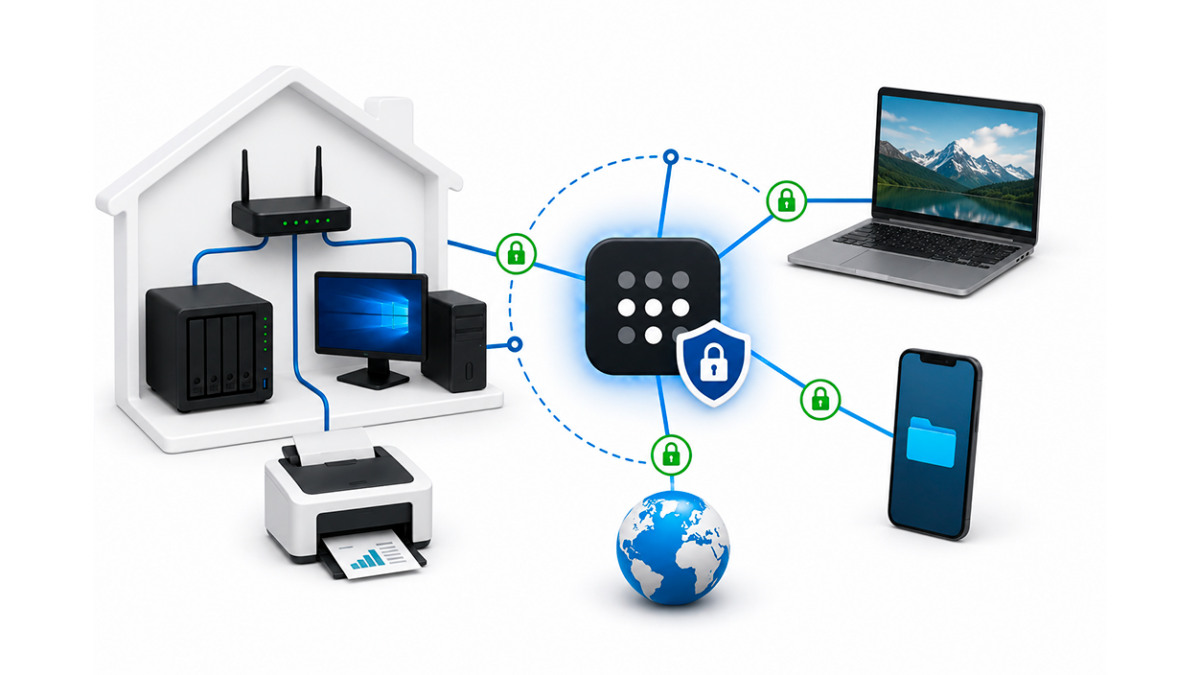
Historically, web browsers operated under a policy of not directly interacting with devices within a private network. However, with the rise of complex web applicationsThis barrier has been blurring. Therefore, there's no need to worry if a website requests access to your local network in Chrome.
A local area network (LAN) brings together all the devices that communicate through a router or a private network. This includes computers, mobile phones, wireless printers, smart TVs, home servers, and other devices connected to the same network. However, Why would a website need permission to communicate with one of these devices?
There are perfectly normal situations where this is necessary, such as when you are going to configure a printer or another smart device. Initial setup may need to be done through the manufacturer's website: discovering the device, modifying settings, etc. To do this, the website needs to communicate with the local device, and that's why it asks for your permission.
The same applies to controlling multimedia devices (finding them and sending content to them), or to accessing services hosted on your computer. Likewise, some business applications depend on services installed on an office network. In these cases, Access may be necessary for a specific function to operate correctly..
A website requests access to your local network in Chrome: when to allow it

Now that we've clarified why a website requests access to your local network in Chrome, the obvious question is: when is it safe to click "Allow"? To find out, we need to understand the... risks involved in accepting a request without checking it first. The main risk isn't necessarily that a page can automatically scan all your devices. So what is it?
The real problem is that a malicious website could try to use your browser as an intermediary to communicate with local services. Perhaps the attacker wants to find out How does a local service respond, and try to exploit its weaknesses?Or perhaps you might even want to interact with applications that run on your computer or another local device.
Well, browser protections help reduce these possibilities, like when you see the permission request in Chrome. Therefore, the best strategy is to grant those permissions only when... understand which function needs them and trust the site that requests themBut how do you decide whether to allow access or not?
How to decide whether to allow access or not
Before clicking Allow, it is advisable to Take a few seconds to check the context of the requestThe following ideas can help you make the right decision if a website requests access to your local network in Chrome:
- Check the page addressCheck the full domain name and make sure it matches the service you want to use. Don't rely solely on the logo or design.
- Think about what you're trying to doIf the permission request appears after you open a printer setup tool, that's normal. But if you're just reading a blog, watching a video, or browsing a store, there's probably no legitimate reason for it to request access.
- Check if the function actually needs the permissionDoes everything work normally after denying permission? Then there was no need to grant it. But if an important function stops working, then it was advisable to click Allow.
- Do not grant access to your local network to unknown websites, which promise prizes or with alarmist alerts.
What happens if you block the permission?
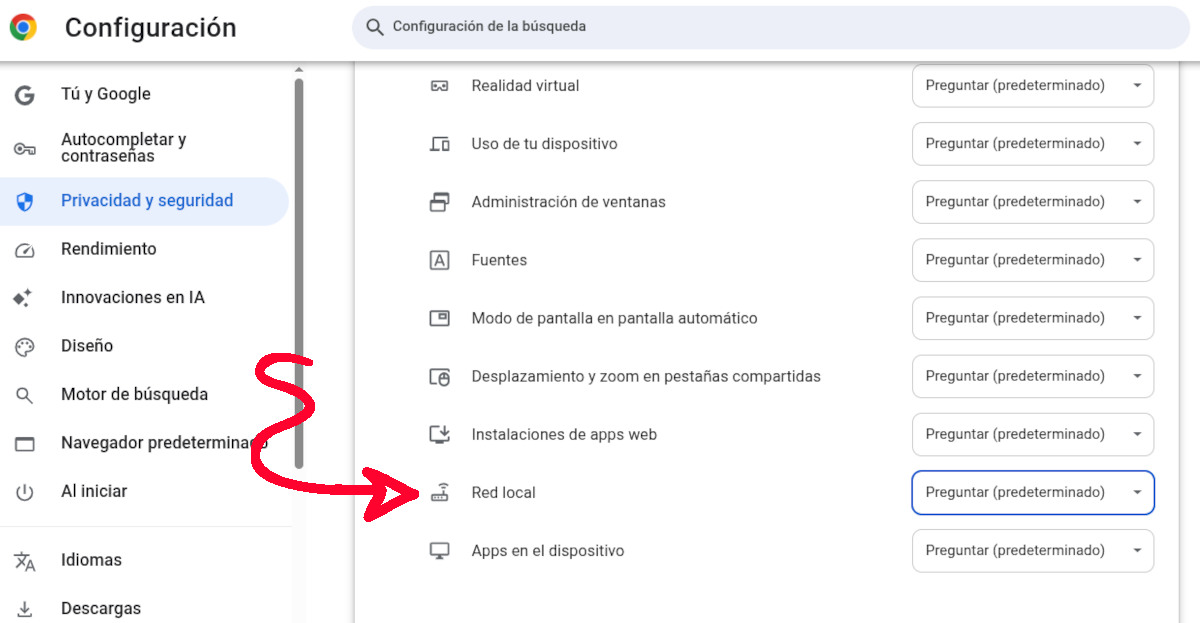
What happens if a website requests access to your local network in Chrome and you deny it? Simply put, That specific website will not be able to communicate with your local networkBut it will still have internet access and function like any other website. Of course, if it's a legitimate tool you need, the website's functionality might be limited or it might display an error. In that case, it was best to click Allow.
To fix this, you can go to the site's permission settings in Chrome by clicking the slider icon next to the URL. There, Manually change the Local Network setting to "Allow"If you don't see the option, click on Site settings, look in the permissions list for the Local network entry and select "Ask" or "Allow".
In conclusion, it's appropriate when a website requests access to your local network in Chrome: It gives you the opportunity to decide what to doDeny access if the website doesn't have a clear connection to your router or computer. However, if you're setting up a device or using a professional development tool, allowing access will open the door to a much more integrated web experience.

Index