- Windows 10 and 11 intentionally use more RAM at idle to improve performance, making better use of available memory.
- High RAM usage can be caused by a lack of updates, outdated drivers, resident programs, or malware.
- Tools like Task Manager, perfmon /res, and memory tests help detect bottlenecks and errors.
- Optimizing startup, virtual memory, services, and considering upgrading RAM are key to stabilizing memory usage.
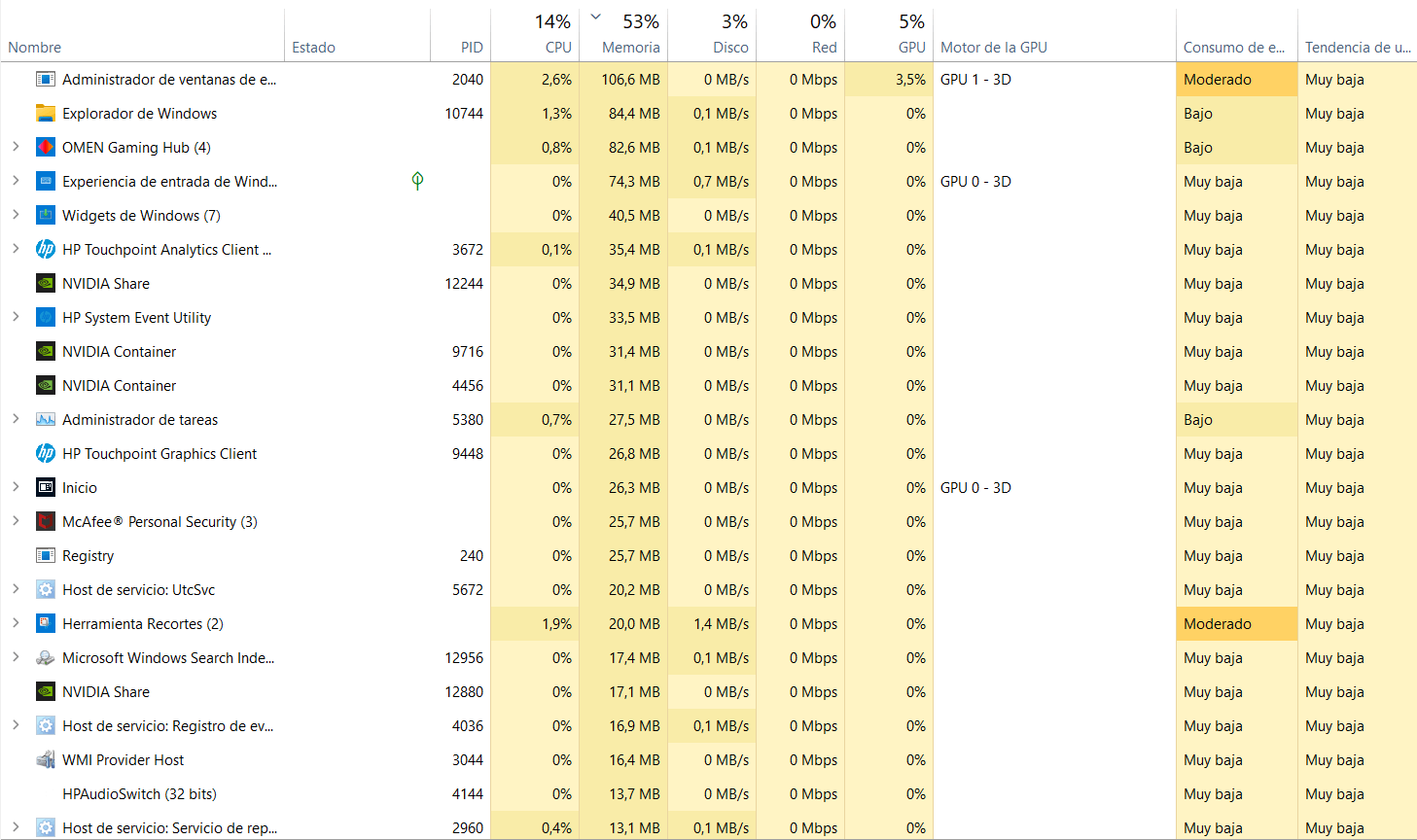
When you build a new PC or upgrade to Windows 10 or 11The first thing they usually do is open Task Manager and check memory usage. And that's when the shock comes: the system is almost at rest and Windows is showing 3, 4 or even more GB of RAM usedSometimes with percentages of 70, 80, or 90%. It's easy to think that something is wrong, but the reality is a bit more complex.
In many cases, that apparent high RAM usage at idle It's not a bug, but rather part of how Windows now manages memory for smoother performance. Even so, there are situations where a real problem exists: lack of updates, outdated drivers, unnecessary programs running in the background, malware, or even faulty RAM modules. Let's look, step by step, at how to distinguish between normal and worrisome issues and what to do in each case.
What does RAM usage in Windows really mean?
One of the most common mistakes when looking at the Task Manager is misinterpreting the percentage of the Memory columnThat value does not indicate that the processes are using, for example, 95% of the total 16 GB installed, but rather the percentage about the memory available to the system at that time, which already takes into account hardware reservations and other internal allocations.
Your PC's RAM isn't a single block dedicated only to the applications you see. A portion is reserved for devices, BIOS/UEFIIntegrated CPU, controllers, and, in some cases, integrated GPUThat's why the "total memory" figure usable by Windows is usually somewhat lower than the RAM physically installed.
Another key detail is that Windows, especially in its modern versions, does not seek to "save RAM at all costs", but Take full advantage of it for a smoother rideIf you have 16 GB installed, the system prefers keep data, libraries, and applications in memory so that they open instantly, instead of having the RAM empty "just in case".
This explains why, at rest, you can see consumption of 4 or 5 GB with the desktop barely openAs long as the device responds well and you don't notice any lag or insufficient memory messages, this behavior is usually completely normal.
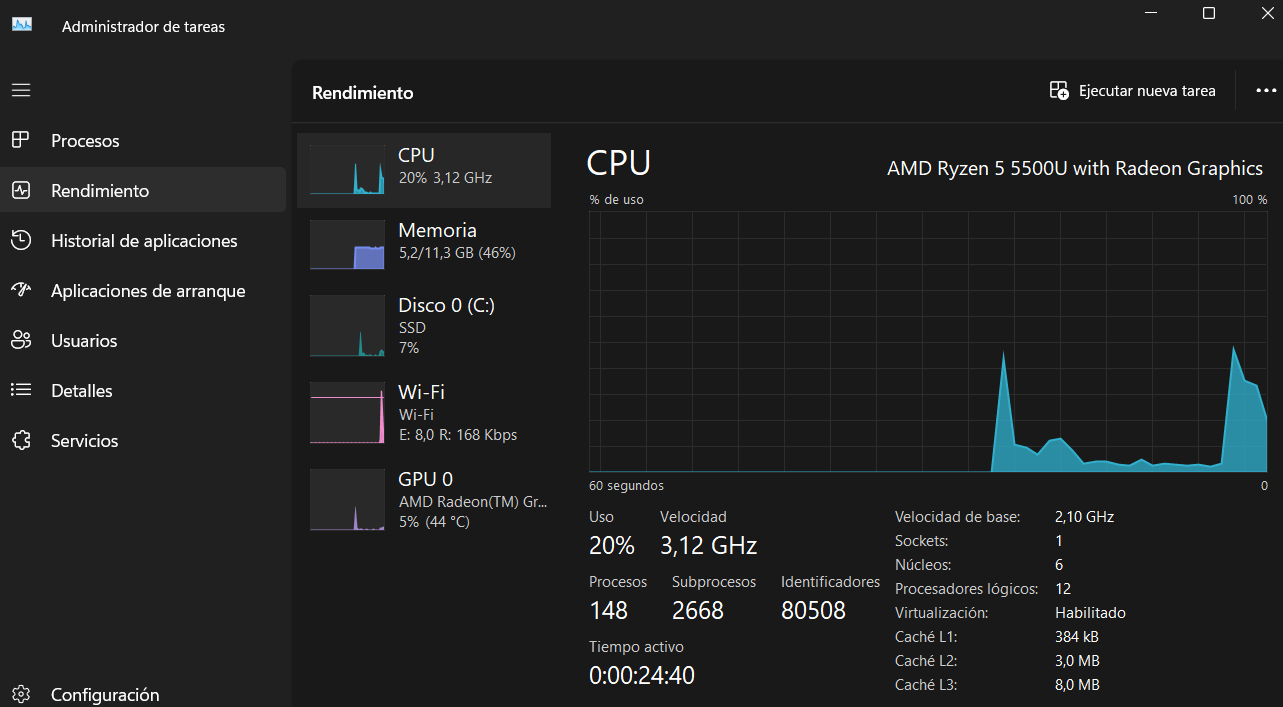
What is high RAM usage and when should you worry?
There is talk of high memory consumption When the use of RAM and/or virtual memory grows to such high levels that the system begins to suffer: it freezes, warnings such as "Your computer has low memory" appear, or applications take forever to open or change windows.
To check if you're really in that situation, the most direct way is to use the Task Manager:
- Press Ctrl + Alt + Delete and open “Task Manager”.
- In the “Processes” tab, look at the columns of CPU, Memory and Disk.
If the Memory column is constantly hovering around 70-99% even without heavy programs openIf the "Performance" tab consistently shows values close to 100%, then we can certainly identify a problem of excessive RAM usage. On systems with very little memory, such as 4 GB, it's relatively easy to reach these figures, but there's still significant room for optimization.
Typical symptoms of this high memory consumption include Sporadic freezes, game stutters, abrupt changes from desktop to black or performance drops when the system runs out of free megabytes (for example, less than 200 MB while playing Forza Horizon or similar titles).
The System process and compressed memory: it's not always a mistake
One case that is particularly striking is when the process System It appears to be using several gigabytes of RAM. At first glance, it seems like a bug or a memory leak, but in Windows 10 and later versions, it's usually the opposite: a deliberate improvement in memory management.
In older versions of Windows (7, 8…), when RAM became full, the system would start dumping data from idle applications into the page file (pagefile.sys)which is simply virtual memory located on the hard drive or SSD. The problem is that accessing the disk is much slower than accessing RAM, so every time the system had to retrieve that data, everything became more cumbersome.
With Windows 10 came a major change: before accessing the disk, the system tries to compress the memory of less active applicationsIn other words, it reduces its RAM footprint by dedicating some CPU time to compression and decompression as needed. The result is better overall performance than using only the page file.
Where is that compressed memory stored? For the most part, it appears as resource consumption associated with the process. SystemThat's why you might see "System" appear to be using 3, 4 GB or more, when in reality it's simply accumulating compressed memory to reduce disk usage and that your programs come back to life faster when you reopen them.
As long as the computer runs smoothly, there are no "low memory" messages or constant stuttering, this high RAM usage by System is usually a expected and beneficial behaviornot a mistake that needs to be "fixed".

Common causes of abnormal RAM usage at idle
Even discounting the above, there are situations in which Windows may be consuming far more memory than is reasonable while practically at rest. Some common reasons are:
- Lack of Windows updates that correct memory leaks, bugs in system services, or problems with compressed memory.
- Outdated or conflicting device driversespecially graphics, network, chipset or storage.
- Unnecessary resident programs that load at startup and remain in the background without you noticing.
- “Optimizing” tools and maintenance suites which, instead of helping, add services and processes that end up consuming more RAM.
- Malware, adware, or unwanted software that runs continuously and consumes resources.
- Incorrect virtual memory configuration or the page file, with ridiculously small sizes or on very slow disks.
- File system errors or damaged sectors on the hard drive, which forces Windows to work harder than it should.
- Defective RAM modules or hardware incompatibilities, less frequent but possible.
The total amount of installed RAM also plays a role. On a new computer with 16 GB, it's normal to see idle RAM consumption of 3, 4 or 4,5 GB without doing anything "special". It's a different story with a PC with only 4 GB, where simply opening a browser and running antivirus software can leave you with little room for maneuver and give the impression that Windows "eats them all".
How to find out who is eating your memory
To determine if RAM usage at idle is reasonable or if something is amiss, it's advisable to combine several tools offered by the system itself. There's no need to install anything unusual to get a clear picture. image quite clear what happens.
The first step, as we have already mentioned, is the Task ManagerFrom the "Processes" tab, you can sort by Memory and see at a glance which applications and services are using the most RAM. If you spot a program you don't use at the top, you've got a candidate to close or uninstall.
For finer analysis, Windows incorporates the Resource MonitorYou can open it from Run (Win + R) writing perfmon /res Then, after a few seconds, go to the "Memory" tab. There you'll see details such as memory in use, reserved, standby, and free, as well as which processes are putting the most strain on RAM.
Another important figure that should not be forgotten is the memory reserved for hardwarewhich reduces the RAM available to the system. You can also check it in the Windows performance tools; if it's abnormally high, it may indicate BIOS/UEFI settings or integrated graphics configurations that deserve a look.
Updating Windows and drivers: the foundation for avoiding memory problems
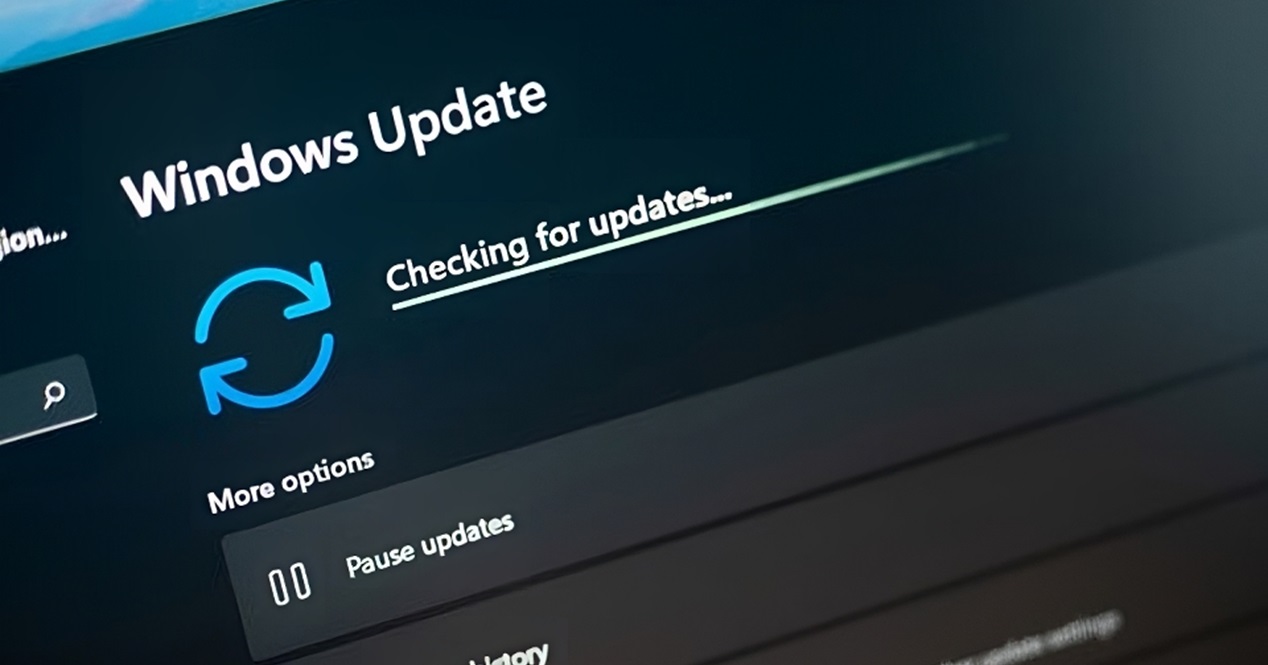
Before getting into advanced settings, it's a good idea to make sure the system is fully updatedOften, a simple batch of Windows Update patches fixes memory leaks, errors in system services, or problems with the compressed memory manager.
To do this, go to Settings > Update & Security > Windows Update and click on “Check for updates”. Let the system download and install everything pending, restart, and check again until there are no more updates, including the Optional upgradeswhich often include important drivers.
In parallel, it's a good idea to update the controllers of the main components From the official website of your computer manufacturer or the manufacturer of each component (motherboard, graphics card, etc.). In Windows 10 and 11, having up-to-date chipset, storage, network, and GPU drivers makes a significant difference in stability and resource consumption.
If you've recently upgraded major hardware—for example, switching from an A320 to a B550 motherboard to better utilize a graphics card like the RX 6500 XT—updating all your drivers is practically mandatory. A bottleneck or a poorly installed driver can lead to... lag in games and memory almost at its limit in demanding titles.
Clean boot: detect software conflicts and unnecessary processes
When you suspect that an application is causing abnormal RAM usage but you don't know which one, a very useful technique is to run a clean boot of WindowsThis involves starting the system with only the essential Microsoft services and drivers, temporarily disabling third-party services.
The complete procedure is detailed on the Microsoft support website (article on how to perform a clean boot), but the general idea is to use msconfig and the Task Manager to disable everything that isn't critical. After restarting, observe the idle memory usage; if it drops significantly, you know the problem stems from any additional program or service.
From there, the trick is to reactivate applications and services one by one until you find the one that's triggering the memory spike again. It's a somewhat tedious process, but very effective for catching conflicts or poorly designed programs that are hogging RAM without you really knowing why.
In this analysis, it's important to consider whether you use "all-in-one" maintenance suites, resource-intensive antivirus programs, or tools that promise to optimize Windows. Many of these add resident services, background updaters, and monitoring modules that end up consuming more resources than they provide.
Adjust disk, file system, and overall performance
Although RAM is the main focus, the status of your disk (HDD or SSD) The file system can indirectly influence performance and how memory usage is perceived. If the disk is malfunctioning, the system seems to "swallow" the RAM because everything responds with a delay.
On mechanical disks, run the defragmentation and optimization of drives It helps to make access more organized. You can open it from “dfrgui” in the Run window, select the drive (usually C:) and click “Optimize”. On modern SSDs, Windows already manages optimization, but it's still a good idea to check that it runs periodically.
Another option is to adjust Windows to prioritize performance Regarding visual effects, from "This PC > Properties > Advanced system settings > Performance", you can choose "Adjust for best performance". Transparencies and animations are lost, but some responsiveness is gained and the load on memory and CPU is slightly reduced.
If you suspect file system errors or partition failures, third-party tools such as EaseUS Partition Master They allow you to check and repair damaged structures. Many "slow computer that seems to be running out of RAM" problems actually come from faulty disks, not the memory itself.
Whether using EaseUS or Windows tools (like chkdsk), it's recommended to check your drives if you detect erratic behavior, meltdowns or very slow disk access accompanied by apparently high RAM usage.
Configure virtual memory and the paging file correctly
La virtual memory It's an extension of RAM on the disk. Windows uses the page file (pagefile.sys) to store data when physical memory is limited. Configuring it incorrectly—either too much or too little—can cause problems when the system is under load.
To adjust virtual memory you can follow these steps:
- Right-click on “This PC” > “Properties” > “Advanced system settings”.
- On the “Advanced” tab, click the “Settings…” button in the “Performance” section.
- Again, go to “Advanced” and, under “Virtual Memory”, click “Change”.
There you can uncheck “Automatically manage the paging file size for all drives"and define a custom configuration. A common practice is to leave the system drive (C:) without a page file or with a minimal one, and move the bulk of the virtual memory to another secondary unit with a fixed size.
As a reference, a paging file size equivalent to approximately double the physical RAMHowever, this isn't a hard and fast rule. On computers with plenty of RAM (16 GB or more), slightly less might suffice, and on computers with limited memory, it's better to be generous to avoid "insufficient memory" messages.
There is also an advanced setting in the Registry for Windows Delete the page file when shutting down (by changing the ClearPageFileAtShutDown value to 1). This frees up virtual memory on each shutdown, at the cost of taking slightly longer to close the system. It's a maintenance option, not a direct solution to high idle resource consumption.
Advanced services and settings: Superfetch, NDU and company
Some Windows services They can occasionally affect memory usage. It's best to be clear about what you're doing before changing anything, but in certain scenarios it might be worth trying advanced settings.
The service Superfetch (called SysMain in modern versions) is responsible for preloading frequently used applications into memory so they open faster. It works well on many computers, but on others it can cause intensive disk access and a feeling of high RAM usage. You can disable it from “services.msc” by searching for SysMain or Superfetch, stopping the service, and setting its startup type to “Disabled”.
Another more delicate setting is to disable NDU (Network Data Usage Monitoring Driver) in the Registry, changing the starting value to 4. Some users report improvements in memory consumption by doing so, but it can also affect network usage monitoring and even connection stability. If you try this method and lose connectivity or notice strange behavior, it's advisable to revert the change to the previous value.
In general, these service and registry adjustments are for cases where you have already ruled out other more common causes (resident programs, malware, lack of updates, drivers, etc.) and you are looking to further optimize your system.
Whenever you modify the Registry or disable system services, it's advisable to create a restoration point or write down the original values, in case you need to go back without complications.

Checking RAM health: diagnostics and MemTest
If after all these checks the device continues to behave strangely —random crashes, blue screens—crashes shortly after starting or unstable memory readings—, one must consider that there may be a physical problem with the RAM modules.
Windows includes a built-in tool called Windows Memory DiagnosticYou can launch it by typing mdsched.exe in the search box or in Run. The system will ask you to restart and, before loading Windows, will perform a series of tests on the installed memory to detect basic errors.
If you want to go a step further, there are specific utilities such as MemTest86These tests run from a bootable USB drive and subject the RAM to more intensive and prolonged stress tests. They can be downloaded from their official website (memtest86.com), taking care to avoid ads or unwanted downloads.
A single error identified by these tools is already sufficient reason to suspect a faulty RAM module or compatibility issues between modulesIn such a case, the ideal solution is to test the modules one by one, check that they are correctly positioned, and if the errors persist, consider replacing the affected memory.
When is it worth upgrading RAM?
No matter how much optimization we do, there are situations where the best solution for high RAM usage is as simple as... add more physical memoryIf your computer has 4 GB of RAM and you use Windows 10 or 11 with antivirus software, a browser with multiple tabs, and some heavy apps, it's almost inevitable that the RAM will fill up easily.
To assess an extension, it is first advisable to check the type, size and speed of the installed memory. You can see the total amount from "This PC > Properties". In Task Manager, under the "Performance > Memory" tab, you can also see the frequency (MHz), format (DIMM, SO-DIMM), and number of slots occupied.
With that information in hand, you can now look for a compatible module to upgrade your system, for example, from 4 to 8 GB or from 8 to 16 GB. In many cases, this increase in capacity means that RAM usage at idle is no longer an issue and that games and heavy applications have enough headroom to function without constantly pushing to the limit.
After installing new RAM, Windows will automatically detect it at startup. In practice, you'll notice that the memory usage percentages in Task Manager decrease, although the total consumption in GB may still seem "high"; the important thing is that you'll no longer be constantly hovering near 100%.
In short, having more installed memory allows Windows 10 and 11 to better utilize their caching and compression mechanisms, reducing the use of the page file and eliminating many bottlenecks that are otherwise perceived as "Windows hogging all the RAM at idle".
Understanding how Windows manages memory helps you avoid unnecessary alarm when Task Manager shows seemingly high usage figures while idle: a significant portion of this is due to strategies designed to speed up the system, not errors. Even so, if you experience stuttering, crashes, or low memory messages, checking updates, drivers, background programs, virtual memory settings, disk status, and RAM health, along with the option of upgrading modules if you're running low, is usually enough to bring RAM usage under control and enjoy a much more stable and fluid system.


Editor specialized in technology and internet issues with more than ten years of experience in different digital media. I have worked as an editor and content creator for e-commerce, communication, online marketing and advertising companies. I have also written on economics, finance and other sectors websites. My work is also my passion. Now, through my articles in Tecnobits, I try to explore all the news and new opportunities that the world of technology offers us every day to improve our lives.