- Restart loops after updating Windows are usually due to Windows Update failures, incompatible drivers, or settings such as Fast Startup and Automatic Restart.
- Tools such as the Windows Update troubleshooter, SFC, DISM, and System Restore allow you to repair damaged files and return to a stable state.
- Using the recovery environment, Safe Mode, and managing specific problematic updates helps break the loop of persistent reboots.
- Preventing these errors involves keeping drivers updated, limiting peripherals during updates, and applying good maintenance and backup practices.
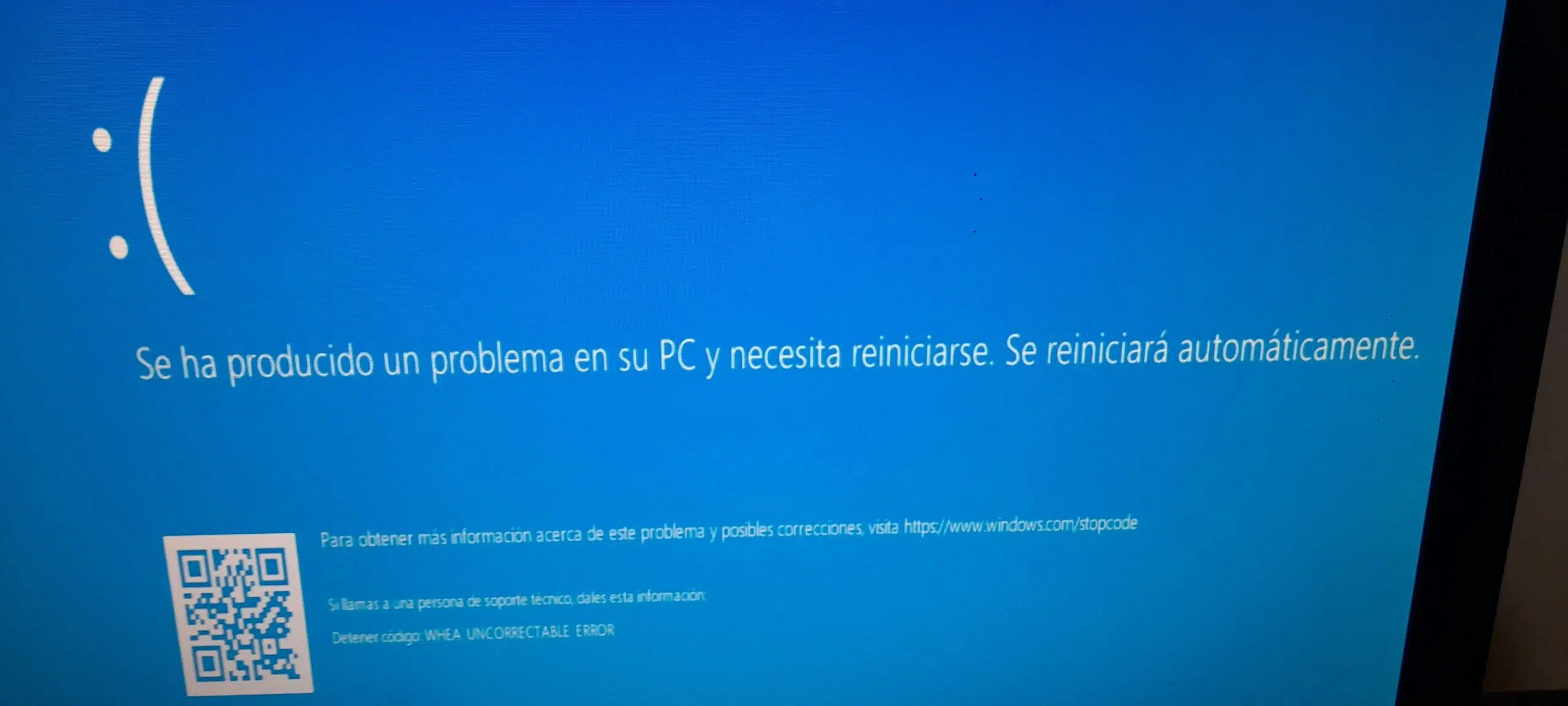
¿Windows asks to restart but never finishes updating? When Windows keeps asking to restart, but it never finishes updating.The feeling of frustration is overwhelming. You're working peacefully, the notification pops up that there are important updates, you restart… and when you return to the desktop, the system keeps insisting that you have to restart to finish the installation. It seems like an endless loop.
This behavior may be due to Windows Update errors, driver conflicts, corrupted files, failures after a specific cumulative update, or even peripherals that are interfering with the shutdown and startup process.
On computers running Windows 8, 10, and 11, it's very common for the system to download updates, display a restart notification, and then, upon returning to the desktop, still see the same message. This usually indicates that The update files are corrupted, there are driver incompatibilities, or there is a conflict between old and new files. from Windows Update.
In other scenarios, especially after major version changes or significant cumulative updates, a less obvious failure occurs: the update shows as installed, but Windows keeps insisting that a restart is required to complete itThis happened, for example, with the cumulative update KB4507453 for Windows 10 version 1903, which caused a loop of restart prompts on some computers.
The role of the external devices and hardware componentsA USB drive, an external hard drive, or even certain controllers can block the shutdown or startup process, causing Windows to "think" that it has not finished applying the update correctly.
Finally, there are cases where the system configuration itself contributes to the problem. Options such as "Quick Start" or automatic restart in case of errors They can hide error screens, prevent you from seeing critical error messages, and hinder the completion of the update process. Pay particular attention to the power settings if you suspect that energy choices are influencing the problem.
Common reasons why Windows asks to restart but doesn't finish updating
The first step to fixing the problem is understanding why it occurs. In most cases, the loop of restarts and update prompts is related to either a fault in the Windows Update components or a specific update that gets stuck halfway through and it's not fully installed.
On computers running Windows 8, 10, and 11, it's very common for the system to download updates, display a restart notification, and then, upon returning to the desktop, still see the same message. This usually indicates that The update files are corrupted, there are driver incompatibilities, or there is a conflict between old and new files. from Windows Update.
In other scenarios, especially after major version changes or significant cumulative updates, a less obvious failure occurs: the update shows as installed, but Windows keeps insisting that a restart is required to complete itThis happened, for example, with the cumulative update KB4507453 for Windows 10 version 1903, which caused a loop of restart prompts on some computers.
The role of the external devices and hardware componentsA USB drive, an external hard drive, or even certain controllers can block the shutdown or startup process, causing Windows to "think" that it has not finished applying the update correctly.
In other scenarios, especially after major version changes or significant cumulative updates, a less obvious failure occurs: the update shows as installed, but Windows keeps insisting that a restart is required to complete itThis happened, for example, with the cumulative update KB4507453 for Windows 10 version 1903, which caused a loop of restart prompts on some computers.
Typical Windows Update errors and restart loops

One of the most common scenarios is that of users who continually see the message that There are important updates pending and a restart is required.But after restarting, nothing changes. This has been reported on Windows 8, Windows 10, and Windows 11.
In the Microsoft Community, for example, some users explain that their team It keeps restarting, trying to install a specific update.Even after several hours of technical support, the response has sometimes been to completely reinstall the operating system, something many consider disproportionate when, apparently, the rest of the system is working normally.
Another variation of the problem is that the updates appear to have been installed (they appear as "successfully installed" in the history), but Windows Update keeps the "Restart now" prompt permanentlyNo matter how many times you press that button or restart from the Start menu, the message reappears.
In the specific case of cumulative update KB4507453 for Windows 10, numerous users reported that the system displayed a persistent notification to restart and complete the installationDespite the fact that the KB update itself was already listed as installed, Microsoft never officially acknowledged the problem, but all indications point to a specific bug in that cumulative update on certain computers.
There are also reports of Windows 11 systems that, after downloading several updates, The system restarts as if nothing happened, without showing any installation progress.When returning to the desktop, Windows Update continues to mark the same updates as pending, without explicit errors, and prompts for a restart again.
Using the Windows Update troubleshooter
One of the most direct tools that Microsoft offers for these cases is the Windows Update-specific troubleshooterThis utility analyzes the configuration, checks permissions, cleans internal service caches, and in many cases corrects minor or moderate errors that cause the restart loop.
In Windows 8, 10, and 11, Microsoft recommends downloading or running this wizard when you suspect that The Windows Update components are corrupt or incorrectly configuredThe procedure is usually quite simple: the tool is run, it is allowed to detect problems, and the suggested corrections are applied.
After using the automated troubleshooter, it's a good idea to manually check for updates. In previous versions like Windows 8, this was done from [location missing in original text]. "Change PC settings" > "Windows Update"In Windows 10 and 11, it is managed from the Settings app, in the "Update & Security" or "Windows Update" section.
The purpose of this verification is for the system to perform a new check, re-download whatever is necessary, and above all, Properly synchronize the status of pending updatesIf the restart loop was due to a minor error, this combination of troubleshooter + manual search is usually sufficient.
When the problem persists, Microsoft support itself usually advises complement this tool with commands such as SFC, CHKDSK or DISM, which check the integrity of system files and can repair damaged files that block the update process.
Disable automatic restart and see the actual errors
On many computers, automatic restart is enabled by default, which means that, when any system errors during startup or shutdownThe PC restarts without displaying a clear message. This is particularly annoying when the problem is related to an update that hasn't finished installing.
In Windows 10 you can disable this option from the Control Panel > System and Security > System > Advanced System SettingsWithin the "Startup and recovery" section, you will find an option called "Automatically restart" under "System failure"; if you uncheck it, the computer will no longer restart automatically when a critical failure occurs.
Once this feature is disabled, if the update causes a serious error, You will see the screen with the specific message instead of a simple looping restart.This information is key to better guiding the diagnosis: it can indicate a corrupted file, a problematic driver, or an incompatibility with some component.
After disabling automatic restart, restart your computer normally and observe what happens during the process. If an error screen appears with a specific code, You can find that code in Microsoft documentation or on technical forums to find more concrete solutions.
In some cases, simply disabling automatic restart and forcing one or two normal boot cycles allows the system to... complete pending tasks of the update process that were being interrupted without the user noticing.
Restore the system to a previous point
When the reboot loop started recently and you remember roughly when the problematic update was installed, a very effective option is Use System Restore to revert to a previous point in which the equipment was functioning normally.
System restore does not delete your personal files, but places Windows and its components in the state they were in on the selected dateThis includes drivers, settings, and, of course, system updates that might be causing the conflict.
In Windows 10 and 11, you can access this feature from the "Advanced options" in the Recovery Environment (WinRE) or from the desktop itself by searching for "System Restore". Once there, you will be shown restore points that the system has automatically created before installing major updates or making significant configuration changes.
Select a point whose date is earlier than the start of the problem and let the process complete. If the reboot loop was linked to a recent update, It will most likely disappear after the restorationHowever, you will need to check for updates again and, if the problematic one reappears, hide it or temporarily prevent its installation.
Some manufacturers and backup tools, such as system backup programsThey allow you to create complete OS images for quick restoration in case of disaster. If you often have bad luck with updates, having a system backup ready to use can be a good idea.
Safe Mode and Windows Recovery Environment
There are times when the team stays directly stuck on the restart screendisplaying the message "Restarting" with the spinning circle of dots. In these cases, solutions within the desktop itself are not viable, so you have to resort to Safe Mode or the recovery environment.
A common way to force entry into the recovery environment is to attempt to boot several times, and while the spinning Windows dots appear, Press and hold the power button for a few seconds to shut down the computer abruptly. Repeating this process a couple of times, on the third attempt Windows usually displays the recovery options.
From that menu you can access options such as "Troubleshooting" > "Advanced options"This section includes Startup Repair, System Restore, Command Prompt, and other tools. Startup Repair attempts to locate errors that prevent the system from starting correctly and often... It unlocks update-related reboot loops.
Another option is to start the computer in Safe Mode (with or without networking). This mode loads only essential drivers and services, helping to isolate the problem. If the PC starts in Safe Mode without the reboot loop occurring, The conflict is most likely in a driver, service, or program. which is only charged during normal startup.
Some tutorials also recommend using the keys Ctrl + Alt + Del to open Task Manager From the locked screen, select "Restarting." If this appears, you may have programs hanging that are preventing a complete shutdown; ending their processes may allow the system to finish the restart phase.
Disable fast startup and shutdown conflicts
"Fast Startup" is a Windows feature designed to accelerate startup by partially shutting down the system and saving certain information in a special file. The problem is that, on some computers, this function interferes with the shutdown and restart process, and can contribute to updates not being applied correctly.
To disable fast startup, you can use the Run dialog box with the keyboard shortcut Win + R and entering “powercfg.cpl”This opens the classic power options, from where you can access "Choose what the power buttons do."
On that screen you'll see an option called "Change settings that are currently unavailable". Tapping it will enable additional checkboxes, including the one for "Enable fast startup (recommended)"By unchecking that option and saving the changes, the system will stop using this type of hybrid shutdown, which helps prevent Black screen when waking from sleep and possible interference with updates.
From then on, shutdowns and restarts will be more comprehensive and less likely to leave update processes unfinishedMany users have found that, after disabling fast startup and restarting a couple of times, updates that seemed stuck were able to complete.
While fast startup is convenient because it reduces boot time by a few seconds, if you experience these types of restart loops and problems with Windows Update, It's worth turning it off, at least for a while. to rule out that he is the culprit.
Terminate blocked processes and programs that prevent restarting
Another factor that is often overlooked is the presence of Programs that freeze and prevent Windows from shutting down or restarting normallyIf the system is unable to close all processes, the update installation cycle may be interrupted repeatedly.
From Task Manager, you can check if any applications are listed as "Not Responding" or are consuming resources abnormally. Right-click on them and select "Finish task" allows you to force its closurewhich sometimes unlocks the restart process.
There are reports from users who, from the screen where Windows gets stuck upon restarting, have used Ctrl + Alt + Delete to enter Task Manager And there they identified the stuck program that was preventing the proper shutdown.
Once the problematic process is closed, the system can continue closing the remaining services and complete the installation of updates which had been stuck in waiting mode. This type of failure is very typical of old applications, poorly programmed drivers, or third-party software that integrates into the system at a low level.
If you notice that a particular program frequently causes crashes when shutting down or restarting, consider update it, uninstall it, or replace it with a more compatible alternative with your version of Windows to prevent it from causing problems again.
Specific problematic updates and how to deal with them
Sometimes the cause of the restart loop is not a generic Windows Update problem, but a very specific update that doesn't work well with your hardware or configurationThe case of cumulative update KB4507453 in Windows 10 is a good example of this.
This update, intended for Windows 10 and Windows Server version 1903, This caused a loop of constant restart notifications on some computers.The system kept insisting that a restart was required to complete the installation, even though the update history indicated that the KB was already installed.
Among the solutions that began to circulate unofficially, one of the most discussed was that of Use the "Restart now" button directly from the Action Center notificationInstead of restarting from the Start menu or using keyboard shortcuts, some users claimed that this was the only way the system "understood" that it needed to complete the pending update.
Another suggestion was to do it again. Manually search for new updates from the Windows Update interface itselfBy verifying that there is nothing new, the system can update its internal state and remove the restart prompt that has been stuck for no reason.
When a particular update continues to cause problems, there is always the possibility of hide it temporarily or reverse itMicrosoft provides specific tools and articles on how to prevent a particular update from being reinstalled on Windows 10, which is very useful when a cumulative update is found to be causing instability.
Factors that aggravate the problem and prevention

Not all users experience these failures equally, and there are several factors that can cause them to occur. you are more likely to get caught in a restart loop When updating Windows. Knowing about them helps not only to solve the problem, but to prevent it.
First, those who use the “Quick Start” to speed up startup They are more susceptible to the shutdown and restart phases becoming confusing for the system. By not completely shutting down, Windows can get stuck in an intermediate state where updates aren't applied correctly.
Secondly, the accumulation of damaged system components, outdated temporary files, or remnants of old installations This increases the likelihood of something going wrong during the update process. Run tools like SFC periodically. DISM and the Windows Update troubleshooter itself helps keep these elements under control.
There is also an important component related to the hardware drivers from different sourcesWhen we combine generic Microsoft drivers with manufacturer-specific drivers, and mix old and new versions, the risk of conflicts increases, leading to error screens and restarts that prevent the update from being completed.
Finally, connecting too many peripherals during a critical update process is never a good idea. External hard drives, USB flash drives, adapters of all kinds… All of these increase the chances of interference in the shutdown and startup sequence.It is advisable to leave only the essentials connected (basically keyboard and mouse) when you know that important updates are going to be installed.
Adopting certain habits, such as Keep drivers up to date, avoid software of dubious quality, and make regular backups.It significantly reduces the impact of these types of problems and allows for a much faster recovery if something goes wrong during a Windows update.
When Windows gets stuck in that vicious cycle of repeatedly prompting you to restart without completing the update, combining the Windows Update troubleshooter, disabling automatic restart, checking Fast Startup, using the recovery environment, system restore, and carefully managing problematic updates is usually enough to resolve the issue. break the loop and return the system to a stable stateIf you also take care of your drivers, minimize connected peripherals during updates, and maintain a good backup policy, you'll have a much better chance that the next time Windows asks you to restart to install updates, it will do so on the first try without any problems.


Passionate about technology since he was little. I love being up to date in the sector and, above all, communicating it. That is why I have been dedicated to communication on technology and video game websites for many years. You can find me writing about Android, Windows, MacOS, iOS, Nintendo or any other related topic that comes to mind.