- Windows uses private or public network profiles to adjust the firewall and the computer's visibility on the LAN, regardless of whether the IP address is public or private on the Internet.
- If a home network is marked as public, sharing and incoming connections are blocked, potentially preventing access to NAS devices, printers, or other PCs.
- Problems such as IP 169.254.xx, DHCP failures, or automatic network profile changes can cause loss of connection and erratic behavior.
- Properly configuring the network type, sharing settings, firewall rules, and using antivirus and VPN is key to combining security and local access.
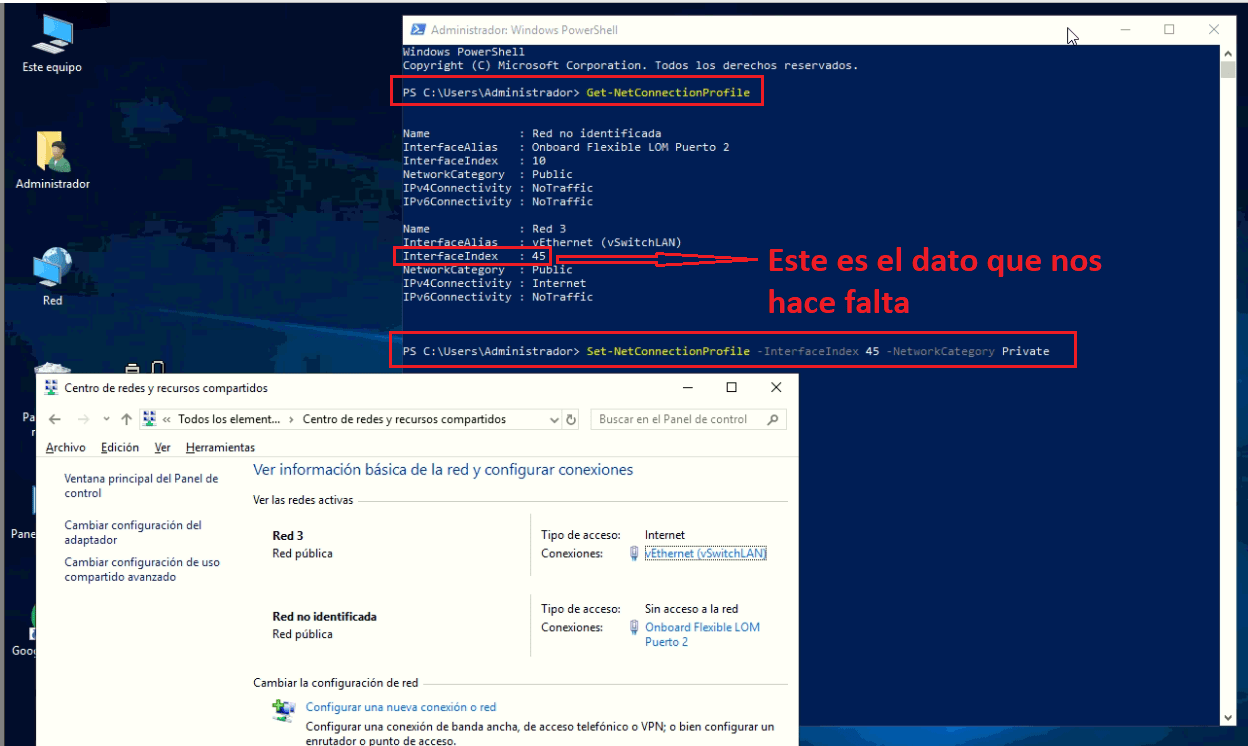
If you've ever seen that Windows marks your home network as "public" and blocks local access (to your NAS, printers, or another PC), you're not alone. It's a fairly common problem: you suddenly stop seeing devices on the LAN, some applications stop working, or the firewall starts asking strange questions about public and private networks.
In this article you will find a clear explanation of What do public and private networks mean in Windows, and how does Windows Defender Firewall affect them?Why does the system sometimes change the network type on its own? What are the dangers of being visible (or not) on the LAN? And how can you adjust everything to keep your computer protected without losing functionality? We'll give you a complete guide to solving the problem of... Windows blocks local access, believing it is a public network.
What exactly is a private network and a public network in Windows?
In Windows, each network connection (Ethernet or WiFi) has a network profile: private or publicThis label does not depend on whether your IP is public or private in internet terms, but on the level of trust you indicate to the system about that specific network.
A A private network is a typical home or small office networkThis is where you control the router and connected devices (computers, mobile phones, Smart TVs, NAS devices, printers, etc.). It's assumed here that you trust the devices on the network, so Windows allows your PC to be visible and lets you share files, printers, or services.
La A public network is any network where you don't control who connects.Airport, cafe, hotel, library, university Wi-Fi... or even a corporate network where you don't manage security. In this case, Windows "closes off" much more: it disables network discovery, file and printer sharing by default, and makes you less visible to other computers.
The key is that The network profile only affects behavior within the LANYour internet access will remain the same, but what other devices can see or do with your computer will change.
In addition, Windows distinguishes yet another profile, that of “domain network”It's designed for corporate environments where a domain controller (Active Directory) enforces centralized policies. You're not usually going to see it at home.
Private IP, public IP, and the mess with network status

Many people think that if their PC has an IP address of the type 192.168.xx or 10.0.xx So the network is private, and if it had a "public" IP address like 8.8.8.8, then it would be public. But that's not how it works in Windows: the system doesn't decide the network type based on the IP range, but rather on the system's own configuration and, in some cases, on network policies.
For example, you can have your computer with Static IP 192.168.1.105 connected via Ethernet to your home routerAnd yet, in the "Network and Sharing Center," Windows shows that connection as a "Public Network." In other words, you're at home, but Windows thinks you're in the middle of a coffee shop.
When that happens, the profile of “Private networks” may appear as inactiveWhile "Public Networks" appears active. Result: you can't see your NAS, other devices can't see you, some applications that need incoming connections stop working, and the firewall behaves more restrictively.
The opposite can also happen: that Windows Mark all new networks as public by default. to play it safe and have to change it manually when you know you're in a trusted network (for example, your home).
How Windows Defender Firewall works with public and private networks

Windows Defender Firewall is responsible for filter incoming and outgoing network traffic from your computer. You can allow or block connections based on the source/destination IP address, port, protocol, or the program generating that traffic.
From the Windows Security app (the system's "shield") you can see in the section “Firewall and network protection” The firewall status for each profile: domain network, private network, and public network. Normally, only one of these profiles will be active at a time, which will be the one corresponding to the network you are connected to.
In each profile you can enable or disable the firewallDisconnecting it completely isn't a good idea, because it leaves the door open to unauthorized connections. It's preferable to create specific rules for the applications that need access and, if necessary, run the administration with administrator permissions.
There is also an option called “Block all incoming connections, including those from the allowed applications list”If you enable this option, the firewall will ignore even applications you've already authorized and block absolutely everything. This increases security, but it can break half your system if you use programs that need to listen for connections (local web servers, databases, games, etc.).
When a new program tries to communicate and Windows doesn't have a pre-existing rule, the typical window appears asking for permission to allow access. There you can select whether you want to grant it. authorize it on private networks, on public networks, or on both.The logical thing is to trust private institutions more and be much stricter with public ones.
Why does Windows sometimes mark your home network as public?
There are times when Windows 10 or 11 They "decide" on their own that your network is public Even if you configured it as private. This can happen after a major update, after changes to the router, or even seemingly at random.
A very noticeable symptom is when your PC stops seeing your NAS or your network devicesSome users have found, for example, that after installing Windows 11, their computer failed to detect the NAS. They solved it by following a tutorial (changing outdated services and protocols), but later discovered that the most stable way was use correct network credentials and keep the network configured as private.
Another common scenario: on a computer with Windows 10, connected by cable to a home router, The connection would be lost every so often. and the message “Invalid IP” appeared. When looking at the IP configuration in the command prompt, the computer displayed an address of the type 169.254.xx with mask 255.255.0.0These IPs belong to APIPA (automatic self-configuration addresses), which indicates that the PC has not been able to communicate with the router's DHCP server.
When this happens, the device ends up with an IP address outside the router's range (for example, the router distributes 192.168.1.x) and, of course, There is no real connectivityIn some of these episodes, Windows also changes the network type: from private to public or vice versa, which further complicates the situation and suggests a system bug.
It has also been observed that on certain Windows 10 computers, after a period of trouble-free use, The system re-marks the network as public without the user touching anything.From then on, the detection of other PCs breaks down, shared resources are lost, or "Public Network" warnings appear in the settings.
How to change the network type in Windows 10 and Windows 11
If you know your network is secure (for example, your home) and Windows is treating it as public, you can Change the profile from Settings quite quickly.
In Windows 10, go to Settings > Network & Internet > StatusYou will see your current connection (WiFi or Ethernet). Click on “Properties”. Within that screen you will find the section “Network profile”where you can choose between Public and Private. Private Brand if you are on a trusted network.
In Windows 11 the process is very similar: from Settings, go to Network and InternetSelect your active connection and also look for the network profile. By switching to private, your PC will become visible on the LAN and options such as network discovery and sharing will be enabled (if you have them enabled).
Keep in mind that the profile only affects that specific connection. In other words, You can have your home network as private and the bar's WiFi as public.And Windows will remember each choice the next time you connect to each one.
Advanced sharing options in the Control Panel
Beyond the public/private profile, Windows allows you to further fine-tune network behavior from the classic control Panelwhich remains the place where many advanced options are hidden.
Go to Control Panel > Network and Internet > Network and Sharing Center > Advanced Sharing SettingsHere you can activate or deactivate the network discovery and file and printer sharing separately for private networks and for public networks.
In private networks, the usual practice is allow your PC to see others and be visibleand enable file and printer sharing if needed. This makes it easier for other teams to access shared folders, network printers, or devices like a NAS.
On public networks, the recommendation is just the opposite: Disable network discovery and sharingThis way your team will be much more isolated from the rest of the devices connected to that network, and you reduce the attack surface against malicious users.
In that same section you can also configure common options for all networks, such as the behavior of the public folders, the transmission of multimedia content via DLNA, the use of encryption in file sharing, or whether you want access to shared resources to require a password.
Real impact on security: being visible or not on the LAN
Being visible on the local network has its advantages, but also It opens a door to certain risks.When your PC appears in the network browser of other computers, anyone with access to that LAN can try to view your shared resources.
If you have shared folders with read and write permissions, a malicious user could copy, modify or delete files without too much difficulty, especially if you haven't configured your login credentials correctly.
In addition, there is malware that spreads through the local network exploiting vulnerabilities in services like SMB (the Windows file sharing protocol). Attacks like WannaCry took advantage of precisely these flaws in these types of services to jump from one computer to another within the same network.
Hiding your PC (marking the network as public, disabling network discovery, closing ports in the firewall) can reduce the likelihood of infection by this type of wormBut it's not a miracle solution: most threats today come through the browser, email or downloads, not so much through the LAN.
That's why it's essential to complement the network configuration with a A good antivirus and a well-configured firewallMicrosoft Defender's own solution is quite competent, but if you want very granular control over ports, protocols, and rules, suites like ESET, Kaspersky, or Bitdefender include more advanced firewalls, usually paid and with technical support.
Typical errors: IP 169.254.xx, DHCP, and network that changes on its own
One of the most frustrating problems is when Windows indicates that You do not have a valid IP address.In these cases, when executing ipconfig At the command prompt, you see something like 169.254.55.246 with mask 255.255.0.0That IP address is not within your router's range (for example, 192.168.1.x), and therefore your PC cannot communicate with the rest of the network or the Internet.
Those addresses 169.254.xx correspond to APIPAThis is an auto-configuration system that Windows uses when it cannot obtain a valid IP address from the DHCP server (usually the router). This can be due to an occasional problem with the router, the cable, the network card, or even Windows itself.
In some documented cases, after restarting, switching to a static IP, and refreshing the IP with ipconfig /release y /renewOr, by running the troubleshooter, the problem would disappear… but I would return days or weeks laterThis has led many users to suspect bugs in certain versions of Windows 10 related to the networking system.
The most striking thing is that, along with the incorrect IP address, it was observed how The network type changed from private to public without user intervention. When the router obtained a correct IP address again (for example, 192.168.1.34 with a mask of 255.255.255.0), the private network configuration was sometimes also restored.
To minimize these problems, it is advisable to Verify that the router's DHCP is active.that the network card is in auto-negotiation mode, that the drivers are up to date, and that there is no third-party software (VPNs, additional firewalls, etc.) interfering with the Windows network stack.
Allow specific applications through the firewall

When an application needs to receive connections from the network (for example, CouchDB at port 5984 (for synchronizing notes, a game server, a local web server, etc.), the Windows Firewall may block it if there is no rule that allows it.
Instead of disabling the firewall, the correct thing to do is allow that specific applicationFrom Windows Security, under “Firewall and network protection”, you have the option “Allow an application to pass through the firewall”.
There you can add the executable or open a specific port, indicating which network types the rule applies to: private, public, or bothOn a home network marked as private, it is common practice to allow access only on private networks, so that the application is not accessible when you connect your laptop to public networks.
However, opening ports or allowing applications without fully understanding their implications may increase the risk of attacksespecially if those apps have vulnerabilities or are exposed without proper authentication. That's why Windows emphasizes warnings and separating public and private networks in its rules.
Tools and tricks to get to know your local network better
If you want to go one step further and understand what's happening on your networkWindows offers several built-in tools such as ipconfig, ping, tracert or the "Network and Sharing Center" itself. With these, you can check your IP address, run connectivity tests, and detect bottlenecks.
However, many users find it more convenient to use graphical utilities. A good example is WirelessNetViewNirsoft's small, free tool displays nearby Wi-Fi networks, their signal strength, MAC address, encryption type, and other interesting data. It's useful for viewing How saturated is your WiFi environment? and what level of security do the networks around you use?
Knowing the basic information about your network (channel, band, authentication type, number of connected devices) helps you to consider whether it makes sense to "hide" your PC Or if the real problem lies elsewhere: poor coverage, interference, overloaded router, etc.
In more advanced cases, you can even use the Windows registry to fix problems with network delays or cachesFor example, by adjusting the key DirectoryCacheLifetime en HKEY_LOCAL_MACHINE\SYSTEM\CurrentControlSet\Services\LanmanWorkstation\Parameters By setting it to 0, some users have managed to improve response times when accessing shared resources. However, it's essential to always back up the registry before making any changes.
VPN, credentials, and Microsoft's new approach to security
In recent years, Microsoft has been tightening the default security in networksThis is noticeable, for example, in the fact that the use of old protocols without encryption is no longer so readily permitted, nor is guest access to network resources without a password.
On some NAS devices, it may be more efficient for Windows 11 to "see" them correctly. create a specific username and password on the NAS and add those credentials in Windows “Credential Manager”, instead of haphazardly disabling security features that an update could then reactivate.
On the other hand, when you connect to public networks (hotels, cafes, stations…) even if you have your public profile properly configured, you are still exposed to techniques such as traffic capture or MITM (Man in the Middle) attacksThat's where a VPN makes a lot of sense: it encrypts all traffic end-to-end before it leaves your computer.
Use a Trusted VPN It prevents other users on the same network, or even your own internet provider, from easily inspecting or manipulating what you do online. It doesn't make you invisible, but it adds a very powerful layer of protection, especially when you don't control the network environment.
Windows, the firewall, the network type, the credentials, and the VPN form a security ecosystemIf one of the components fails or we configure it incorrectly, it is more likely that problems will arise such as blocked access, networks that suddenly become public, or devices that "disappear" from the LAN.
Understanding the difference between public and private networks, checking the status of your Windows Firewall, ensuring your IP address is valid (nothing like 169.254.xx), adjusting network sharing settings, and using robust antivirus software and VPNs when connecting from outside your home network is the most sensible way to Prevent Windows from blocking your local access by thinking you're on a public network without sacrificing the security you need in every situation.


Passionate about technology since he was little. I love being up to date in the sector and, above all, communicating it. That is why I have been dedicated to communication on technology and video game websites for many years. You can find me writing about Android, Windows, MacOS, iOS, Nintendo or any other related topic that comes to mind.