- Windows may only display the balanced plan, but it is possible to fully customize it to improve performance.
- BIOS modes and manufacturer tools influence how system power plans are applied.
- An outdated system or one with faulty drivers can cause Windows to ignore your power settings.
- In corporate equipment, organizational policies can block or force certain power adjustments.
¿Does Windows ignore power settings and lower performance? When your Windows computer It ignores power settings and performs much worse. Instead of performing as it should, the feeling is frustrating: fans running at full blast, applications stuttering, or conversely, a computer that feels "crippled" even with good hardware. This type of failure is usually related to the energy plans and with the way Windows and manufacturers manage performance.
Much of the confusion stems from the fact that Windows has changed the way it displays power plans over the years.Furthermore, many laptops add their own management layer (BIOS/UEFI, manufacturer tools, company policies, etc.). All of this leads to strange situations: laptops that get stuck in "High performance," others that only show "Balanced," modes that disappear after an update, and options that cannot be modified because they are managed by the organization.
Why Windows ignores power settings
The first thing to understand is that Windows doesn't always dictate hardware termsMany modern laptops have multiple levels of power control: the BIOS/UEFI, manufacturer utilities (Dell, HP, Lenovo, etc.), Windows' own power plans, and, if it's a work or school computer, the organization's policies. If one of these levels forces a specific mode, Windows may appear to ignore your selection.
In some cases, as several users have reported, the system It remains anchored in the High Performance plan without the user remembering activating it. The usual symptom is that the CPU and GPU fans spin up immediately upon startup, even with few programs open. Opening the Control Panel shows the "High performance" plan as active, but then it becomes impossible to reproduce that behavior or locate the plan again when you search for it.
The opposite can also happen: the user searches everywhere for the famous plan of “High performance” and only sees “Balanced”This is due to changes introduced by Microsoft in versions such as the Windows 10 Fall Creators Update, in which the power plans visible to the user were greatly simplified, basically leaving only the balanced plan, although the advanced settings still allow adjusting a large number of parameters.
In managed environments (company teams, schools, universities), it is common for the organization to apply policies that set or limit energy plansIf the system displays messages such as "This setting is managed by your organization" or if you cannot change the plan even if you are a local administrator, it is very likely that there is a group policy preventing it.
Finally, it should be noted that the power and graphics drivers These factors significantly influence how the system performs with each power plan. An outdated or improperly installed driver can cause the processor to be overly limited in "Balanced" mode, or the GPU to operate in a low-power state even when an application requires significant processing power.
Types of power plans and changes introduced by Windows

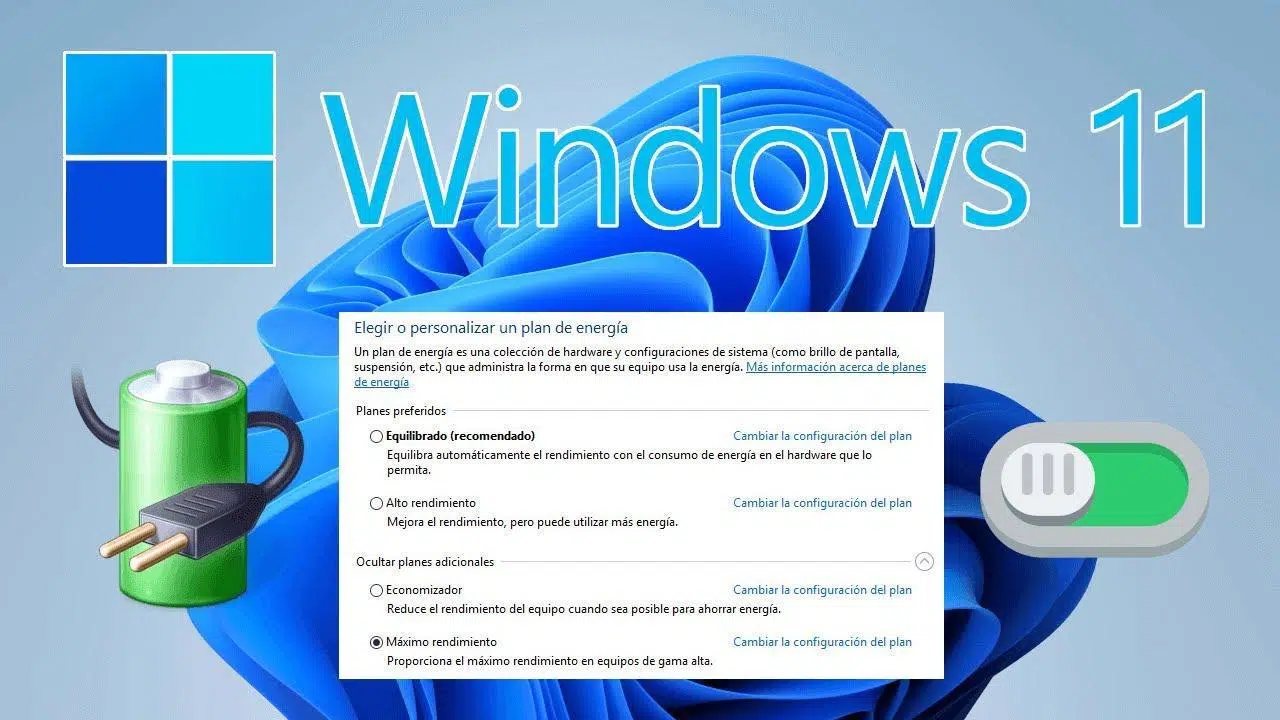
Traditionally, Windows offered several predefined power plans: Balanced, High performance and Energy savingEach one adjusted things like processor speed, screen turning off, disk sleep, graphics card behavior, or battery management.
Over time, Microsoft decided to simplify this experience for most users. In versions like Windows 10 with the Fall Creators Update, many computers began displaying only the “Balanced” plan as the primary option. The other plans didn't disappear entirely internally, but they stopped being visible by default in some configurations and devices.
This explains why on some laptops, when you go to Control Panel > Hardware and Sound > Power Options, you only see the balanced plan and not the high-performance one, even though there are plenty of tutorials on the Internet showing several options. The experience you see in your team may be different. depending on the Windows version, the manufacturer, and the type of processor.
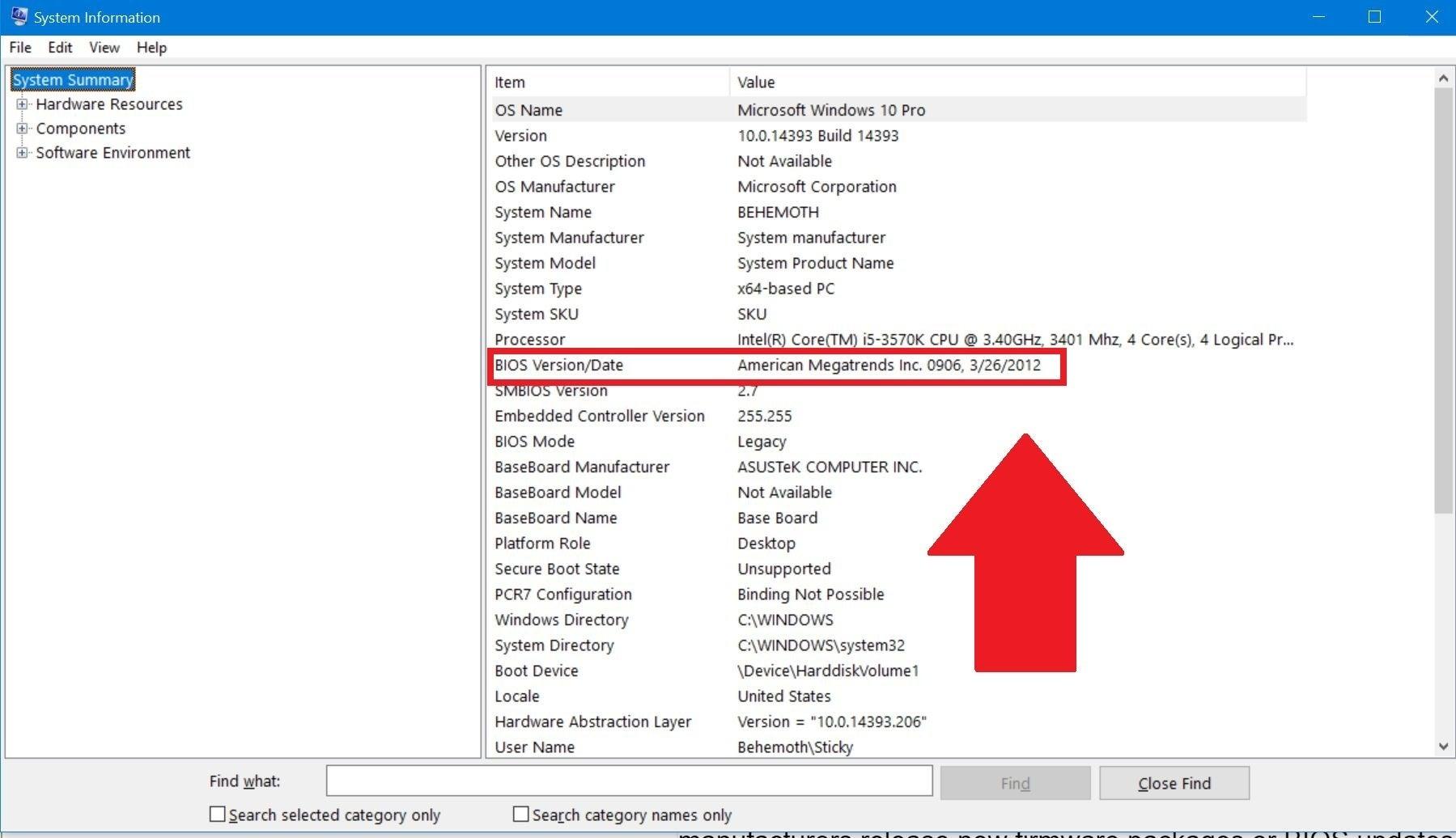
Another important detail is that Laptop manufacturers add their own modes Performance settings can be adjusted through the BIOS/UEFI or pre-installed programs. For example, some Dell computers allow you to select a high-performance or quiet mode in the BIOS, and these settings can interact with (or conflict with) Windows power plans. Selecting "High Performance" in the BIOS doesn't always mean Windows will display the standard High Performance plan; sometimes it simply adjusts thermal limits and increases the power the processor can use within the balanced plan.
To complicate matters further, modern laptops with Windows 10 and 11 have a power slider on the battery icon (when the manufacturer allows it) which moves the system between several sub-modes: best battery life, balanced, and best performance. This control doesn't always directly equate to changing the classic power plan, but it does internally modify parameters of the active plan.
Symptoms: poor performance or fans running continuously
When Windows ignores your power settings, the symptoms can vary considerably, but they usually fall into two main scenarios: team that underperforms or equipment that gets hot and makes a lot of noise for no apparent reason.
In the first scenario, with the "Balanced" plan active, you may notice that some heavy applications (games, video editing, 3D programs, virtual machines, etc.) They're going slower than usualThere may be stuttering, excessive loading times, or FPS drops. Sometimes the CPU gets stuck at low frequencies to save energy, or the integrated/dedicated GPU does not enter its maximum performance mode.
In the second scenario, the team seems working at full capacity even while practically at restThe fans kick into full speed shortly after startup, the case gets hot, and the active plan appears as "High performance." If you don't remember activating it, it's normal to wonder how it got there or why you can't reverse the situation.
Another common symptom is that when trying to change the plan or modify advanced power settings, the options appear grayed out or lockedThis may indicate that a group policy, a manufacturer's tool, or remote management software (on company computers) is forcing certain configurations.
Finally, even when the energy plan is adequate, excessive consumption or poor performance can be due to background applications and services that consume resources without you realizing it: cloud synchronization, indexers, third-party antivirus, game launchers, Game Bar overlayetc. In balanced mode, these processes can cause the system to constantly fluctuate in frequency, creating a feeling of instability.
How to check and change the power plan in Windows
Before diving into advanced settings, it's a good idea to confirm which plan your device is using and whether you can change it normally. The classic method is still through the control PanelAlthough it is used less and less, it remains the reference for energy plans.
To access, open the Control Panel, go to Hardware and sound and then in Energy optionsThere you should see the currently active plan and, on some devices, additional plans. If you see "High performance," "Balanced," and/or "Energy saver," you can select the one you want simply by checking its box.
If you only see “Balanced”, don't panic: You can create new plans or completely modify the current one.On the left side of the window, you'll find links like "Create a power plan" or "Choose what the power buttons do." Creating a new plan from Balanced lets you, for example, customize the behavior when your computer is plugged in or running on battery.
Next to each plan you'll see a link to "Change plan settings". From there you can adjust the screen disconnection and sleep mode quickly. However, the really important part is a little more hidden: the "Change advanced power settings" link. This section opens a window with a list of categories (processor power management, settings). PCI Express, graphics, suspension, etc.) where you can fine-tune things.
In the processor's power management, for example, you can set the minimum and maximum processor state both with AC power and battery power. If the maximum is limited to low values, the device will never reach its full power, and this could correct part of the problem without needing to change your power plan completely.
What to do if the High Performance plan doesn't appear
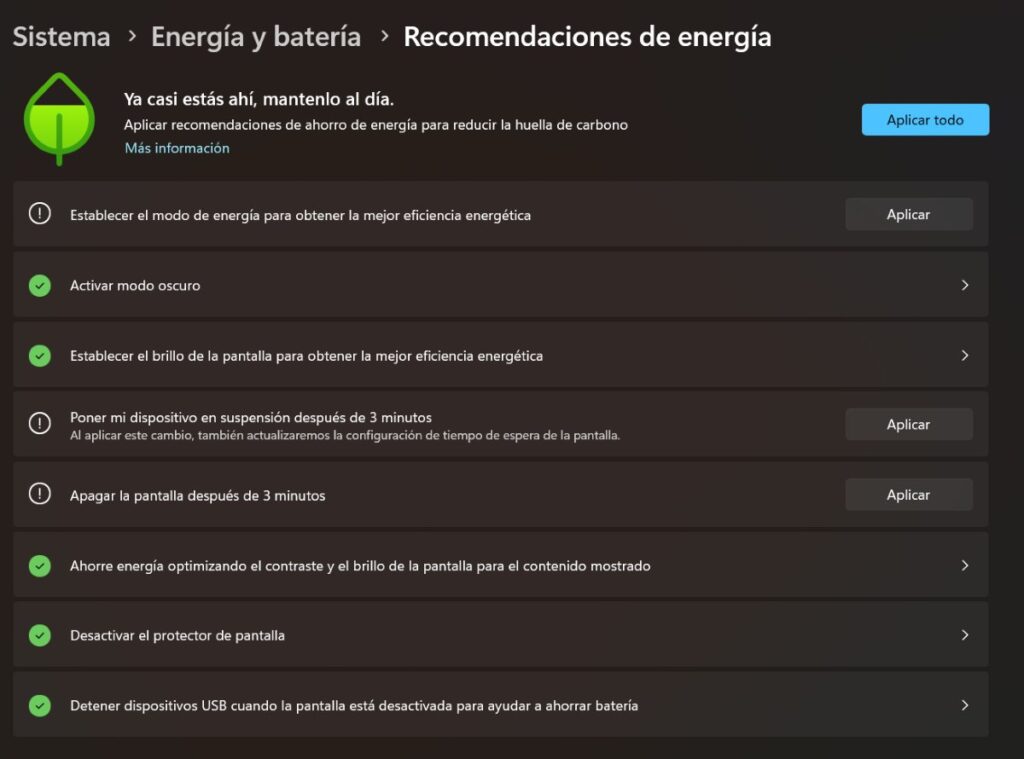
One of the issues that has generated the most confusion is the apparent disappearance of the plan “High performance” in some Windows installationsUsers who previously saw it, after an update or reinstallation, only find the "Balanced" plan, even though tutorials on the Internet continue to show more plans.
As Microsoft support answers explain, certain major Windows 10 updates He chose to leave only the balanced plan visible. to simplify the experience. This doesn't mean the system can no longer function at full capacity, but rather that the options are concentrated within that plan, which you can then adjust to your liking from the advanced settings.
If you miss the classic high-performance plan, you have several alternatives. For one, from the same window of Energy options You can use "Create a power plan" and base it on balanced, then adjust parameters such as the maximum processor state to 100%, the sleep time to "Never" when plugged in, and prevent the disk or screen from turning off too soon.
Another possibility, intended mainly for advanced users, is to use the command line (with PowerShell or the command prompt) to enable hidden plans or import configurationsHowever, this goes beyond the basic guidelines that most users need and can vary greatly depending on the version of Windows.
It should also be noted that Not all teams actually benefit from the high-performance planIn many laptops, the real limiting factor is temperature and the cooling design. Even if you activate a more aggressive cooling plan, if the system gets too hot, the hardware itself will reduce frequencies to protect itself, resulting in extra noise and little to no gain. Therefore, in laptops, it's usually wiser to fine-tune the balanced plan rather than always forcing high performance.
Relationship between BIOS, manufacturer, and power plans
In some cases, such as for those who use Dell laptops or other brands, the user discovers that from the BIOS/UEFI can select high-performance modesSilent, optimized, etc. However, upon entering Windows, it seems that everything remains the same or that the system remains stuck on the balanced plan.
What usually happens is that these BIOS modes don't directly change the Windows power plan, but rather They adjust the limits of power, temperature, and fan behavior.Windows continues to display the same plan, but the hardware is allowed to consume more or less power within that plan, or to apply certain fan curves.
It can also happen that a combination of BIOS changes and Windows updates causes the system to "find" or activate Windows' high-performance power plan, even if it wasn't present before. Then, after reinstall the system or change components (such as an SSD), the user tries to repeat the process and there is no way to get the same configuration.
In these types of situations it is important to mentally separate What the BIOS manages and what Windows controlsIf you want consistent behavior, first check in the BIOS that there isn't a very aggressive profile that contradicts what you're looking for (for example, a permanent turbo mode when in Windows you're trying to save energy), and then check in the operating system that the active plan and its options make sense for your daily use.
If the laptop includes manufacturer software (such as power control centers, game profiles, etc.), it's worth checking there as well to see if there's a predefined profile that forces maximum performance or extreme savingsThese programs sometimes change settings in the background without the user noticing, giving the impression that Windows is completely ignoring your selections in the Control Panel.
How to adjust the Balanced plan to improve performance
On many recent laptops, the "Balanced" plan is the only visible option, but that doesn't mean you're doomed to mediocre performance. With some With advanced settings, it is possible to achieve a good balance between power and consumption., without needing to activate a pure and simple high-performance mode.
From the Control Panel, under Power Options, click "Change plan settings" next to Balanced, and then click "Change advanced power settings." Within "Processor power management," adjust the maximum processor state at 100% both with mains power and with battery power (you can choose a slightly lower value with battery power if you want to extend its duration).
The "minimum processor state" also influences how quickly the system can react to workloads. If it's too low, the processor saves more power while idle, but it takes a little longer to wake up; if it's too high, the computer consumes more power even when you're not doing anything. A reasonable setting is usually a Low minimum battery status and slightly higher with the charger connectedso that the device responds quickly when you're plugged in.
Additionally, check the graphics card settings if available (on some computers it's labeled "Graphics Settings" or something similar). There you can prevent the dedicated GPU from using the same settings in balanced mode. remain permanently in low power mode when you have applications that do need extra power, such as games or editing programs.
If you notice that your computer slows down only when using certain applications, it's a good idea to open the Task Manager with Ctrl + Shift + Esc To check which processes are actually consuming CPU, memory, disk, or GPU resources. Sometimes it's not the power plan's fault, but rather resource-intensive applications running in the background (for example, an antivirus performing a full scan or a file sync program uploading a lot of data to the cloud).
Windows updates and drivers: a key factor
Another point that Microsoft support specialists frequently emphasize is the importance of having the operating system and drivers up to dateAn outdated power or graphics driver can cause performance problems in both balanced and high-performance modes.
To update Windows, go to Settings > Updates and Security > Windows Update and click on “Check for updates”. It is recommended to install both security and quality updates, as many fix power management issues that aren't widely publicized.
Regarding the drivers, it is especially important to check those of the battery, chipset and graphics cardIn Device Manager you can check for generic updates, but it's often better to go directly to the website of the laptop or motherboard manufacturer and download the latest version of the drivers recommended for your model.
If you suspect that a specific driver is causing instability (for example, after updating a graphics driver, the computer starts behaving strangely with power plans), you can reinstall a previous versionMany manufacturers offer diagnostic and update utilities that simplify this process.
In situations where nothing seems to work, a drastic but effective option can be Restore the default power plan settings or even create a new one from scratch. By doing so, you eliminate potential conflicts accumulated from successive changes, and start from a clean slate on which to apply your adjustments.
Organization-managed devices and administrator permissions
If your computer is part of a corporate or educational domainIt is very possible that some power options are locked. This is done to standardize the behavior of all equipment and comply with internal policies related to safety, energy savings, or maintenance.
In that context, if when you go into the power options you see that some sections appear grayed out, or if a message indicates that "some settings are managed by your organization," the most sensible thing to do is consult with the IT department before trying to force changes on your own.
Even on personal devices, to modify certain aspects of the power plans you will need has administrator privilegesIf you're using a standard user account, some settings might not be saved even if they appear to be. Make sure you're logged in as an administrator when making significant changes to power settings.
In companies, it is also common to have remote management tools that reapply the policies periodicallyEven if you manage to modify a power plan at a given time, at the next synchronization the system may revert to the state imposed by the organization, giving the impression that Windows magically ignores your preferences.
If the device is yours and not under any organization, but you're still receiving messages that the settings are managed, check that you don't have remnants of old policies or corporate software, especially if the laptop was previously a company computer and you have then reused it at home.
After reviewing all these aspects, you will usually be able to get the system to respect your energy plans again, recovering a performance in line with your hardware And stop doing strange things like turning on the fans for no apparent reason or capping the CPU at the minimum just when you need it most.
- Check and adjust power plans from the Control Panel, using advanced settings to fine-tune performance.
- Keep Windows and your power, battery, and graphics drivers up to date to avoid power management failures.
- Check your BIOS, manufacturer tools, and any organizational policies that may force certain power modes.
- Create or restore custom plans if balanced mode doesn't suit your usage or the high-performance plan doesn't appear.

Passionate about technology since he was little. I love being up to date in the sector and, above all, communicating it. That is why I have been dedicated to communication on technology and video game websites for many years. You can find me writing about Android, Windows, MacOS, iOS, Nintendo or any other related topic that comes to mind.