- Windows may display low disk space warnings even though the disk appears to have gigabytes of free space due to hidden files, partition limits, or internal system reservations.
- Analyzing storage usage, cleaning temporary files, duplicates, and heavy programs, and emptying the Recycle Bin usually recovers a significant amount of space.
- When the Disk Management tool fails, MBR problems, poorly managed unallocated space, and the need to use more advanced partition managers come into play.
- If the disk is chronically underpowered or shows signs of wear, the most reliable solution is to clone the system to a larger drive or a modern SSD.

¿Windows says there's no space, but the disk isn't full? When Windows warns of low disk space, but you can see that the drive isn't actually full.It's normal to panic. The system insists there's no more space, blocks installations, updates, and file copies, even though you still see tens or hundreds of gigabytes of free space. This is a very common bug in Windows 10 and 11, but it can also occur in earlier versions.
In this article you will find a A very comprehensive guide to understanding why Windows says there is no space, and what is actually taking up disk space. and how to solve the problem step by step. We'll look at everything from the most common causes (personal files, system junk, poorly managed partitions) to curious Disk Management errors, MBR limits, or false warnings caused by viruses or third-party tools.
Why does Windows say there is no space if the disk is not full?
Behind the message of “Insufficient disk space” or “There is not enough disk space to complete this operation” There can be several very different causes. It's not always a matter of actual lack of space; sometimes the problem lies in how Windows interprets or manages that space.
The most common notices you'll see are something like: “You are running out of space on local disk (X:). Click here to see if you can free up space on this drive.” or the typical general message that you're running out of space on this PC and need to manage your storage. More technical errors also appear when using Disk Management, such as: “There is not enough disk space available to complete this operation”.
In practice, these errors are usually related to Very large files (videos, games, music, photos), temporary files, remnants of Windows installations, page files, old backups, malware attacks or even with the limitations of the partition scheme (MBR) and failures of the Disk Management tool itself.
Furthermore, there is an important nuance: The storage space you see in "This PC" is not the same as the space the system needs to work.Windows reserves part of the disk for virtual memory, restore points, hibernation, updates, and other internal uses. If this reservation becomes uncontrolled or corrupted, you may receive space warnings even when there appears to be plenty of free space.
How to check what is taking up disk space
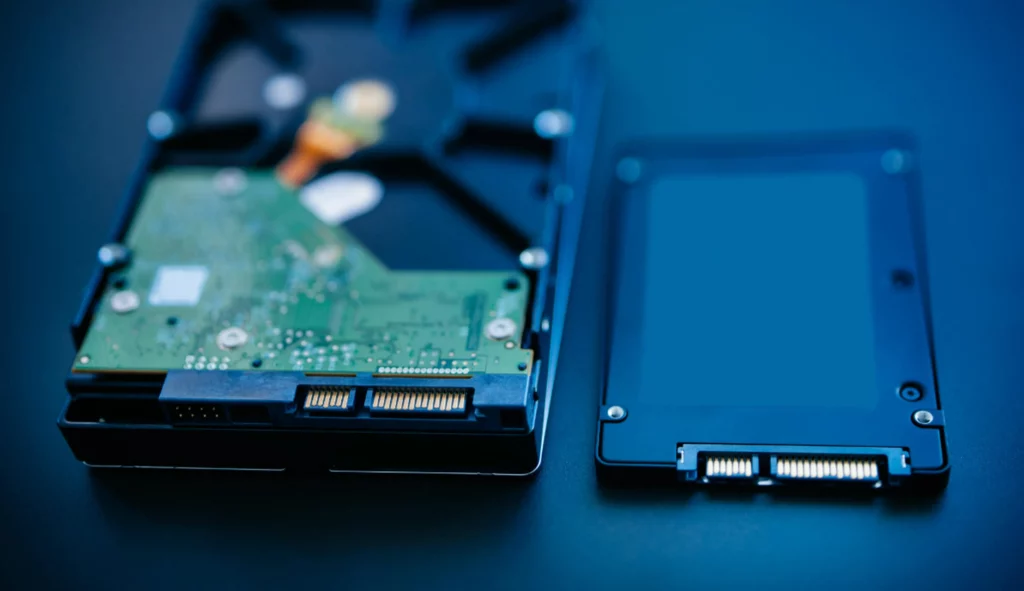
Before deleting anything like a madman, it's advisable to accurately analyze what is filling the unitThis way you can tackle the problem at its root (for example, a giant video folder, a bunch of temporary files, a huge old backup, etc.).
In Windows 10 and 11 you have several easy ways to view disk usageThe most basic way is from the Explorer:
- Open File Explorer (folder icon in the taskbar).
- Click on This team on the left panel.
- En Devices and unitsLook for drive C: (or the one that gives you the alert) and check how much free space is left.
If you want to get more detailed, go into the Windows storage configuration:
- Go to Home > Settings > System > Storage.
- Select the problem unit to see a breakdown by category: applications, temporary files, system and reserved files, documents, images, videos, etc.
This view helps you identify if "the fat" is in heavy programs and games, forgotten downloads, overflowing user folders or in system components (page files, hibernation, older Windows installations, etc.).
Some tutorials recommend using a third-party space analyzer (for example, those integrated into certain partition management or system cleaning suites) that graphically display usage by folder and file type. These are useful when you need to pinpoint the specific path where the missing space is being used.
Locate and manage personal files that take up too much space.
Often the problem is simpler than it seems: Your own personal files may be eating up disk space4K videos, music libraries, uncleaned photos, and endless download folders are common suspects.
For review them from File Explorer:
- Open File Explorer from the taskbar.
- On the left panel, enter This PC and select folders like Images, Videos, Music and Downloads, which usually contain the heaviest files.
- Within each folder, go to the tab See and choose Details to view size columns.
- Right-click on an empty space in the list and select Sort by > Size so that the largest files appear at the top.
From there, you can Delete what you don't need or move it to another drive (For example, a secondary drive or an external hard drive.) Don't underestimate the amount of space that a few old videos or installers you no longer use can free up.
If you want to keep them but don't need to have them always on the main drive, a good option is move them to external media or to the cloudThis reduces the load on your system drive without losing your files.
Move files to another drive or an external hard drive
When the system disk is running out of space but you have another drive or an almost empty external disk, the most logical thing to do is Reorganize data: Move large files to another locationThis way you can continue working comfortably without uninstalling anything important.
To move photos, videos, music, or other files to a external device (USB, hard drive, SD card):
- Connect the external drive to your PC.
- Open File Explorer and navigate to the folder that contains the files you want to move.
- Select the files, click on Cut (or use Ctrl+X).
- Go to the external drive in the left panel and enter the folder where you want to save them.
- Click on Paste (or Ctrl+V) to complete the movement.
You can also configure cloud storage services such as OneDrive, Google Drive, or Dropbox to synchronize folders and free up local space:
- Create or log in to your chosen cloud account.
- Install the official application on your PC.
- Drag large files that you want to keep but don't need to have locally to the cloud folders.
- Once uploaded, delete the local copy to gain space.
This option combines two important advantages: You free up space and, at the same time, you have an additional backup. in case your main hard drive suddenly fails.
"Low disk space" messages and how to get rid of them

The “low disk space” warnings appear with higher frequency when less space is available in a unitWindows handles different warning thresholds: at first it warns you occasionally, and if you still don't free up space, it bombards you almost every time you start up or open Explorer.
Many tutorials recommend a quick way to get rid of these notifications: increase the usable capacity of the problematic partitionThis can be done by expanding the partition (if there is unallocated space on the same disk) or by cloning the contents to a larger disk (for example, moving from a small HDD to a large SSD).
To extend a partition from Windows, the tool is usually used Disk ManagementHowever, it has several significant limitations, especially when the free space is not contiguous or the disk uses MBR. Therefore, many guides recommend using third-party partition management software, which allows resizing, moving and merging partitions with fewer restrictions.
If you prefer not to touch partitions, the alternative is free up space with more basic operationsCleaning temporary files, uninstalling large programs, removing duplicates and old backups, emptying the Recycle Bin, etc. Ideally, both strategies should be combined: gaining some more capacity on the drive while keeping it clean so it doesn't fill up again very quickly.
Some users mention particularly frustrating cases, such as disks with Hundreds of gigabytes of free space that give an "insufficient space" error when installing programs.In these situations there are usually problems with permissions, partitions, formats or even the health of the disk, so it is advisable to check carefully and not just delete things randomly.
Typical scenarios for the "There is not enough space to complete this operation" error
In addition to the generic warnings, there is a very common message when you try to edit partitions with the built-in tool: “There is not enough disk space available to complete this operation”It usually appears when creating, shrinking or expanding volumes, or when converting basic disks to dynamic disks.
The most common scenarios are these:
There is no space to create a new partition
Even if you see "free space" in Disk Management, The tool cannot create new partitions in free space, only in unallocated space.If a partition has been incorrectly deleted or has been marked as "free space" instead of "unallocated", when you try to create a new partition you will get the error that there is not enough space.
To solve this, we need to First, remove that free space and make it unallocated., and then create a new partition (simple volume) over that space.
There is no room to reduce volume
When you use the option of “Reduce volume”Sometimes Windows only allows you to shrink the partition a very small amount, or it simply gives an error. This happens because There are immovable files in the middle or end of the disk (for example, certain system, paging, or hibernation files) that prevent further trimming.
In some cases, it is recommended to use the option “Re-examine discs” In the Disk Management menu, run the tool to update its view of the actual structure and allow for further reduction. Otherwise, you would need to temporarily disable hibernation, system restore, or move the page file to free up those blocks.
There is no room to extend a volume
Another classic: you have free space on the disk but The "Extend Volume" option is grayed out (disabled). or it returns the message that there is not enough space. This is because Disk Management can only extend a partition if the unallocated space is just to the right and on the same discIf there's another partition in between, forget it: the built-in tool can't move volumes.
Again, the manuals usually propose two solutions: use “Re-examine discs” (in case there's a reading bug) or, more often, resort to a most advanced partition manager which does allow you to move partitions to combine free space and then expand the one you're interested in.
There is no room to convert a basic disk into a dynamic one.
When you convert a basic to dynamic diskWindows needs to reserve some space for the dynamic volume database. If the drive is at its limit, Disk Management may tell you that there isn't enough space to complete the conversion.
The solution lies in to slightly reduce an existing partition to allow space for that database and then repeat the conversion process. On very tight disks, this becomes especially critical.
MBR limits, partitions and “phantom” space
One technical reason that many people overlook is the MBR partition scheme boundaryMBR, still very common on older disks or older Windows installations, only allows four primary partitions (or three primary and one extended partition with logical partitions inside) and handles very large disks worse than the more modern GPT scheme.
When you're working on a highly fragmented MBR disk or one that's at the limit of partitions, it's easy to run into errors like this. “Disk Management does not have enough available space”even when you see free gigabytes displayed on the screen. In these cases, a recurring recommendation is Migrate the disk from MBR to GPTwhich greatly expands the possibilities (more partitions, better handling of large sizes, etc.).
There may also be what we might call “ghost” spaceReserved sectors, damaged areas, or areas marked by the system that do not appear as available. To check if the problem lies there, the following is very useful:
- Execute chkdsk to find and repair file system errors.
- Check the disk using health tools such as CrystalDiskInfo to rule out physical failures.
- Use a detailed partition viewer (from third parties) that shows the entire disk map, including reserved spaces.
If the unit is starting to fail, it's possible that Windows reserves more sectors than it should or marks areas as unusable, causing the usable capacity to decrease in practice even though you still see the original size of the disk.
Clean the disk: junk files, temporary files and duplicates
Beyond modifying partitions, a key part to prevent the error from recurring is keep the disk clean of digital junkDaily use generates tons of temporary files, logs, forgotten downloads, remnants of uninstalled programs, duplicate copies, etc.
To lighten the load, there are several recommended strategies:
Use built-in Windows and macOS tools
In Windows you have Disk cleaning and the most modern Storage sensor:
- Seeks “Disk cleaning” In the Start menu, choose the drive and select what you want to delete (temporary files, trash, thumbnails, etc.).
- Click on “Clean system files” This includes elements such as older Windows installations. Be careful not to delete anything you might need (for example, ESD files if you want to restore).
- Active Storage sensor en Settings > System > Storage and schedule automatic cleanings (every day, week, month or when space is lacking).
On Mac you have the function Optimize storage, accessible from Apple menu > System Settings > General > StorageFrom there you can easily delete Large iTunes/TV files, iCloud items you no longer need, or old data.
Delete temporary files manually
Temporary files are unavoidable, but if they are not cleaned up they end up taking up many gigabytes. To safely delete them in Windows:
- Close any programs you have open (or check in the Task Manager (which is in use).
- Press Windows + R, writes temp and press Enter.
- The Temp folder will open; select everything (Ctrl+A) and press Delete. If any file is in use, choose Skip.
- Don't forget to empty the Recycling bin in the end.
On macOS, you can clear the system and user cache from the Finder (Go > Go to folder > write) ~/Biblioteca/Caches/and deleting the contents of folders you don't need. It's always best to be careful and not touch anything you're unsure about.
Find and delete duplicate files
It is quite common to accumulate repeated copies of the same photos, videos, documents, or installersManually searching for duplicates is time-consuming and cumbersome, but it can free up a significant amount of space.
On Windows:
- Open File Explorer and go to the suspicious folder.
- Change view to Details and sort by Name o Size.
- Compare and delete the copies you don't need.
On a Mac, you can use Finder to sort by name or size and manually review similar files. If that's too much work, there are other options. third-party cleaning programs (like some well-known optimization suites) that automatically search for duplicates and allow you to approve or deny their removal.
Empty the Recycle Bin regularly
Many people think that when you delete a file it disappears, but in reality It only moves to the Recycle BinAs long as it's there, it continues to occupy full space in the unit.
To prevent the Recycle Bin from becoming a black hole of lost gigabytes:
- Right-click on the icon of the Bin from the desktop and select “Empty Recycle Bin” occasionally.
- Or set up an automatic plan from Settings > System > Storage, adjusting how often it empties itself (every day, week, month…).
Apps, games and programs that eat up your hard drive space
The big programs (especially games, video/photo editing suites, programming IDEs, and professional softwareThey can take up tens or hundreds of gigabytes. If you leave them all installed on the C drive, it's only a matter of time before you run into space errors.
A good practice is uninstall what you no longer use And, if possible, install new programs on a different drive than the system drive. In Windows, you can do this from:
- Writes “Add or remove programs” in the search bar.
- Review the list, sorted by Size o Installation date.
- Click on the three dots of the app you don't want and select Uninstall.
Some manuals also mention the possibility of Migrate already installed applications to another drive Using specialized tools that relocate programs without requiring reinstallation. This is a useful option if your C drive is running low on space but your D or E drive is practically empty.
System functions that reserve space: restore, hibernation, and RAM
There are Windows components that They automatically reserve a significant amount of disk space In order to function: System Restore, the hibernation file and the paging file (virtual memory).
System Restore It creates restore points that allow you to revert if something goes wrong after an update or installation. That's great, but it also uses up gigabytes. From the option “System protection / Create a restore point” can:
- Select the system drive.
- Press on Set up.
- Adjust the maximum use which is reserved for these points.
The hibernation file (hiberfil.sysThis can take up several gigabytes, especially on computers with a lot of RAM. If you never use hibernation, you can disable it from a Command Prompt as administrator with:
powercfg -h off(to deactivate it and delete the file).- If you want to recover it in the future, you can use
powercfg -h on.
Finally, the paging file (virtual memory) is used when RAM runs out. It is not recommended to disable it.However, you can let Windows manage it automatically or manually adjust its size in very extreme cases, always bearing in mind that a bad adjustment can create instability.
Malware, viruses, and disk space "that disappears on its own"
Sometimes the problem isn't in your files or settings, but in a virus or malware that generates uncontrolled dataIt creates giant temporary files or manipulates how Windows views available space.
The most typical symptoms are:
- Free space decreases without you saving anything new.
- The drive fills up again after a few days even if you've deleted gigabytes.
- The system is slow, freezes, or throws disk errors for no apparent reason.
To rule out this cause, it's advisable to have a... full scan with a good antivirus or antimalware programPreferably with updated databases. Many guides recommend regular scans precisely to prevent an infection from causing unexplained low disk space errors.
If the space problem persists after removing a threat, then it makes sense to recheck partitions, system files, and cleanup tools, but always after to make sure the system is clean.
When is it advisable to clone the disk and move to a larger drive?
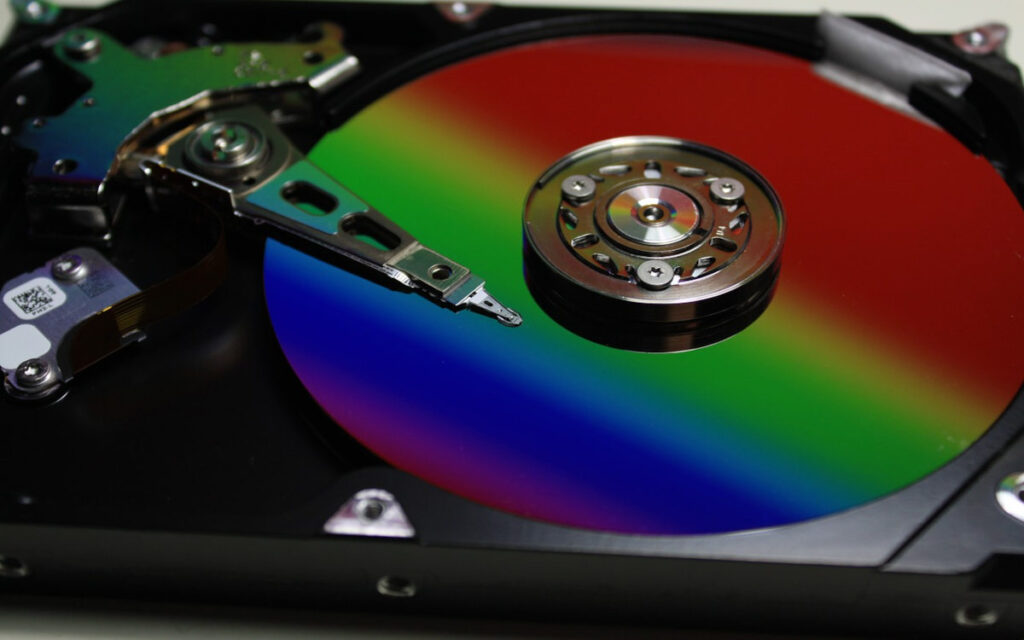
If your hard drive is chronically underperforming or if it's an old HDD on the verge of failure, perhaps the wisest course of action is clone the contents to a larger disk or a modern SSDThat way you kill two birds with one stone: more space and better performance.
El usual process is:
- Connect the new album (HDD or SSD) to the computer.
- Use a cloning software to copy all the contents from the old disk to the new one (system, programs, data).
- Turn off the computer, disconnect the old hard drive (or leave it as secondary) and boot from the new one.
- If necessary, use a partition manager to extend the system partition and make the most of all the extra space.
Although it might seem daunting, most cloning tools today are quite simple and offer step-by-step wizards. Many tutorials recommend this method when there's nothing else you can delete without sacrificing functionality or important data. If you'd like more articles on calculating disk space, check this one out: Why Windows takes so long to calculate the size of a folder and how to speed it up
If Windows insists that There's no disk space, but you can see that it's not full.There's almost always an explanation: large personal files that have accumulated, system junk that's never been cleaned up, disk management errors, MBR limits, internal functions that reserve too much space, or even malware working against you. By combining a thorough analysis of storage usage, a deep cleanup (temporary files, duplicates, the Recycle Bin, unnecessary programs), intelligent partition management, and, if necessary, upgrading to a larger drive, it's perfectly possible to regain control of your space, eliminate annoying warnings, and get your PC running smoothly again.


Passionate about technology since he was little. I love being up to date in the sector and, above all, communicating it. That is why I have been dedicated to communication on technology and video game websites for many years. You can find me writing about Android, Windows, MacOS, iOS, Nintendo or any other related topic that comes to mind.