- Windows can make the screen blink as a visual alert for notifications.
- The Task Manager helps guide the diagnosis, but does not confirm all causes.
- Test compatible frequencies; increasing the hertz does not solve all image problems.
- Update applications and check drivers, cables, and monitors before replacing components.
If the The screen flashes just as a notification arrives.Start by checking Windows visual alerts. An accessibility option allows you to make the active window or the entire screen blink when a sound alert plays, so that blinking may be a configured behavior.
The situation is different if the image flickers continuously, loses signal, or jumps while you're working or playing. In those cases, it's advisable to check the applications, the display controllerThe monitor's configuration and connections can also be factors. The Task Manager can help guide the diagnosis, although it won't identify all the causes on its own.
If the screen flickers with notifications, check this setting.
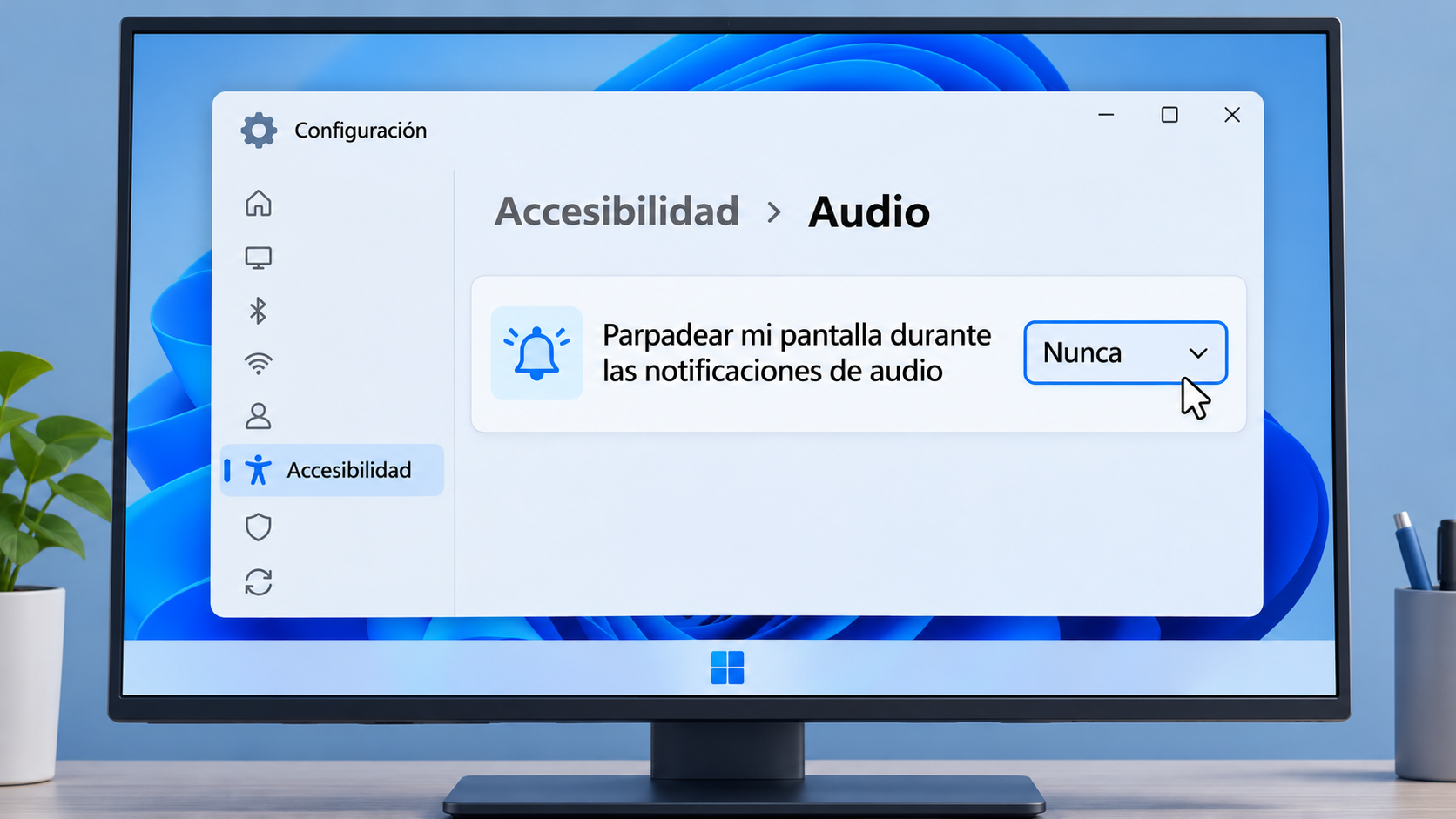
Windows can convert sound alerts into visual alertsThis feature is useful if you need to see when a notification plays, but it can look like a screen glitch if it was activated without you remembering.
To check it in Windows 11:
- Open Configuration with Windows + I.
- Enter Accessibility > Audio.
- Locate My screen flickers during audio notifications.
- If you want to eliminate the flash, select Never.
- Check if the blinking stops when a new alert is played.
En Windows 10, go into Settings > Accessibility > Audio and search Display sound alerts visuallySelect the option that disables visual alerts.
If you need this accessibility help, you can keep it and choose a less prominent notification, such as the one in the title bar or the active window. There's no need to turn off all notifications to change this behavior.
If the screen also flashes when there are no alerts, continue with the following checks.
Use Task Manager to guide the diagnosis
Press Ctrl + Shift + Esc to open Task Manager. You can also use Ctrl + Alt + Delete and select it on the screen that appears. Observe it while the problem is reproduced:
- If the Task Manager It flickers along with the rest of the imageThe display driver is a possible cause.
- If it remains stable while other windows flicker, an incompatible application It is a probable cause.
This test allows you to decide where to start, but It does not rule out problems with the cable, the monitor, or its configuration.If the image disappears completely or the monitor loses signal, also check the connections.
Try the graphical reset and restart Windows
A first attempt involves pressing Windows + Ctrl + Shift + BThis shortcut allows you to reset the graphics driver and may resolve some temporary image glitches.
You may hear a beep or see a brief flash during the process. It does not reinstall or update the driver.And the fact that the image is recovered does not guarantee that the cause has disappeared.
If the problem persists, save what work you can and use Start > Power > RestartAlso check if there are any pending updates for your edition of Windows and if the problem started after installing any.
How to check and repair the display driver
To access the driver options, right-click on Start and open the Device Manager. Expand Display adapters and identify the adapter you are going to check.
The appropriate course of action depends on when the problem started. If it coincides with an update, it makes sense to try the previous version. If the driver hasn't been updated in a while, check the available versions first.
Return to previous driver
- Right-click on the display adapter and select Properties.
- Open the tab Controller.
- Press Revert to the previous driver, if available.
- Confirm the change and restart the computer.
If the button appears disabled, Windows does not have a previous version that can be recovered using that option. This does not mean you performed the procedure incorrectly.
Update the graphics driver
In Device Manager, right-click on the adapter and select Update driver > Search automatically for drivers.
If you cannot find another version, consult the official website of the equipment or graphics card manufacturerOn a laptop, first check the drivers recommended for your model by the manufacturer. For a discrete graphics card, you can check NVIDIA, AMD, or Intel, as appropriate.
Download a package compatible with your model and Windows version. Avoid using driver update programs from unknown sources.
Uninstall and reinstall the driver
If the previous steps don't work, you can try reinstalling. Before removing the driver, have located the appropriate official installer in case Windows does not automatically retrieve a compatible version.
- En Display adaptersRight-click on the device and select Uninstall device.
- If the box appears Try removing the driver for this deviceYou can mark it to try to remove the package. In Windows 10 it may appear as Remove the driver software for this device.
- Confirm the uninstallation and restart your computer.
- Windows will attempt to reinstall the driver. If it doesn't, it will install the official package you prepared.
The name and availability of the mailbox may vary. You will need administrator privileges to make these changes. Additionally, Uninstalling from Device Manager does not necessarily equate to a complete cleanup of all the components of the graphics software.
Update or uninstall the application causing the conflict
If Task Manager remains stable while the rest of the windows flicker, check the applications that were installed or updated before the failure started. Try updating the suspicious app first. from the Microsoft Store or from the developer's website.
If you can reproduce the problem when opening a specific program, close it and check if the image stabilizes. If it still fails after updating, you can try uninstalling it.
- En Windows 11, go into Settings > Apps > Installed appsOpen the application menu and select Uninstall.
- En Windows 10go to Settings > Apps > Apps & featuresSelect the program and click Uninstall.
Restart and check the result after each change. Do the tests one at a time. to identify which application is influencing the issue, instead of removing multiple programs at the same time.
Check the refresh rate, cables, and monitor
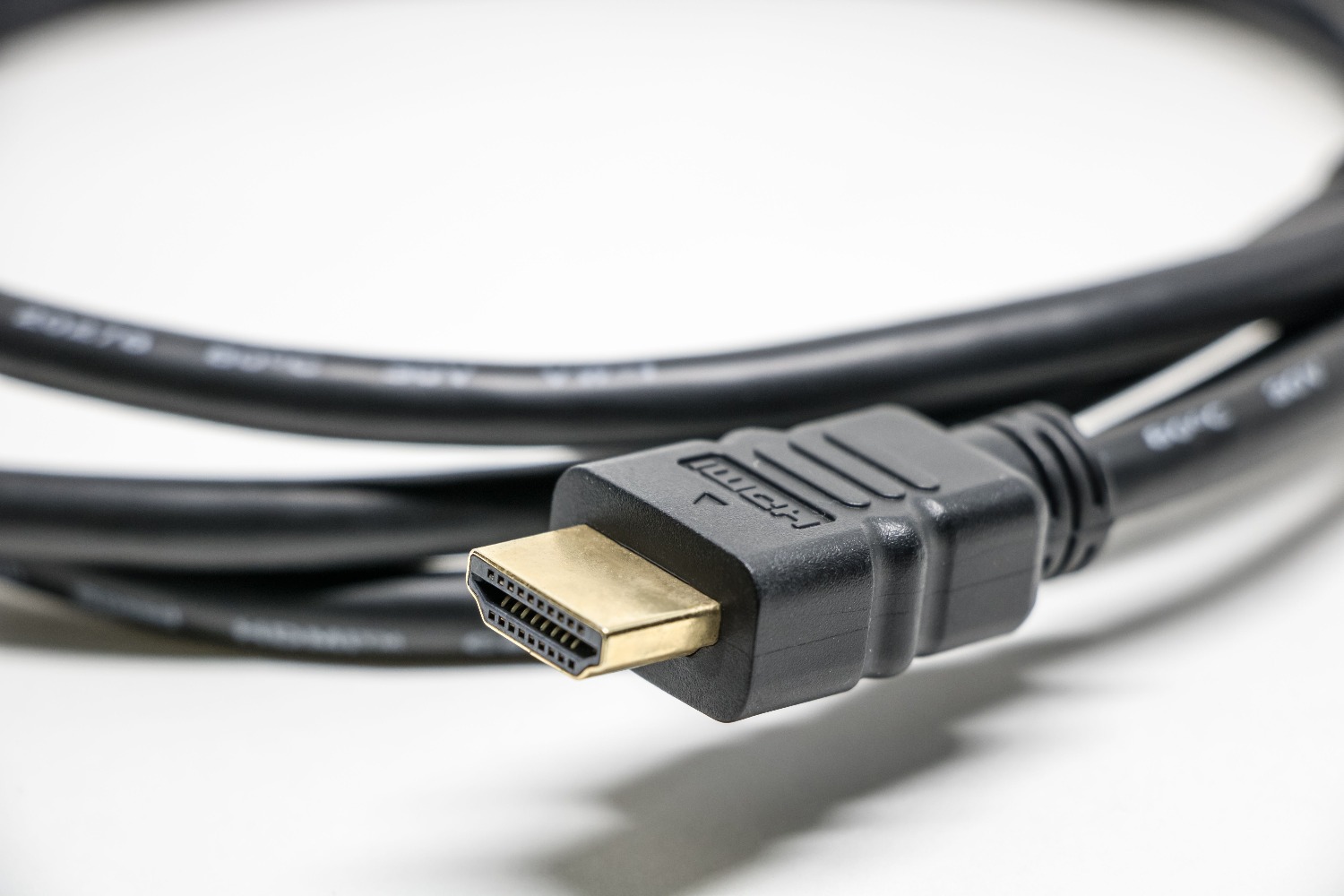
Image problems can also be related to the signal the monitor receives. Therefore, it's advisable to check both the settings and the physical connections before assuming the screen is faulty.
Try a compatible frequency, without increasing the hertz by system.
A higher frequency can improve fluency, but It is not a universal solution for flickering.As a check, try another frequency supported by the monitor; in some cases it may be helpful to reduce it temporarily.
- Open Settings > System > Display.
- Enter Advanced display on Windows 11 or on Advanced display settings in Windows 10.
- If you are using multiple monitors, select the one that is experiencing the problem.
- Choose another compatible frequency. You can try. 60 Hz if it appears as an accepted option for that screen.
- Check if it improves and revert to the previous setting if it doesn't make any difference.
Do not force refresh rates that your monitor does not support. Also, keep in mind that some options may require changing the resolution.
Check cables, ports, and adapters
- Check both ends of the cable. Check that they are properly connected to the PC and monitor.
- Try another suitable cable. It must accept the resolution and frequency you are using.
- Use another compatible port, if you have it.
- Connect the monitor directly to the computer. to temporarily rule out adapters, hubs, or docking stations.
- Try with a single screen if you normally work with multiple monitors.
To pinpoint the source of the problem, test the monitor with another computer and a cable you know works. You can also connect another screen to the original PC.
If the problem persists with the monitor during these tests, it increases the suspicion of a fault in the monitor. If it occurs with different monitors connected to the same PC, further inspection of the computer and its connections will be necessary. These tests alone do not identify which internal component is faulty..
When to use safe mode or seek technical support
If flickering makes it difficult to use Windows, the safe mode It may allow you to review applications and drivers with a limited set of services.
If you can still access the menus, press and hold Caps Lock while you select RebootIn the recovery environment, enter Troubleshoot > Advanced options > Startup settings > Restart and press 4 or F4 to start in safe mode.
If the device uses encryption, have the BitLocker recovery keyThis can be requested when accessing these options. You can find the details in the Official Windows Startup Setup Guide.
If the image also fails before Windows starts, or if the monitor exhibits abnormalities during its own diagnostics, it's advisable to consult the manufacturer. Use the built-in tests indicated in your model's manual to investigate a possible hardware failure.
For a flash that coincides exclusively with notifications, start with Accessibility > AudioFor persistent flickering, combine checking the Task Manager with testing drivers, applications, and connections: the goal is to identify the cause before replacing components.
Frequently Asked Questions
How can I tell if screen flickering is caused by a driver or an app?
The Task Manager should be opened; if it also flickers, the problem is the display driver, but if it remains stable while the rest flickers, the cause is an incompatible application.
Is there a quick command to reset the graphics card in Windows?
You can reset the graphics driver by pressing the Windows + Ctrl + Shift + B key combination.
What to do if the display driver was updated and the problem started?
The solution is to access Device Manager and use the Roll Back Driver option to revert to a stable version.
Can the refresh rate affect flickering?
Indeed, adjusting the refresh rate to a higher value in the advanced display settings can help eliminate flickering.
How do you fix the problem if it's an application that's malfunctioning?
You need to identify the recently installed software and uninstall it from the Applications menu to check if the screen stops flickering.
What steps should I take if the flickering only occurs on an external monitor?
It is recommended to check that the cable is properly connected, try a new cable, or connect the monitor to another device to rule out a physical fault in the panel.
Index
- 1 If the screen flickers with notifications, check this setting.
- 2 Use Task Manager to guide the diagnosis
- 3 Try the graphical reset and restart Windows
- 4 How to check and repair the display driver
- 5 Update or uninstall the application causing the conflict
- 6 Check the refresh rate, cables, and monitor
- 7 When to use safe mode or seek technical support
- 8 Frequently Asked Questions
