- Windows applies the default format to the device in shared mode; each output and microphone has its own settings.
- For video, gaming, and streaming, 48 kHz is usually practical; for music, 44,1 kHz is still acceptable.
- Increasing the frequency to 96 kHz does not improve a previously recorded source; it is best to choose according to the device and project.
- If formats are missing or clicking sounds appear, check drivers, audio enhancements, and applications that use the device.

When you open the properties of headphones in Windows 11, you may find options such as 16 bits and 44.100 Hz, 24 bits and 48.000 Hz or even 96.000 Hz. It's easy to think that simply choosing the highest number will make everything sound better. However, the appropriate frequency depends on what you're listening to, how you use the device, and the formats it supports.
For most everyday uses, 48 kHz is a practical starting pointEspecially if you watch videos, play games, or record content. 44,1 kHz is also perfectly fine, particularly if you work with music recorded at that frequency. Let's see what this setting actually changes, where it's located, and how to solve the most common problems.
What is sampling rate and what changes in Windows?
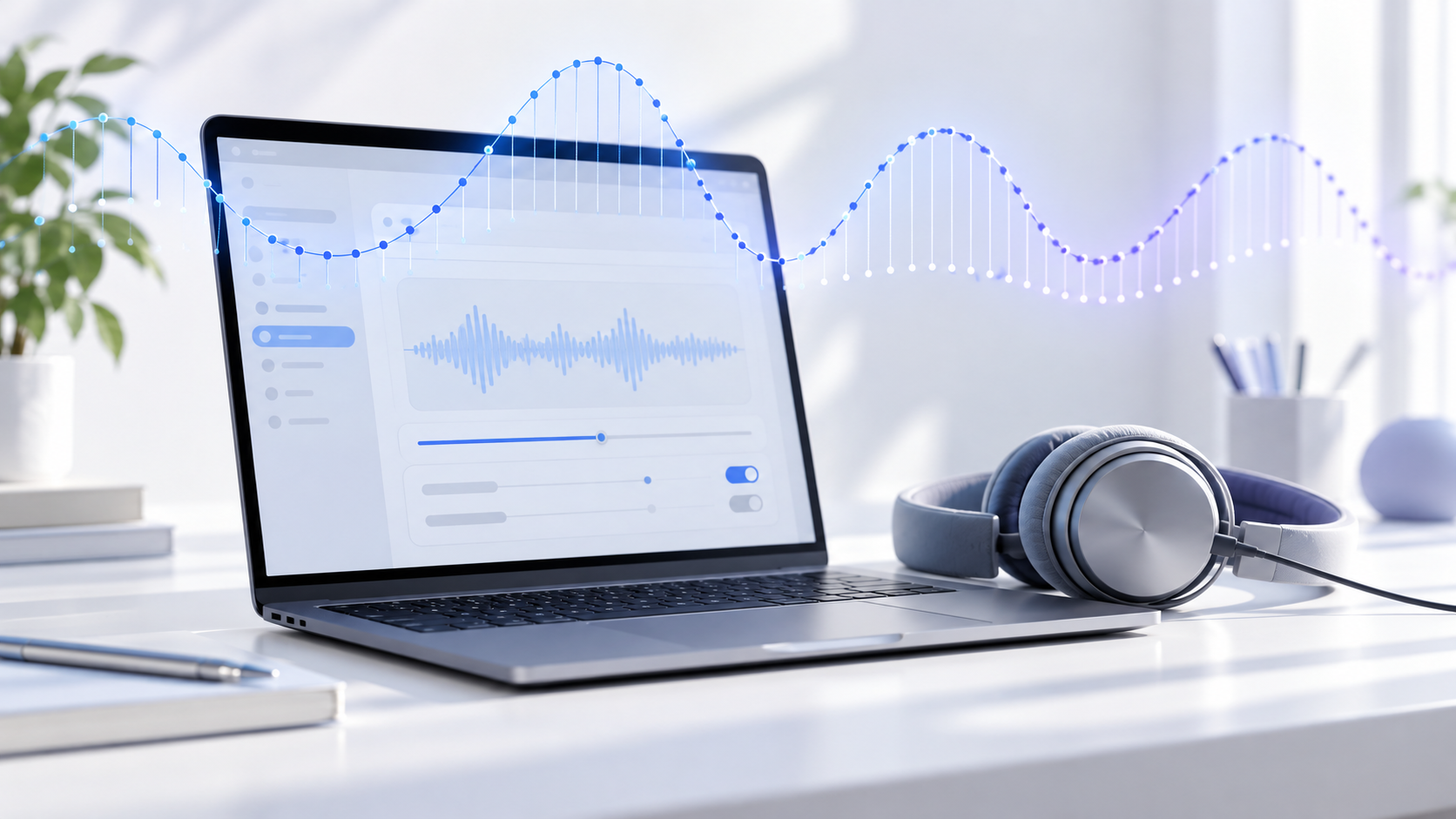
The sampling rate indicates how many samples of a digital audio signal are taken each second. A recording at 44,1 kHz It uses 44.100 samples per second and another one 48 kHz It uses 48.000. You shouldn't confuse this figure with the monitor's refresh rate, even though both are expressed in hertz.
In Windows, the option called Default format It establishes the format used by a sound device when multiple applications share it. The system can mix audio from a video, a game, and notifications, and perform the necessary conversions to play them through the same output.
Therefore, change the default format It does not modify the original frequency of your filesIt also doesn't convert a 96 kHz song into a recording with more detail than it originally had. Furthermore, each device has its own configuration: laptop speakers, USB headphones, and an HDMI output may all display different options.
The other number that appears next to the Hz, usually 16 or 24 bits, indicates the bit depth of the format. It is not the same as the bit rate of an MP3, usually expressed in kbps.
44,1 kHz, 48 kHz or 96 kHz: which one should you choose
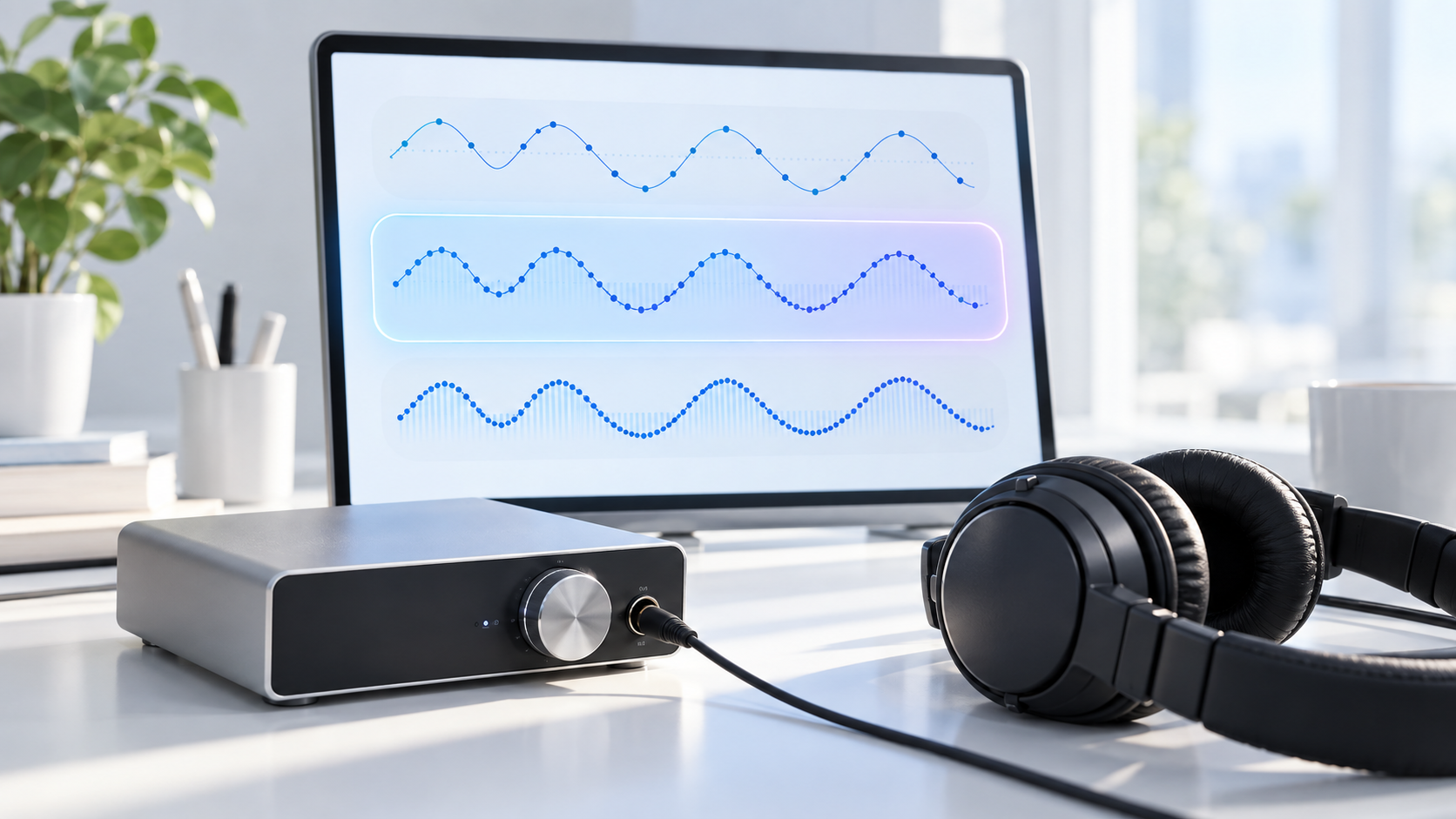
44,1 kHz This is a common frequency for music and CD audio. If you primarily use music files or are working on a project set to 44,1 kHz, you can select that value if your device offers it.
48 kHz It's common in video production and a convenient choice for a PC that combines video, gaming, meetings, and recording. If you don't have a specific requirement, try it. 16 bits or 24 bits at 48.000 Hz, according to the available options, and maintains the format that works stably.
96 kHz This might make sense in certain production projects or with equipment and files designed for that frequency. For listening to music, playing games, or watching regular videos, choosing it doesn't recover information missing from the source or guarantee a noticeable improvement.
The rule of thumb is simple: Choose a format that is compatible with your device and suitable for your use.If everything works fine at 44,1 or 48 kHz, you don't need to chase the highest value on the list.
How to change the sample rate in Windows 11
You can find the setting in the device's sound settings:
- Open Home > Settings > System > Sound.
- En ExitSelect the speakers, headphones, or interface you are actually using.
- Look for the section Format o Default format, which may appear among the advanced options of the device.
- Select a compatible combination, for example, 24 bits and 48.000 Hz if it is available.
- Play the audio to check the result.
If you can't find the selector, press Windows + R, writes mmsys.cpl and press Enter. In the window that appears, open ReproductionSelect the device, enter Properties > Advanced options and changes the Default formatApply the changes and test the sound again.
Pay attention to the selected device before making any changes. Changing the frequency of the built-in speakers will not automatically change the frequency of USB-connected headphones or the audio output from the monitor.
How to adjust the microphone sampling rate
If you record voice or use OBS, also check the entrance Audio. The microphone and headphones can work with different configurations because Windows treats them as separate devices.
Go to Settings > System > Sound > Input and select your microphone. If the formatting option appears, check the available settings. You can also open mmsys.cpl, enter the tab Recording and consult Properties > Advanced options of the microphone.
For a 48 kHz video or streaming project, check the frequency setting in the recording software and on the devices involved. Maintaining a consistent setting simplifies the process, although A difference in frequencies does not in itself imply that the recording will fail.The applications can also convert the audio.
If you're using a sound interface and music production software with its own driver, also check the project frequency and interface panel settings. In these cases, simply changing the Windows setting might not affect the program's current configuration.
Why don't 44,1 or 48 kHz appear in the list?
Windows only displays the combinations that the device and its driver offer for that connection. Therefore, the list may vary and include an analog output, a USB interface, an HDMI monitor, and Bluetooth headphones. The absence of 24-bit or 96 kHz doesn't necessarily mean Windows is faulty.
First, check that you have opened the properties of the correct device. If the format you were previously using is gone, disconnect and reconnect the device, check the options in its control application, and look for an updated driver on the manufacturer's website.
With Bluetooth headphones, we need to distinguish another case: The audio may change behavior when your microphone is activated.Upgrading the default format does not, in itself, eliminate the limitations of that connection. Some Bluetooth LE Audio-compatible devices and headphones can maintain stereo playback while using the microphone, but this capability depends on both the hardware and the drivers.
What to do if the audio gets worse after changing the frequency
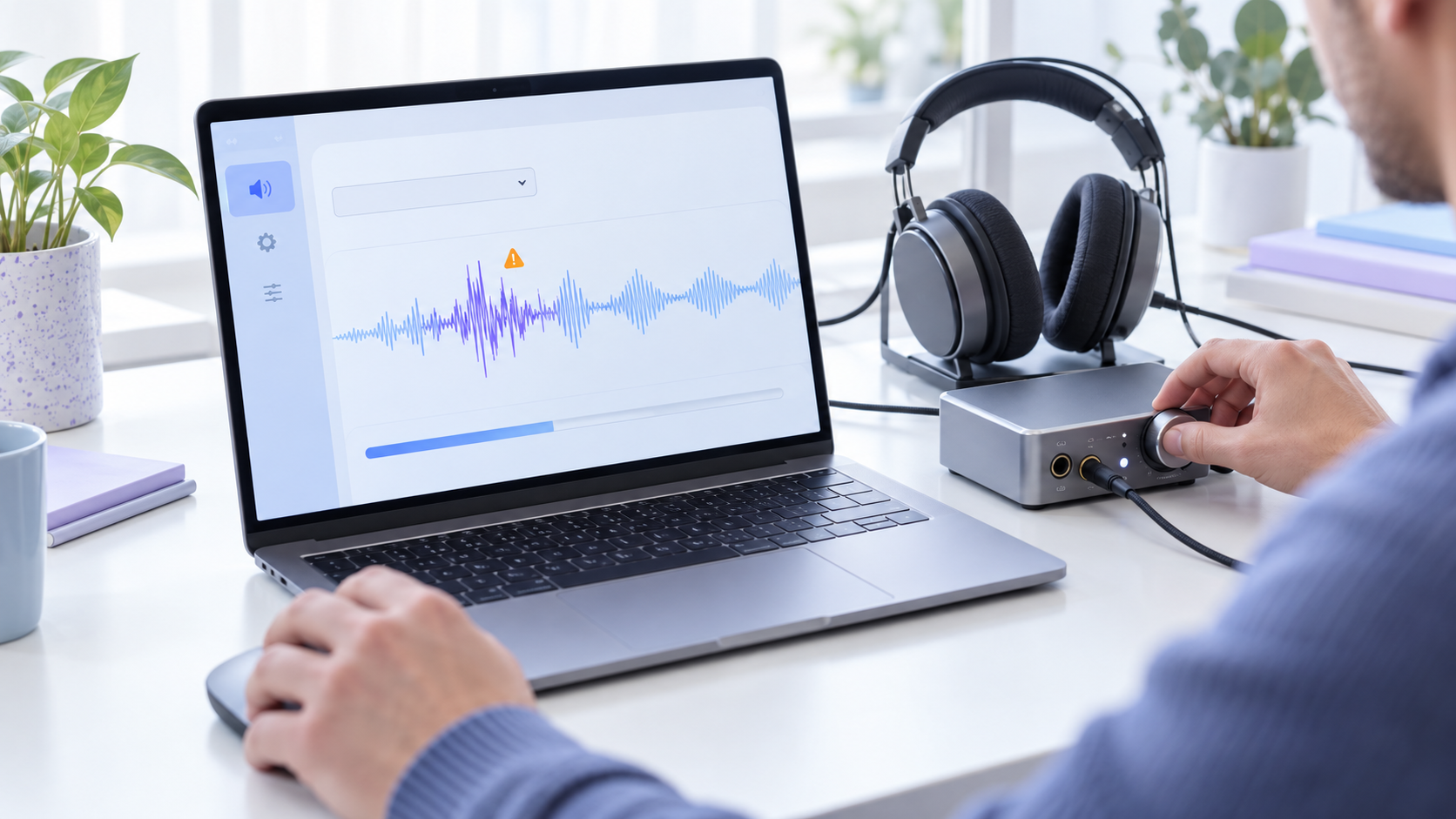
If you experience clicks, clipping, or distortion after changing the format, first revert to the value that was working. Then, try a common combination supported by the device, such as 16 bits and 48.000 Hz o 24 bits and 48.000 HzChange one option at a time to identify which one is causing the problem.
If the problem persists, temporarily disable the audio improvements Check the output properties to see if any manufacturer's application is adding extra effects. It's also a good idea to update your sound driver from the PC manufacturer's website or the audio interface manufacturer's website.
It's possible for a player or program to take control of the device and use a different format while it's running. If you suspect this is happening, consult our guide on [the relevant section]. Windows 11 exclusive modeThe default setting you changed primarily affects the device's sharing functionality.
In summary, 48 kHz is a reasonable choice for varied PC useWhile 44,1 kHz remains suitable for many musical projects, the best setting is the one your equipment supports, fits your project, and plays back smoothly; a higher number, by itself, is not an improvement.
Index
- 1 What is sampling rate and what changes in Windows?
- 2 44,1 kHz, 48 kHz or 96 kHz: which one should you choose
- 3 How to change the sample rate in Windows 11
- 4 How to adjust the microphone sampling rate
- 5 Why don't 44,1 or 48 kHz appear in the list?
- 6 What to do if the audio gets worse after changing the frequency
