- Regularly reviewing installed certificates helps detect malicious or misconfigured roots that can compromise secure connections.
- Tools such as Sigcheck, certmgr.msc, Keychain Access, OpenSSL, and certutil allow for in-depth auditing of system and browser certificates.
- The correct use of personal certificates (FNMT, DNIe, SSL, etc.) requires checking validity, chain of trust and configuration of the browser or electronic headquarters.
- In corporate environments, centralized certificate management prevents expiration, misuse, and trust breaches that affect critical services.

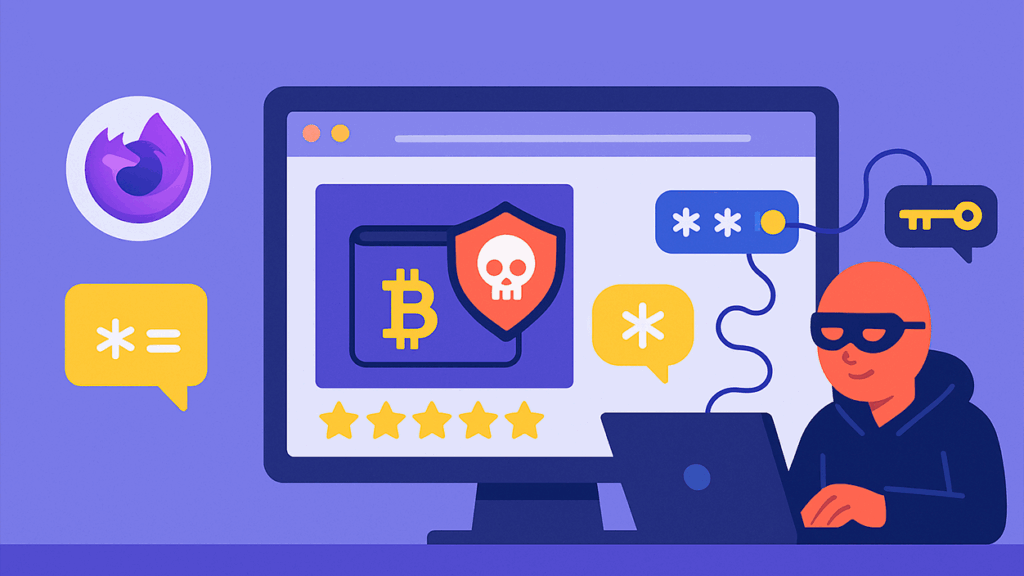
¿How can you tell if your PC has a malicious root certificate installed? When your computer starts to run slowly, display strange browser warnings, or fail secure connections, the first thing we think of is a virus, malware, or any suspicious programHowever, there is a type of silent threat that almost no one talks about: the Malicious or misconfigured root certificates installed on the system. These certificates can allow an attacker to spy on your encrypted traffic or even impersonate legitimate websites without your knowledge.
In recent years, several high-profile cases have come to light, such as the Superfish bloatware on Lenovo laptops, which installed a insecure root certificate and opened the door to man-in-the-middle attacks. And you don't need to own a laptop from that brand: other manufacturers, third-party applications, corporate tools, and even malware can sneak their own certificates onto your computer. That's why it's important to know. How to detect dangerous root certificates, how to view all installed certificates, and how to manage them securely.
What is a digital certificate, what types are there, and why can it be dangerous?
A digital certificate is basically a electronic file that links an identity (person, company or server) with a public key, signed by a Certification Authority (CA). It serves to identify us on electronic platforms, sign documents, encrypt web communications (HTTPS), or authenticate internal services in companies.
The key characteristics of a certificate are that It is issued by a recognized CA, has an expiration date, and is stored in a specific location.The browser, the operating system's certificate store, a digital ID card, a cryptographic card, or a cryptographic USB device. When you visit an HTTPS website or sign an online document, the system checks this information to determine if it can trust that certificate.
Not all certificates are the same. We may encounter certificates of natural person for citizensThese include certificates of representation for acting on behalf of a company or organization, public employee certificates, electronic headquarters certificates, and electronic seal certificates for government agencies. Additionally, in the web environment, there are server certificates (SSL/TLS), wildcard or SAN certificates, and even self-signed certificates used in internal or testing environments.
The risk arises when a certificate, especially if it is a root certificate or one from an intermediate certification authority, It is installed without control or it is maliciousA trusted root certificate allows you to validate many other certificates that "hang" from it, so if an attacker manages to sneak one of their own onto your system, they can use it to intercept, modify, or sign traffic as if it were legitimate.
It's also a problem to have valid but misconfigured certificates: expired certificates, certificates issued for a different domain, incomplete trust chains (missing intermediate steps), or untrusted CAs in the browser. All of this causes "non-private connection" errors, failures in online portals, or the inability to sign applications, with the added difficulty of distinguishing between a misconfiguration and a potential attack attempt.
Why check certificates and signs that something is wrong
Browsing without checking certificates is a bit like open your front door to anyone who claims to be from the bankIt might be true, it might not. If you blindly accept security alerts, you run the risk of someone intercepting your credentials, reading your communications, or redirecting you to fake pages that impersonate official websites.
Modern browsers like Chrome, Firefox, Edge, or Safari display clear alerts when something seems off about a site's certificate: messages like "Non-private connection“”, “Invalid certificate” or broken or crossed-out padlock icons in the address bar. Login forms may also fail, images or scripts may stop loading, or common name errors may appear when the certificate does not match the domain.
In addition to web browsing, checking the status of your personal digital certificate is crucial for administrative procedures and electronic signatures. Platforms like the FNMT offer Verification services to find out if your certificate is valid or revokedIf you try to submit an application and your certificate is expired, revoked, or incorrectly installed, the system may block your access or prevent you from signing.
Periodic verification is also important in companies and public administrations, where there are dozens of different certificates with expiration dates, permits and various usesIf not properly controlled, it is easy for a critical certificate to expire and a service to stop working, or for a certificate to be used where it should not be, with legal and security consequences.
To make matters worse, Windows and the PKI infrastructure itself can occasionally fail: there are scenarios in which valid root certificates distributed by group policy They suddenly appear as "untrusted," causing intermittent errors in applications like RDS, Citrix, Skype, or web browsers. This is usually due to how the registry and CryptoAPI synchronization are updated with new entries in the root store.
How to tell if your PC has a malicious or incorrect root certificate
One of the most practical ways to check root certificates in Windows is to use specialized tools. Among them, Sigcheck, from the Sysinternals suite, stands out, allowing you to List and analyze system certificates from the command line to detect problematic inputs.
The general procedure involves downloading Sigcheck from the official Microsoft website, extracting the file to a convenient location (for example, C: or the Desktop), and opening a command prompt window. From there, using the command CDYou navigate to the folder where you placed the tool so you can run it without any problems.
Once in the correct folder, simply run the command sigcheck -tv so that the utility checks all the certificates installed on your computer. This check examines both user and computer certificates and, if it finds anything suspicious, it clearly marks it so you can investigate it. If everything is clean, Sigcheck will tell you that No incorrect certificates have been detected in the system.
When you see an entry marked as potentially dangerous, don't rush to conclusions. It's crucial to verify that it's not a certificate belonging to your operating system, antivirus software, corporate VPN, or another legitimate application. Only when you're certain it's a false, unsafe or unnecessary certificateIt makes sense to consider its elimination.
To delete a root certificate in Windows, you can search for "certificates" in the Start menu or search box and open the Manage Computer Certificates console. Within the corresponding store, most trusted certificates are located in the "Trusted Root Certification Authorities > Certificates"There you can locate the specific certificates that Sigcheck has indicated and carefully remove them."
View and manage certificates installed on Windows, Mac and browsers
Beyond detecting malicious certificates, it's useful to know at all times What certificates do you have installed, where are they located, and when do they expire?This can be done from the operating system itself or from each browser, with slight differences depending on the platform you use.
In Windows, the most direct way to view all your certificates is to open the Start menu and type certmgr.mscThis console displays certificate folders organized by use: personal, intermediate issuing authorities, trusted root certification authorities, etc. The "Personal" folder typically contains your user certificates, while the others group CAs, server certificates, and other trusted authorities.
Double-clicking on any certificate opens a window with information about the certificate holder, issuer, validity dates, certification path, and technical details of the key. This information allows you to verify if a certificate is valid. It has expired, who signed it and what chain does it belong to?as well as seeing what uses it is enabled for (signing, encryption, client authentication, etc.).
On macOS, the equivalent is the application Access to KeychainsYou can find it in the "Other" folder in Launchpad or by searching for its name in Spotlight. From there, select the appropriate keychain (login, system, iCloud, etc.) and the "My Certificates" or "Certificates" category to view the available entries, their expiration dates, and their trust settings.
On both Windows and Mac, the system certificate view is complemented by integrated browser management. Chrome, Edge, and Firefox allow you to view, and even export and import, certificates from their settings menus, usually under the sections for Privacy and security or directly under "Certificates" or "Security".
How to check a website's certificate in Chrome and Firefox

If you want to know if a website's certificate is properly installed, your browser provides everything you need. In Google Chrome (on Windows, Linux, and Mac), simply go to the HTTPS page you're interested in and click on the padlock located to the left of the address barFrom there you will see options such as "Certificate" or "The connection is secure".
When you open the details, fields such as the subject (Common Name), alternative names (SAN), issuing entity, and validity dates appear. It is important to verify that the The domain name you connect to appears in the SAN or CNthat the expiration date has not passed and that the certification path shows a complete chain up to a trusted root certificate recognized by the system.
A very common problem is that the server doesn't send the intermediate certificate needed to complete the chain. In that case, even if the root certificate is trusted, Chrome may display warnings or not show the padlock icon. From the details tab of the certificate window, check the certificate path to see if All levels appear (server, intermediate, root) or one is missing.
Another key aspect is certificate revocation. Chrome typically checks whether a certificate has been revoked using OCSP or certificate revocation lists (CRLs). If the issuer's server isn't responding properly or there are connection problems, you might receive errors. Testing in incognito mode or disabling extensions helps rule out external interference, and on sites using HSTS, adding security exceptions isn't allowed: if the certificate fails, access is blocked by design.
In Mozilla Firefox the approach is similar, but with one important difference: Firefox maintains its own certificate storeThis is independent of the operating system. To view a site's certificate, click the padlock, then "More information," and then "View certificate." From there, you can review the subject, issuer, and certification path, with the option to export the certificate for further analysis.
Customer certificates, FNMT and electronic offices
When you carry out online procedures with the Administration, it is usual to use a citizen certificate, company certificate or public employee certificate Issued by entities such as the FNMT or other authorities accepted on the @firma platform. These certificates can be installed in the browser, in the system's storage, on the electronic ID card (DNIe), or on external cryptographic devices.
Before submitting an application, it's advisable to check that your certificate is active. The FNMT provides users with a certificate verification service This tool allows you to check if the certificate is correctly installed and whether it is valid or revoked. To use it, go to the verification section on their website, click on "Request verification," and the system will examine the certificates present in your browser.
The browser will display a list of available certificates, and you can select the one you want to verify. After that, the certificate details will be displayed: status (valid, expired or revoked), holder, issuer and expiration datesIt's a quick way to make sure your certificate works before you get into a long process.
In parallel, you can verify the installation directly from your browser. In Chrome or Edge, for example, go to the three-dot menu, select "Settings," then "Privacy and security" (or "Privacy, search, and services" in Edge), and within the security section, open the "Certificates" window. On the "Personal" or "Person" tab, you will see the user certificates installed in the browser or in the system's certificate store.
Double-clicking on the certificate will show you who issued it, what uses it is authorized for, and its validity date. If no certificate appears, you can import it again using the "Import" option in that window, selecting the file with the .cert extension. .pfx or .p12 and providing the associated password. It is recommended to select the option to include all extended properties to avoid losing signing or encryption capabilities.
In Spain, many online portals depend on specific configurations of operating systems, browsers, and Java versionsSome websites still indicate compatibility with Internet Explorer or specific versions of Firefox and Chrome, requiring you to add the website URL to your browser's "trusted sites." In some cases, you may need to install additional intermediate certificates, such as the Red.es certificate, or cryptographic modules for the Spanish electronic ID card (DNIe).
Advanced tools: OpenSSL, certutil, and Windows Registry
For more in-depth diagnostics, especially in corporate environments, it's useful to go beyond the browser. OpenSSL, for example, allows Connect to a server and view all the certificates it sends., including intermediate steps. A typical command would be:
openssl s_client -connect example.com:443 -showcerts -servername example.com
With this command, you can check if the server is delivering the complete chain and analyze the dates, subject, and issuer of each certificate. If you want to verify a specific chain using a local CA file, add the option -CAfile path/to/file.pemThis check is very useful when a website works well in some browsers and poorly in others, or when you suspect that a proxy is intercepting SSL traffic.
In Windows, in addition to certmgr.msc, you have the command-line tool at your disposal. certutilThis allows you to add root certificates to the appropriate store or list them in detail. A simple example of adding a root certificate from a file would be:
certutil -addstore root c:\tmp\rootca.cer
This type of command is very useful when you need to distribute an internal CA certificate to many computers without relying on the graphical console. Microsoft also describes methods for publishing root certificates through Group Policy preferences, by writing directly to the registry path. HKEY_LOCAL_MACHINE\SOFTWARE\Microsoft\SystemCertificates\ROOT\Certificates instead of using the specific "Trusted Root Certification" policy, which can cause intermittent trust issues in some scenarios.
In fact, cases have been documented where valid root certificates distributed via GPO periodically appear as "untrusted," with errors such as CERT_E_UNTRUSTEDROOT (0x800b0109). The cause is usually that the content of HKLM\SOFTWARE\Policies\Microsoft\SystemCertificates\Root\Certificates The certificate is erased and rewritten during policy processing, and some applications fail to receive the complete, updated root certificate list in time. In these cases, distributing the root certificate using other methods (certutil, certlm.msc console, GPO preferences) is often an effective solution.
Detection of related malicious processes and strengthening of security
A malicious root certificate rarely arrives alone: often it's part of an infection or the installation of dubious software, even from a USB drive; it's advisable Analyze a USB drive before opening filesTherefore, in addition to checking certificates, it's a good idea to monitor active processes that may be manipulating the certificate store or intercepting encrypted traffic.
In Windows, Task Manager helps you identify processes that are consuming resources abnormally. From there, you can list running applications, check the percentage of CPU, memory, and network usage, and right-click on any process to view its properties. If you notice an unusual name, excessive resource consumption, or a suspicious installation path, you can search for information on services like File.net or malware databases.
If you confirm that a process is malicious or unwanted, you can End the task from within the Task Manager itself.However, this only stops the symptom: it is advisable to run a full scan as soon as possible with your antivirus or a specialized anti-malware tool to eliminate the source of the infection and any certificates it may have installed.
On a Mac, Activity Monitor serves a similar function. From it, you can view all background processes, check resource usage, and, if something seems amiss, get detailed information by clicking the information icon. If you detect suspicious activity, you can force it to close with the cross icon or run additional diagnostics and then... run a scan with reliable security software.
In all cases, keep your system updated, use up-to-date antimalware solutions, including features such as Windows Defender SmartScreenLimiting the installation of programs from dubious sources greatly reduces the likelihood of encountering malicious root certificates. Even so, it's advisable to check the certificate store periodically, especially after infections or the installation of unfamiliar software.
Centralized certificate management in professional environments
While on a home computer system tools and a browser are sufficient to manage certificates, in businesses and organizations things get more complicated. It's common to have dozens or hundreds of different certificates: of natural person, of representation, of electronic seal, of internal servers, VPN, security proxies, etc., used by multiple users and from different locations.
In this scenario, managing everything manually is unrealistic. It's easy for someone to lose track of when a critical certificate expires, for certificates to be reused in contexts for which they weren't intended, or for an employee to keep local copies on personal devices, with the consequent risk of data leaks or misuse.
That's why there are centralized digital certificate managers that allow issue, store and use certificates in the cloudunder well-defined access policies. The idea is that certificates don't have to be installed on each physical device, but are used from a secure platform that records who uses them, when, and for what purpose.
With solutions of this type, it is possible to establish customized user policies, differentiate which employee can sign which type of document, generate audits when necessary, centrally control expiration dates and automate the renewal and installation of new certificates without going computer by computer.
Furthermore, this approach facilitates remote work and access from different devices, since certificates are not dependent on a specific browser or local PC, but rather on a secure cloud infrastructure. When properly configured, this model reduces duplicate certificates, prevents incorrect installations, and simplifies regulatory compliance regarding electronic signatures and data protection.
Controlling which certificates are used, where they are stored, who can use them, and how they are revoked when no longer needed is just as important as detecting malicious certificates. Poor management can leave us with expired certificates, uncontrolled roots, or illegitimate uses which, in practice, open the door to security problems just as serious as a malware infection.
Checking the list of installed certificates from time to time, using tools like Sigcheck, certutil, or OpenSSL to investigate unusual behavior, relying on official verification services like those from the FNMT, and using centralized managers when scale requires it are simple steps that greatly reduce the risk of your PC unknowingly trusting a malicious or misconfigured root certificate that jeopardizes the security of all your communications.

Passionate about technology since he was little. I love being up to date in the sector and, above all, communicating it. That is why I have been dedicated to communication on technology and video game websites for many years. You can find me writing about Android, Windows, MacOS, iOS, Nintendo or any other related topic that comes to mind.