You write a long message on your mobile and need to send it to your PC, or you copy a link in your computer's browser and want to open it on your mobile. How do you solve this? jump over the invisible barrier between both devicesIn this post we'll tell you how to share the clipboard between Android and Windows using KDE Connect.
What is KDE Connect and why choose it?
Sharing the clipboard between Android and Windows with KDE Connect is one of several features this tool offers. What is KDE Connect? It's simply a A cross-platform application that connects your devices via Wi-Fi.Originally developed for the Linux desktop environment, it is now officially available for Windows, Android, iOS, and macOS.
For many of its users, the star feature of KDE Connect It's clipboard synchronization. The best part is that it works on any Android device and on any computer with Windows. It also does not require logging in. with personal accounts to activate synchronization, as is the case with Microsoft's Link to Windows.
And beyond the clipboard, KDE Connect offers synchronized notifications, file transfer, cursor remote controlUsing your phone as a presenter and the ability to find it by making it ring. But now let's get down to business: how to share the clipboard between Android and Windows with KDE Connect.
Sharing the clipboard between Android and Windows with KDE Connect: Installation and linking
To share the clipboard between Android and Windows with KDE Connect you must install the application on both computersIf you're starting with a computer, the easiest way is through the Microsoft Store. Search for "KDE Connect" and click install. You can also use the Winget package manager with the command winget install kde.kdeconnect if you prefer the command line.
On the mobile side, it's just as simple. You can download the app from the Google Play Store or, if you prefer completely free software, from F-Droid. The application is free and open source in both stores. As an important detail, make sure that the desktop and mobile versions are the latest possible to ensure compatibility of all features.
After installation, everything is ready to go match both devices. At this point, the first thing to do is verify that both the PC and the mobile device are connected to the same Wi-Fi networkIt doesn't matter if the computer uses Ethernet and the mobile device uses Wi-Fi, as long as both are on the same local network. Another detail: if you use a firewall On Windows, you may need to allow KDE Connect through it; the app uses ports 1714-1764 for both TCP and UDP.
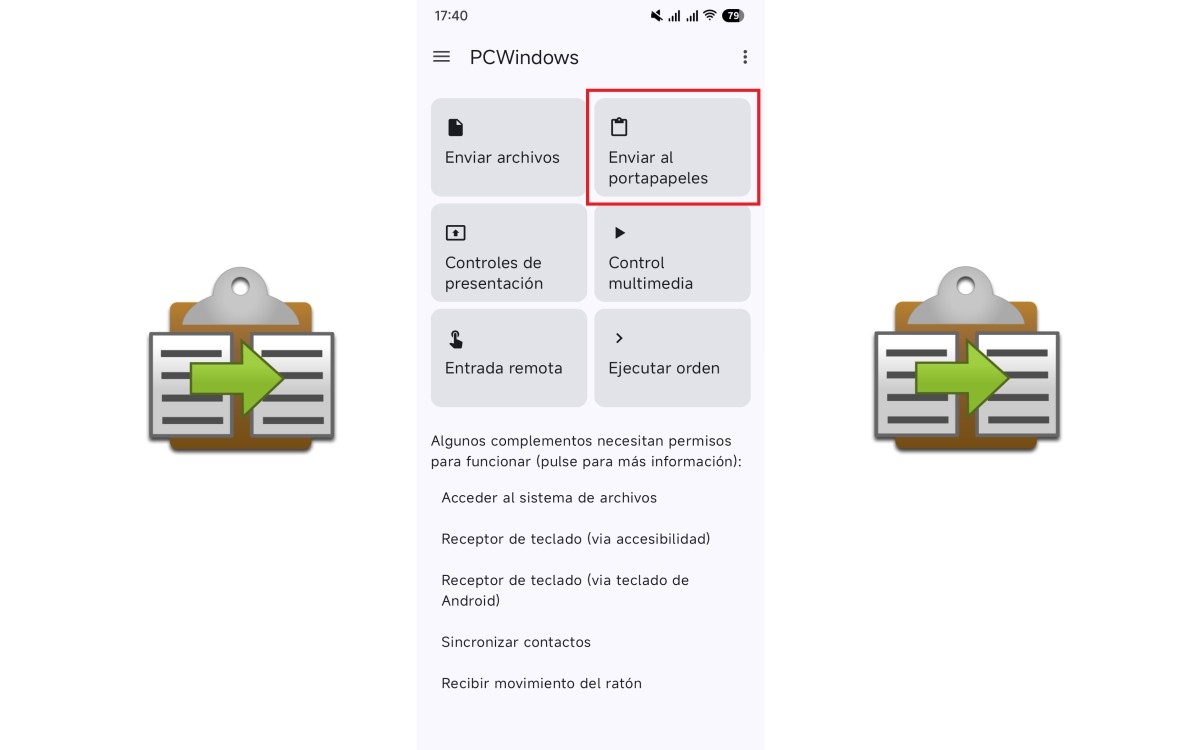
Now open KDE Connect on both devices. You should see the other computer's name in the list of available devices. Select that device, and a [icon/button/etc.] will appear on the other. pairing request notificationAccept it, and the connection will be established almost instantly. Once linked, you'll see a series of function cards in both interfaces. To share the clipboard between Android and Windows with KDE Connect, we're interested in the one that says "Send to clipboard."
How clipboard synchronization works
Once the devices are paired, everything is ready to share the clipboard between Android and Windows with KDE Connect. There's no need to do anything else.And that's where the app shines with its simplicity. But it's important to understand something: the flow is different depending on the direction you want to send the text.
From Windows to Android: automatic
When you copy any text on your PC with Ctrl + C, that content is automatically sent to the clipboard of your Android mobile. You don't need to press any buttons or open any applications.As we mentioned, sharing the clipboard between Android and Windows with KDE Connect is very easy.
On mobile, That text will appear as a suggestion in the top row of the keyboard (If you're using Gboard or another compatible keyboard). Simply tap the suggestion to paste it into any text field. If your keyboard doesn't show the suggestion, tap and hold the text field and select "Paste" from the context menu; the content will already be there.
It goes without saying that This behavior can be disabled If you prefer not to automatically share everything you copy, here's how: Open the KDE Connect app on Windows and go to Plugin Preferences. In the list of options, find Clipboard and click the settings button. Then, uncheck the "Automatically share clipboard from this device" option.
Android to Windows manual
The reverse direction requires an additional stepBut it's just as fast. First, copy the text you want to send on your mobile device, selecting and copying as usual. Then, open the KDE Connect app on your mobile device and tap the Send to Clipboard button.
Done! Now you can press Ctrl + V on your computer to paste the text you just sent from your mobile phone. You don't receive any notifications confirming that the text has arrived on the PC. Everything happens silently: the copied content is on the Windows clipboard, ready to use.
You might be wondering why there's this difference when sharing the clipboard between Android and Windows with KDE Connect. It's automatic from PC to mobile, but manual from mobile to PC. prevent the computer's clipboard from becoming overloaded with each accidental copy on the mobile.
Share the clipboard between Android and Windows with KDE Connect: a free and cross-platform alternative
As you can see, sharing the clipboard between Android and Windows with KDE Connect is very easy. This app isn't just a tool for syncing the clipboard. With it, you get a Complete integration between your mobile and your computerwhich also respects your privacy by keeping all traffic on your local network.
Unlike Link to Windows, which ties synchronization to a closed ecosystem and a Microsoft account, KDE Connect offers the same features (and more) without those restrictions. So if you're looking for a simple, free and no strings attached For copying and pasting between Android and Windows, KDE Connect is the answer.
The installation takes less than five minutes And once it's set up, you'll forget you ever needed to email or message yourself to share a simple link. Once you start using it, you won't want to stop.

From a young age, I've been fascinated by all things scientific and technological, especially those advancements that make our lives easier and more enjoyable. I love staying up-to-date on the latest news and trends, and sharing my experiences, opinions, and tips about the devices and gadgets I use. This led me to become a web writer a little over five years ago, focusing primarily on Android devices and Windows operating systems. I've learned to explain complex concepts in simple terms so my readers can easily understand them.