- The start page and home page are different settings in Chrome, but they can be the same if you prefer.
- When you launch, you can open a new tab, continue where you left off, or select a set of editable pages.
- The Home button is activated in “Appearance” and can lead to a New Tab or a specific URL.
- If your settings change without your permission, reset Chrome and remove unwanted software.
When you open Google Chrome On your computer, you can decide exactly what you want to see first and how to return to your favorite site with a click. But be careful: Set your home page in Chrome and your main page It's not the same, although you can make them match if it is more convenient for you.
The key is to understand two concepts and their adjustments: what opens when starting Chrome and the page the house-shaped button takes you to. Also, if one day your homepage, main page, or search engine magically changes, it's good to know that there may be unwanted software behind it and how to respond. Let's see everything step by step, with options, tricks and solutions.
What is the start page and what is the home page in Chrome?
In Chrome, the home page is the one you see when you launch the browser on your computer, while the main page is the one that opens when you click the home icon in the toolbar. They are different settings, although you can configure them to point to the same location if you prefer.
This distinction is useful: you may want Chrome to load multiple work tabs when you open it, but the home button always takes you to a specific portal. That flexibility It is one of the advantages of Chrome's startup settings.
If you notice that they have suddenly changed the home page, the main page or even the default search engine, you may have a rogue program that has modified your settings. In that case, you should reset Chrome. or remove malware before adjusting your preferences again.
Control what opens when you start Chrome
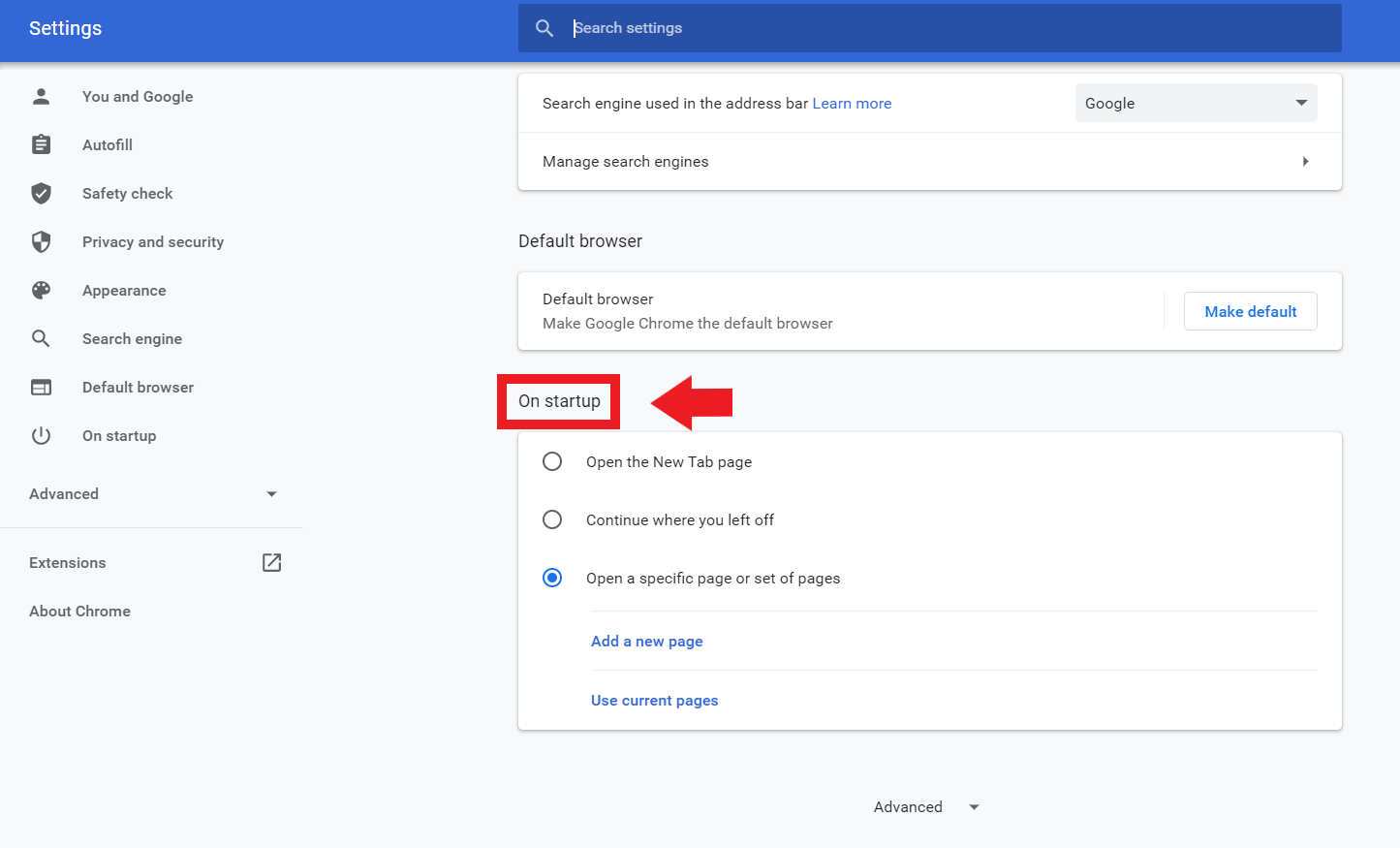
From the settings you can choose what appears each time you open a new browser window. The three options The main ones are: open the "New Tab" page, continue where you left off, or open a specific page (or set of pages).
Open the "New Tab" page
If you like to start with a clean Chrome screen, with its search engine and frequently used shortcuts, choose this option in the "On startup" section. The New Tab Page can be customized with shortcuts and themes to make it more useful and enjoyable for you.
To enable this option: Open Chrome, go to Settings from the three-dot menu, and in the "On startup" section, select "Open the new tab page." With this, every time you start a window will have that view by default.
Plus, you can customize that visual home page: add or remove shortcuts, change the theme or background to suit your way of working. These tweaks make the experience faster and more comfortable.
Continue where you left off
If you tend to close Chrome with multiple tabs open and want to pick up right where you left off, turn on "Continue Where You Left Off." Chrome will restore your open tabs from the previous session when you start the browser.
This setup is perfect for those who work with multiple websites at the same time or who don't want to lose context between sessions. You avoid reopening manually each site at the beginning of the day.
Open a specific page or set of pages
The most straightforward option to launch your key sites is "Open a specific page or set of pages." You can define one or more addresses, so that they open in separate tabs when you start Chrome.
- Open Chrome on your computer.
- In the three-dot menu, go to Configuration.
- Under "On startup", choose Open a specific page or set of pages.
- Now you have several options:
- Add a new page: Enter the address of the site you want to open and confirm to save it.
- Use current pages: Chrome will automatically add all the tabs you currently have open.
If you later want to change any address, use the options menu to the right of each entry to Edit or Delete without having to redo the entire list. It's a quick way to keep it up to date.
Please note that Chrome will only save valid addresses, so please enter correct links (usually starting with https://). In case of doubt, paste the address from the browser bar after visiting the site once.
You can also add multiple pages to launch at once. They'll open in separate tabs, perfect if you check your email, intranet, and a task tool every morning, for example. No need to restart the browser: changes are applied immediately.
Choose the home page (house-shaped button)
The home page is the one that opens when you press the Home button (the house icon) in the browser bar. You can activate it and decide whether it takes you to the “New Tab” or to a custom address.
- Open Chrome and go to Configuration.
- In the "Appearance" section, activate Show the home page button.
- Choose whether the button opens the New tab page or a URL that you specify.
When you activate it, you will see the icon on the left of the address bar. It's very practical. If you want to have your usual portal, an internal tool, or any website you use constantly just a click away.
Customize the New Tab Page
The New Tab page doesn't always have to look the same. You can add shortcuts to your most-used sites, change the visual theme or background, and keep the home screen to your liking. These options They save you clicks and make opening a new window more pleasant.
To adjust these items, open a new tab and look for the customization options on the page itself. From there You can manage access, aesthetics and other simple details.
Edit, reorder, or delete home pages
If you already have a set of home pages and want to modify them, use the context menu next to each address in the "On Startup" section. There you can Edit to change a URL or delete what you no longer need.
Editing is faster than deleting and recreating, especially if you just want to adjust one detail of the address. A couple of clicks And you'll have it ready.
What to do if your home page, main page, or search engine is changed without permission
If you notice unexpected changes in these settings, it's likely that an unwanted program has taken control of your settings. Before reconfiguring, it is advisable to pass a security analysis and reset settings from Chrome if necessary.
In the browser itself, go to Settings and look for the reset option to "Restore settings to default." This will return Chrome to its original state, disable problematic extensions, and return your homepages to their original state. After cleaning, please set your preferences again.
If the problem persists, check your installed extensions and uninstall any you don't recognize. Remove adware and malware of the system is also recommended to prevent your settings from being changed again.
Practical tips for an effective setup
- Think about your routine: if you open three sites every morning, add them to your homepage. If, on the other hand, you prefer decide on the fly, the “New Tab” with shortcuts is ideal.
- Use "Use Current Pages" when you have the perfect session open that you want to repeat every day; it saves you from entering addresses manually. It's a shortcut very useful when creating or updating your page set.
- For the home button, choose a single, strategic destination: your email client, intranet, or a key tool. While the beginning You can have several tabs, the Home button should take you to a very specific place.
- Avoid adding sites that constantly redirect or require multiple login hops, as these can break the experience when you launch Chrome. The more stable the URL, the better it will work.
Common mistakes and how to avoid them
Entering incomplete or incorrect addresses when creating the homepage list is a common mistake. Always check that the URL exists and loads the web first to copy the exact address from the bar.
Another common confusion is thinking that the home page (Home button) and the start page (on startup) are the same thing. They are different settings; if you change only one, the other will continue to behave as before.
If you see unwanted changes again after resetting Chrome, there's probably still intrusive software on your computer. Take an analysis with a reliable antimalware tool and check extensions.
Fine-tuning what opens when you launch Chrome and where the home button points gives you complete control over your digital journey: you can opt for a clean, personalized New Tab, restore tabs from your previous session, or start with a set of essential websites, all while keeping a home page always at hand. Knowing the difference Between the two settings, knowing how to edit or delete pages, customize the New Tab page, and what to do if something changes without permission (reset and clean up) can make the difference between an average experience and a smooth and secure one, even in managed environments like Chromebooks at work or school.

Editor specialized in technology and internet issues with more than ten years of experience in different digital media. I have worked as an editor and content creator for e-commerce, communication, online marketing and advertising companies. I have also written on economics, finance and other sectors websites. My work is also my passion. Now, through my articles in Tecnobits, I try to explore all the news and new opportunities that the world of technology offers us every day to improve our lives.