
Detecting if an unknown device connects to your Wi-Fi is really important. Keeping your network under control isn't just good for protecting your bandwidth, but your digital security is involvedIn this article, we'll explore the most effective methods for detecting intruders on your Wi-Fi network. Secure your connection and regain full control of your private network.
Ways to detect if an unknown device is connecting to your Wi-Fi
In another article, we explain How to tell if someone is already using your Wi-Fi network without permissionToday we will focus on the ways to detect if an unknown device connects to your networkIt's vital to distinguish between knowing who's already on your network and monitoring new connections in real time. While the former shows you the users who have been using your network for a while, the latter requires instant alerts so you can remove the intruder immediately.
Now, keep in mind that Most basic equipment installed by operators does not have a standard function that notifies when a new user connectsThis will depend on the brand and model of your router. However, here are the most effective methods to detect if an unknown device is connecting to your Wi-Fi.
Through the router interface
All devices that connect to your Wi-Fi must go through the router. To access its interface, Open your browser and type in the IP address. (which is usually 192.168.1.1 or 192.168.0.1). Log in with your username and password, which are almost always on the bottom of the router box.
Once inside, look for sections called "Device List," "DHCP Client List," or "Network Map." Now, if you want to verify that your router's configuration allows sending alerts for newly connected devices, bSearch its interface for keywords like the following:
- Notifications / Alerts.
- Access Control / Access Control.
- Security Events.
On the other hand, if you bought your own router, such as an ASUS brand or TP-Link With Home Shield, you're in luck. From its dedicated mobile apps, You can get connection alerts for new devicesThese features can be activated from your security settings. This way, as soon as someone enters the password and connects to your Wi-Fi, your phone will vibrate with the name of the intruding device.
Scanning apps to detect if an unknown device is connecting to your network
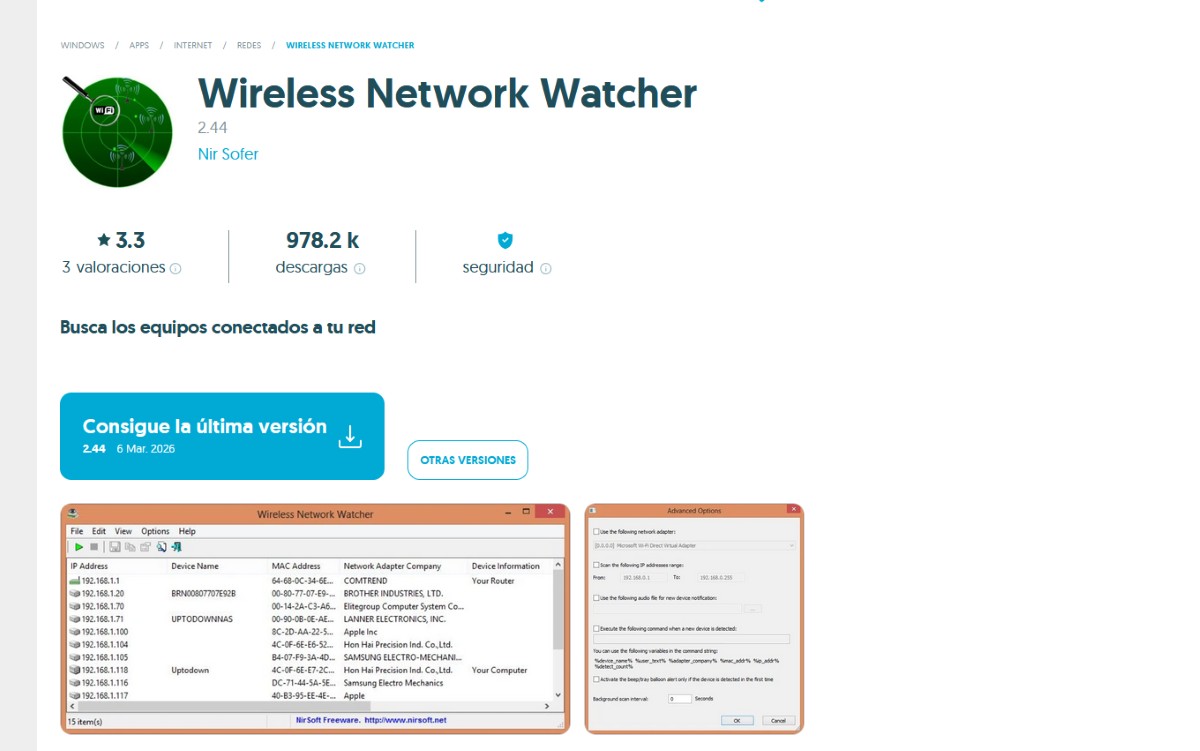
Another way to detect if an unknown device is connecting to your Wi-Fi network is by using a scanning app. This method is a bit simpler than accessing your router's interface. In fact, thanks to these tools you can obtain more well-known names of the devices that are connected to your network. These are some of the best-known and most functional scanning applications.
- FingThis app is available for Android and iOS devices, and you can also download it from the Microsoft Store. Fing can scan your network and tell you the make, model, and IP address of each connected device. It makes it easy to detect if an unknown device is connecting to your Wi-Fi network.
- Wireless Network Watcher (Windows)This lightweight utility shows you who's connected to your network in real time. Like Fing, it identifies mobile devices and routers using IP address, MAC address, and manufacturer, helping you detect intruders and manage your security.
Identify infiltrators using their MAC address
Have you considered that your neighbor might have changed the name of their device to make it look like one of yours? Another way to detect if an unknown device is connecting to your network is learning to identify them using the MAC addressThe MAC address is like the physical fingerprint of the hardware; it is irreplaceable.
If you see a MAC address in your list that doesn't match any of your devices, then you have an intruder. Of course, before blocking anyone. You need to make sure that the MAC addresses listed do not belong to you.To do this, check your mobile's MAC address in Settings – About phone – Detailed information and specifications – Device identifiers.
Apply the shutdown trick
One last way to detect if an unknown device is connecting to your Wi-Fi is the power-off trick. How does it work? Turn off all your Wi-Fi devices and see if the router's activity light continues to blink rapidly. This would indicate that someone else is still connected.
What can you do if you find a stranger connected to your Wi-Fi?
The moment of truth has arrived: you check everything and find a stranger connected to your Wi-Fi. What can you do now? Don't worry, you don't have to call the police, but Yes, you should take action as soon as possible.Keep these ideas in mind if this is happening to you or happens to you:
- Change your Wi-Fi passwordAccess your router's interface or mobile app and change your password. Don't use easy-to-guess passwords. Use a strong password, at least 12 characters long, and mix uppercase and lowercase letters, numbers, and symbols. This will make it less likely that someone will use your network without permission.
- Modify your network's security protocolMake sure your router uses WPA2-AES or WPA3. Avoid WEP at all costs, as it's an outdated security measure and very, very easy to hack.
- Also change the router's administrator passwordMany users leave the default password, which is usually admin/admin. But this allows the intruder to block you.
Important reminders when you detect if an unknown device connects to your Wi-Fi
Some modern devices such as recent iPhone or Android phones They use private MAC addresses for security.This may cause them to appear as new or unknown devices in your list. Don't panic if you're trying to detect an unknown device connecting and you see a generic man you don't recognize; it could be you.
Finally, if your router allows you to enable MAC filtering You can configure it so that only your known devices can connectIf you do this, when a third party without permission tries to enter (even if they have the password), the router will instantly block them.

From a young age, I've been fascinated by all things scientific and technological, especially those advancements that make our lives easier and more enjoyable. I love staying up-to-date on the latest news and trends, and sharing my experiences, opinions, and tips about the devices and gadgets I use. This led me to become a web writer a little over five years ago, focusing primarily on Android devices and Windows operating systems. I've learned to explain complex concepts in simple terms so my readers can easily understand them.