- Fundamental difference between editing the document structure and adding superficial annotations.
- A variety of tools are available, ranging from professional software like Adobe to free cloud-based options.
- Importance of managing fonts to maintain visual consistency when modifying text.
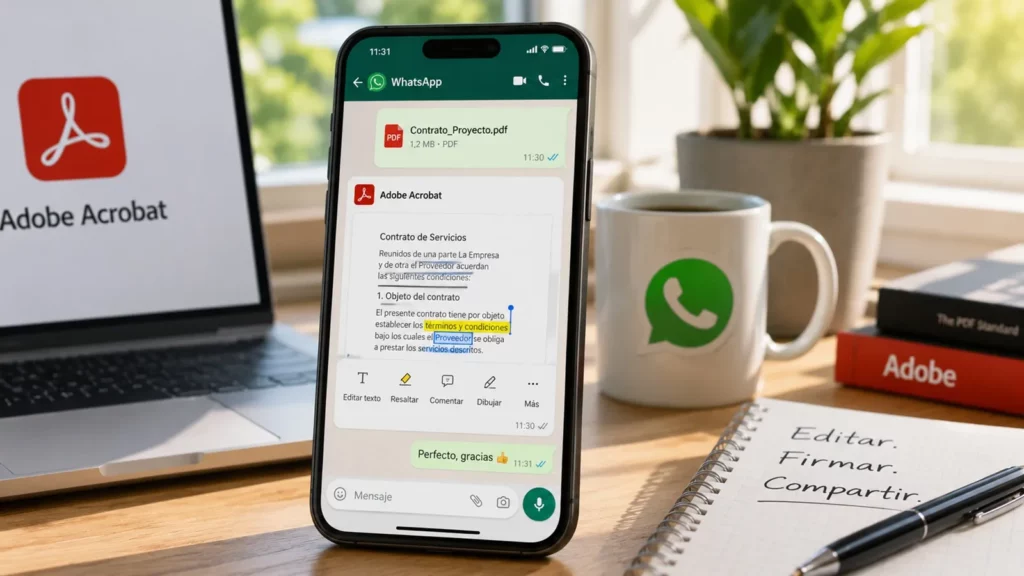
When you receive a PDF document, it looks impeccable, with a professional design and everything neatly organized, but the moment you need to change a single word or fill in a field, you realize the file is as hard as a rock. Fortunately, Edit PDF text from Acrobat chat It is now possible.
The truth is that many people get frustrated trying to write in these files because they don't understand that PDFs weren't created to be edited, but to be a static information containerFortunately, nowadays we have a lot of tools that save our butts and allow us to interact with these documents Whether it's a piece of cake, whether you need to make a deep correction or just leave a couple of notes in the margin.
Key differences: Are we editing or annotating?
Before we dive headfirst into the software, we need to clarify something because sometimes the terms get mixed up and we end up doing something we didn't intend. It's not the same thing. edit the text than adding a note. When we edit, we're delving into the document's inner workings to change the original structure, almost as if we were Opening the source file in Word to delete one sentence and write another.
On the other hand, annotating or marking a PDF is like when you pick up a physical book and underline with a highlighter or write a note in the margin with a pen. You do not alter the original contentInstead, you add an extra layer of information on top. This is vital for collaborating with colleagues without ruining the document's formatting. The ability to edit PDF text directly from Acrobat's chat solves this problem.
- Add new text: Insert content where there was nothing before, modifying the structure.
- Modify existing text: Change words or phrases that were already written in the file.
- Note and highlight: Create marks, circles, or comments that serve as a visual guide without altering the base text.

Why do we need to write in PDFs?
There are countless situations in which we have no choice but to interact with these files. The most common is when we receive a digital form which we have to fill out and sign before sending it back by mail. It's also super common in academic or professional settings, as it allows correct manuals or e-books without having to print hundreds of pages.
Furthermore, in office environments, the ability to leave specific comments on a part of the text greatly facilitates collaboration among colleaguesThis avoids having to send ten different emails to explain a single change in a paragraph.
Options for writing to PDFs from a computer
If you use Windows or Mac, you have several options depending on what you're looking for: something quick, something professional, or a free option, even if it's more limited.
1. PDF Writer: An intuitive option
For those seeking simplicity, PDF Writer It is presented as a very powerful alternative because it allows you to work without internet connectionwhich is a relief when the WiFi fails. The process is very straightforward: you open the file, go to the Markup tab, and choose the tool you need.
This software has three main functions. The TypeWriter tool is used to write directly on the documentThe Notes and Comments tool creates interactive icons that show who made the observation (ideal for teams); and the Pencil tool allows you to draw or freehand signatures.
2. Adobe Acrobat Pro DC: The industry standard
We can't forget that Adobe invented the PDF format. Although they were the undisputed leaders for a long time, their software is now the most robust tool. To write here, simply go to the Tools menu and choose Edit PDF.
Once the Add Text option is activated, the program displays a side panel where you can experiment with the font size and the color, allowing the final result to be professional and consistent with the rest of the design. Obviously, editing the text of a PDF from the Acrobat chat is the most recommended way to perform this task (It is explained in detail here.), although not the only one.
3. Google Docs and Google Drive: The free way
If you don't want to install anything, Google has a trick. You can upload your PDF to Drive and choose the option to Open with Google DocsThe system will attempt to convert the PDF into editable text.
However, you have to be careful because this method often results in formatting problemsIt's very likely that the spacing will go haywire or some images will shift, so it's advisable to use a PDF editing application more specialized for documents with a lot of text and little complex design.
The challenge of typography and forms
A very common problem when editing PDF text from Acrobat chat or any other tool is that, when typing, the source changes and the new text looks completely different from the original. This happens because the editor doesn't have access to the document's exact font. To avoid this, the ideal solution is Edit a PDF for free trying to import the original font or find one that is visually very similar.
For those looking for free alternatives that manage well the fillable formsThere are online editors like Xodo that allow you to perform basic writing and signing tasks for free, although they usually have daily usage limits before requiring a subscription.
Having the right tool transforms a static file into a dynamic document, allowing us to do everything from making quick notes and highlighting key ideas to performing deep structural edits or filling out official forms, ensuring that communication is fluid regardless of whether we use paid professional software or free cloud solutions.

Editor specialized in technology and internet issues with more than ten years of experience in different digital media. I have worked as an editor and content creator for e-commerce, communication, online marketing and advertising companies. I have also written on economics, finance and other sectors websites. My work is also my passion. Now, through my articles in Tecnobits, I try to explore all the news and new opportunities that the world of technology offers us every day to improve our lives.