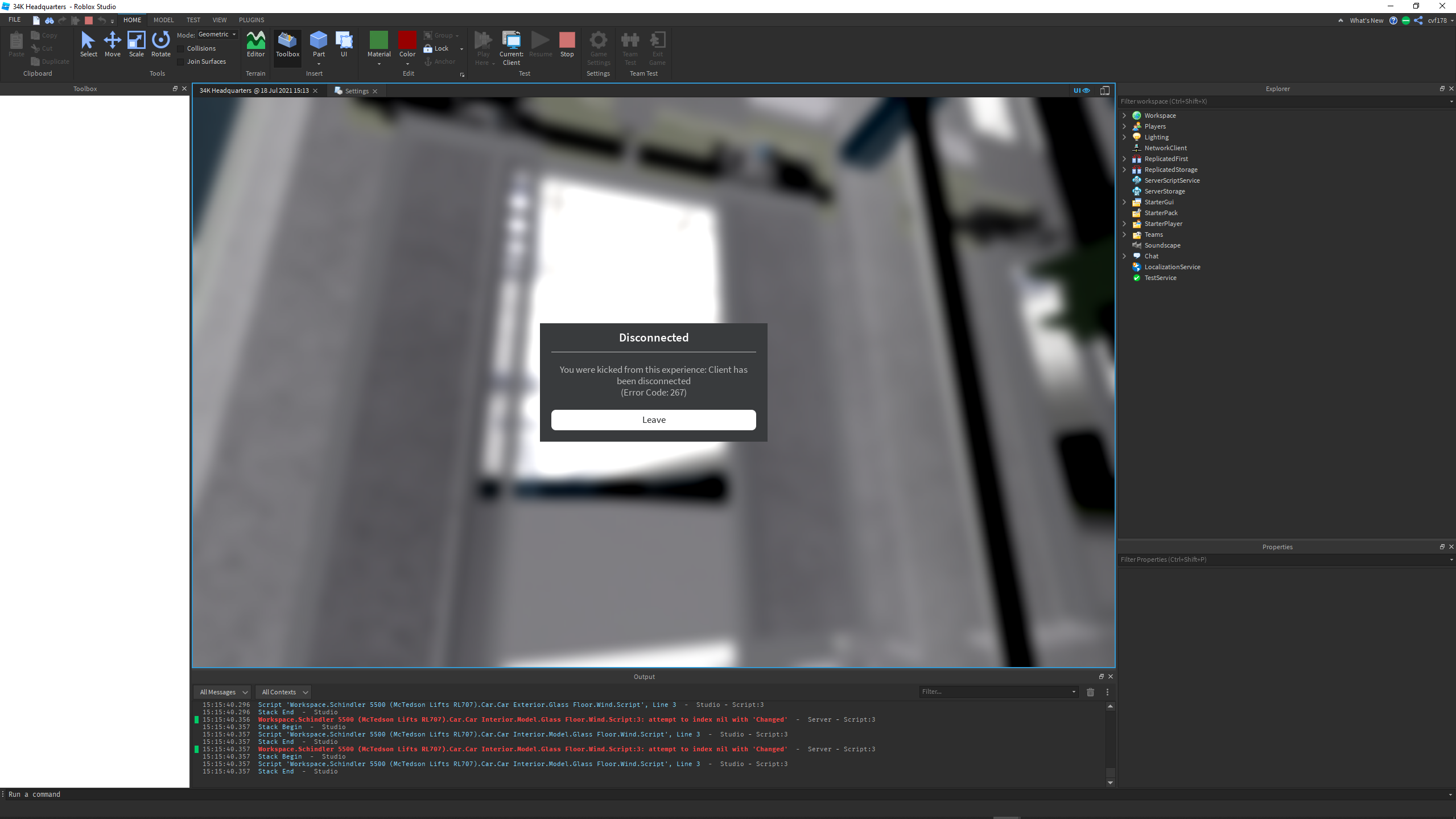
- Error 267 in Roblox is usually due to connection failures, corrupted data, or temporary server problems.
- Deleting temporary files, clearing cookies, and adjusting client compatibility solves many problems.
- Network commands and DNS changes help to fix loading errors and frequent disconnections.
- Knowing other Roblox error codes allows you to better identify the source of each problem.

Anyone who plays Roblox often, sooner or later, one encounters The annoying error 267 that kicks you out of the game Without much explanation. It's one of those notifications that suddenly appears and leaves you with a blank stare, not knowing if the problem is with you, the server, or the platform itself.
The good news is that most of the time this message can be fixed and it's usually nothing serious. Throughout this guide you will see What exactly does error code 267 mean in Roblox?, why it appears, what its relationship is to other similar errors and, above all, how you can fix it with different methods both in Windows and from the browser.
What does error 267 mean in Roblox and why does it appear?
El Error code 267 in Roblox indicates that there has been a problem loading the game or that you have been kicked from a specific game. The message usually appears when you try to join a server and it doesn't load correctly, or when the game itself decides to kick you for some internal reason.
Often, the error is due to a Temporary connection failure with the Roblox server or with the specific game server you're trying to access. It could also be related to corrupted data, too many temporary files, or even your network settings.
It's important to understand that 267 doesn't always mean you've been banned or anything like that; it's usually a technical problem that can be solved with a few adjustments on your PC, browser or Internet connection.
Within Roblox, there are many other error codes related to connecting to and accessing servers (260, 261, 262, 266, 268, 271, 272, 273, 274, 275, 279, etc.). Knowing them can help you to better understand what is failing at any given moment, since some are closely linked to the same type of problems that cause 267.
Fix Roblox error 267 by deleting temporary files
One of the first things you should try when error 267 appears is clean up the temporary files that Roblox saves on your PCThese files are stored in a folder on your hard drive each time you use the application or play from the browser, and over time they can become corrupted or accumulate too much.
When that data is corrupted, it's quite common for the Roblox client to fail to load games or servers and end up displaying the famous Error message 267 when trying to access a gameDeleting them is completely safe: the program itself will regenerate them when needed.
In Windows you can access the temporary folder by opening the Start menu and typing %localappdata% in the search bar. Pressing Enter will open your user's local data directory directly, where temporary files from many applications are stored.
Within that path you will see a folder called TempOpen it and look for the subfolder corresponding to Roblox. If you find it, select it completely and delete it to erase all its temporary files associated with the game platform.
Once the deletion is complete and you've confirmed the folder is gone, restart the Roblox client. In most cases, The game will restart normally and you will be able to access the servers without error 267 appearing., since the necessary data will have been regenerated from scratch.
Fix Roblox error 267 from the browser
If you play Roblox from the web version, another key point is clear cookies and saved data from the siteEach time you connect from your browser, small files related to your session, game settings, and website cache are stored. When these files accumulate or become corrupted, they can cause errors when loading games.
In Google Chrome you can manage this by going to the three-dot menu (top right) and entering ConfigurationFrom there, in the "Privacy and security" section, you will see the section called "Cookies and data from other sites", which is where all the information that websites store is controlled.
Within that menu you will find the option “View all site data and permissionsClicking it will display a list of all websites that have stored information in your browser. Use the search bar to quickly locate the Roblox entry.
If Roblox appears in the list, select it and Delete cookies and stored data using the trash can iconThe browser will ask for confirmation, and once you accept, all information related to that domain will be deleted.
After doing this, close and reopen your browser, go back to the Roblox website, and log in. In many cases, Deleting these cookies solves loading problems and disconnectionsreducing the likelihood of error 267 occurring again when you try to enter a game from the web.
Configure the Roblox shortcut to prevent loading errors
Another way to reduce errors like error 267 is Adjust Roblox shortcut properties in Windows so that the program runs with parameters that avoid graphical or permission conflicts.
What's important in this case is to open the shortcut's context menu: right-click on the Roblox icon on the desktop or taskbar and choose the option PropertiesThis will open a window with several settings tabs.
On the tab “CompatibilityYou'll find several checkboxes you can select. It's particularly important to enable "Disable fullscreen optimizations" and "Run this program as administrator" so the client starts with elevated privileges and without certain Windows optimizations that can cause crashes.
By applying these changes, Windows will ensure that Roblox has the necessary permissions to access the network and system resources on modest computersand that full-screen mode does not cause conflicts with the graphics card or other background processes.
Once you've saved the settings, close the properties and open Roblox again from that same shortcut. It's quite common that, after activating these options, disappear intermittent connection errors and eject screens linked to minor client blockages.
Fix error 267 with network commands from CMD
In some cases, error 267 is closely linked to network problems on your PC: corrupted DNS entries, Winsock conflicts, or name resolution failures. For these cases, it's advisable to... Use the command prompt (CMD) as administrator and execute a couple of very useful commands.
First, open the Start menu, search for “CMD” or “Command Prompt”, and right-click to select “Run as administratorAccept the User Account Control prompt to have elevated permissions, as the changes you are about to make affect Windows network settings.
In the console, type the following command and press Enter to clear the system's DNS cache:
ipconfig /flushdns
This causes Windows to delete DNS entries in memory and forces it to resolve the server addresses againThis is very useful if there was corrupted data preventing a proper connection to Roblox or some games.
Next, you might be interested in restore The Winsock configuration, which is the interface responsible for managing network communications in Windows. To do this, run the following command:
netsh winsock reset
Resetting Winsock restores numerous settings that may have been corrupted by conflicts with previous programs, antivirus software, or network configurations. Once the process is complete, restart your computer and Try restarting Roblox.In many cases, this simple step resolves issues such as expulsions and connection losses that resulted in error 267.
Adjust your network adapter and change your DNS to improve your connection
When problems with Roblox are frequent (errors 260, 261, 262, 266, 267 or similar) it can be very useful change the DNS servers your computer usesThe DNS is the system that translates IP addresses into domain names and vice versa, and is usually provided by your Internet provider.
However, the provider's DNS servers can become overloaded, fail, or run slower than desired, which affects the speed and stability with which your PC connects to Roblox serversThat's why so many people choose to use alternative public DNS servers, which are usually faster and more stable.
In Windows, open the search bar in the Start menu and type “network” to access the connection options. Among the results, you will see the link “View network connections"; click and the window with your adapters (Ethernet, Wi-Fi, etc.) will open."
Locate the adapter you use to connect to the Internet, right-click on it, and enter PropertiesThen select “Internet Protocol version 4 (TCP/IPv4)” and click on “Properties” again to view the IP and DNS settings.
At the bottom, select the option “Use the following DNS server addressesEnter your preferred public DNS addresses (for example, Google's or another trusted provider's). Save the changes by clicking OK in all windows to apply them.
After this, restart your connection or device and try logging into Roblox again. A more stable DNS can significantly reduce the number of connection issues. Disconnections, timeout errors, and problems joining servers which end up being reflected in codes like 267.
With all of the above, it is clear that error 267 and the rest of the Roblox codes are closely linked to the stability of your connection, the status of the servers, and the local data saved by the game.If you delete temporary files, clear cookies, check your network settings, and keep your client updated, you'll be much more likely to enter games without unexpected kicks, and when a warning appears, you'll know exactly where to start to fix it.

Editor specialized in technology and internet issues with more than ten years of experience in different digital media. I have worked as an editor and content creator for e-commerce, communication, online marketing and advertising companies. I have also written on economics, finance and other sectors websites. My work is also my passion. Now, through my articles in Tecnobits, I try to explore all the news and new opportunities that the world of technology offers us every day to improve our lives.