- Exit Code 1 in Minecraft Java is usually due to conflicts with Java, mods, drivers, or corrupted game files.
- Before reinstalling, it's advisable to try restarting, updating drivers, repairing the game, and disabling conflicting applications.
- Reinstalling Java and, as a last resort, performing a clean installation of Minecraft usually eliminates the error while maintaining backups of the worlds.
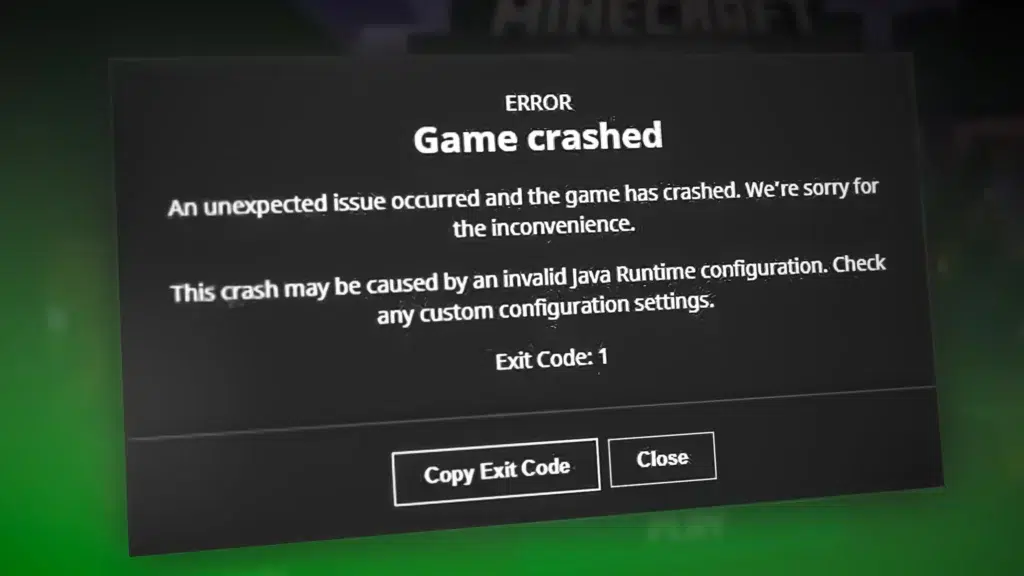
What happened? Minecraft Java has decided not to start and displays the famous Exit Code 1First and foremost, be aware: this is one of the most common glitches in the game and it usually appears at the worst possible moment. In this guide, you'll see, step by step, what this error means, why it appears, and what you can do to get rid of it without losing your worlds.
Throughout this article we will review All the typical causes of error code 1 in Minecraft JavaProblems with Java, improperly installed mods, outdated graphics drivers, corrupted game files, interference from other programs, or even Windows errors themselves. You'll also find solutions arranged from simplest to most advanced, so you can try them out without getting overwhelmed or having to reinstall everything right away.
What is Exit Code 1 in Minecraft Java and why does it appear?
When the pitcher Minecraft It shows you the Exit Code 1 means that the game has closed with an internal error before it can start up properly. It doesn't usually give many more details, so at first glance it's quite frustrating, because you just see it close and that's it.
In most cases, this failure is related to the Java version, installed mods, or the launcher's own configurationIt could also be related to graphics drivers, incorrectly allocated memory, or corrupted files within the .minecraft folder. Therefore, there isn't a single solution: you have to rule out causes one by one.
It's a mistake that is seen especially in Minecraft Java Edition on Windows PCHowever, the root of the problem is almost always the same: something in the environment where the game runs (Java, drivers, system, files) is not quite right and causes the Minecraft process to end unexpectedly.
Furthermore, it often appears after making a change: install a new mod, update the game version, tweak settings in the launcher, change GPU drivers, or install a certain program that gets in the way. That's why it's important to remember what you changed right before the problem started.
Basic checks in Windows before doing anything unusual
Before you start deleting folders or uninstalling things, it's worth doing Some basic checks that resolve a lot of errors in Windows, including the famous Exit Code 1. They are fast and don't touch anything delicate.
The first thing you should try is a PC full resetYes, it sounds like a cliché, but turning your computer off and on clears the RAM, closes processes that have become stuck, and reloads key system components. If the problem stemmed from a frozen process or a malfunctioning service, it often disappears with something as simple as this.
If you still see error code 1 after restarting, the next step is Make sure your graphics card drivers are up to dateAn outdated or corrupted driver can cause errors when launching video games, especially titles that rely heavily on Java and the GPU, such as Minecraft.
Once the drivers are updated, it is recommended Restart your computer again so that everything loads cleanly.This way, when you reopen Minecraft, the system will have the GPU drivers freshly installed and without any remnants of previous versions that could cause problems.
It is also worth checking that the Windows is fully updatedFrom your system settings, by going to Windows Update, you can check for available updates. Sometimes a system update fixes compatibility issues or internal bugs that affect applications like the Minecraft launcher or the Java Virtual Machine.
Finally, within these general checks, don't forget to check if There is a Minecraft update available in the Microsoft Store or in the launcher itself.Having the latest version helps avoid errors that Mojang has already fixed in recent patches, and if the problem started right after a specific update, you can always try launching an older version from the Launcher's Installations section to rule out that the problem is with that specific build.
Repair Minecraft without completely uninstalling it
If the initial checks haven't worked, it's time to focus directly on the Minecraft filesOften, Exit Code 1 appears because some installation file is corrupt or incomplete, and this can be fixed without having to delete the entire game.
It is possible from the Minecraft launcher itself verify and repair the installationIn the Installations section, you can locate the version you usually play with, open the folder options, and look for the repair option if your launcher includes it. This procedure forces the launcher to check essential files and replace any missing or corrupted ones.
If you got Minecraft from the Microsoft StoreYou also have a built-in repair system in Windows. In Settings > Installed apps, locate Minecraft and go to advanced options. There you'll see a button for Repair attempts to fix the app without deleting dataAnd you can do the same with the Game Services app (the one with the Xbox icon), which also affects the proper functioning of the title.
This type of repair usually respects your worlds, your configurations, and your resources, so it's a fairly safe way to try to eliminate error 1 without losing progress. Even so, as a precaution, it never hurts to back up the folder where you save your worlds beforehand.
Problems with mods and how to remove them without losing everything
One of the most frequent reasons for Exit Code 1 has to do with the Mods installed in Minecraft Java EditionA mod that is incompatible with the current version of the game, poorly configured, or simply badly programmed can cause the client to close immediately upon startup, displaying the dreaded error code.
If you noticed that the bug appeared right after adding or updating a mod, the suspicion is clear: You need to disable all mods and test the game completely clean.The easiest way to do this is to access the Minecraft data folder and work directly on the mods folder.
To get to that route you can use the keyboard shortcut Windows + R, type %appdata% and press Enter. The file explorer will open in the Roaming folder, where you will see the directory .minecraft, which is where all the game settings are storedInside is the mods folder, which is where the modifications you load with your client are stored.
Instead of simply deleting it, it's a good idea Cut the mods folder and paste it somewhere else as a backupOr simply rename it so Minecraft doesn't detect it. This way, you can launch the game without any mods loaded and see if error 1 disappears. If it works again, you know the problem was with one of the mods.
From there, the safest procedure is to go installing the mods one by one And test the game every time you add a new mod. That way, when the Exit Code 1 error reappears, you can pinpoint exactly which mod is causing it. While it might be tedious, it's the best way to ensure a stable mod list without the game crashing at launch.
Java: Reinstall the virtual machine and use the correct version
Minecraft Java Edition depends, as its name suggests, on the Java virtual machine in order to runIf your Java installation is corrupt, outdated, or conflicts with the version used by the launcher, you will most likely end up seeing Exit Code 1 on the screen.
A useful first step is completely uninstall any version of Java you have on your systemFrom the Windows app settings, locate Java and remove it, ensuring that no remnants of old installations remain. This helps prevent conflicts between different builds or architectures.
Next, go to the official download page of Oracle or your preferred Java distribution and Download the latest version compatible with your operating system.Install it using the standard wizard and, when finished, restart your PC to ensure everything is properly registered.
Once you have Java installed correctly, it's interesting to tell the Minecraft launcher that uses your system's Java version instead of the one it comes with.especially if you want to make sure it runs exactly the build you just installed.
To do this, open the launcher and go to the Installations tab. Select the configuration you normally use, click Edit, and expand the advanced options or the More options section. From there, you will be able to Specify the path to the Java executable (java.exe) that you just installed or simply type java.exe if it is correctly in the system PATH.
Don't forget to save your changes before closing that window, otherwise you won't be able to save them. Minecraft will continue to try to use the previous Java configuration.After this, try launching the game again. If the problem was related to a corrupted or incompatible virtual machine, the Exit Code 1 will most likely disappear.
Disable programs that interfere with Minecraft
Another fairly common cause of error code 1 in Minecraft is third-party programs that interfere with the normal operation of the gameHighly aggressive antivirus programs, third-party firewalls, recording overlays, optimization tools, or software that injects layers over video games can cause unexpected crashes.
It's worth taking a look back and thinking about whether The error started after installing a new program.It could be a antivirus that you just changedThis could be a streaming program, an FPS monitoring overlay, or even a system "cleanup" application. If the problem occurs at the same time, it's worth trying to temporarily disable or uninstall that software and see if the game starts normally again.
In the case of antivirus software, a less drastic alternative is Add the .minecraft folder and the Minecraft launcher to the exclusions listThis prevents them from analyzing every access to game files in real time. Some security engines are overly strict and mistakenly block legitimate processes, which can lead to errors like Exit Code 1.
It is also advisable to close background apps that are not needed while playing gamesThe fewer processes competing for resources or inserting overlays on the window, the less likely there are to be rare conflicts with Java or the GPU.
Update Windows and keep your system up to date
Although often overlooked, keeping your operating system updated is key to Avoid compatibility errors and internal bugsMinecraft Java, graphics drivers, and Java itself rely on Windows components that are updated periodically.
From the Settings menu, access the section on Windows Update to check for pending updatesInstall both major updates and those considered optional, especially if they include stability patches, improvements to .NET or graphics components.
When you finish updating, it's important Restart your PC for all changes to take effect correctly.Next, try launching Minecraft again. While this isn't always the primary cause, this type of error often disappears after the system receives a specific patch.
If you still can't start the game, you can also take this opportunity to check that Microsoft gaming services are properly installed and up to dateespecially if you're using the version obtained through the Microsoft Store. These services act as a bridge between the system, the user account, and the game itself.
Reinstall Minecraft from scratch and keep your worlds
When you have already tried all the previous alternatives and the Exit Code 1 persists, it is time to consider a clean reinstallation of Minecraft JavaIt's the last resort, but in many cases it's the definitive way to get rid of corrupted files or configurations that are impossible to locate manually.
Before deleting anything, the most important step is back up your worldsAll saves are stored within the .minecraft folder, usually in the saves subdirectory. Using the Windows + R shortcut and typing %appdata%, open .minecraft and copy the saves folder to another safe location, such as another hard drive, a USB flash drive, or a folder on your desktop.
If you want to play it safe, you can also back up the entire .minecraft folderThis way, if needed, you can recover resources, texture packs, or specific configurations later. Once you have that backup, you can delete the original .minecraft folder without fear of losing your creations.
After cleaning the folder, go to Windows settings, enter the list of applications and Uninstall Minecraft and its launcherNext, Download the official installer from the Minecraft website or from your usual source (such as the Microsoft Store) and perform a completely new installation of the game.
When the process is complete, restart your computer and open the launcher. You'll see it start up as if it were the first time. Check that the game starts without error 1 And, if everything goes well, you can now copy your worlds from the backup to the new .minecraft/saves folder. This will restore your progress without carrying over any potentially corrupted files.
How to take advantage of the Minecraft community and forums
Although Exit Code 1 is usually caused by the reasons we have seen, sometimes The source of the error is so specific that only other players in your same situation have found the solution.That's where the Minecraft community comes in.
Official forums, Reddit communities, Discord servers, and specialized websites bring together thousands of real cases of users who have encountered the same error codeBy searching for messages that include "Exit Code 1" along with the game version, the type of mod you use, or your operating system, you'll often find the thread you need.
In these spaces people often share full Java console logs, launcher screenshots, or mod listingsAnd together they narrow down the cause. Even if you're not very familiar with advanced logs, you can copy the exact error message and see if anyone else has experienced the same issue.
Also, if you manage to solve the problem, that's a good idea. Describe what you did to fix error code 1 You can share this information in those same forums or in the comments section of the website where you got it. You'll surely save another player a lot of trouble and headaches.
The Exit Code 1 error in Minecraft Java is very common, but it almost always has a solution if you go ruling out causes in an orderly fashion: restarts, drivers, game repair, mods, Java, conflicting programs, operating system and, as a last step, a clean reinstallWith a little patience and by always keeping backups of your worlds, you should be able to log back into your game and continue building without that pesky error ruining your session again.

Editor specialized in technology and internet issues with more than ten years of experience in different digital media. I have worked as an editor and content creator for e-commerce, communication, online marketing and advertising companies. I have also written on economics, finance and other sectors websites. My work is also my passion. Now, through my articles in Tecnobits, I try to explore all the news and new opportunities that the world of technology offers us every day to improve our lives.