- The error “Failed to log in: Invalid session” indicates problems validating the Minecraft account session or license with the server.
- On third-party servers, it's usually because they only accept verified premium accounts, rejecting launchers or unlicensed accounts.
- On your own servers, the usual source is in the online-mode configuration and in the server or hosting license verification options.
- Reviewing the account type, launcher, and server settings can consistently prevent these session errors.
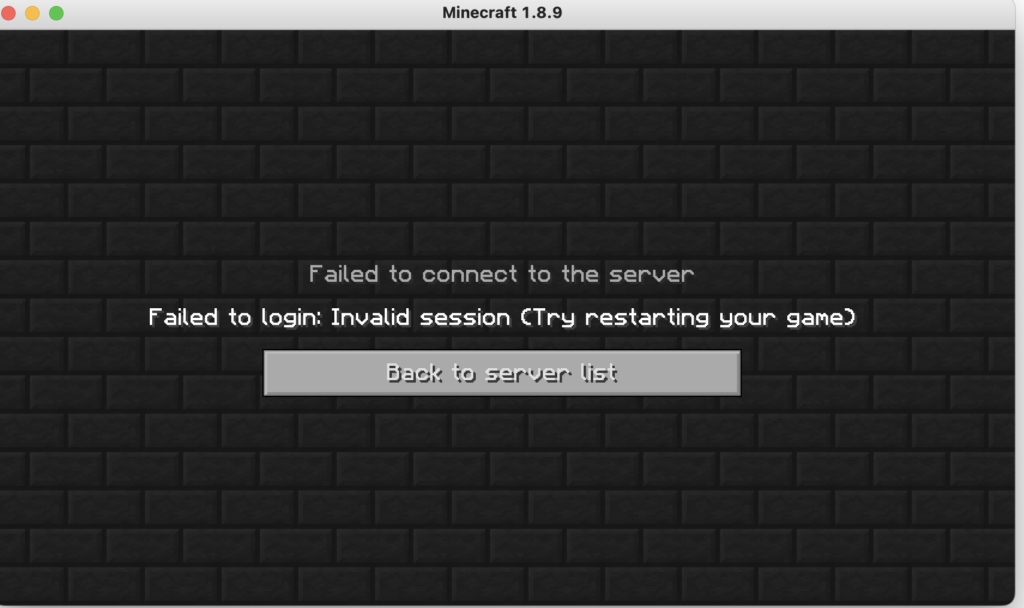
It's a frustrating moment: you enter a multiplayer server and the message appears. “Failed to log in: Invalid session” in MinecraftMany players tell the same story: yesterday they were playing without any problems, and suddenly today the game throws this error without them having changed anything. They close and reopen the game. MinecraftYou reinstall, change your password, log in and out over and over again… and The darn message keeps appearing.
The good news is that, although the error sounds very technical, it usually has quite clear causes. In most cases, the problem lies in how Your account is validated with Minecraft's authentication servers or in how the server checks if you're using an official (Mojang/Microsoft) account or not. Sometimes it's the launcher's fault, other times the server you're connecting to, and occasionally it's your own server configuration if you set it up yourself.
What does “Failed to login: Invalid session” really mean in Minecraft?
The full message is usually displayed as “Failed to login: Invalid session (Try restarting your game and the launcher)”, although it may be accompanied or replaced by notices such as “Failed to verify username!”In simple terms, this means that the server cannot confirm that your Minecraft session is valid or that your username is properly authenticated.
When you open Minecraft with a launcher that uses the official servers, the game generates a session associated with your accountThis session is used by servers with online mode enabled (online-mode=true) to verify your identity and, above all, to confirm that your account is paid for and legitimate. If this session is invalid, expired, or doesn't match the server's expectations, the infamous error appears.
This error usually occurs in two main situations: when you try to connect to third-party servers that only allow premium accountsand when you try to log in your own misconfigured serverIn each case, the solutions are different, even though the error message is practically the same.
Another important detail is that many users get confused thinking it's an internet connection or port problem, when in reality what's failing is the login process and license verificationThis means you can have a perfect ping and still be locked out due to an invalid session.
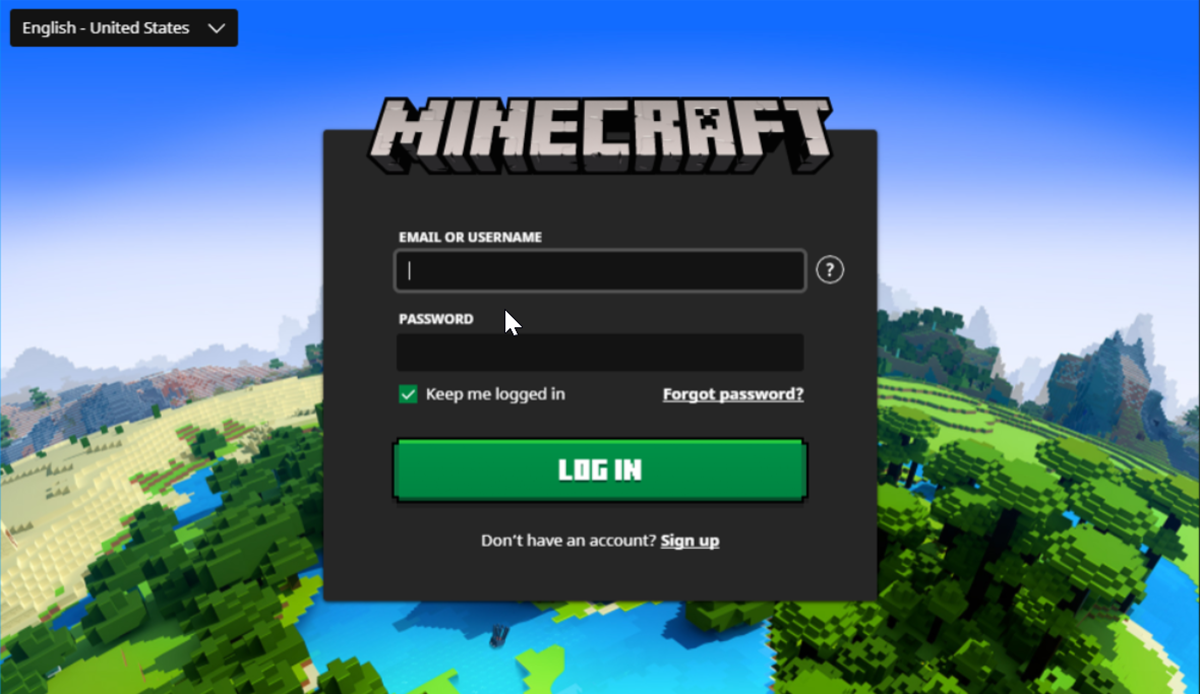
Session error when trying to log into someone else's server
When you try to connect to a multiplayer server that isn't yours and you get an "Invalid session" message, it's almost always because that server is configured for Only accept officially licensed accountsLarge, well-known servers like Hypixel (e.g., mc.hypixel.net) operate exclusively in online mode, meaning they check with Mojang/Microsoft servers to see if your account is truly premium before granting you access.
In practice, this means that if you're using an unofficial launcher, an unlicensed account, or any unusual configuration, the server won't recognize you as a valid user. Even if your username looks correct, the server will perform a Verification of your session against the official database and, if it fails, it will display the message "invalid session" or "unverified username".
It's also possible that you have an official account, but the launcher has incorrectly saved the credentials, is using an expired token, or has experienced some internal problem. In these cases, the server receives inconsistent session data And, as a security measure, it simply rejects you.
Therefore, when the error appears exclusively on large servers that are clearly marked as premium, the first thing you should keep in mind is that Access is not possible with unlicensed accountsIt's not a server error or a bug in your game; it's a protection system to prevent unauthorized access.
How to fix “Invalid session” when connecting to external servers
If the problem occurs when accessing servers you don't manage, the solution involves ensuring that your account and launcher are properly configured. They are properly linked to an official licenseDepending on the type of launcher you use, the specific steps may vary, but the general idea is the same: you need to log in correctly with your Minecraft or Microsoft account.
In alternative launchers that allow premium accounts, there is usually a section for “Accounts”Within that menu, you must log in using your official Minecraft/Mojang/Microsoft email and password. The launcher itself will then generate a valid session that premium servers can verify. It's important to note that these launchers, if legitimate, do not store or reuse your data insecurely, but it's still advisable to always use trusted software.
If you don't have a license, there's no magic trick to access servers that require official accounts. The only realistic option in this case is search for servers configured to accept “cracked” clientsThat is, without online license validation. There are many servers like this within the community, and they usually indicate this clearly on their website or in the description of the server list where you find them.
If you do have a premium account and are still getting the error, it may help to log out of your launcher and start it over from scratchThis forces the creation of a new session, discarding any potentially broken or expired tokens. Sometimes, simply restarting both the launcher and the game, as the message itself suggests, also resolves the issue because the authentication data is regenerated.
Finally, it's worth ruling out temporary issues with Minecraft's authentication services. If the official servers are experiencing problems or are down, Any attempt at validation will fail And you'll see session errors on virtually all premium servers, even if you have everything configured correctly.
Error “Invalid session” when connecting to your own server
Another very common situation is that you created your own server, either with the official Minecraft software, a modified server like Spigot or Paper, or through services like Aternos and other free or paid hosting providers. In these cases, if you see “Failed to login: Invalid session” or “Failed to verify username” when trying to log in, the problem usually stems from... configuring the online mode of your own server.
By default, when you download the official Minecraft server or when you create a server on a reputable hosting service, it comes configured with online-mode=trueThis means that the server will attempt to verify with the official Mojang/Microsoft servers that each player who logs in has a valid license and that their username matches a real premium account.
If you or your friends are using unlicensed accounts (or launchers that don't perform the official login), the server won't be able to verify your identities and will display the exact same invalid session messages. This happens whether you're connecting from the same machine hosting the server or from elsewhere.
Even if you have a premium account, if the server is misconfigured or there are conflicts with authentication plugins, unexpected session errors can occur. In environments with many security plugins, any mismatch between the configuration of online-mode, internal login systems, and whitelists This can result in the same generic invalid session error.
In services like Aternos, this is seen very often: the control panel offers options to allow or block players with "cracked" clients under names like “License Check”, “Cracked Client Access” or similar optionsIf license checks remain enabled and your friends don't have official accounts, they won't be able to log in and will see the error every time.
How to disable license verification on your server
If you have created your server and want both official and unlicensed accounts to join, you must Disable Mojang/Microsoft online verificationThis is something that is done from the server configuration files or from the hosting control panel, depending on how you have it set up.
On a server manually installed on your own computer or on a dedicated server, you have the file in the server's main folder. server.propertiesIt's a plain text file where many basic server options are defined: world name, maximum number of players, difficulty, port, etc. Among these options, there's a line called online-mode=true which is the one that controls whether the server validates accounts against the official servers.
To allow unlicensed users to enter, you must Edit that file and change the line to online-mode=falseSave the changes, restart the server, and from that moment on, your server will no longer request confirmation from Mojang/Microsoft about connecting accounts. This will allow players with unofficial launchers or unlicensed accounts to log in without receiving the "Invalid session" error.
Please note that disabling online mode has security implicationsThe server will assume the username sent by the client is correct without verifying it. This opens the door for anyone to... log in using someone else's nickname if it knows their in-game name. Therefore, if you choose online-mode=false, it is recommended to supplement with plugins or your own authentication systems within the server (for example, requiring players to register with a password upon entry).
On hosting providers like Aternos and other similar services, the process is done through the web interface. You'll usually find a settings section where you can adjust options such as “online-mode”, “License Check” or “Cracked Client Access”To allow access for unlicensed clients, you will need to disable these options or configure the server to accept "cracked" clients. After saving and restarting, users who previously saw the invalid session message should be able to log in without issue.
In any case, although this change usually resolves the error immediately, it's advisable to carefully review the documentation of your hosting provider or the platform you use to set up the server, because some providers may establish additional restrictions or specific security recommendations when online mode is disabled.
Practical tips if you have already tried “restarting the game and the launcher”
The error message itself recommends “Try restarting your game and the launcher”, and often that simple action solves the problem because force to regenerate the sessionBut if you've already tried everything (closing and reopening the game, uninstalling, changing your password, logging back in) and the error persists, it's a good idea to follow a short checklist.
- Make sure you're using an up-to-date and reliable launcherWhether it's the official Minecraft launcher or a recognized alternative, very old or strangely modified versions of launchers can mishandle session tokens and frequently cause these errors.
- Check what type of server you are trying to use. If it's a well-known server and you know it only accepts premium accounts, don't waste your time trying a thousand different methods if your account isn't official: you won't be able to log in while the server is online. In that case, the only solution is to purchase a license or find another server that accepts connections without license verification.
- Check for potential outages or widespread issues with Minecraft authentication services. When these systems fail globally, thousands of players receive session errors at the same time, and the only solution in that case is to wait for the services to be restored.
Ultimately, if you're absolutely certain your account is official, your launcher is configured correctly, and the server you're trying to access accepts premium accounts, but you're still getting "Invalid session" messages, this might be helpful. Log out of all devices where you can have Minecraft open and restart in only one. Sometimes, logging into multiple sites at once can cause conflicts with authentication tokens.
Understanding what's behind the "Failed to log in: Invalid session" message in Minecraft helps prevent you from going crazy trying random things. Ultimately, it all comes down to how the authentication string Verify your account: If you're using an official account and a properly functioning launcher, and the server is correctly configured, multiplayer should work without issue. When either of these elements is missing, you'll be blocked with errors like "Invalid session" or "Failed to verify username," which act as a filter to maintain control over who enters each server and under what conditions.


Editor specialized in technology and internet issues with more than ten years of experience in different digital media. I have worked as an editor and content creator for e-commerce, communication, online marketing and advertising companies. I have also written on economics, finance and other sectors websites. My work is also my passion. Now, through my articles in Tecnobits, I try to explore all the news and new opportunities that the world of technology offers us every day to improve our lives.