- Distinguish the time of the event from the time zone used to display it.
- Compare web and mobile with the same account, event, and reference area.
- Confirm with the organizer before rescheduling a meeting or series.
- Please refer to the original confirmation when the event originated from a Gmail booking.

Si Google Calendar shows events with the wrong time.Do not change the appointment immediately. The difference may be due to the time zone you are using to view it, your device settings, or the information saved by the organizer.
To find the cause, compare the same event on the web and on mobile, confirm the agreed-upon time, and check where the discrepancy appears. A thorough check prevents rescheduling a meeting that was properly set up.
Check if the event time or viewing area is faulty.
Before changing any settings, note the full date, the time you see, and the time you expected. Also, double-check that you're viewing the same invitation and not a copy or a different appearance in a series.
| What happens | What to check first |
|---|---|
| All events appear displaced | Device viewing and configuration area. |
| Only one meeting has an unexpected time. | Event details and organizer confirmation. |
| Web and mobile show different times | Areas used in both; then, if they have the same version of the event. |
| The discrepancy begins on certain dates | Series area and possible seasonal changes or regional updates. |
A one-hour difference helps with the diagnosis, but it doesn't pinpoint the cause on its own. Avoid manually adjusting it until you've identified the problem.
Check the main time zone in the web version.
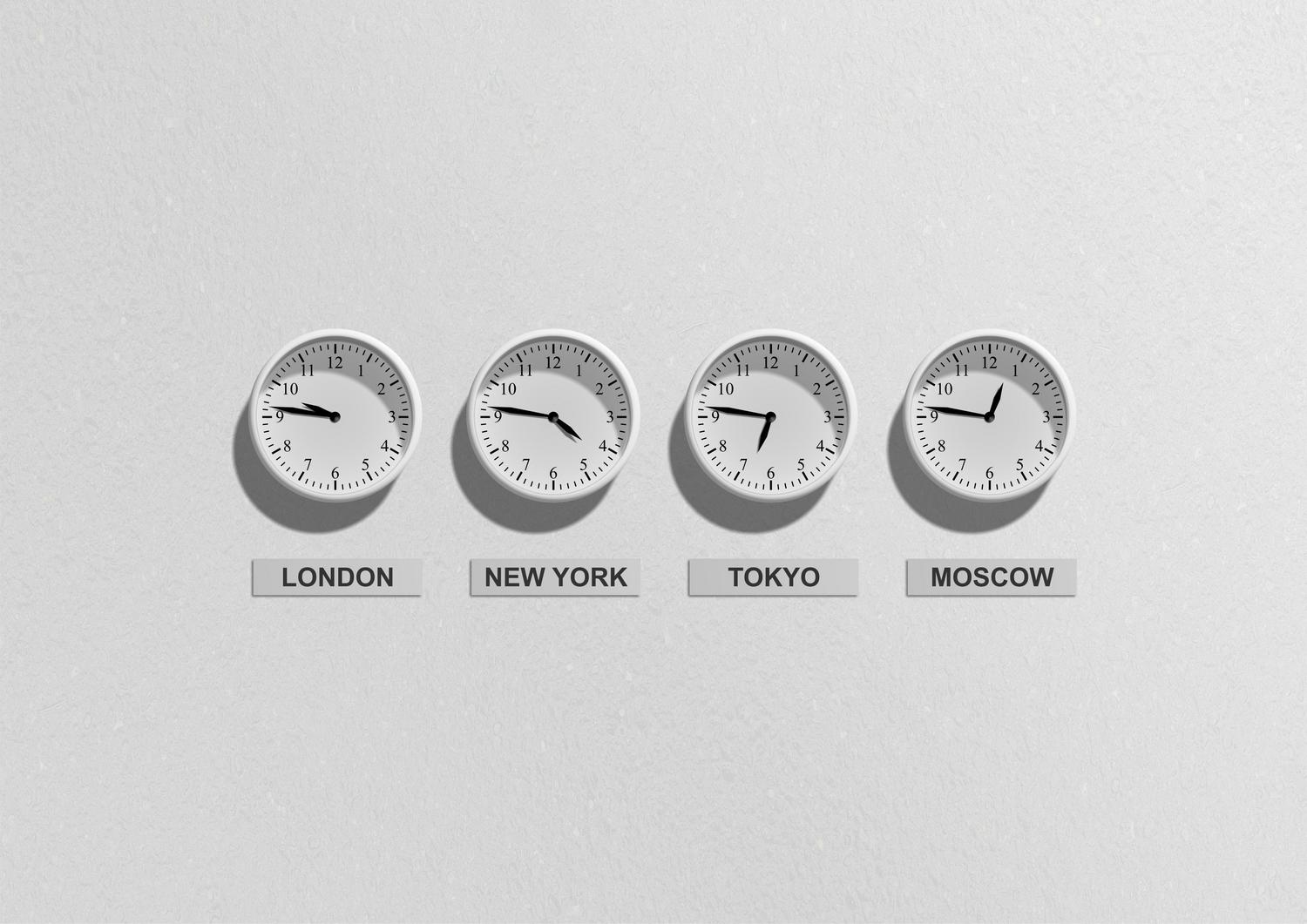
On the computer, open Settings > General > Time zone And check the main area. Look for a city that corresponds to the region you need.
Guests may see a different time because Calendar adapts the presentation to their respective time zones. This doesn't necessarily mean they have different meetings.
To compare regions, you can display additional zones on the grid—secondary and tertiary—or use the world clock. These are reference aids, not an automatic correction of the event.
If you're checking a specific calendar area, keep in mind that this setting is separate from the main display settings. To change the main display settings, you need to be the owner; don't use this setting as a general solution for a single appointment.
Check your Google Calendar settings on Android and iPhone

In the Google Calendar app, go to Menu > Settings > General and check Use the device's time zone.
- Activated: The application uses the zone configured on the phone.
- Deactivated: You can select a zone manually.
Make sure that selection matches what you want to see. If you're using the device's time zone, also check its date and time settings. If you prefer to keep a fixed time zone while traveling, check the manual selection.
These steps apply to the Google Calendar app. If you're accessing your account from Apple Calendar, Outlook, or another app, check that client's settings as well.
If only one meeting fails, consult the organizer.
An event with a specific time has a defined start and end. Displaying it in another region can change its local representation without changing when it actually happens.
Confirm the agreed-upon date, time, and region with the organizer. Simply saying "at ten o'clock" is not enough to resolve a disagreement between countries.
If you have permission to edit and an error is confirmed, open the event, tap the pencil, and check both the times and their zones. Simply changing the area while keeping the numbers the same can shift the meeting time.
Double-check the result before saving and review any updates that guests should receive. If you're not organizing the appointment, ask the person in charge to correct it instead of creating a copy that could be mistaken for the valid invitation.
Distinguish between a time difference and a synchronization problem
After matching the display areas, compare other details: title, location, description, and last known modification. If the mobile device retains previous information, check the synchronization.
- Check your internet connection.
- Update the Google Calendar app.
- Please confirm that you are using the correct account and calendar.
- Make sure the calendar is visible.
- On Android, check that Calendar sync is enabled for that account.
- Use the app's update option and check again.
Don't delete local data as a first step. Before any further troubleshooting, confirm that important events appear on the web and that you don't have entries saved only in another calendar on the device.
Carefully review the periodic meetings
Check several appearances of the series and confirm when the difference began. Two regions can change their time zones on different dates, so their time difference doesn't necessarily remain constant throughout the year.
When you edit a recurring meeting, Calendar lets you choose which events the change applies to. Select the relevant scope and then review future occurrences.
Don't fast-forward or rewind the entire series just to correct what you see on one device. First, confirm the reference zone and local time that the meeting should maintain.
Specific notices for time zone changes
Google published instructions for certain events in affected Canadian areas starting from November 1, 2026Their alerts and correction tools appear in the web version, not in the mobile apps.
If you receive that notification, follow the event instructions and check if it has already been automatically corrected. In affected series, a global update may cause customizations, such as guests or attachments for specific appearances, to be lost.
This issue requires its own investigation. Do not apply its time adjustment to meetings in other regions or to events that already display the correct time.
If the event originates from a flight or a Gmail booking
Open the entry and use View the original email in the application or View confirmation in the browser. Compare the date and time with the company's updated information.
Events pulled from Gmail may update when a booking changes, but they can also contain incorrect data. Don't assume a discrepancy is valid just because the event was automatically created.
For travel, confirm the departure or arrival time. If you detect a retrieval error, report the problem in Calendar and keep the supplier's confirmation for your travel reference.

Index
- 1 Check if the event time or viewing area is faulty.
- 2 Check the main time zone in the web version.
- 3 Check your Google Calendar settings on Android and iPhone
- 4 If only one meeting fails, consult the organizer.
- 5 Distinguish between a time difference and a synchronization problem
- 6 Carefully review the periodic meetings
- 7 Specific notices for time zone changes
- 8 If the event originates from a flight or a Gmail booking