- The hybrid format combines fragmentation and compatible completion.
- It does not guarantee protection against any loss.
- Choose according to the codecs and the editor.
- Test the entire recording before an important session.
El OBS Hybrid MP4 It allows recording with resistance to unexpected shutdowns and produces a file compatible with standard playback and editing workflows. Its aim is to eliminate the need to record in MKV format first and then generate another MP4 file just to use it.
Hybrid MP4 appeared in OBS 30.2 and hybrid MOV in OBS 32.0. Since the latter version, both have left beta and become the default formats for new profiles: hybrid MP4 on Windows and Linux, and hybrid MOV on macOS. Profiles you were already using can retain their previous settings.
How to enable hybrid MP4 in OBS
- Open Settings > Output.
- In the recording section, locate Recording formatIf you are using Advanced output mode, go to its Recording tab.
- Select Hybrid MP4 (.mp4) or hybrid MOV, depending on your needs.
- Check the route, encoder, and selected audio tracks.
- Apply the changes and make a short recording.
Stop the recording normally and open the file in your editing software. Check the image, sound, timeline navigation, and duration before recording an important session.
If the option doesn't appear, check your version of OBS. Don't confuse Hybrid MP4 with traditional MP4 or with fragmented MP4: these are options with different behaviors.
What does the hybrid format do during recording?
While recording, OBS writes the content in a fragmented structure. If the recording is interrupted, this structure allows you to preserve readable material up to the available fragments, without relying on the closure required by a traditional MP4.
When you stop recording correctly, OBS performs a soft-remux: adds the final information and modifies a small part of the structure so that other applications interpret the file as a conventional MP4.
The process does not recompress the video. It also does not guarantee the recovery of data that was never written, nor does it protect against physical damage to the drive. After a failure, the file may require remuxing to be used comfortably in certain applications.
Hybrid MP4, hybrid MOV or MKV: which one to choose
| Format | Main advantage | What to check |
|---|---|---|
| Hybrid MP4 | Disruption resilience and post-termination compatibility | Codecs supported by the publisher |
| hybrid MOV | Alternative with support for ProRes and PCM | Encoder availability and destination compatibility |
| MKV | Codec flexibility and tolerance to interrupted recordings | You may need a remux to edit. |
| Traditional MP4/MOV | Normal compatibility after proper closure | Risk of creating an unusable file if it cannot be finalized |
MKV remains a valid optionEspecially if you already have a proven workflow or need codec combinations that other containers don't support. However, it's not accurate to say that it always offers greater protection than hybrid formats.
The extension also does not determine the visual quality: the container organizes the tracks; the codec and its settings determine how they are compressed.
Video and audio compatibility in hybrid formats
Hybrid MP4 supports H.264, HEVC and AV1Hybrid MOV supports H.264, HEVC, and ProRes, but not AV1 according to the OBS compatibility chart.
In audio, both support AAC and ALAC. Hybrid MP4 also supports Opus and FLAC. For PCM, Hybrid MOV may offer better compatibility, because some applications still don't support PCM within MP4.
Don't choose MOV just because you're working on a Mac, or MP4 just because you're using Windows. Check the specific combination of container, video, audio, and editor. The ability to select an encoder also depends on your setup and hardware.
How to add chapters during recording
Hybrid formats allow for the addition of chapters. Settings > Shortcuts, look for the action to add a chapter marker and assign an available combination.
OBS also allows you to create them using WebSocket and its API. Their presentation depends on the program you use to open the file: check how your editor interprets them before basing your entire edit on them.
The chapters are written at the end of recording and are not recoverable after an unexpected closure.According to current OBS documentation, the video may still be usable even without those watermarks.
What to do if the file won't open or plays intermittently
Preserve the original and separate the import problem from the performance problem:
- It only fails in one application: Check its compatibility with the codec and audio used.
- The recording was interrupted: Try a remux on a copy to improve its compatibility.
- OBS indicated coding overload: Reduce the recording load and perform another test.
- The video works, but you can't hear all the sources: Review the track selection and its assignment.
For the remux, open File > Convert RecordingsAlso known as a recording remix, depending on the translation. Select the file and generate a new output.
Remuxing changes the packaging without re-encoding the tracks. It doesn't automatically convert an incompatible codec or reconstruct lost frames. If you need a different codec for editing, transcoding may be necessary.
When to keep MKV files with automatic remux
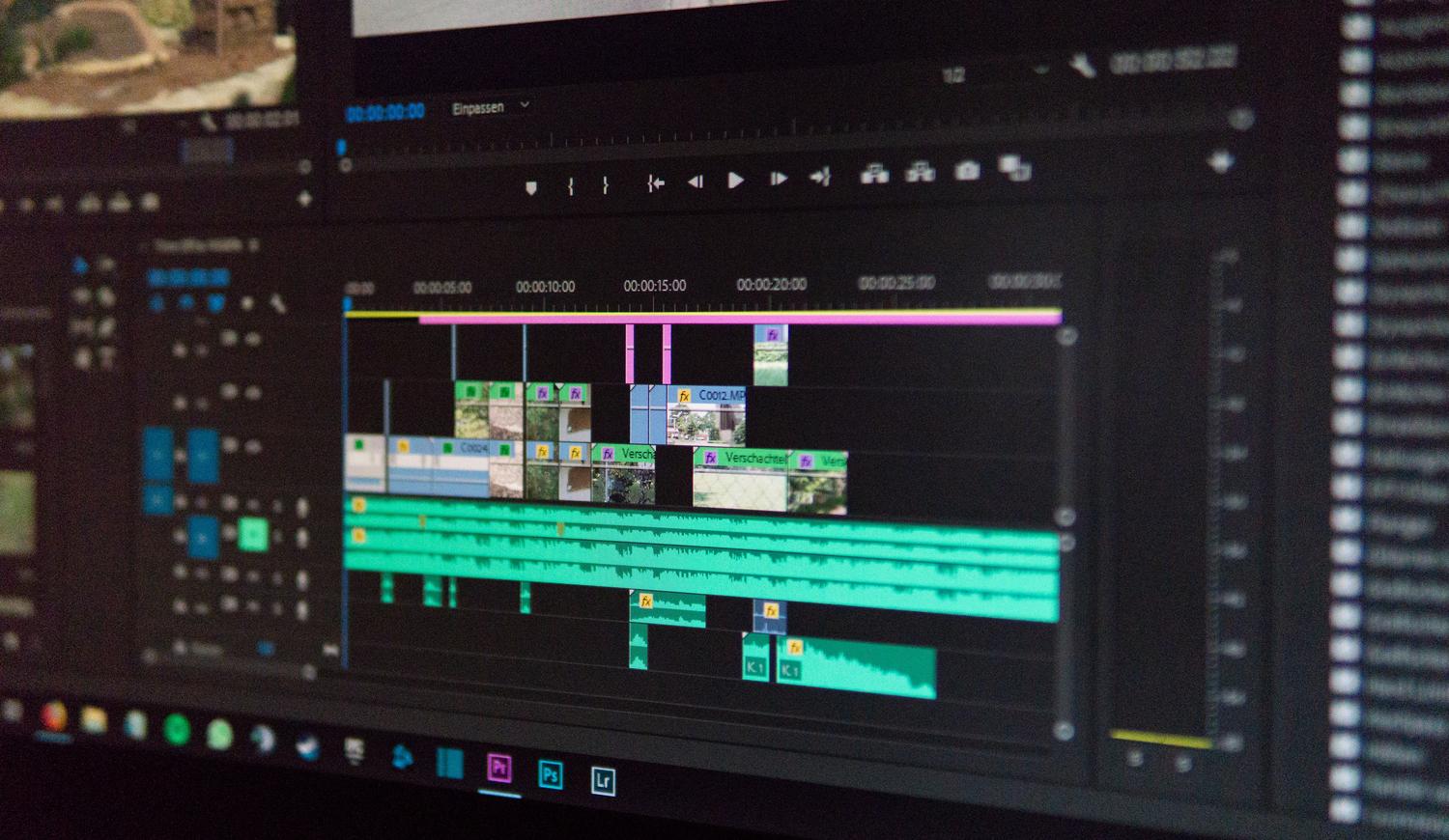
If your MKV stream is working correctly, you can keep it. OBS allows you to activate it. Automatically convert to MP4 in the advanced recording settings and also perform the process manually.
Verify that the tracks are compatible with the destination container and reserve space for the additional file. Keep the original until you verify the result.
For a new workflow, first test the hybrid format that suits your codecs. The crucial test is to complete the workflow: record, stop, play, and import into the editor.

I am a technology enthusiast who has turned his "geek" interests into a profession. I have spent more than 10 years of my life using cutting-edge technology and tinkering with all kinds of programs out of pure curiosity. Now I have specialized in computer technology and video games. This is because for more than 5 years I have been writing for various websites on technology and video games, creating articles that seek to give you the information you need in a language that is understandable to everyone.
If you have any questions, my knowledge ranges from everything related to the Windows operating system as well as Android for mobile phones. And my commitment is to you, I am always willing to spend a few minutes and help you resolve any questions you may have in this internet world.