
The same team that is behind the distribution of Linux Mint is also responsible for Hypnotix, a player of Open source IPTV. It is clear that it is available on Linux, but Many users wonder if there is currently a version of Hypnotix for Windows. We address this and other issues in this article.
First of all, we must remember that the IPTV (Internet Protocol Television) is the technology that allows us to enjoy television broadcasts over the Internet, the great alternative to traditional methods, such as cable or satellite television. In this sense, Hypnotix presents itself to us with a design specifically designed to access these services.
What is Hypnotix for?
Basically, it is an IPTV player through which you can watch TV channels on streaming over the Internet. Users can add their own playlists via an intuitive and easy-to-use interface. This means that anyone can manage its use, without needing extensive technical knowledge.
This player organized by categories, classifying television channels, movies and series by type of content, genre and country, among other options. All with a few clicks.
One of the most interesting aspects of Hypnotix is the ability to add multiple lists M3U playback, which means being able to adapt the player to each person's tastes and needs. In this way, it can be used to watch streaming television and to access on-demand content.
Hypnotix for Windows
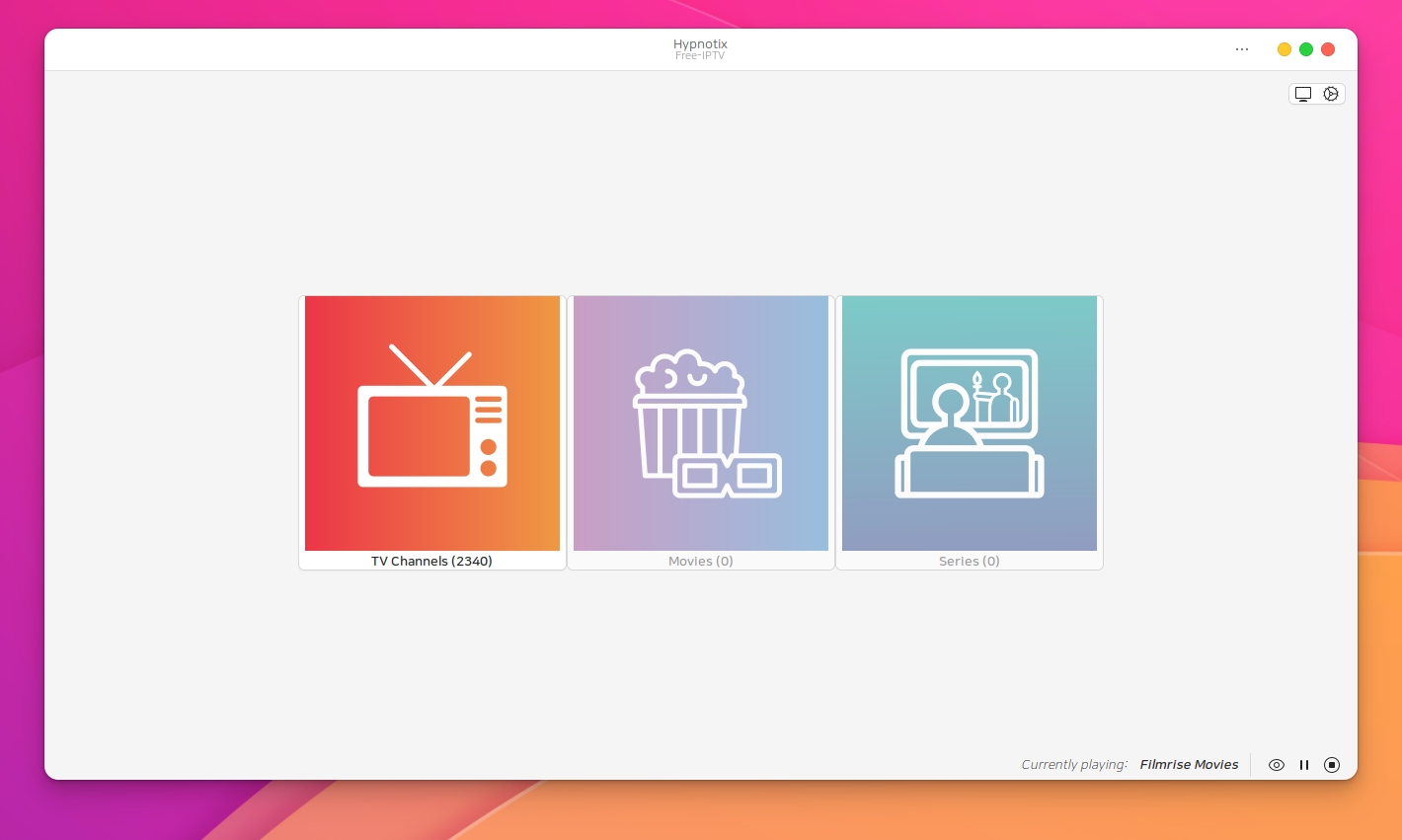
While Hypnotix is compatible with several Linux distributions, it was actually primarily developed for Linux Mint. It is also possible to install it on other Debian/Ubuntu-based distributions.
But what about Microsoft's operating system? The truth is that right now There is no official version of Hypnotix for Windows. However, there is a plan B that is worth trying to implement: running this player through virtualization.
The solution is to install a virtual machine with Linux Mint or a compatible distribution. Can make use of some type of software such as VirtualBox or VMware to create a virtual machine in which to install and run Hypnotix on a Windows system. The steps to follow would be the following:
- First of all, you have to install VirtualBox, VMware or any other type of emulator software on our PC.
- Then we must download a Linux Mint ISO file.
- Next we set up a new virtual machine and install Linux Mint.
- Finally, once inside Linux Mint, it is now possible install Hypnotix and use it normally.
Install Hypnotix step by step

The process of installing this program on a Linux distribution is quite simple. It depends on what virtual machine we have installed in Windows., you have to follow one method or another:
On Linux Mint
Hypnotix comes pre-installed on Linux Mint 20.1 and later. If we have a previous version or want to install the most recent version of the player, we must do the following:
- For a start we open the terminal in Linux Mint using the key combination Ctrl+Alt+T.
- After We updated the repositories with the command sudo apt update
- Finally, we install Hypnotix with the command sudo apt install hypnotix
Once this is done, all you have to do is look for Hypnotix in the applications menu and run it by clicking on its icon.
In other Linux developments
There are other different distributions to proceed with the installation. The method is basically the same as what we have explained previously, although for each of them it is necessary to apply a specific command. These are the most notable:
- AUR (Arch Linux): yay -S hypnotix
- Flatpak: flatpak install flathub com.linyxmint.hypnotix
Set up and use Hypnotix
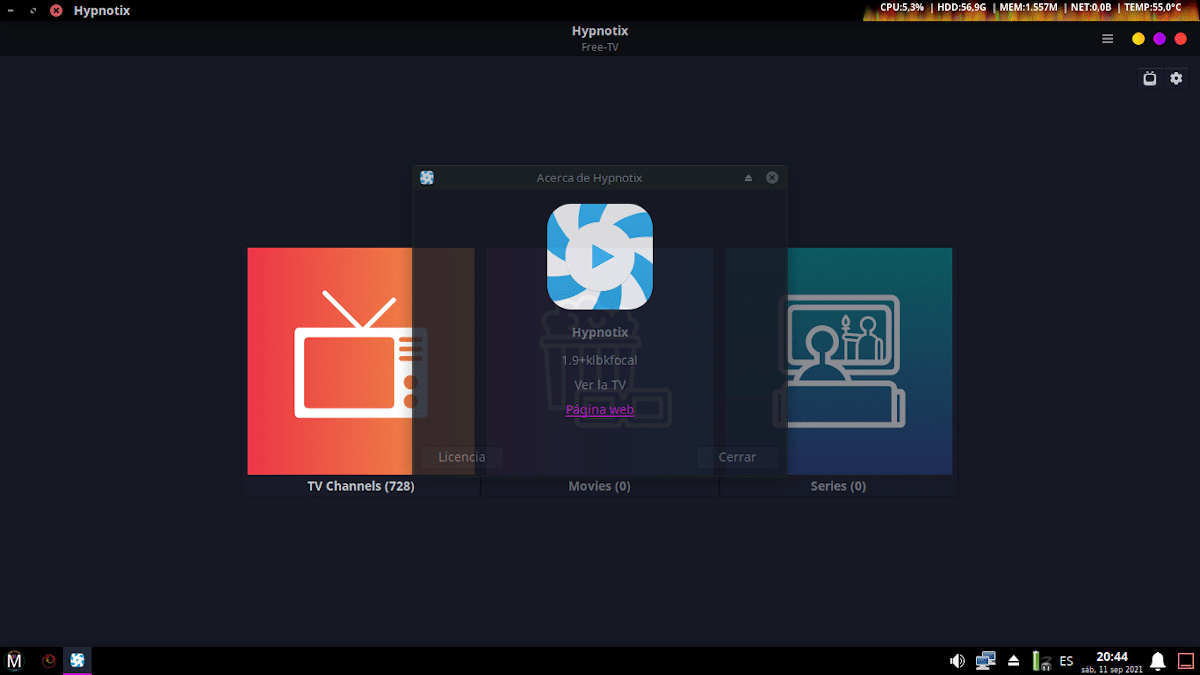
Thanks to the simplicity of its interface, configuring Hypnotix is quite easy. Accessing the program is very simple, just you have to look for it in the applications menu. If we have used a virtual machine to have Linux Mint on our Windows PC, we will find it in "Multimedia".
To start watching TV channels, movies, etc. it is necessary add an IPTV playlist in M3U format. To add a public list you must follow these steps:
- Search a list on the Internet using the browser.
- After the we add to Hypnotix by clicking on the icon of configuration, located in the upper right part of the screen.
- Next we select the option «IPTV providers» and there we click on «Add new supplier».
- Then we enter a name for the supplier and we glue the M3U file URL in the corresponding field.
- Finally, we save the changes.
After having done this, we will be able to navigate through the menus and view all the channels, using the classification by category as a guide.
Some IPTV lists give us the opportunity to choose different streaming qualities to improve visualization. We can also remove inactive channels and classify those that do work by EPG (Electronic Program Guide). Everything in a very simple and intuitive way.

Editor specialized in technology and internet issues with more than ten years of experience in different digital media. I have worked as an editor and content creator for e-commerce, communication, online marketing and advertising companies. I have also written on economics, finance and other sectors websites. My work is also my passion. Now, through my articles in Tecnobits, I try to explore all the news and new opportunities that the world of technology offers us every day to improve our lives.