- Enable the option to ignore touch input from the pen settings in Windows.
- First, bring the stylus close to the screen to facilitate detection before resting your hand on it.
- Review OneNote's touch drawing controls without confusing them with gesture lock.
- Check compatibility before disabling the touchscreen, as it may also affect the stylus.
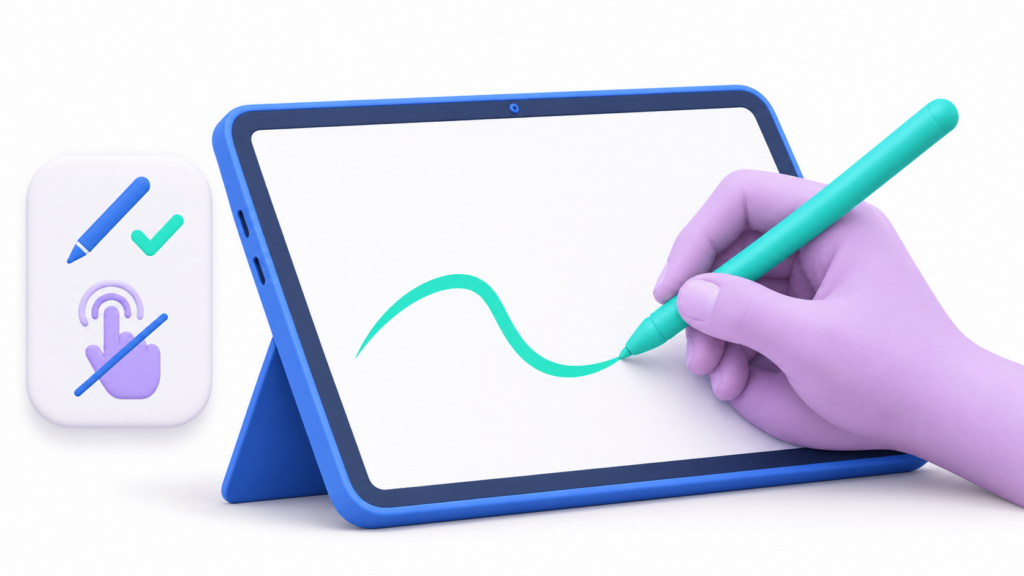
If accidental touches or streaks appear when you rest your hand on the screen, check the option Ignore touch input when using the stylusIn Windows 11, it is located within Settings → Bluetooth & devices → Pen & Windows Ink, in the additional settings of the pencil.
This feature helps prevent interference while writing or drawing, but its functionality depends on compatibility between the stylus, screen, and drivers. It's also advisable to check the application you're using before disabling any system devices.
How to enable the option to ignore touch input

To prioritize the pen on a compatible device, follow these steps:
- Press Windows + I to open Settings.
- Enter Bluetooth and devices → Pen and Windows Ink.
- Unfold Additional pen settings, if it appears as a folded section.
- Active Ignore touch input when using the stylus.
- Also check that the correct option is selected. the hand you write with.
If the option doesn't appear, check the compatibility of your device and stylus. Not all devices offer the same settings.
The rejection of the palm It doesn't depend solely on the tip touching the screenOn compatible devices, the digitizer can detect the stylus as it approaches. Bring the tip close first, then rest your hand on it: if your palm arrives before the system detects the stylus, a touch may still be registered.
This setting also doesn't permanently disable the touchscreen. By removing the stylus from its detection zone, you can resume using your fingers, depending on how the device works.
What to check in OneNote and other drawing apps
Applications may offer their own input controls. In OneNote, open the tab Draw and check the status of Drawing with the touch functionIf it's enabled, you can disable it to avoid drawing with your fingers.
Keep in mind that Preventing touch drawing is not the same as blocking all gestures.According to the application, fingers can still be used to scroll through the page, zoom in on content, or use menus.
Next, select a pen tool and try writing. If the problem only occurs in one application, check its settings and update it before changing all of Windows' settings.
To learn about other gestures and device settings, you can consult our guide on the How touch mode works in Windows 11.
Why disabling the touchscreen can affect the stylus
Windows allows you to disable the touchscreen from Device Manager, but It is not a universal solution for preserving only the pencilDepending on the hardware, the pen input may also stop working. Microsoft warns of this possibility on Surface devices.
If you need to temporarily disable the touch function, have a keyboard and mouse ready so you can revert the change:
- Right-click on Start and open Device Manager.
- Unfold Human interface devices.
- Locate HID-compliant touchscreen.
- Right-click on that entry and select Disable device.
To retrieve it, return to the same entry and select Enable deviceDo not disable other HID entries without identifying what they correspond to.
If your goal is to continue drawing with the stylus while resting your hand, prioritize palm rejection settings and app controls.
Compatibility, battery, and pen connection

Just because a screen supports fingers doesn't mean it's compatible with any stylus. Check the exact model and supported technology in the manufacturer's documentation.
Not all styluses require Bluetooth pairing to write. In some models, the tip works independently, and Bluetooth is reserved for shortcuts. If you can write, but the button doesn't open the assigned app, check the connection and settings for that button.
If the pen doesn't work, check the battery or charging system according to the manufacturer's instructions. Not all pens open the same way or use the same battery.
Finally, install Windows updates and check the drivers or firmware provided by the manufacturer. Then try a different application to distinguish between a general computer problem and a program-specific issue.
The pen menu brings together shortcuts to compatible applications, but It does not, by itself, activate palm rejection.
To display it, right-click on the taskbar, enter Taskbar settings and search Pencil menu among the system tray icons. From that menu you can access your writing and drawing tools.
To reduce accidental touches, start by ignoring touch input, select your dominant hand, and review the app's drawing controls. If the issues persist, check the stylus's compatibility and maintenance before disabling the screen.
Frequently Asked Questions
How do I stop my palm from typing on Windows?
You can enable the option to ignore touch input when using a stylus in Windows settings or disable the touchscreen from Device Manager.
Where do I disable the touchscreen to use only the stylus?
This is done in Device Manager, under Human Interface Devices, by right-clicking on HID-compliant touchscreen and selecting Disable.
Why does OneNote switch to text mode when I rest my hand on it?
This occurs because the system detects the palm touch as a selection command; it can be mitigated by disabling automatic switching in the application's advanced options.
Does the stylus stop working if I turn off the touchscreen?
No, the stylus continues to operate normally since it uses a different technology than the capacitive touch detection of the fingers.
How do I pair my stylus with a Windows 11 PC?
The stylus must be put into pairing mode and then searched for in the Bluetooth & devices section of the Windows Settings menu.
What to do if the pencil doesn't respond or doesn't write?
It is recommended to verify that the device is properly paired via Bluetooth or check if it is necessary to change the battery or recharge the device.
Index
