- Identify and repair missing dependencies (WebView2, Visual C++, and .NET) to get the Riot client up and running again.
- Force install Riot Vanguard without touching the BIOS with permissions, services, and client cleanup.
- Avoid network blocks: DNS, proxy, TLS inspection, and BITS may prevent Vanguard from downloading.

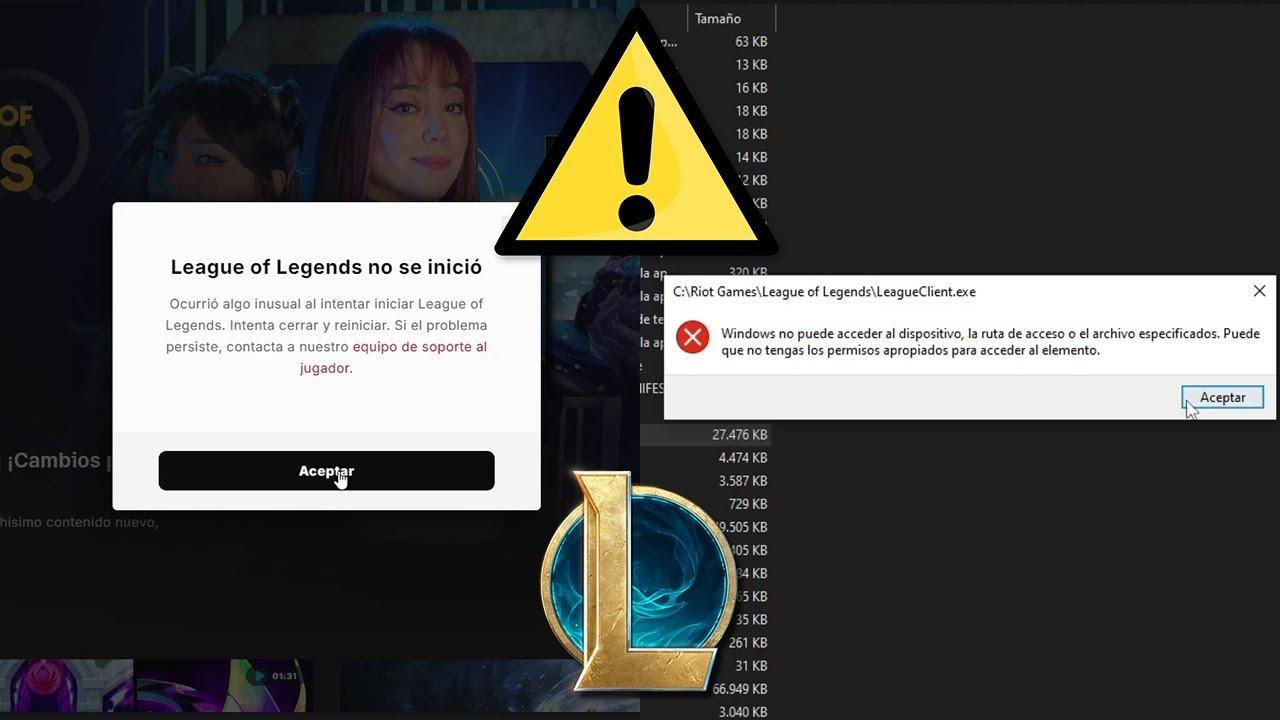
If you're struggling with that message that League of Legends won't update because a "missing dependency" is present. And to top it all off, the client won't even download Riot Vanguard—you're not alone. This glitch has become especially frustrating on Windows 11, where many players report patching getting stuck, downloads not progressing, or the Vanguard installer never appearing.
The typical scenario is clear: you reinstall the game, restart your PC several times, check that you have plenty of free space, verify that the installation path is correct, and still, the client insists that something is missing to continue. To make matters worse, there is no trace of the Riot Vanguard folder. in Program Files or within Riot Games/League of Legends, and the generic support doesn't address your issue. Here you'll find a comprehensive approach to solving it without messing with the BIOS.
What happens when League of Legends doesn't update and has a "missing dependency"?
When patching stops with a “missing dependency” warning, the problem is usually that the Riot client is missing a Windows component required for its interface or for the anti-cheat installer. Most commonly, WebView2, the Visual C++ Redistributable, or a version of .NET are missing. compatible. If one of these packages is not installed (or is broken), the client may fail to update or invoke the Vanguard installation.
Additionally, since the addition of Riot Vanguard to League of Legends, the game requires downloading and installing the service and its driver in order to start matches. If Vanguard won't install, LoL won't finish updating, or won't start, and in many cases it doesn't even create the “Riot Vanguard” folder in Program Files. If you need to remove any leftovers, see How to uninstall Riot Vanguard.
In the situation described by many, the basics have already been checked: there are no pending Windows updates, there is free space, the installation is on the default path, there is no third-party antivirus, and Windows Defender itself is disabled. Still, the client gets stuck in a loop and Vanguard is nowhere to be seen.. It's also common that the command prompt "trick" circulating on forums doesn't work in Windows 11.
Finally, there's a recurring fear: "Do I have to touch the BIOS, enable Secure Boot, or enable TPM for it to work?" For League of Legends, that's not the way to go. You don't need to go into the BIOS to resolve a client or Vanguard download/installation failure., and even less so if the problem is with Windows dependencies or permissions.
Quick checks (without touching the BIOS)
Before moving on to more in-depth solutions for when League of Legends won't update, here's a basic checklist, but with nuances that are often overlooked. These checks do not require BIOS changes or invasive steps.:
- Run the Riot Client as an administrator. Right-click on “Riot Client” and select “Run as administrator”This way you can avoid crashes when creating services or writing to Program Files.
- Temporarily disable VPN, proxy, and web filters on your network. SSL/TLS inspections or certain proxies may prevent the client from downloading components such as Vanguard.
- Verify that the Windows Installer service is enabled. Press Win+R, type services.msc, and check "Windows Installer." If it is disabled, set it to Manual or Automatic.
- Perform a clean boot: msconfig > Services tab > hide Microsoft services > disable all others > restart. Avoid conflicts with other anti-cheat or utilities type FACEIT, BattlEye, iCUE, RGB, etc.
- Repair system files: Open CMD as admin and run: sfc /scannow and then DISM /Online /Cleanup-Image /RestoreHealthRestart when finished.
If none of this changes the client's behavior, it's time to move on to dependencies. When one of them is missing, the client usually fails silently or displays the dreaded message of missing dependency.
Fix missing dependency (WebView2, Visual C++ and .NET)
Many people report that after reinstalling Microsoft components, the League of Legends not updating error disappears and the client finally downloads Vanguard. These are the three key packages you should install or repair.:
- Microsoft Edge WebView2 Runtime (Evergreen): Riot's client uses embedded web components. Install/Reinstall WebView2 fixes broken interfaces and dependency errors.
- Microsoft Visual C++ Redistributable 2015-2022 (x64 and x86): Installs both architectures. Many installers and games depend on these libraries., and if they are corrupt the process is cut off.
- .NET Framework 4.8.1 (or the latest available for Windows 11): Some client features require updated .NETIf .NET is damaged, repair can work wonders.
Install these three packages directly from the official Microsoft website. Do not use third-party repositories. After installing or repairing them, restart your PC. even if he doesn't explicitly ask you to.
Once back on the desktop, launch the Riot Client as an administrator and let it try to update League. If the obstacle was the dependency, you should now download the missing files. and then fire on the Vanguard installation.
If the client continues to report a missing dependency, check Event Viewer (eventvwr.msc). In Windows Logs > Application and System, look for errors at the time of the crash. If you see references to WebView2, VCLibs, CEF or .NET, is a clear clue as to where the blockage is going.
When League of Legends won't update, it's also a good idea to clear the Riot Client cache. Close the client and the RiotClientServices.exe process from Task Manager. Then, delete the cache folders in: %LocalAppData%\Riot Games\Riot Client. Delete “RiotClientInstalls.json” and temporary files forces the launcher to rebuild routes and states.
Force install Riot Vanguard without touching the BIOS
If after fixing dependencies the game still doesn't install Vanguard, there are several safe techniques to force it to install. Neither of them requires enabling Secure Boot or TPM in the BIOS.:
- Clean Client Boot: With a clean boot (msconfig) and no VPN/proxy, run the Riot Client as admin and press Play/Update in LoL. This is where the client typically invokes the Vanguard installer..
- Check if the "vgc" and "vgk" services exist: open services.msc and search for "Riot Vanguard" (vgc). If they don't exist, it means they haven't been installed. If it exists but is stopped, start the service and set it to AutomaticIf it starts and stops immediately, note the system error.
- Program Files Permissions: Make sure your account has write permissions to C:\Program Files. Creating the “Riot Vanguard” folder may fail due to permissions or protected folder control. (Controlled Folder Access). Temporarily disable it if it is enabled.
- Default installation path: Installs League and the Riot Client to the default paths. Custom locations sometimes break the call to the Vanguard installer.
There is an alternative method that works for several users when faced with the problem of League of Legends not updating: install Valorant only to have Vanguard download, and then immediately use League with that Vanguard already present. You don't have to play Valorant; just have its installer deploy Vanguard.. If you decide to do so, uninstall Valorant later if you don't want to keep it.
If you'd rather rebuild your Riot environment without reinstalling all of Windows, perform a more thorough cleanup of the Riot ecosystem. The goal is to remove corrupt remnants that prevent the installer from being invoked.:
- Uninstall League of Legends and Riot Client from Apps & Features.
- Manually delete residual folders: C:\Riot Games, C:\Program Files\Riot Games, C:\ProgramData\Riot Games, and %AppData% / %LocalAppData%\Riot Games. Don't blindly delete other ProgramData folders.
- Restart your PC and download the official Riot Client installer. Run it as administrator and let it install League.
If Vanguard still doesn't appear, check if your Windows is in "testsigning" mode or with integrity disabled, which can block protected drivers. Open CMD as admin and run: bcdeditIf you see “testsigning Yes” or “nointegritychecks Yes,” run: bcdedit /set testsigning off y bcdedit /set nointegritychecks off, reboot and try the installation again.
When the network prevents the download of the update or Vanguard
Even with perfect dependencies and permissions, the download can get stuck due to the network. Riot's client uses multiple CDNs and encrypted requests that some environments leak or intercept. And when that happens, League of Legends doesn't update.
Try the following on Windows 11: change DNS to 1.1.1.1/1.0.0.1 (Cloudflare) or 8.8.8.8/8.8.4.4 (Google), temporarily disable the proxy in Settings > Network & Internet > Proxy, and clear caches: ipconfig /flushdns, netsh winsock reset y netsh int ip reset from CMD as admin. Reboot when finished.
If you are on a corporate/university network or using security software that “sanitizes” HTTPS traffic, it may break component downloads. Try a different connection (mobile tethering) or a home network without TLS inspection to rule out intermediate blocks.
Also check your hosts file (C:\Windows\System32\drivers\etc\hosts) for entries that block Riot/CDN domains. A manipulated host can prevent contacting the download servers.
Finally, check that the BITS (Background Intelligent Transfer Service) service isn't overloaded or stopped. In services.msc, set it to Automatic and start it. Some launchers rely on BITS for robust downloads.
With all of the above, you'll be able to resolve the annoying situation where League of Legends won't update, unlock the update, and get Vanguard to install correctly. If the client returns after reinstalling WebView2/VC++/.NET, adjusting services, and clearing the cache, you'll have solved the core of the problem without touching the BIOS or reformatting your computer.

Editor specialized in technology and internet issues with more than ten years of experience in different digital media. I have worked as an editor and content creator for e-commerce, communication, online marketing and advertising companies. I have also written on economics, finance and other sectors websites. My work is also my passion. Now, through my articles in Tecnobits, I try to explore all the news and new opportunities that the world of technology offers us every day to improve our lives.