- Activate subtitles from More (···) during the call.
- Live captions work from the iPhone 11.
- Translating a call requires Apple Intelligence.
- Choose 1 hour in order to copy the transcript.

If you're on a video call and you're having trouble hearing the other person, you can Activate FaceTime live captions Without hanging up. Tap the screen to show the controls and enter More (···) → Live SubtitlesThe iPhone will begin to display in writing what is said during the call.
This accessibility feature transcribes the conversation into the language being spoken. If the other person is speaking English and you want to read what they're saying in Spanish, FaceTime offers another option called Real-time translation.
How to turn on live captions in FaceTime
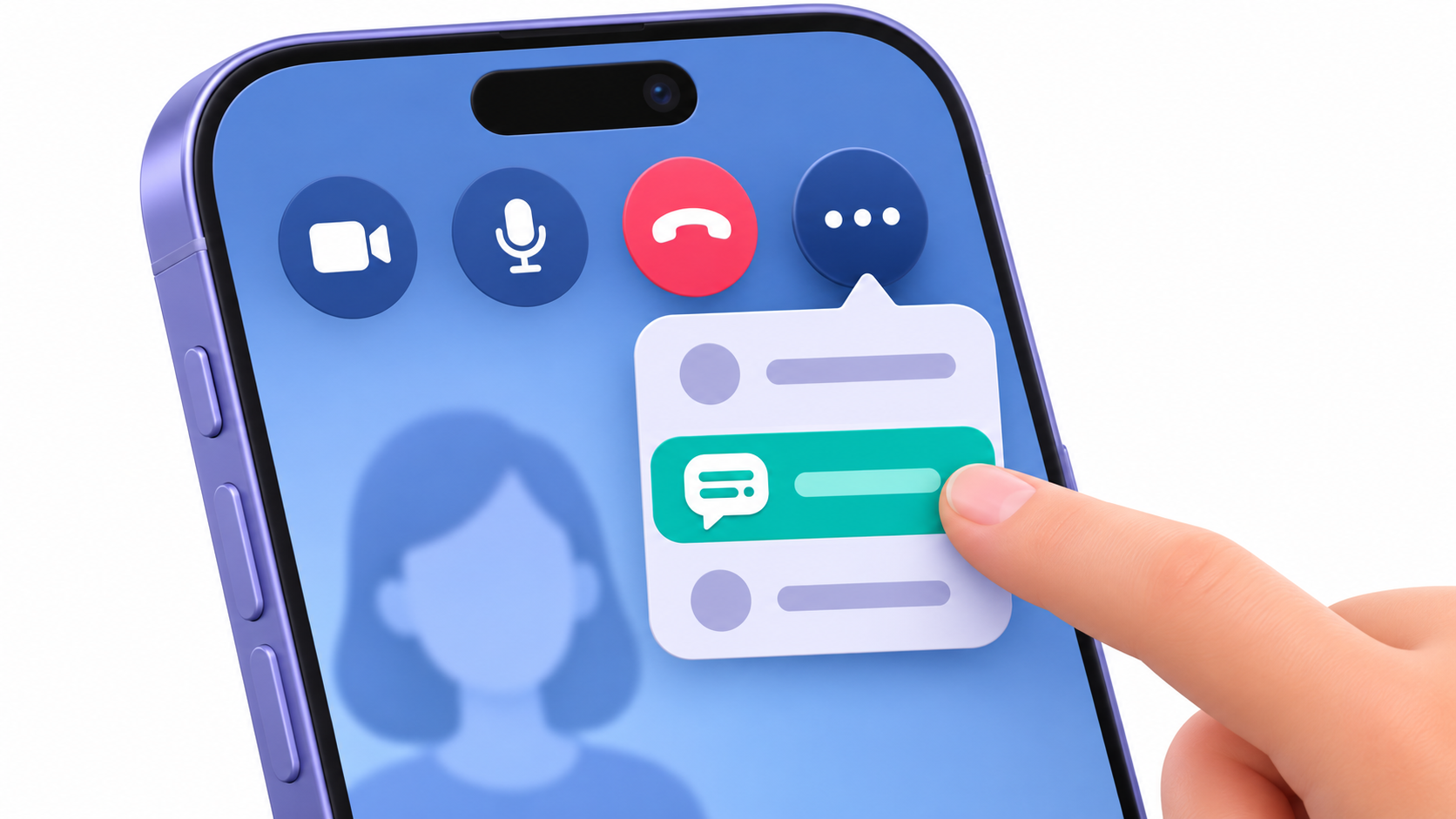
- Open FaceTime and starts a video call.
- Tap the screen if the call controls are hidden.
- Press Further (···) and select Live subtitles.
- When someone speaks, you'll see the text near the top of the screen, along with an indication of who is speaking.
To remove them during the video call, go back to Further (···) and it plays Arrest next to Live subtitlesYou will find this option among the FaceTime call controls.
You can also activate the function from Settings → Accessibility → Live CaptionsFrom there you can customize the text, choose how long it is kept, and use subtitles with audio from other apps.
Which iPhone supports FaceTime live captions

The Live subtitles Accessibility features are available starting from iPhone 11Compatibility depends on language and region. Spanish from Spain It is among the accepted variants in the Apple availability list.
If the button doesn't appear, check that you are within a video call and that you have opened the menu Further (···)If you still can't find it Live subtitles In Accessibility, check if there is a pending update in Settings → General → Software Update and check the device language in Settings → General → Language and Region.
How to translate a FaceTime call in real time

La FaceTime real-time translation arrived with iOS 26 and it works on one-to-one calls between supported languages. To use it you need Apple Intelligence activated on a compatible iPhone, such as the iPhone 15 Pro, iPhone 15 Pro Max, or a compatible model from the iPhone 16 family or later.
- Open the app Translate and use the menu Further (···) to download the languages you will use.
- Start a one-on-one call FaceTime.
- Touch More (···) → Real-time translation.
- Select the language the other person speaks and tap Start translation.
Translated subtitles appear on screen while the other person is speaking. You can use this feature with Spanish from SpainUS and UK English, French, and other languages. Apple details how Use Real-Time Translation in FaceTime.
How to customize subtitles and copy the transcript
En Settings → Accessibility → Live Captions You can change the text size and color to make it easier to read. In that same menu, you can choose how long you want to keep the call subtitles.
- 1 minute. During the call, you can view up to one minute of recent text. The transcript is deleted when you hang up, and this option prevents copying, screenshots, and screen recording of the text.
- 1 hour. You can copy the text, take a screenshot, or record the screen with subtitles visible. The transcript is available for up to one hour after you hang up. All participants will hear a notification that the call is being transcribed.
If you want to save an address that was dictated to you during the call, select 1 hourOnce you have the text on screen, open the transcription window menu, tap Copy subtitles and paste it into Notes. Apple explains how these options work in its Live Captions guide for iPhone.
How to use subtitles in other iPhone apps
With Live subtitles Activated from Accessibility, open the floating window and select iPhone audio To transcribe audio from an app, such as a podcast episode, or to follow a conversation happening around you in writing, select Microphone.
You can drag the window if it's covering part of your screen, enlarge it for better reading, or swipe it to the side to hide it. To bring it back, tap the floating subtitles icon.

Frequently Asked Questions
Which iPhone do I need to have live captions on FaceTime?
You need an iPhone 11 or later model to run this feature.
Can FaceTime subtitles be translated into another language?
Yes, using Apple Intelligence it is possible to see automatically translated subtitles, provided that the corresponding languages have been downloaded beforehand.
How do I quickly turn on subtitles during a call?
You must tap the information icon (i) in the upper right corner of the FaceTime screen and turn on the live captions option.
Is it possible to change the color and size of the subtitles?
The user can customize the appearance of the text, background color, and opacity from the Appearance menu in the accessibility settings.
What is the iPhone's Audio option for in subtitles?
It allows the device to automatically transcribe any sound or audio that is playing internally in the phone's applications.
Can I save the text of a FaceTime conversation?
The system allows you to copy the generated transcript and paste it into other applications such as Messages or Notes.
Index