
Can you imagine seeing subtitles for all the voices played on your PC? Microsoft AI Live Captions already make it possible. This time, we will see How live captions work, how to activate them on your PC, the different ways to customize them, and what devices they are available on. Let's get started.
Live subtitles are the ideal tool for the benefit of deaf or hard of hearing people. They are also very useful for better understanding what is being said in a video or video conference. The tool does not need to perform a prior analysis of the video, Subtitles are displayed as dialogues are played on the PC.
How do Microsoft AI live captions work?
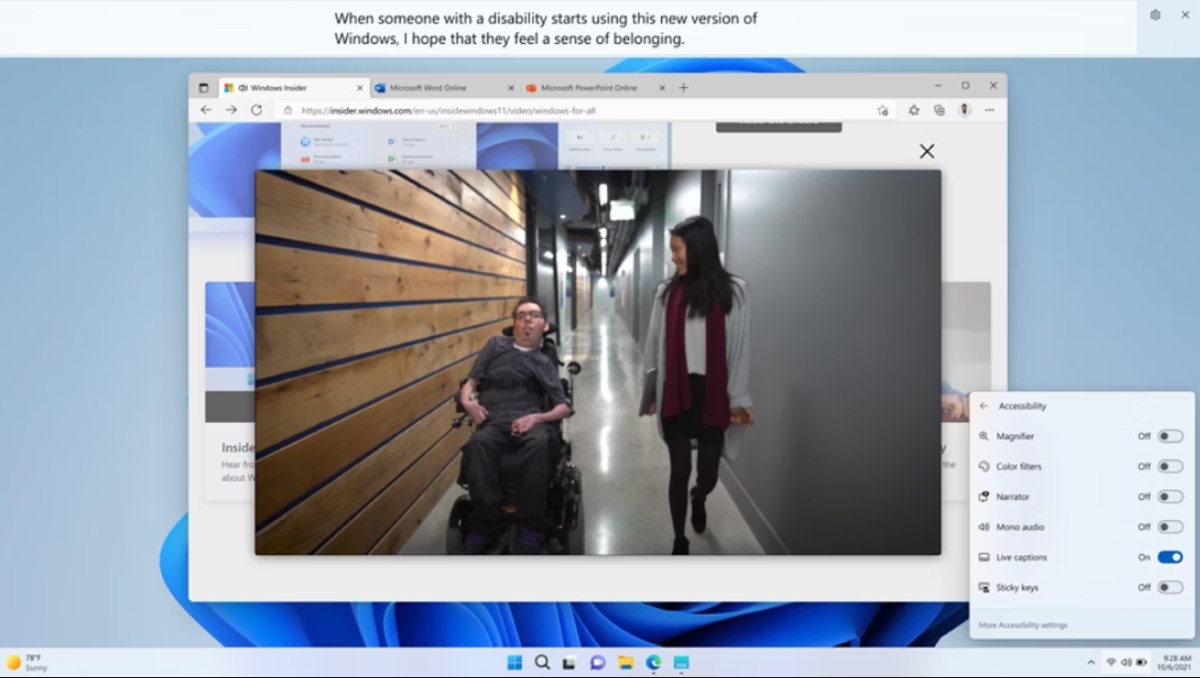
How do live subtitles work? Live Captions from Microsoft AI? This is a tool that Windows 11 PCs have and Copilot+ PC that allows subtitle a video, video conference and even the audio received by the PC microphone. Subtitles appear instantly as dialogue plays in a currently playing video.
Now, who is responsible for subtitling videos? Applications or Windows? Actually, It is the Windows system itself that is responsible for “detecting” what is said and applying the corresponding subtitles.However, Microsoft clarifies that for privacy reasons, these subtitles are processed only on the device. They are not uploaded or stored in the cloud or anywhere on the device.
How to enable live subtitles on your PC?
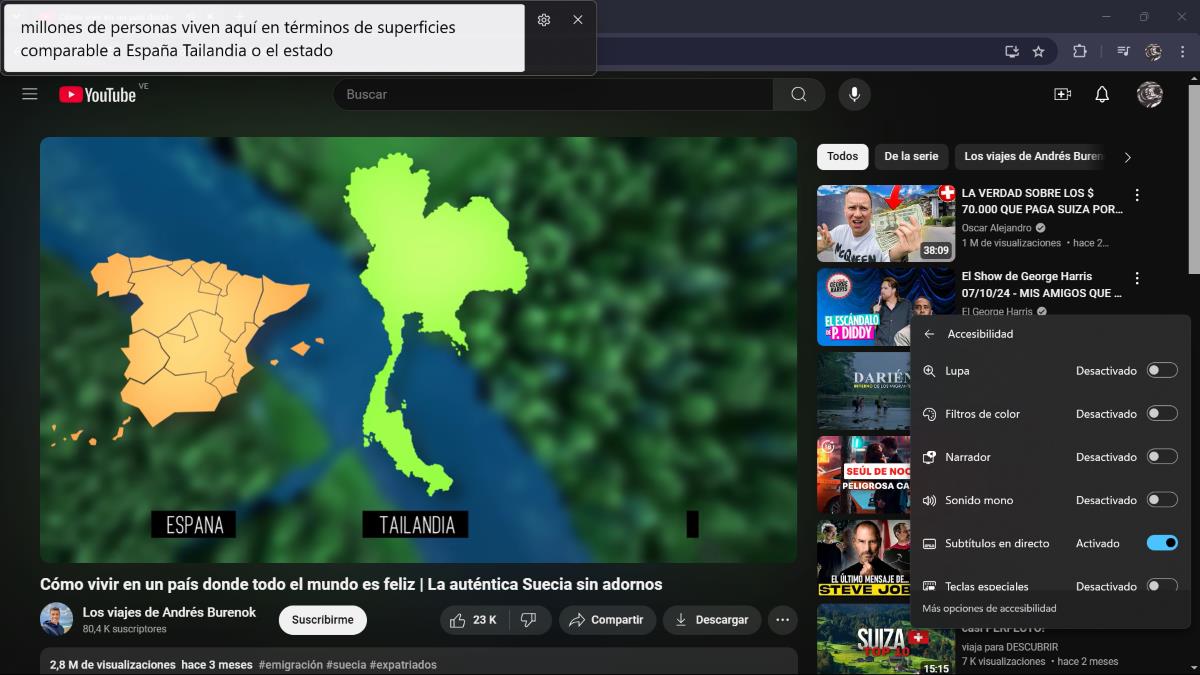
The best of all is that activating the Live Captions It's really simple. It's not a complicated procedure or one full of too many steps. You'll see that once activated, you'll just have to play a video on screen for the subtitles to appear. There are several ways to activate this tool on your PCHere are all of them:
- Go to your PC's Quick Settings (where the battery, network and volume icons are on the taskbar). Select Accessibility and slide the switch to activate the “Subtítulos en directo"
- Touch the Windows keys + Ctrl + L at the same time to download Live Subtitles.
- Enter the Start – All apps – Accessibility – Subtítulos en directo.
- Enter Configuration – Accessibility – Subtitles – Subtítulos en directo and activate the function.
The first time you activate this tool on your PC, the system will ask you Permission to process audio data to play on your device. You will also be prompted to download the files in your preferred language. However, they will most likely be downloaded in the language that Windows has set by default. Once everything is set up, you can simply play a video or audio and you are good to go.
Personaliza los subtítulos
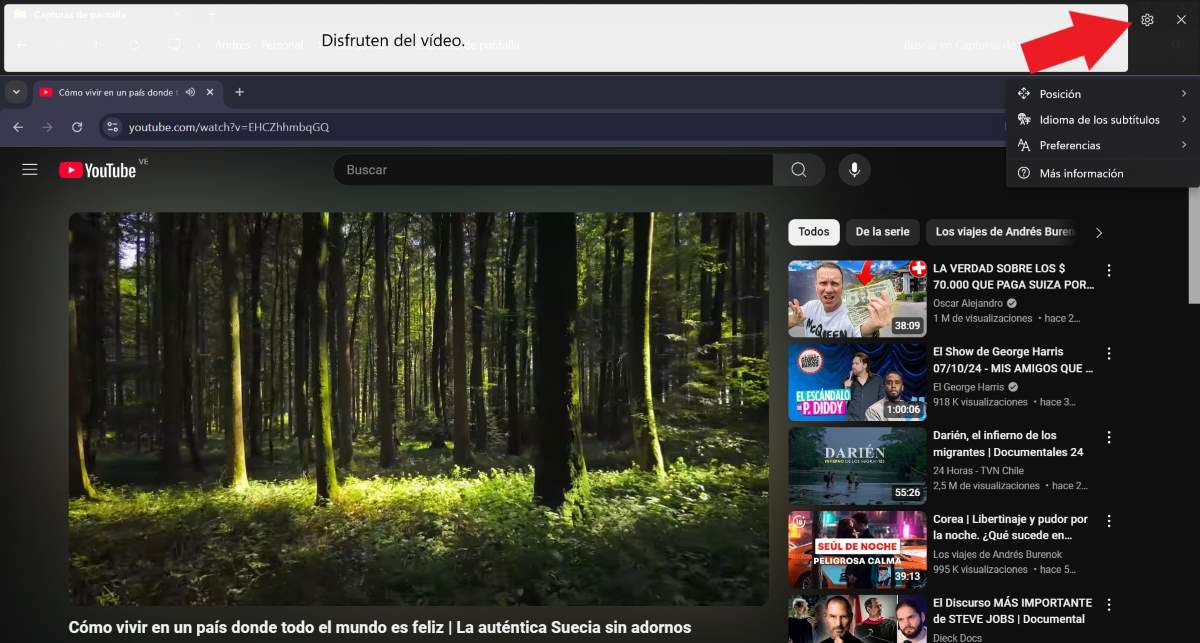
At first, you'll see that by default the subtitles appear at the top of the screen. When they are activated, an empty space appears waiting for you to play an audio. However, it is possible to customize the placement of the subtitles to make them more convenient for you according to your preferences. These are the Steps to customize the position of subtitles in Windows 11:
- Once they are activated, tap on the Settings icon that appears in the upper right corner of the screen.
- Select “Position”.
- Choose between “Top screen”, “Bottom screen” or “Overlay on screen” options.
Another adjustment you can make to your subtitles is to change the style in which they are presented. This way, you can tailor them to make them easier to read. change the style of the Live Captions, follow the steps below:
- Tap on Configuration (el icono de rueda dentada).
- Select “Preferencias”.
- Now choose “Estilo de subtítulo” to open the settings under Accessibility for subtitles.
- While there, select “Subtitle Style” – “Editar”.
- Change the font, text and background color to your liking, as well as the font size, etc.
There are two more customization settings you can make to your subtitles. One of these allows you to “Filter swear words”, so that no subtitles are made for the bad words that are played in the audio. And the other setting is the “Incluir audio del micrófono” to transcribe everything you say and display it on screen.
Differences between Windows 11 live captions and Copilot+ PC
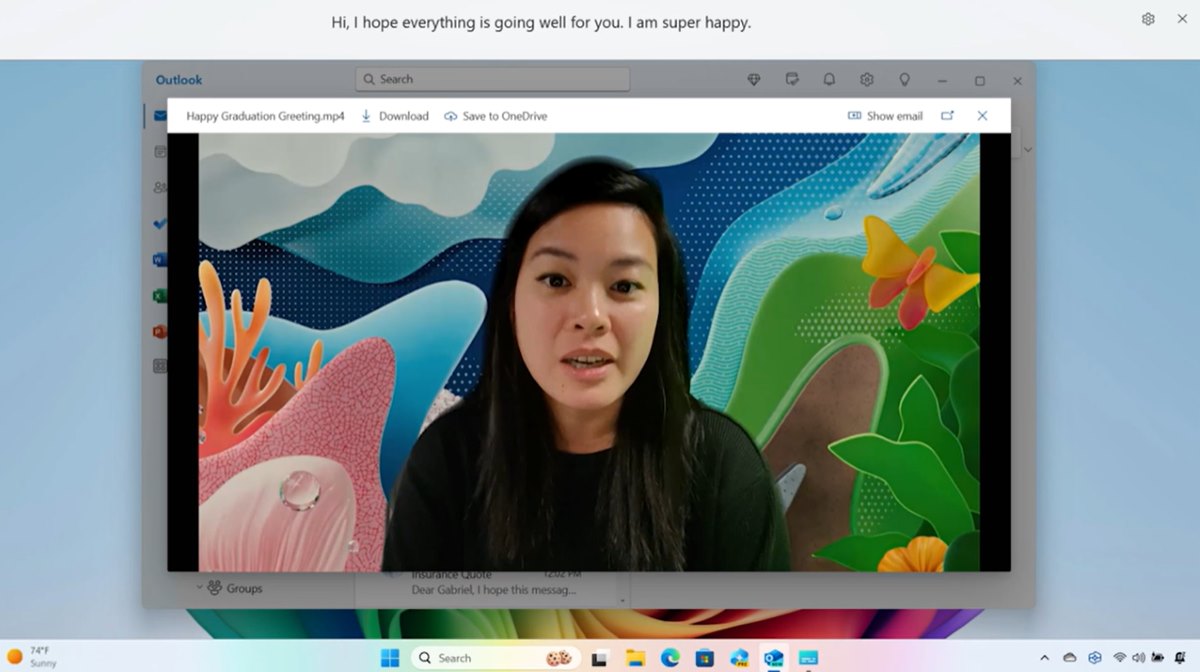
Now, on which computers can you use them? Live Captions from Microsoft AI? You will be able to use these subtitles from any PC with Windows 11, if you have version 22H2 installed. You just have to follow the instructions mentioned in this article to confirm that your PC includes this tool so you can download it in your main language.
Los ordenadores Microsoft Copilot+ PC They also incorporate this function, but with a particularity that gives it a “plus”. What is it? Thanks to the artificial intelligence that is built into these devices, this tool is not only capable of subtitling the audio, but also translate it in real time.
This is the biggest difference that this tool currently has in Microsoft Teams. However, for the moment Subtitle translation is only supported from 44 languages into EnglishAdditionally, those who want to use subtitle translation must have Windows 24 version 2H11.
Applications and audio that can be subtitled with the Live Captions

That applications are compatible with Microsoft AI Live Captions? Since Windows is responsible for creating real-time subtitles, all applications are compatible with this feature. Neither the program, nor the website, nor the application must integrate this tool, since all the work is done by Microsoft.
Finally, what kind of audio can be subtitled with Live Captions? Are songs, noises, applause also subtitled? No. Live captions only detect the human voice in the audioAnd while some of the words in a song may be subtitled, the subtitles are most likely not completely reliable.

From a young age, I've been fascinated by all things scientific and technological, especially those advancements that make our lives easier and more enjoyable. I love staying up-to-date on the latest news and trends, and sharing my experiences, opinions, and tips about the devices and gadgets I use. This led me to become a web writer a little over five years ago, focusing primarily on Android devices and Windows operating systems. I've learned to explain complex concepts in simple terms so my readers can easily understand them.