- On compatible Android, it transfers passwords and passkeys directly to Bitwarden without creating CSV files.
- On a computer, Bitwarden can import passwords directly from the correct Chrome profile.
- If you use CSV, import it in the appropriate format and delete it after verifying the data.
- Verify your access credentials before deleting the original keys and set Bitwarden as the default manager.

If you've saved your keys in Chrome or Android for years and now want to use Bitwarden, you don't need to copy them one by one. You can Transfer your passwords from Google Password Manager to Bitwarden You can transfer them directly or export them to a CSV file. The best method depends on the device you're transferring from.
On a compatible Android mobile device, direct transfer can also include access keys or passkeys And avoid leaving a password file in Downloads. On your computer, the Bitwarden desktop application can import passwords from a Chrome profile. If neither of these options appears, the CSV file is still a valid alternative, provided you delete it after verifying the migration.
Before you begin: check where your keys are stored
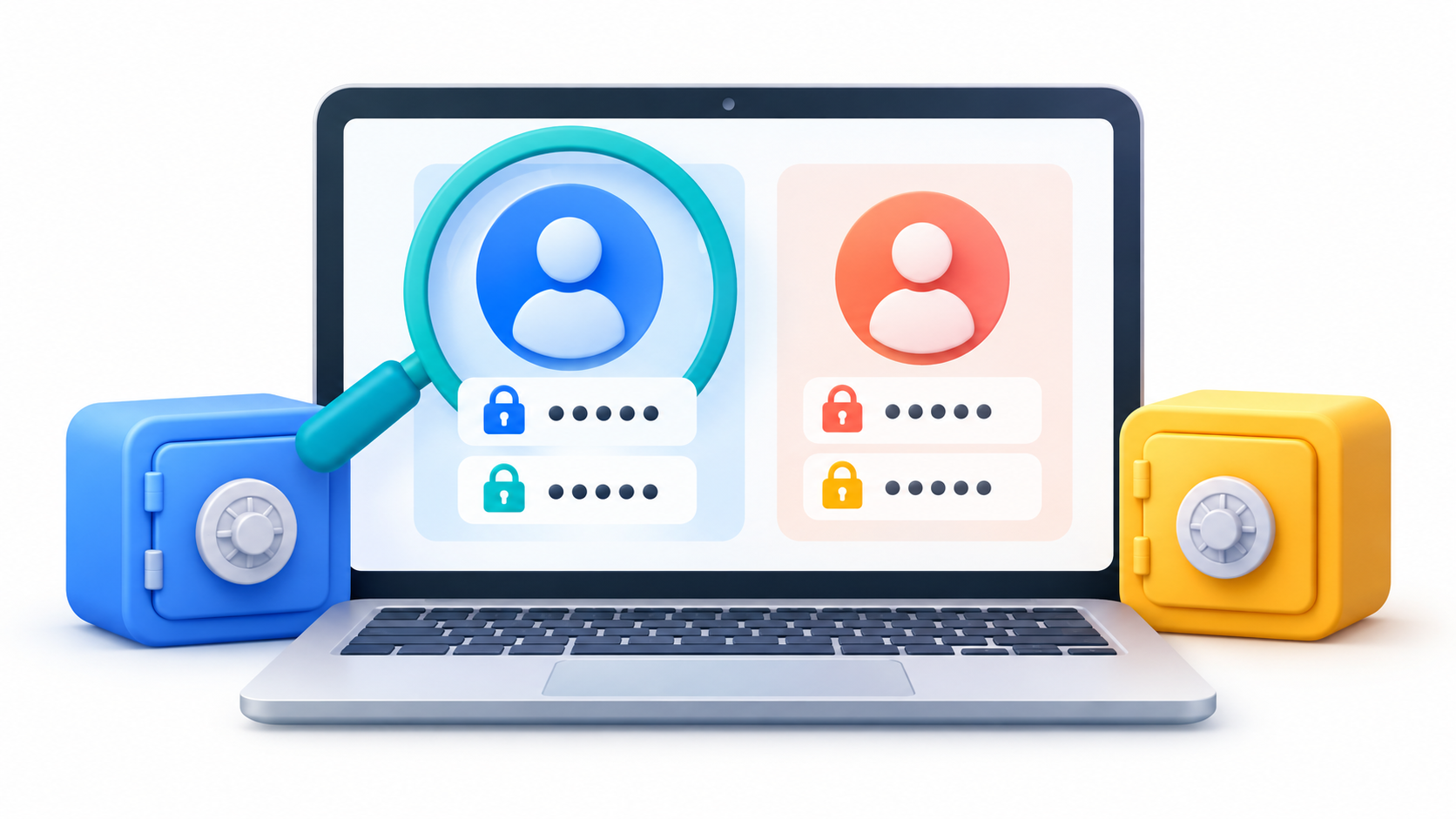
Google Password Manager can store credentials in your Google account or on your device. Before starting the transfer, open the manager and verify that the accounts you expect to find are listed. If you use multiple Chrome profiles or multiple Google accounts, pay close attention to which one contains the passwords. Importing from the wrong profile may exclude some of your access..
Also, prepare your Bitwarden account and log in on the device you'll be using. For a personal migration, choose your individual vault as the destination. An organizational vault is designed for sharing items based on team permissions, so it's not the right place for your private passwords.
There is an important distinction between methods: A CSV file can be used to transfer passwords, but it is not equivalent to a passkey transfer.If you also want to move access keys, use the direct exchange option between compatible applications and then check which ones have been incorporated.
Transferring passwords and passkeys from Google to Bitwarden on Android
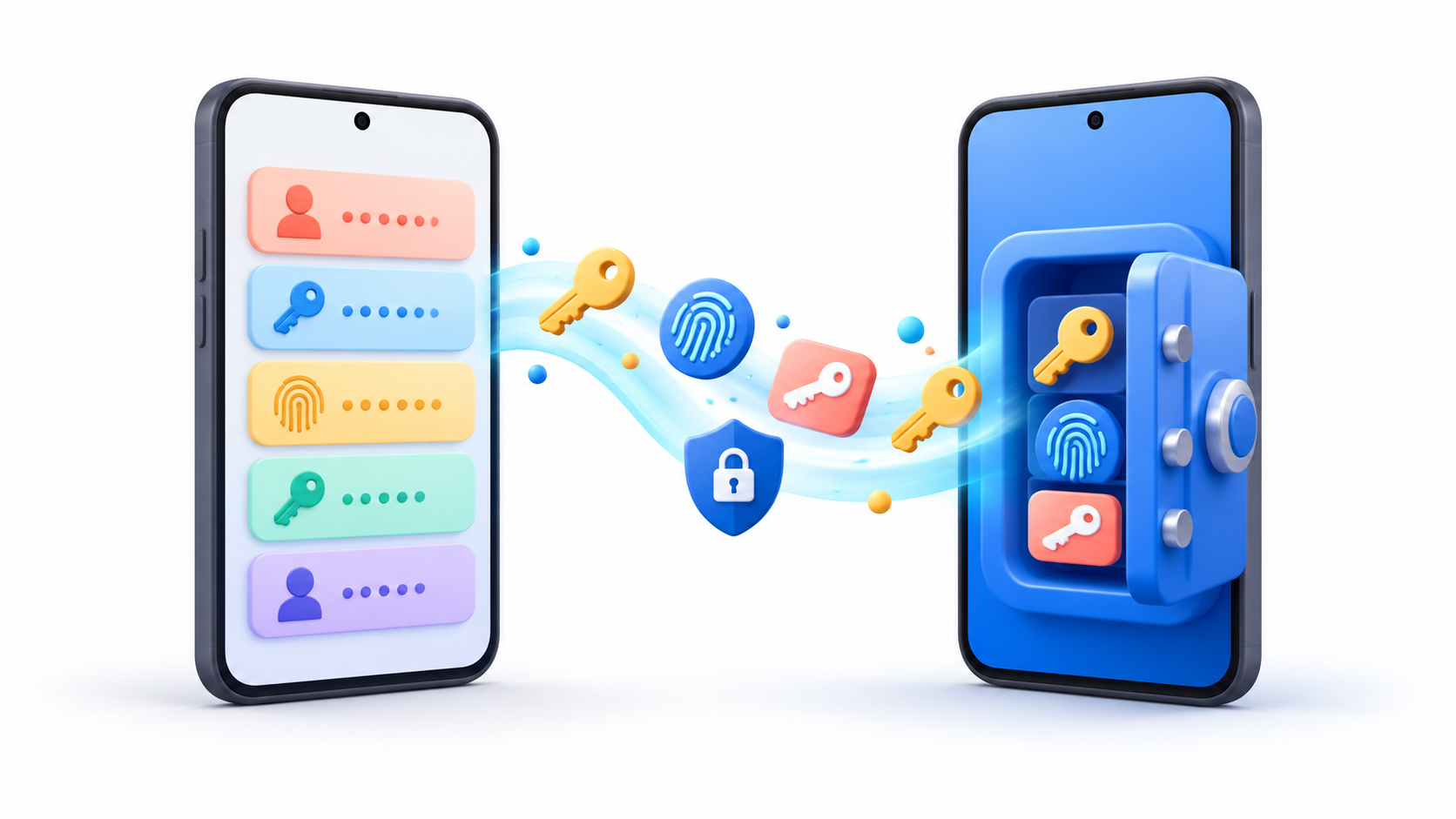
If you have Android 14 or laterWith Google Play Services and compatible apps updated, first try direct transfer using the Credential Exchange Protocol, known as CXP. The process starts in the destination app, Bitwarden. This way you don't have to export a CSV or handle a file with your keys in plain text.
- Update Google Password Manager, Bitwarden, and Google Play Services.
- Open Bitwarden and log in to the account where you want to save the credentials.
- Enter Settings > Vault > Import items > Import from another applicationNames may vary slightly depending on the app's language.
- Select Google Password Manager as the source and press Continue.
- Choose the Google account and the items you want to transfer when prompted. Confirm your identity using your phone's unlock method.
- Authorize the export from Google and wait for Bitwarden to confirm that the import is complete.
This method depends on both apps supporting file sharing on your device. If you don't see "Import from another app," check for updates and use one of the computer or CSV methods explained below. Don't delete anything from your Google manager yet.: first check the result on Bitwarden.
Import Chrome passwords directly from a computer
If you have the keys available in a Chrome profile on your computer, the Bitwarden desktop application offers another option without CSV: import them directly from the browserIt also supports other Chromium-based browsers, although here we will focus on Google credentials.
- Install the Bitwarden desktop application from its official website and log in.
- Open File > Import data.
- Select your personal vault as the destination and choose Google Chrome in the format or origin of the import.
- Brand Import directly from the browser and select the Chrome profile that contains your passwords.
- Press Matter and authorize access with your computer password if requested.
Bitwarden copies credentials from your browser's local files and keeps the originals in Chrome. This option is available in certain versions of the desktop application; for example, the Microsoft Store edition for Windows and the Mac App Store edition do not include the direct importer. If you don't see it, install a compatible version from Bitwarden or use the CSV method.
Please note that this direct import is described for the browser profile passwordsTo transfer passkeys between managers, use the mobile's supported exchange feature when available.
Universal alternative: export a CSV from Google

A CSV file is useful if the direct transfer option isn't available or you prefer to work from the web. Before creating it, remember what it contains: it's a file that can include readable web addresses, usernames, and passwordsDo not send it by email, do not upload it to a file service to move it between devices, and avoid leaving copies in Downloads.
Export passwords
On a computer, open Chrome and go to More > Passwords & Autofill > Google Password Manager > SettingsSearch for "Export passwords" and click "Download file". Your browser may ask you to confirm your identity before saving the CSV file.
On Android, open Chrome and go to More > Settings > Autofill and passwords > Google Password Manager > SettingsFrom "Export passwords and access keys" you can choose to download the password file. Check the file name and location to find it when importing.
Import the file into Bitwarden
- Log in to the Bitwarden web app from a browser. If you're working on a mobile device, you can also open it in your phone's browser.
- Enter Tools > Import data and select your personal vault.
- Choose the format that corresponds to Google Chrome or Chrome CSV.
- Select the exported file and confirm the import.
- Verify that the entries appear in your vault before deleting the file.
Bitwarden also offers importing from other clients, such as the extension and the desktop application. The essential thing is to choose the correct source formatFurthermore, its importer does not automatically check if a credential already exists: if you repeat the process with the same file, you can create duplicate items.
Verify the migration before deleting the old keys

Bitwarden showing "Import complete" doesn't mean you should immediately empty your old account manager. Compare the approximate number of entries and look for several important accounts: your primary email, banking, stores, and services you use frequently. Open a few tabs to verify that they retain their data. the correct web address, username, and passwordNext, try logging into Bitwarden on your computer and mobile device.
If you performed the migration using CSV, Delete that file as soon as you finish verifying the resultCheck your Downloads folder and any copies you've created. If you find any missing keys, first make sure you exported from the correct account or profile; avoid repeatedly importing the same file without investigating the problem, as duplicates will appear.
Once everything is working, set Bitwarden as your autofill provider on the devices where you use it. On Android, you'll find this option in the Bitwarden and system autofill settings. If you also use passkeys, check your provider's settings to ensure they offer the ones saved in Bitwarden.
Prevent Chrome and Bitwarden from offering to save the same thing
After verifying the transfer, you can disable Chrome's built-in manager suggestions to prevent two services from competing when you sign in. On your computer, type chrome://password-manager/settings in the address bar and review the options offer to save passwords and automatic login. The Bitwarden extension can also help you set it as the default manager.
Disabling these suggestions doesn't delete your old Google passwords. If you want to remove them, do so. after verifying the migration and retaining access to your accountsAvoid using a general browser data cleanup blindly: it can affect other elements and doesn't help identify which credentials have been successfully transferred.
Finish by protecting your new vault with a long and unique master password and enable Bitwarden's two-step verification. If an old key was duplicated or appeared in a data breach, simply transferring it won't solve the problem: change it on the relevant service and save the new version to Bitwarden.
To switch from Google Password Manager to Bitwarden, choose the method that best suits your device: Direct sharing on Android for compatible passwords and passkeys, direct import from Chrome on your computer, or CSV as an alternativeCheck the vault contents, configure autofill, and delete any temporary files containing passwords. With this final check, you can start using the new manager without losing access.

I am a technology enthusiast who has turned his "geek" interests into a profession. I have spent more than 10 years of my life using cutting-edge technology and tinkering with all kinds of programs out of pure curiosity. Now I have specialized in computer technology and video games. This is because for more than 5 years I have been writing for various websites on technology and video games, creating articles that seek to give you the information you need in a language that is understandable to everyone.
If you have any questions, my knowledge ranges from everything related to the Windows operating system as well as Android for mobile phones. And my commitment is to you, I am always willing to spend a few minutes and help you resolve any questions you may have in this internet world.