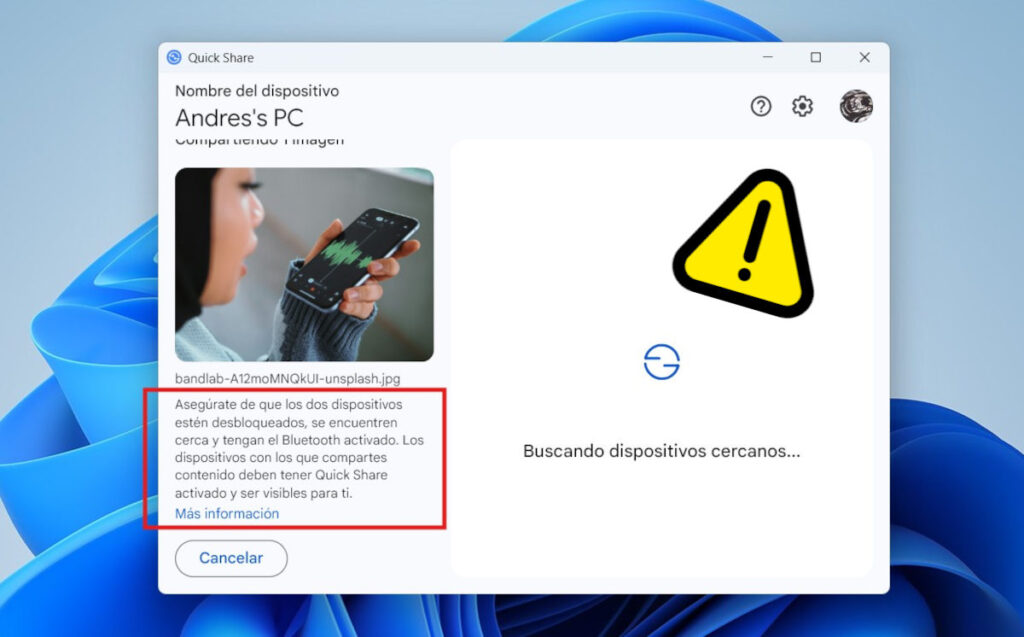
We'll explain what to do if Quick Share can't find your phone and what the most common causes of this problem are. Successful file transfer via this method depends on several factors, such as Bluetooth, Wi-Fi, and location services. It's also convenient Review the visibility settings and learn how to use the sharing optionsWe'll delve deeper below.
What to do if Quick Share can't find your phone
Sharing files between different devices has never been easier. There are plenty of official and third-party apps that allow you to do just that. Connect mobile phones and computers to transfer almost any type of fileWindows, for example, has the app Phone Link (Link to Windows) which you can install on your iOS and Android mobile device.
Android also has its own app for sending files to a Windows PC. It's called Quick Share, the unified evolution of Google's old Nearby Share and Samsung's original system. Simply... install Quick Share on Windows to open a Direct transfer channel to and from your Android mobile device.
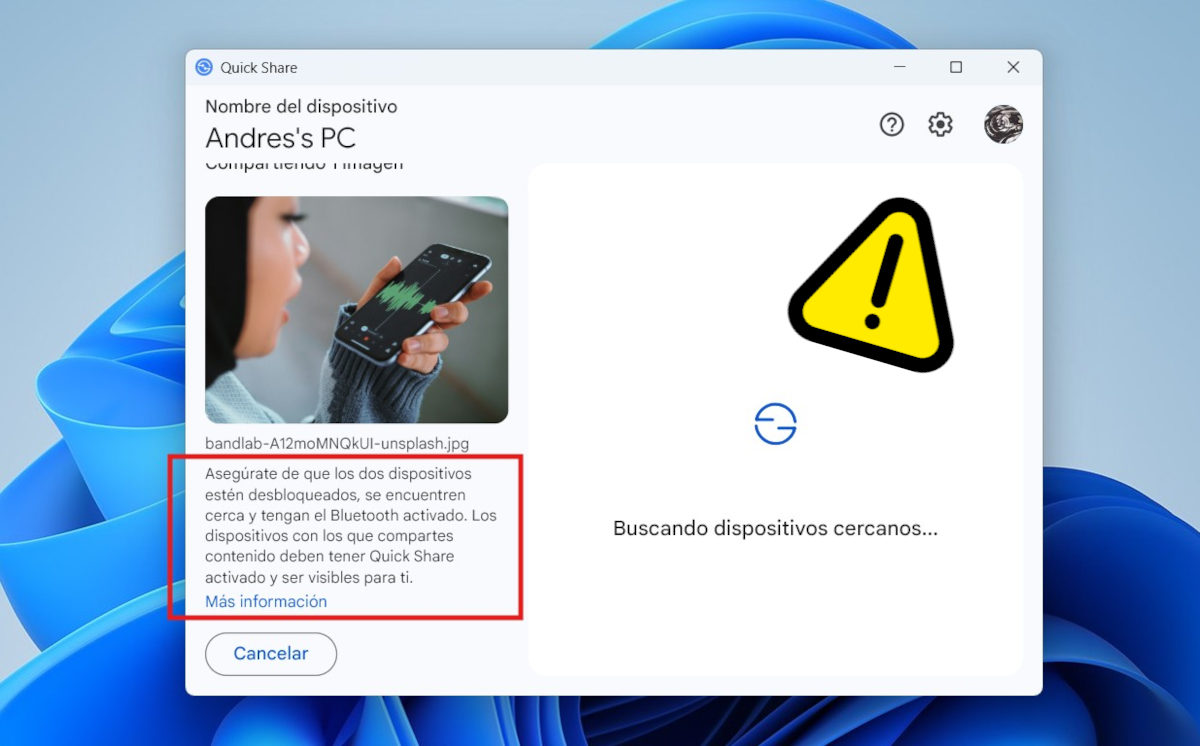
But nothing is perfect. Sometimes, Quick Share can't find your phone when you want to send a file from your PC. What can you do? If it's your first time trying, you'll need to... Make sure everything is set up correctlyOn the other hand, if you were already doing it correctly and, suddenly, Quick Share can't find your phone, something might be causing the problem. interferences.
First, check the Quick Share settings on your mobile device.
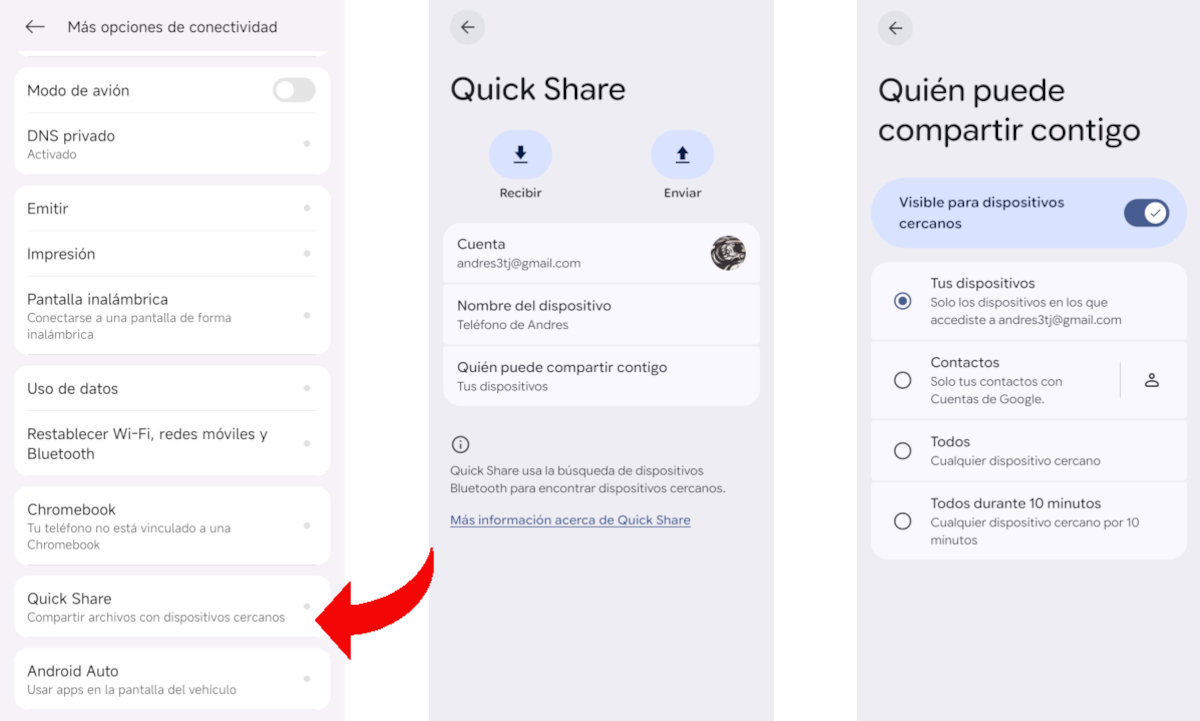
If Quick Share can't find your phone, start by checking the app settings. Pick up your phone and go to Configuration – More connectivity options – Quick ShareOnce there, you'll see buttons to Receive and Send files, as well as your account details, device name, and Who can share with you. We're interested in this last option.
Click on Who can share with youThe first thing you'll see is the switch to turn the feature on. If it's turned off, no one will be able to share content with you, even if you try from your personal devices. This is the main reason why Quick Share doesn't find your phone when you try to use it for the first time.
Pay attention to the connection types in Quick Share
We continue with Who can share with you. The app offers four types of connectioneach with different conditions:
- Your devicesYou can only share content with devices where you're logged in with the same account you used for Quick Share. The app uses your mobile's Google account by default, but you can add another one from the Account section in the menu above.
- Contacts: You can only share files with your contacts who have Google accounts. No one who isn't in your contact list will be able to send or receive files.
- All: This is the most flexible option, as it allows all nearby devices to receive and send content to and from your mobile.
- Everyone for 10 minutes: It is enabled for all nearby devices for the specified time.
Understanding the above helps you know what to do when Quick Share can't find your phone. When you install the app on your Windows PC, it asks you to sign in with your Google email address. The best thing to do is Use the same email address you have registered on your mobile phone and select the option Your Devices in the app settings. This will make it easier for the PC to detect your mobile device and perform an immediate transfer without manual approval.
On the other hand, if you need share a file from Windows to someone else's Android mobileYou need to select the "Contacts" or "Everyone" option, as appropriate. Otherwise, Windows won't find the device you're trying to link because it's configured to sync only with devices that have your account registered.
Second, check the Quick Share settings on your PC.
We'll leave the phone alone and go to the Quick Share app installed on your Windows PC. When you open it and try to send a file, the app uses the Bluetooth and Location Services to find your phone. That's why it's so important that both options are enabled on both devices.
It's worth noting that, due to Android privacy policies, scanning for nearby devices via Bluetooth requires Location Services to be enabled. So, if Quick Share isn't finding your phone, it might be because you have Location Services enabled. mobile phone GPS turned offActivating it is as simple as pulling down the mobile access panel and tapping on the Location icon.
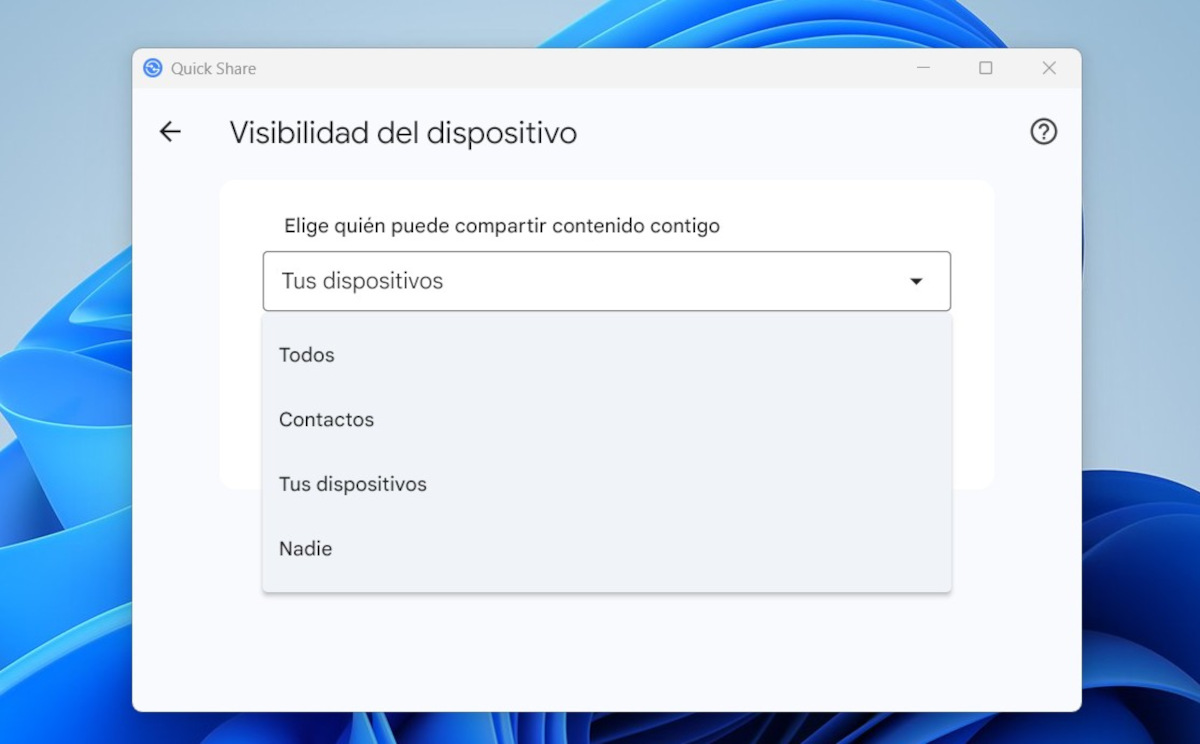
Another thing to check is the device's visibility in the Quick Share app on your PC. Open it, click the Settings icon, and select Device visibilityYou'll see the same options as Quick Share in the mobile app. Ideally, both apps should be configured the same way to ensure they recognize each other.
Other reasons why Quick Share can't find your phone
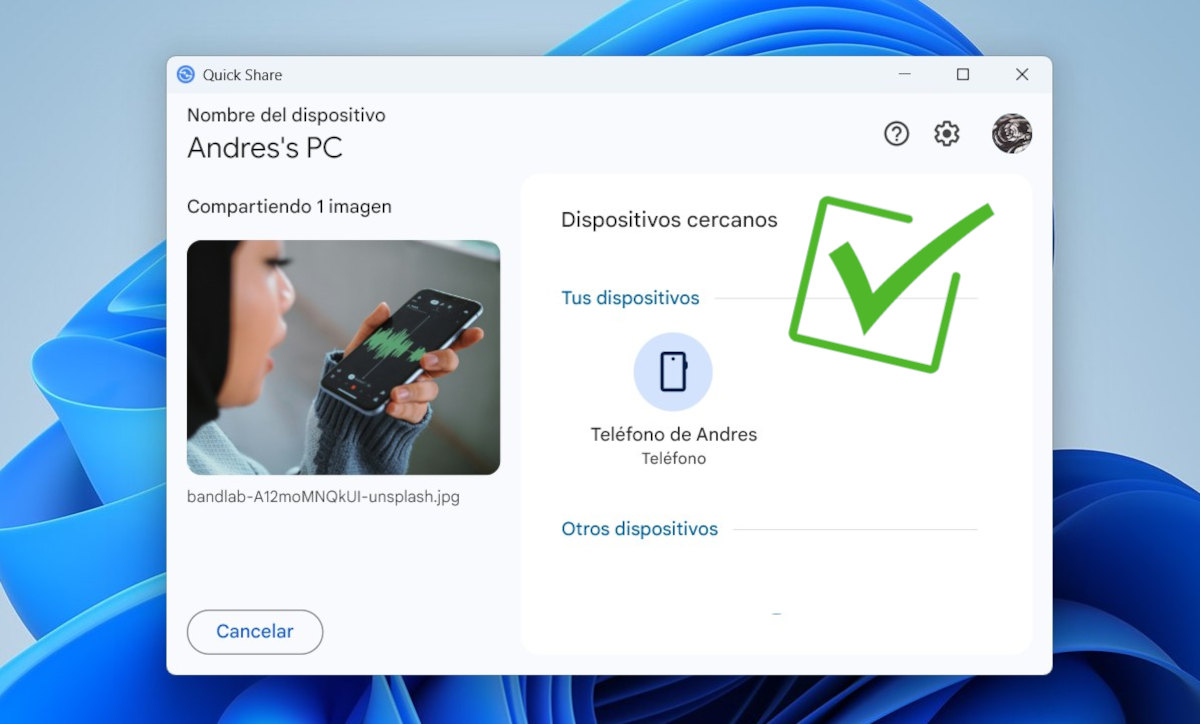
Is Quick Share still not finding your phone? There might be a more complex underlying reason. For example, Windows might be detecting the available Wi-Fi network as "Public," and therefore blocking any incoming connection attempts for security reasons. The solution? Change the network profile to “Private” in the Windows Network and Internet settings.
On the other hand, if you have multiple Bluetooth devices connected to the PCThis could cause problems finding your phone. Try disconnecting any connected Bluetooth devices to eliminate any interference. Also, battery saver modes (on both your phone and PC) limit Bluetooth and other visibility features. Turn them off if necessary.
Ultimately, it might be a good idea. Reinstall the app on your computer and restart the connection with your mobile device.Make sure everything is set up correctly so the devices can recognize and communicate with each other. As you can see, if Quick Share can't find your phone, it doesn't mean all is lost. Try the recommended suggestions, and you'll surely restore the connection between your Android phone and your Windows computer.

From a young age, I've been fascinated by all things scientific and technological, especially those advancements that make our lives easier and more enjoyable. I love staying up-to-date on the latest news and trends, and sharing my experiences, opinions, and tips about the devices and gadgets I use. This led me to become a web writer a little over five years ago, focusing primarily on Android devices and Windows operating systems. I've learned to explain complex concepts in simple terms so my readers can easily understand them.