It is one of the most irritating problems faced by Hotmail users (now Outlook): When you accidentally delete an email and it disappears, apparently without being able to recover it. Well, this is possible. In this post we show you how to recover deleted emails in Hotmail.
And it is that email messages that may be important can disappear in the most unexpected way. Not only for a human errorbut also due to system failures, virus attacks, etc.That's why it's so important to know what to do to try to get them back in some way.
Those who already have some experience in data recovery know that you should not give up so quickly. There is always something that can be done. In the following paragraphs we will review some of them. methods and solutions that can help us in the task of recovering deleted emails.
From the deleted items folder
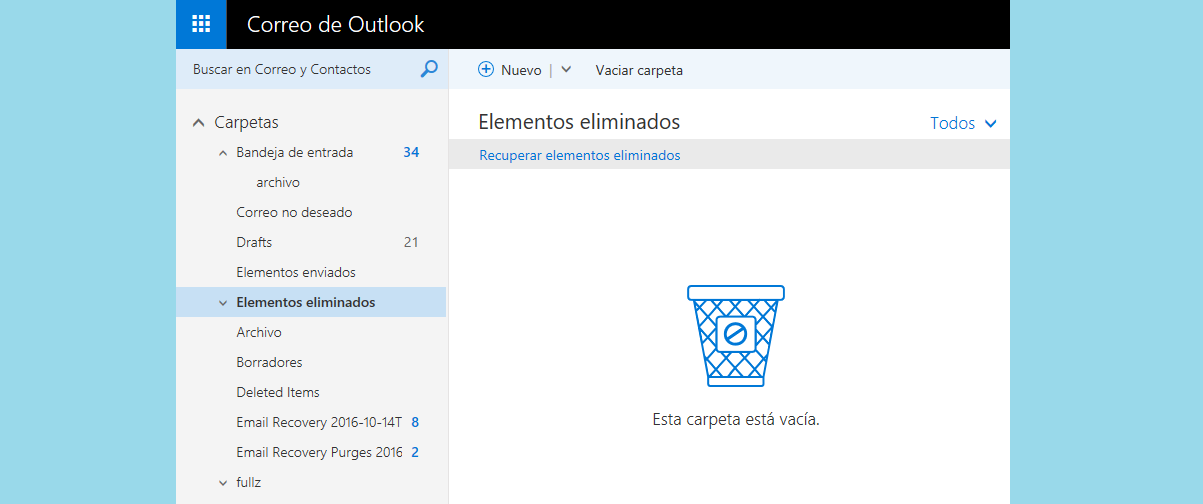
Most often, when a Hotmail email is sent to the trash, the program either still keeps it available there or in another location (for example, in the folder «Elements deleted») for some time. This gives us a valuable chance to rescue it and return it to the inbox.
If it hasn't been too long since the message was deleted, it may still be there and we can access it. Here's what we need to do:
- First, we need to login in our Hotmail account.
- Then we go to the list of mail folders, on the left, where we must search and select the folder «Elements deleted».
- There we review the list of messages until we find the one we want to recover. Then we right-click on it, use the option "Move» and we select "Inbox" to send him back there.
From the recoverable emails folder
If the “Deleted Items” folder is empty, we can still try to recover emails from the “Deleted Items” folder.Recoverable emails». These are the steps to follow:
- From the folder Deleted items, we scroll down until we find the option "Recover deleted items from this folder«
- We select this folder and search for the emails we want to recover.
- Finally, we mark the desired emails and select the option "Restore"By doing this, these messages will be moved to the “Deleted Items” folder, from where we can start the recovery process explained in the previous section.
As you can see, the method is simple. The most important question is how long those discarded emails remain in the deleted items folder. By default, The maximum time period is 30 daysAfter this period, the messages will be automatically deleted, which makes the task of recovering them more complicated.
File recovery tools
We have said that the task of recovering deleted emails becomes more complicated, but not impossible. In the most difficult cases there is no choice but to resort to a file recovery tool. There are many available on the internet (most of them are paid), but not all of them are completely effective or reliable. Here are two of the best:
EaseUS Data Recovery Wizard
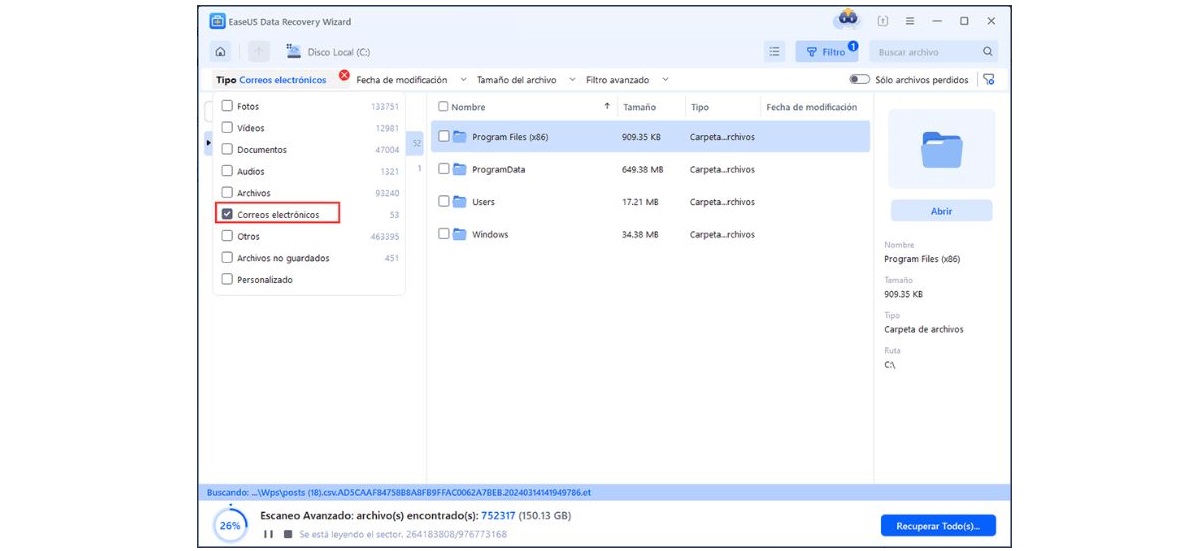
This program can be used to recover different types of deleted files, including email messages. Its recovery success rate is no less than 99,7%. Once downloaded and installed on our computer, this is how we should use it. EaseUS Data Recovery Wizard:
- We begin EaseUS Data Recovery Wizard and we select the location from which we want to recover our deleted emails.
- Next we click on the button «Find lost data». You have to wait a few minutes for the program to perform the scan.
- Once the scan is complete, we go to the section "Filter", where we select the folder «Emails».
- In the list below you just have to mark those that you want to recover and click on the button "Recover".
Wondershare Recoverit
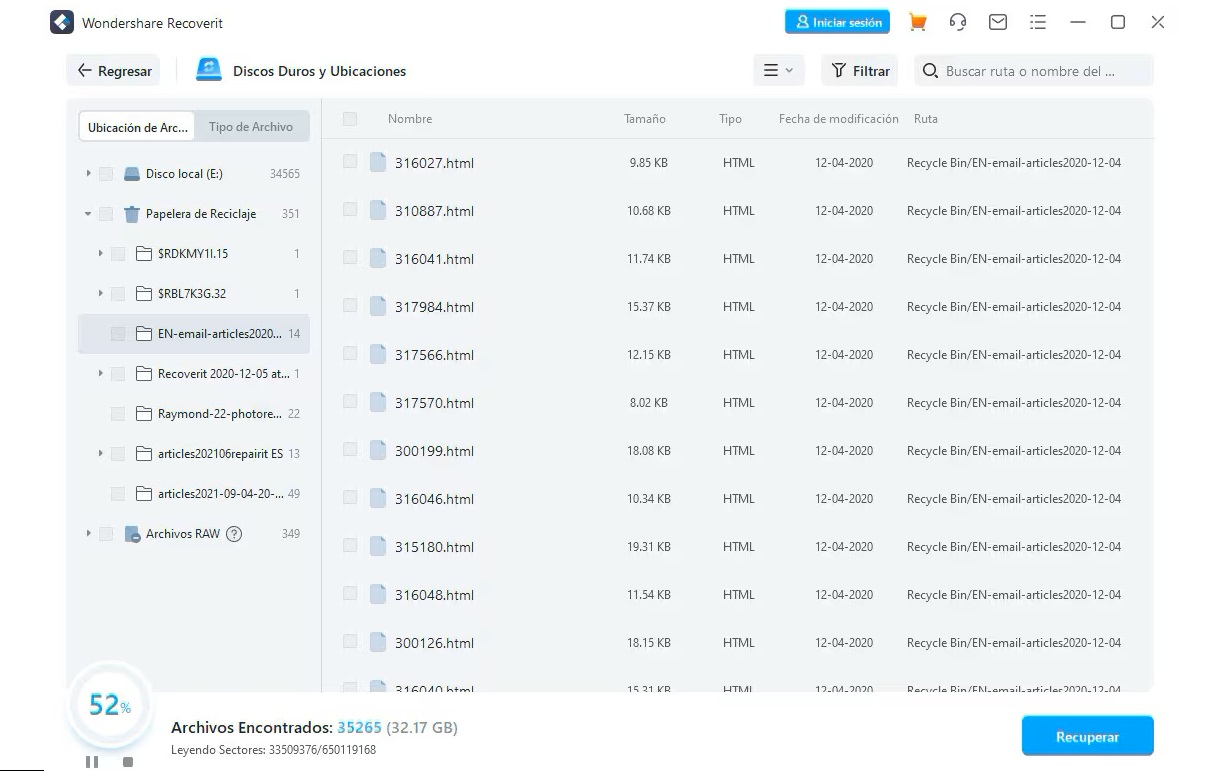
- With the program started, we choose the option «Deleted File Recovery».
- After We select the location where the emails went missing and we click on "Start".
- Then we activate the «Deep repair» to start the scan.
- Once the scanning process is complete, the result is displayed. Here we must mark the emails we want to recover and click on the “Recover"
Conclusions

Editor specialized in technology and internet issues with more than ten years of experience in different digital media. I have worked as an editor and content creator for e-commerce, communication, online marketing and advertising companies. I have also written on economics, finance and other sectors websites. My work is also my passion. Now, through my articles in Tecnobits, I try to explore all the news and new opportunities that the world of technology offers us every day to improve our lives.