- O&O ShutUp10++ centralizes dozens of advanced Windows privacy and security settings into a single interface.
- The program is free and portable, allows you to create backups, and offers clear recommendations through colored icons.
- When properly configured, it significantly reduces telemetry and invasive services, although it requires caution to avoid breaking useful functions.

If you use Windows 10 or 11 and are worried that the system is sending too much data to Microsoft, you've probably felt this way more than once. overwhelmed by menus, confusing notices, and hidden privacy optionsThat's where it comes in. O&O ShutUp10++, a small, free utility that concentrates into a single window tons of settings that would normally be buried deep in the system.
In this article you will see how it works, what settings it offers, what its colored icons mean, How to use it without messing things up and what to keep in mind to avoid breaking anything importantWe'll also discuss some common problems, whether it's worthwhile compared to other tools like WPD, and to what extent it can help you reduce Windows telemetry without completely sacrificing convenience.
What is O&O ShutUp10++ and what is it used for?
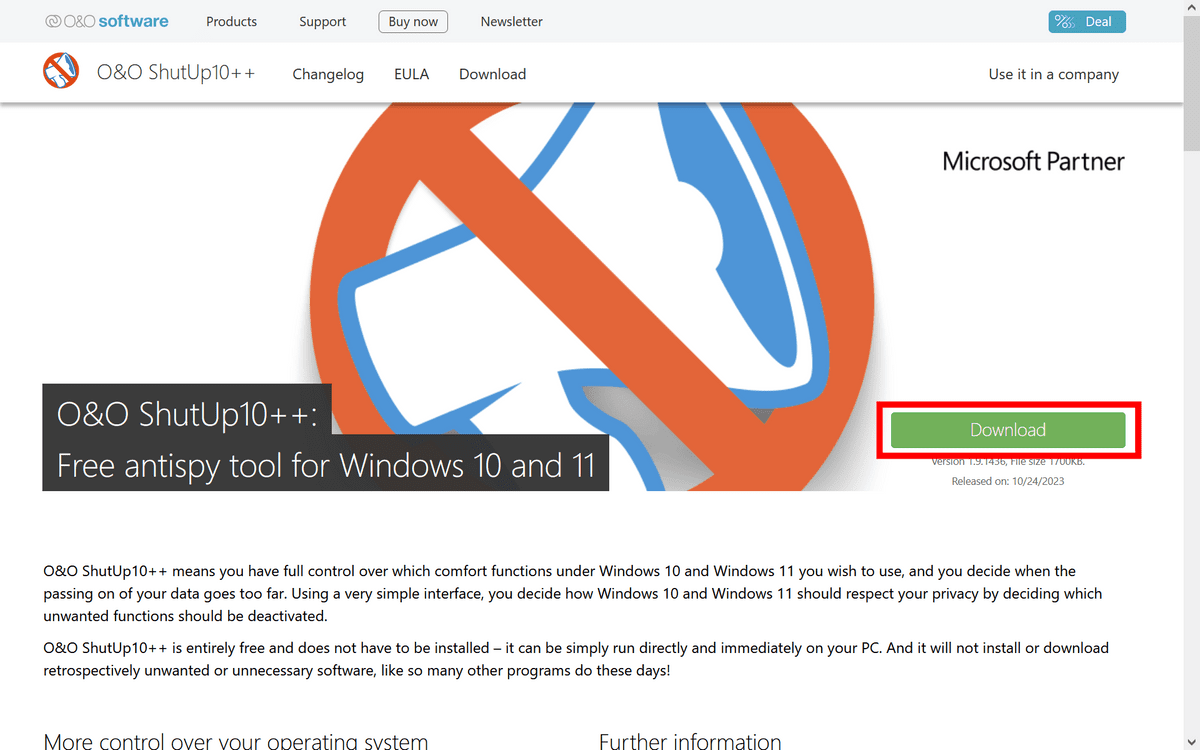
O&O ShutUp10++ is a Free and portable desktop program developed by the German company O&O SoftwareSpecializing in Windows tools for over two decades. No installation required: download the executable, run it, and you're done, with no background services or residual components on your system.
Its goal is to give you easy access to a lot of hidden settings related mainly to Privacy, security, telemetry, location services, and certain Windows and Microsoft Edge features.Many of these options are available in the system, but scattered across advanced panels, group policies, or the registry, so the average user rarely touches them.
With O&O ShutUp10++ you can disable, among other things, The sending of diagnostic data, device usage tracking features, Cortana's intrusive features, shared Wi-Fi options, and parts of Windows DefenderIt also allows you to remove annoying features such as the button to show passwords or certain integrations in Edge.
Who is behind O&O ShutUp10++
The tool was created by O&O Software, a company based in Germany that has been Over 20 years developing specialized utilities for WindowsYou've probably heard of some of their older products, which are widely used in professional and business environments.
Their catalog includes tools such as Defrag, DiskImage, DiskRecovery, SafeErase, SSD Migration Kit or CleverCacheThese solutions focus on tasks such as maintenance, backup, data recovery, and performance enhancement. Many German companies listed on the DAX and a significant number of companies in the Forbes 100 International index use O&O software.
This means that O&O is not a small app by an unknown author: we're talking about a manufacturer with a long track record in storage solutions, data security and systems optimizationShutUp10++ is part of that line of technical tools, but focused on the privacy of home and professional users.
An important detail is that O&O ShutUp10++ is offered as Freeware with no ads, no hidden toolbars, and no additional software downloadsYou run the program, make the adjustments, and close it; it doesn't leave anything running in the background to continue "taking advantage" of your system.
Categories of options offered by O&O ShutUp10++
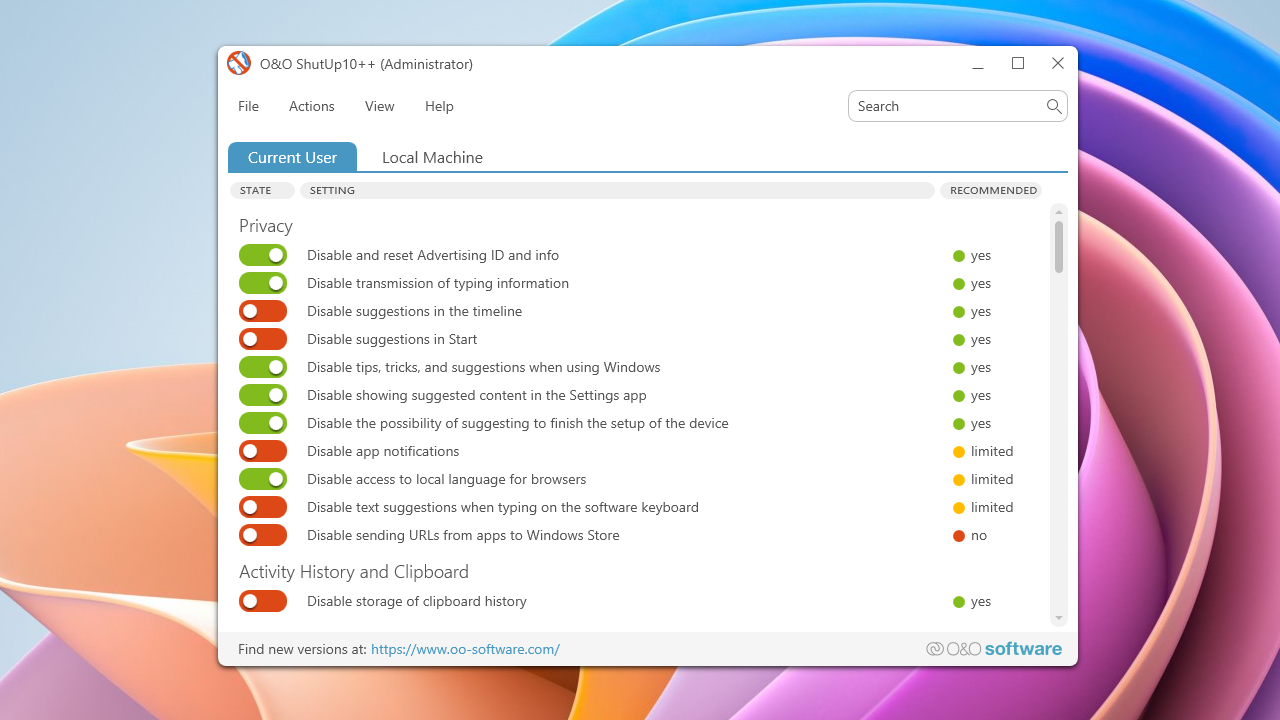
When you open the program, you'll see a main window with a long list of settings, organized by thematic sectionsEach one groups options that affect a specific area of the system, so you can block what interests you without getting lost.
Among the main categories that O&O ShutUp10++ usually displays are:
- Security: settings related to general Windows security, such as certain execution policies, threat defense, and protection features that may share data with Microsoft.
- Privacy: user privacy options, telemetry, and collection of personal or equipment usage information that is sent to the company's servers.
- Cortana: specific controls for the Microsoft virtual assistant, including search history, voice commands, and access to personal data.
- Location Services: settings regarding location and services that use GPS, Wi-Fi networks and other positioning methods.
- User behavior: everything related to the collection of usage data, statistics, browsing habits or interaction with the system.
- Windows Update: parameters that affect how updates are downloaded and installed, including P2P functions for distributing patches between computers.
- Miscellaneous: various settings that do not fit into a single group, such as certain Edge options or visual and user experience elements.
Within each category you'll see a description of the option and a toggle switch, allowing you to Activate or deactivate each setting independently, according to your needs.There are also colored icons that serve as a guide on what is more or less safe to modify.
How to interpret icons and switches
One of the things that causes the most confusion at first is the color icon system and the familiar red/green switches. Each entry in the list has a symbol next to it that tells you... if the developer deems it advisable to apply that adjustment or whether it's better to handle it more carefully.
La basic logic It is usually the following:
- Green tickRecommended setting. It is usually safe for most users and offers a good balance between privacy and functionality.
- Yellow tickRecommended setting, but with caution. It improves privacy or security, but may disable features that some users find useful.
- Red tickThis setting is not recommended. Enabling it may break important functions, cause errors, or leave the system in an overly restrictive state.
As for the switches, the color indicates whether that specific option is currently active. applied or not applied in your system:
- Green switchThe O&O ShutUp10++ setting is active, meaning it is blocking or changing that behavior according to the policy defined by the program.
- Switch in gray/redThe setting is not applied, so Windows behaves according to its default configuration (or the one you had before).
Sometimes you'll see that the description says "disabled" but the switch appears green: this means that The program has applied the policy to disable that function.Green indicates “ShutUp10++ setting in effect”; it does not mean that the Windows option is turned on, but that the rule you are proposing is active.
Ideally, you shouldn't go in blind: before touching anything, you can click on the name of each setting to see a small pop-up text explaining it. What does it do, what consequences can it have, and what does O&O recommend? in that specific case.
Download, backup, and run
The advantage of O&O ShutUp10++ is that it is a program Portable: a single executable that you can carry on a USB drive and use on multiple computers. No installation required. Simply download it from the official O&O website and save the file, usually with a name like this: OOSU10.exe or similar.
Before doing anything, it is essential to follow the warning shown by the program itself: Create a system backup or restore pointIf something goes wrong, you can always revert to the previous state without losing the installation.
ShutUp10++ itself includes an option to create a restore point from the actions menu, although you can also do it manually from Windows. Don't consider it optional: If you mess with advanced settings without a backup and something breaks, you could be in serious trouble..
Once you've created the restore point, run the program with administrator privileges. You'll see the main window with all the available categories and settings, along with the recommendation icons and toggles we discussed.
File menu: Import and export settings
In the menu Archive You have several useful options for managing your settings, especially if you usually configure multiple devices or want to maintain the same policy over time.
On the one hand, the function of Import settings It allows you to load a configuration file (usually with the .cfg extension) containing a set of predefined options. This lets you automatically apply the same privacy and security restrictions to different computers.
On the other hand, with Export settings You save the current state of your settings in another .cfg file. This is perfect if you've invested time in finding a balance you like between privacy and functionality and want Save that "template" to use after formatting or after a major Windows upgrade.
The menu is completed with the option to exit the program, without further complication: when you finish tweaking parameters, simply close it; It does not remain resident in memory nor does it add permanent elements to the system.
Actions menu: Apply bulk changes and create restore points
The tab Actions This is where you can act "en masse" on the options, instead of going switch by switch. Here you'll find buttons for Activate all recommended settings at once, all recommended settings with reservations, or even absolutely all of them..
For example, you can tell the program to apply only the settings marked with a green checkmark, which is usually a safe play for most users. You can also choose to include those marked in yellow if you're willing to sacrifice some convenience for stricter privacy.
The option to activate everything, including those marked with red symbols, should be approached with caution: It can leave important services inactive, cause certain apps to malfunction, or generate constant error or warning messages.If you decide to go that way, do so at your own risk and knowing how to turn back.
In this same menu you will find a button to undo all changes performed by O&O ShutUp10++ and return the system to its previous state with respect to those policies. This is useful if, after several experiments, you prefer to revert to the default behavior.
Finally, a key option: Create a system restore pointAlthough the program insists on this before applying certain rules, from here you can force the creation of a point at any time, so that if a setting is incompatible with your equipment and causes serious errors, you can recover the previous environment.
View Menu: organization, appearance, and language
In the section View The options are simple, but they help you work more comfortably with the settings list, especially if you find it overwhelming to see so many categories.
On one hand, you can Show or hide the grouping by thematic blocks (Privacy, Security, Edge, etc.). If you disable groupings, you'll see all the options in a single continuous list, which some users find easier to manage when selecting what they want.
There is also a small aesthetic customization through Blue or gray buttons to slightly change the program's visual appearanceIt doesn't change the functionality, but it can make the experience more enjoyable according to your preferences.
Finally, from here you can change the interface language. O&O ShutUp10++ offers several languages, including English, French, Spanish, German, Italian and RussianThis makes it easier for you to understand the descriptions of each setting even if you are not fluent in technical English.
Help menu: quick guide, version and change logs
The menu Aid It focuses on providing information to the user, without directly altering system settings. Its goal is to keep it readily available. an initial guide, update checking, and version history.
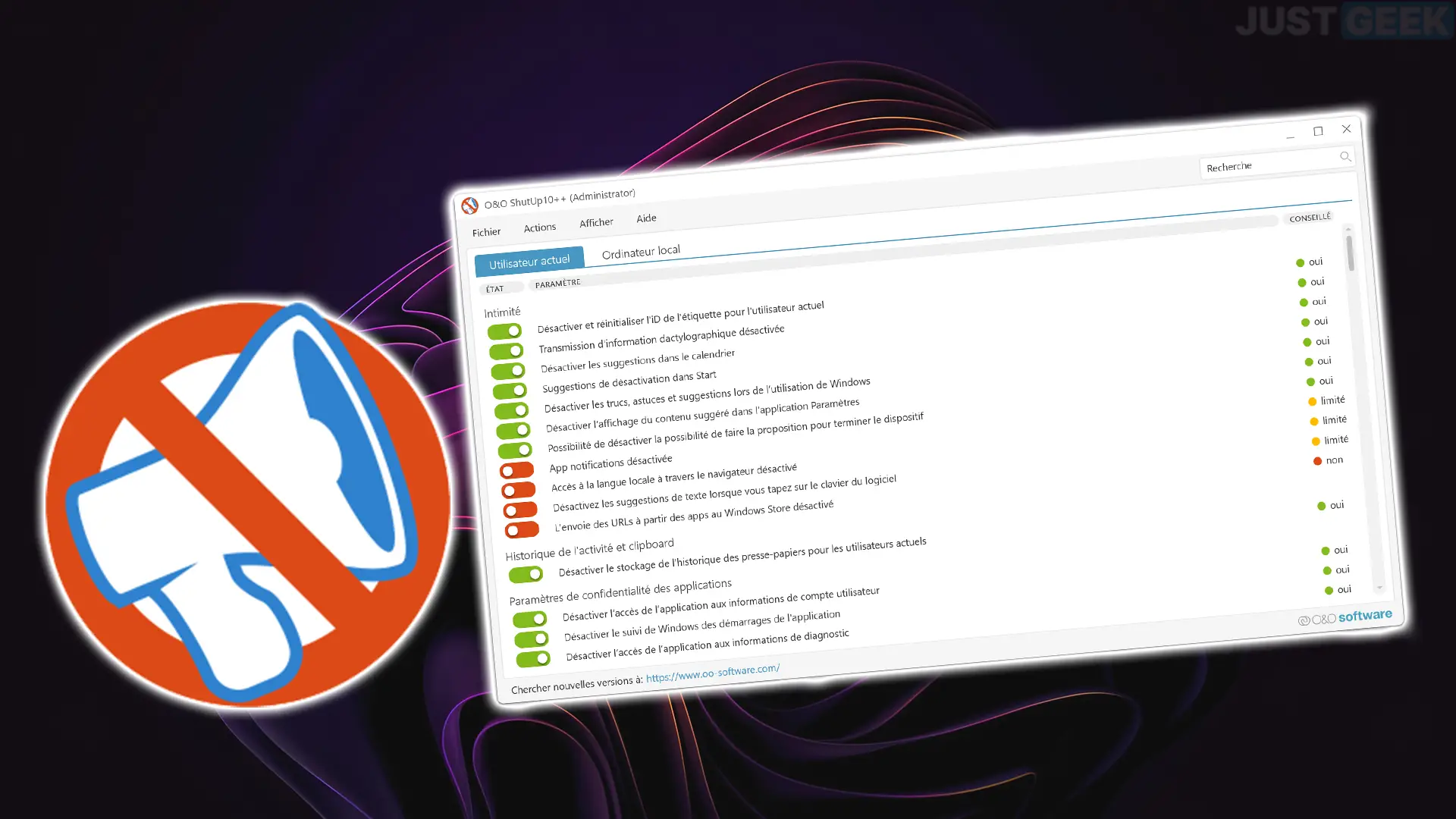
The option of Short guide This opens an explanatory text within the window itself, temporarily replacing the settings list. There you'll find a visual introduction to using the program, with icons and examples to help you better understand what the colored checkmarks mean and how to apply changes.
In addition, there is an option for Check online if your version of O&O ShutUp10++ is up to dateClicking it opens your default browser and the official website tells you if a newer edition is available for download.
The registration section also takes you to the browser, where you can see the change history for each versionIf you like, you can go back to version 1.0 and see what has been added or corrected over time.
Finally, the button About Change the view to show company information, system data, and details of your current Windows installation, such as the edition, specific version, and system type (32-bit or 64-bit), which is useful if you are diagnosing problems.
How to manage Windows updates and maintain settings
Every major Windows update can Restore or modify some of the settings you changed with O&O ShutUp10++It doesn't always happen with everyone, but it's common for certain telemetry options or services that you had blocked to be reactivated after a "feature update".
Many users wonder if it's possible to automatically reapply the same ShutUp10++ settings after each update, without having to open it and click again. The program doesn't run as a resident service, so It does not automatically force changes again after Windows modifies them..
The practical solution is to use the export/import function: you save your settings in a .cfg file and, every time you notice that the system has been updated, You run O&O ShutUp10++ once, import the file, and apply the changes in a couple of clicks.It's not fully automatic, but it greatly reduces the effort.
If you're an advanced user, you can also create scheduled tasks or scripts that call the executable with specific parameters, but that gets into more technical territory. For most users, it's enough to have their exported configuration handy and remember to relaunch the program after major patches.
Is it worth tightening privacy so much in Windows?
Many users end up with a bittersweet feeling: the more they adjust privacy settings in Windows, the more They encounter problems, strange errors, apps that complain, or features that stop working as before.It's easy to end up thinking that, in the end, we've sacrificed privacy in favor of convenience and stability.
It's true that older versions like Windows 7 seemed less intrusive, but also They lack many modern features and, above all, no longer have the same security support.Going back might sound tempting, but it's not always a practical long-term decision.
Tools like O&O ShutUp10++ aren't a magic wand, but they do give the average user the possibility of regain some control about what data is being sent and what services are active, without having to delve deeply into the registry or group policies.
The key is finding a balance: it might not make sense to turn absolutely everything off if that's going to complicate your daily life or generate constant notifications. The reasonable thing to do is decide what you find unacceptable (for example, certain types of telemetry) and what you can tolerate in exchange for the system working perfectly..
Using O&O's recommendations as a starting point, combined with your own priorities and the support of restore points and backups, it's possible to make Windows much more data-friendly without turning it into a minefield. With a little patience and by not overusing extreme options, O&O ShutUp10++ can be a very useful tool for those who want to continue using Windows, but with much more peace of mind..


Editor specialized in technology and internet issues with more than ten years of experience in different digital media. I have worked as an editor and content creator for e-commerce, communication, online marketing and advertising companies. I have also written on economics, finance and other sectors websites. My work is also my passion. Now, through my articles in Tecnobits, I try to explore all the news and new opportunities that the world of technology offers us every day to improve our lives.