- SmartThings can maintain local functions during an internet outage if the hub and devices remain operational.
- The routines require that all their functions and services support local execution to function without depending on the cloud.
- The mobile device and the hub must communicate on the same home network, even if they use Wi-Fi and Ethernet.
- Matter facilitates local connection, but does not eliminate Internet dependencies for all manufacturer features.
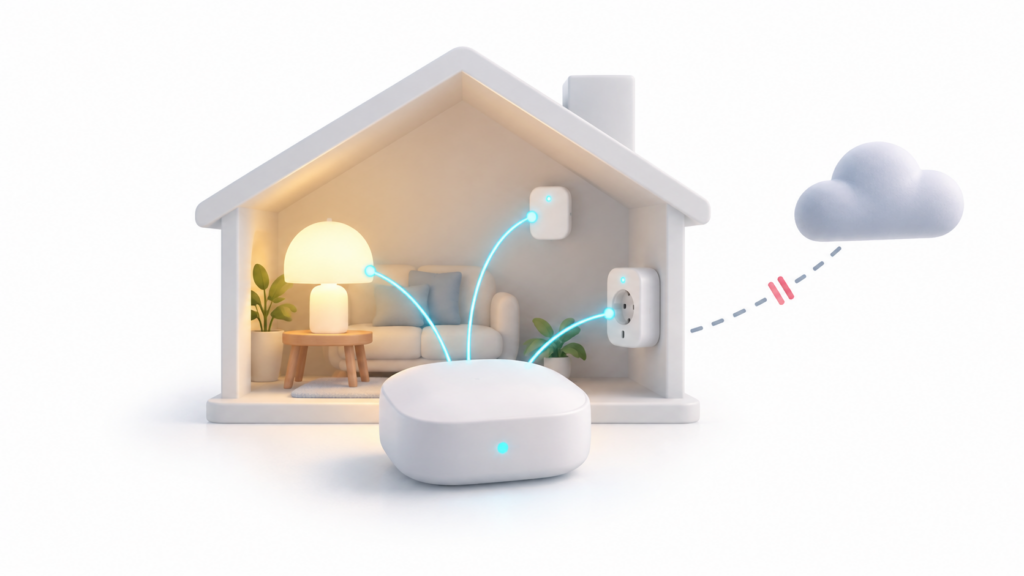
An internet outage doesn't necessarily mean your entire home automation system will be unusable. SmartThings can maintain certain functions through local controlHowever, the result depends on the hub, the connected devices, and how the automations are configured.
To determine what will continue to function, it's important to distinguish between a provider outage, a router failure, and a power cut. If the external connection disappears but your home network and devices remain operational, there are options to maintain control. However, if the hub or devices also shut down, local processing cannot replace their power supply.
What works in SmartThings without the internet and what does the cloud need?
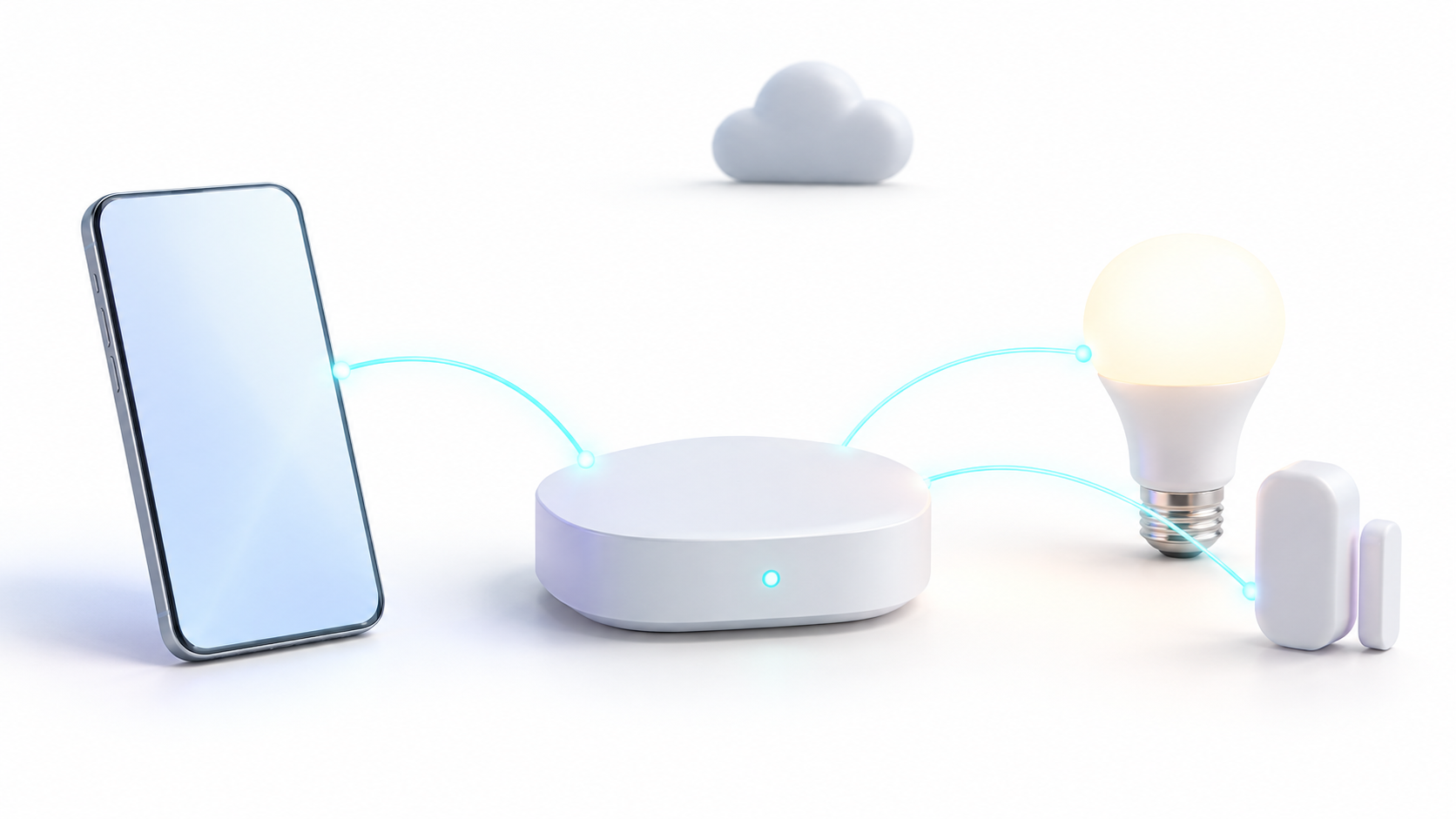
The local control announced by Samsung allows the mobile device to communicate directly with a compatible hub from the home network. This avoids sending certain commands through external servers. Samsung estimates an approximate 30% improvement in response times, based on its own tests under controlled conditions. Actual performance may vary.
This should be distinguished from the automations already running within the hub. SmartThings Edge drivers They allow local management of connected devices using protocols such as Zigbee, Z-Wave, Matter, or certain local network integrations. Specific compatibility depends on the hub and accessory.
Furthermore, according to the SmartThings rules documentationAn automation can only run locally if all its functions and services support that type of execution. A rule with cloud dependencies may require internet access even if one of its devices is local.
Therefore, simply having a product appear in the application is not enough to guarantee its offline functionality. Control your devices with Samsung SmartThingsIt's important to distinguish between accessories managed by the hub and integrations that query third-party servers. Remote access from outside the home also requires an external connection.
Requirements for using SmartThings local control
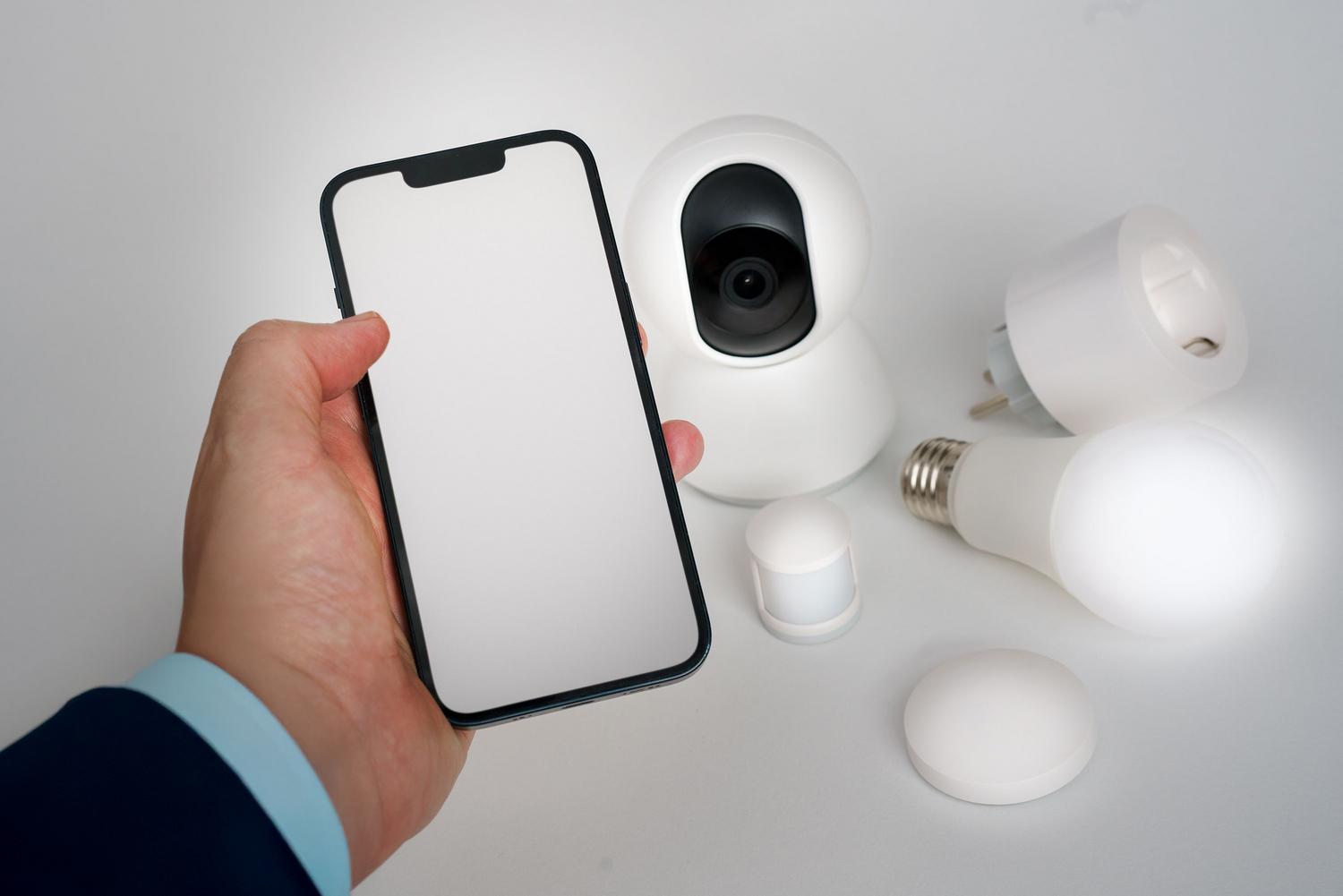
Samsung includes in its advertisement the SmartThings Hubs V2, V3 and V4, SmartThings Station and Samsung TVs and Family Hub with compatible hub functionIt also supports Android and iOS phones with the app installed. Check your specific model and available updates.
- Operational home network: The mobile device and the hub must be able to communicate within the same local network. Depending on the model, the hub can connect to the router via Wi-Fi or Ethernet.
- Application and firmware updated: Prepare the installation with an internet connection and apply any available updates before testing a disconnection.
- Devices with local integration: Check how each accessory connects. A list of devices compatible with SmartThings This does not equate to a guarantee of functioning without the internet.
- Feeding and coverage: The hub, necessary network equipment, and accessories must be kept powered on and within range of your connection.
The 2,4 GHz and 5 GHz bands are not inherently an obstacle. A mobile device can use one band and another device can use the other if the router allows communication between them within the same local network. Problems arise when a guest network or isolation between clients blocks this traffic.
Also check the location selected in the application and the access permissions. SmartThings allows you to invite members with their own Samsung accountsIt is not necessary to present a single shared account as a universal requirement. Some teams have specific registration requirements that you should check in their documentation.
What does Matter 1.6 bring to device control?
Matter is a local connectivity standard which uses technologies such as Wi-Fi, Ethernet, and Thread. Its local operation did not begin with version 1.6. This revision improves aspects of configuration, inter-ecosystem management, and information exchange, as explained by the Connectivity Standards Alliance.
Samsung has announced both compatibility with Matter 1.6 and the addition of product categories to SmartThings. These are separate new features: The Matter 1.6 specification does not introduce any new device categories.
If an accessory uses Matter over Thread, you will need a Thread edge router Compatible and operational. Not all hubs include it: SmartThings indicates, for example, that the Hub V2 requires an external one to connect Thread devices. Furthermore, additional features offered by the manufacturer through their servers may still require an internet connection.
How to check SmartThings without Internet step by step
The most useful way to evaluate your installation is to perform a controlled test. This procedure checks the behavior of your equipment and does not replace verifying the compatibility of each model.
- Check that it is functioning normally. With internet access, verify that you can control a light or a plug and that a simple automation is running.
- Choose a routine with local execution capabilities. For example, a sensor that activates a light, provided that both accessories and the functions used support local processing.
- Leave your phone connected to Wi-Fi and turn off mobile data. This will prevent the application from using the operator's connection during the test.
- It only interrupts internet access. If your device allows it, disconnect the WAN connection or disable it through its settings. Keep the router, Wi-Fi, and hub powered on. Turning off the router will not produce the same result.
- Test the controls and routines separately. Try activating the device from the app and then physically activate the sensor. Note what responds and what fails.
- Restore the connection. Check that the devices are back to normal and turn mobile data back on.
Just because a routine continues to work doesn't mean all the app's controls are available. And just because one accessory is responding doesn't guarantee that another, connected through a different service, will be either. Check individually which functions you need to maintain..
What to check if devices appear offline
Before changing settings, check if there's an internet outage, a problem with the phone's communication with the hub, or an issue with a specific accessory. Each situation requires a different diagnosis.
- Check the power supply and the hub's status. If you are installing an update, wait for it to finish before restarting.
- Check the local network. Check the Ethernet cable or Wi-Fi connection of the hub and avoid networks that isolate the mobile device from other equipment.
- Distinguish the device protocol. The 2,4 GHz Wi-Fi band may be relevant for a Wi-Fi accessory that requires it; it is not a general solution for Zigbee, Z-Wave, or Thread devices.
- Check coverage and interference. Move the accessory closer to the hub if it's out of reach, but avoid placing the hub on top of the router or near other sources of interference.
- If you have changed the router or the password, check the settings of the affected devices. Follow the specific instructions for each model. Restart when appropriate and reserve the factory reset for cases that require it.
Installing Home Assistant doesn't automatically convert all existing connections to local ones. Its official integration with SmartThings is classified as... Cloud PushTherefore, it maintains a dependency on the cloud. To achieve different behavior, it would be necessary to explore the direct connection of accessories through compatible local integrations.
Wear SmartThings without Internet It's essential to know what part of your setup is processed in-house. A combination of compatible hardware, locally integrated devices, and routines without external dependencies can maintain useful functions during a provider outage. Testing these beforehand allows you to understand their limitations and prepare your system for such a scenario.

I am a technology enthusiast who has turned his "geek" interests into a profession. I have spent more than 10 years of my life using cutting-edge technology and tinkering with all kinds of programs out of pure curiosity. Now I have specialized in computer technology and video games. This is because for more than 5 years I have been writing for various websites on technology and video games, creating articles that seek to give you the information you need in a language that is understandable to everyone.
If you have any questions, my knowledge ranges from everything related to the Windows operating system as well as Android for mobile phones. And my commitment is to you, I am always willing to spend a few minutes and help you resolve any questions you may have in this internet world.