In today's digital age, every second counts. Did you know there's a Chrome feature that fills out forms for you? This feature simplifies life by... automatically fill in forms with your saved dataFrom addresses to payment methods, this tool saves time and reduces errors. In this article, you'll discover how to activate it and how to get the most out of it.
This is the new Chrome feature that fills out forms for you.
Chrome's form-filling feature is much more than just a simple "fill in the blanks." It's actually like a built-in assistant that saves time and helps you avoid errors when entering data into forms and text boxes on web pages. However, What information can Chrome autocomplete?
- Basic personal data: full name, address (street, city, state, postal code, country), phone number, email address.
- Payment methods: credit or debit card numbers, expiration date, cardholder name, integration with Google Pay.
- Passwords and accessPerhaps the most used function. There we can save usernames and passwords for websites, as well as set up automatic login options for frequently visited pages.
- Function Improved autocomplete: identity documents (driver's license, identity card, passenger number, Redress number, Passport, Vehicle) Vehicle registration, insurance information, etc.
Steps to activate the Chrome feature that fills out forms for you
To enable Chrome's form-filling feature, you must use the browser's Passwords and Autofill tool. However, You need to log in to your Google account So that everything works as expected. Only in this way will the saved and requested data be used securely on any website you visit.
On the computer
These are the Steps to activate the Chrome feature that fills out forms for you from your computer:
- Open Chrome and click on the three vertical dots (Further) in the upper right corner.
- Select Configuration.
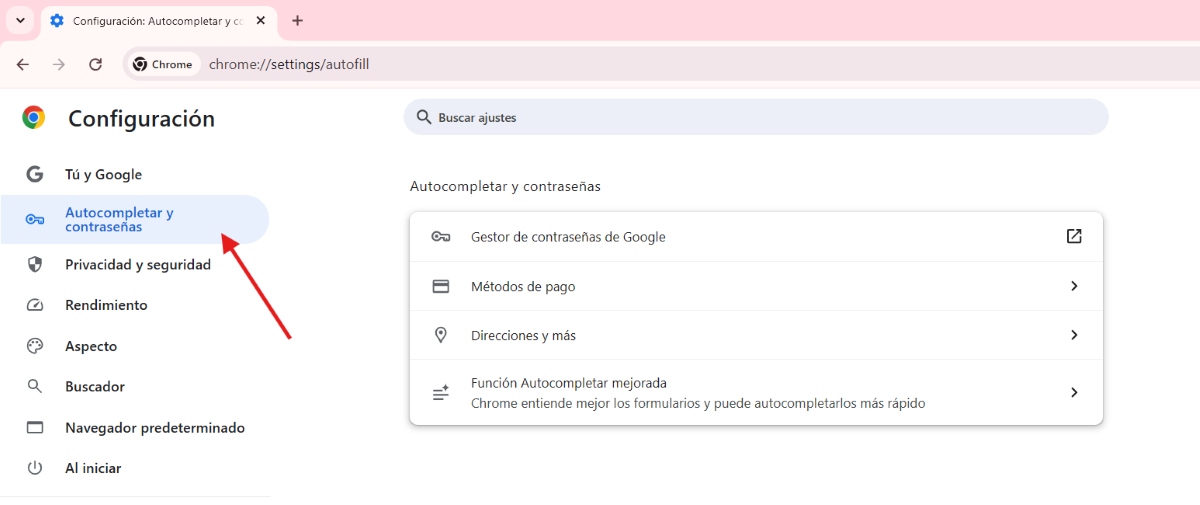
- In the menu on the left, choose Autofill and Passwords.
- Here you will find the options: Passwords (Activate “Offer to save passwords” and “Autofill passwords”). Payment methods (activates “Save and complete payment methods”). Directions and more (Activate “Save and complete addresses”).
- Add or edit your information: tap Add To enter new information, such as your home or credit card address, use Edit or Delete to update or remove previously saved information.
On an Android device
On an Android device, The steps to activate Chrome's feature that fills out forms for you are quite similar.To do it from your mobile phone, do the following:
- Open Chrome and tap the three dots in the upper right corner.
- Touch Configuration.
- Touch autocomplete services.
- Select Autocomplete with Google to use Google's password and data manager. Or choose another service if you have one set up.
- From Settings you can also add payment methods, addresses, and more.
Here's how to activate the enhanced autofill feature
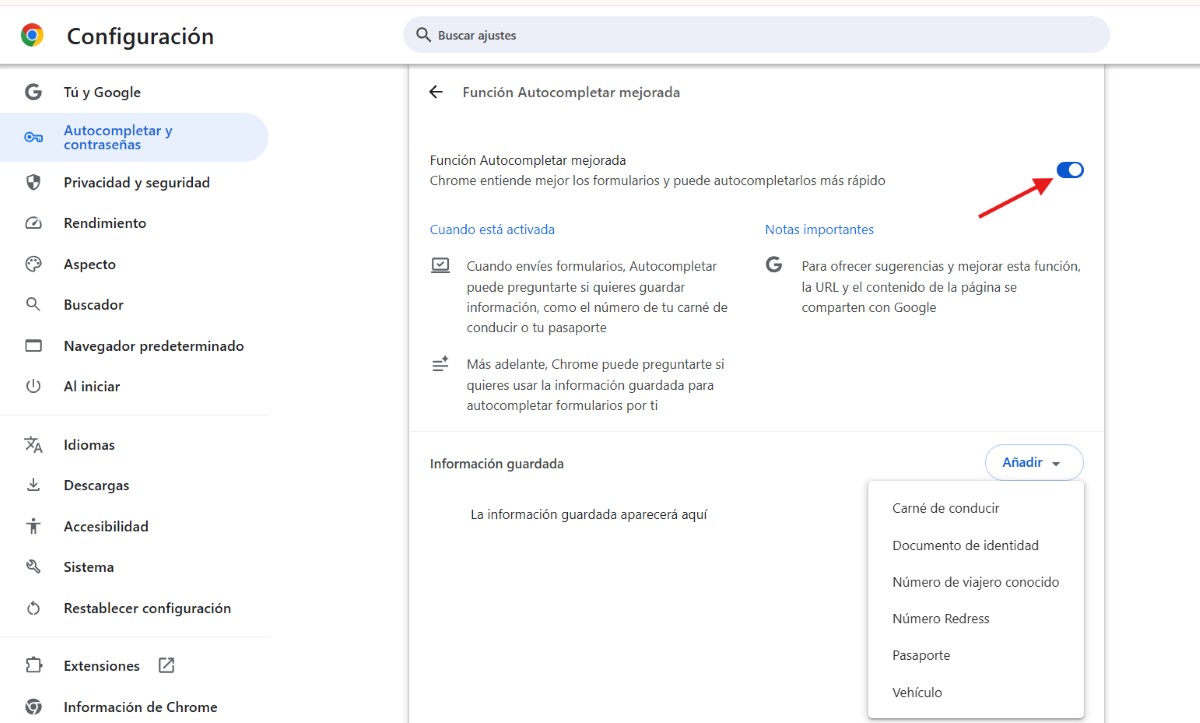
On the other hand, you have the option of Activate improved autocompleteIf you enable this new feature, when you submit forms, Autofill will ask if you want to save information. If you do, Chrome will then ask if you want to use the saved information to autofill forms for you. This way, Chrome better understands the forms and can autofill them faster.
This feature, the newest in Chrome, allows you to save additional information such as your passport, driver's license, vehicle registration, or insurance details. This data can then be integrated with Google Wallet, making it easier to complete online transactions and purchases. To activate the enhanced Autocomplete feature, do the following::
- Open Chrome and touch the three dots.
- Go to Configuration.
- In the left menu select Autofill and passwords.
- Enter Improved Autocomplete function.
- Slide the switch to activate it.
- Finally, if you wish, press add to add the personal information you want to keep saved for later use.
Is it safe to use Chrome's form-filling feature?
What is the practical use of this Chrome feature that fills out forms? When you need to fill out a form on a secure website, Chrome will suggest saved data. Simply select the suggested option, and the fields will be filled in automatically. Furthermore, if you enter new information into the form, Chrome will ask if you want to save it for future use.
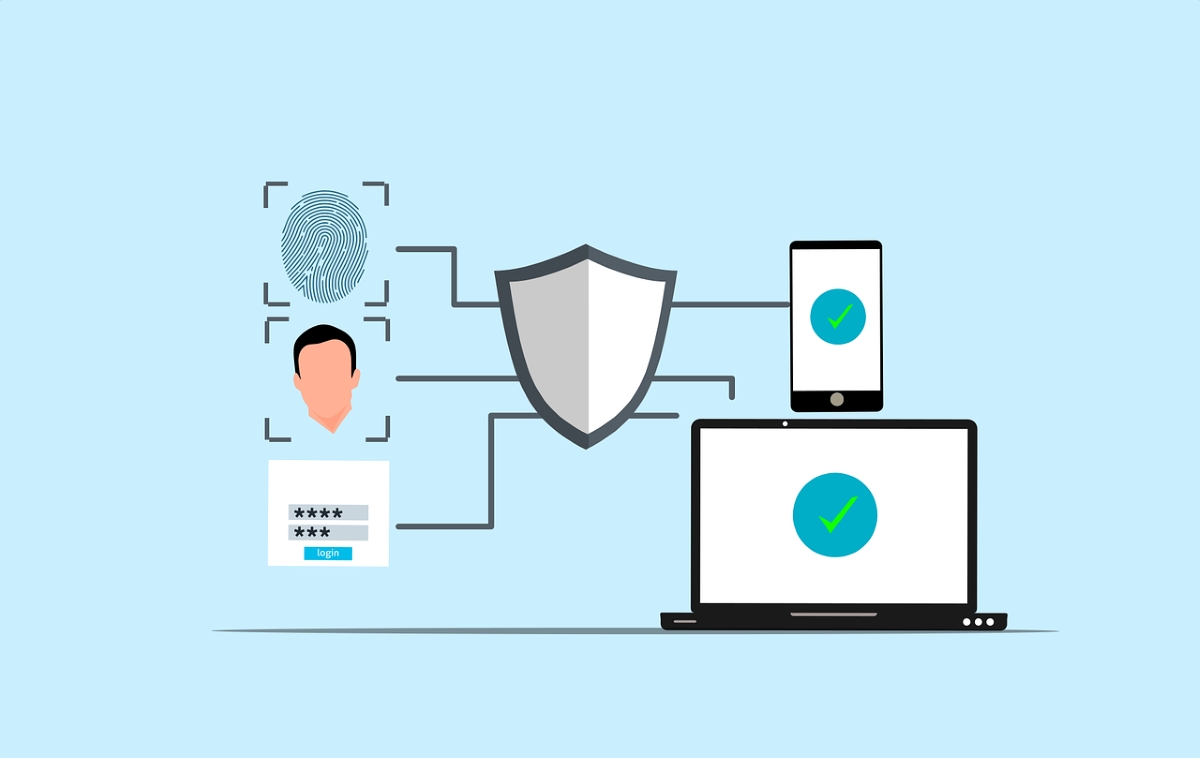
But of course, there's one aspect that worries many: the security and control of personal information. Is it really safe to use this Chrome feature that fills out forms for you? The short answer is: yes. Chrome doesn't share your information without your permission. In fact, it even You can use your fingerprints or face to complete forms or make payments on your mobile phoneTo achieve this, follow these steps:
- Access Chrome from your Android device.
- Tap on the three dots or More – Settings – Payment methods.
- From there, activate the option “Verify your identity to auto-complete payment methods”. To activate it, you will need to place your fingerprint.
- Once done, you'll get extra protection when paying with the data saved in Chrome's autofill feature.
Finally, remember that You can delete all autofill data at any time.To do this, go to Settings – Clear browsing data – Data for form autofill. You can choose a time period such as Last hour or All time. Finally, tap Clear data and you're done.
What happens if Chrome doesn't suggest saved information?
What if you completed the entire process, but when you try to fill out a form, Chrome doesn't recommend the saved information? The first thing you should do is confirm that you saved the information correctly. If everything is fine, then it's possible that The website may not be secure enough to receive information from Chrome.However, if the site is secure, Chrome may not be able to detect certain form fields and therefore not fill them in automatically.
In conclusion, enabling Chrome's form-filling feature is a simple way to optimize your digital experience. With this toolForms are completed faster and more accurately.reducing errors and saving you valuable time.

From a young age, I've been fascinated by all things scientific and technological, especially those advancements that make our lives easier and more enjoyable. I love staying up-to-date on the latest news and trends, and sharing my experiences, opinions, and tips about the devices and gadgets I use. This led me to become a web writer a little over five years ago, focusing primarily on Android devices and Windows operating systems. I've learned to explain complex concepts in simple terms so my readers can easily understand them.