
Maintaining control of your network is vital for your security and connection speed. Are you worried that someone is using your Wi-Fi without authorization? In this article, we'll explain how. How to view devices connected to your network from WindowsFirst, we'll see how to do it using native system tools, and then we'll look at how to take advantage of third-party tools.
How to see devices connected to your network from Windows
Previously, we analyzed How to tell if someone is using your Wi-Fi without permission using a mobile device or PC. However, today We'll focus on how to view devices connected to your network from WindowsThis way, you'll learn to identify each device connected to your PC. Then, discover how to quickly detect intruders and protect your digital privacy with these simple technical steps.
From the file explorer
The first (and fastest) way to see devices connected to your network from Windows is using File ExplorerThe file explorer? Yes. This option is basic and doesn't require any installation, although sometimes it doesn't show all devices if they have network protection enabled.
These are the Steps to view devices connected to your network from Windows using File Explorer:
- Open File Explorer
- In the left panel, click on Network.
- A message appeared saying "Network discovery is disabled"; click on the yellow bar at the top to turn it on.
- There you will see a list of computers, phones, and multimedia devices currently connected to your network.
Using third-party tools
If the first alternative didn't work for you, then you can use a third-party tool to see the devices connected to your network. If you want accuracy and details (such as the device brand or its MAC address), Wireless Network Watcher It's a lightweight, free classic. Download it from its website. official websiteRun it and it will automatically scan your network.
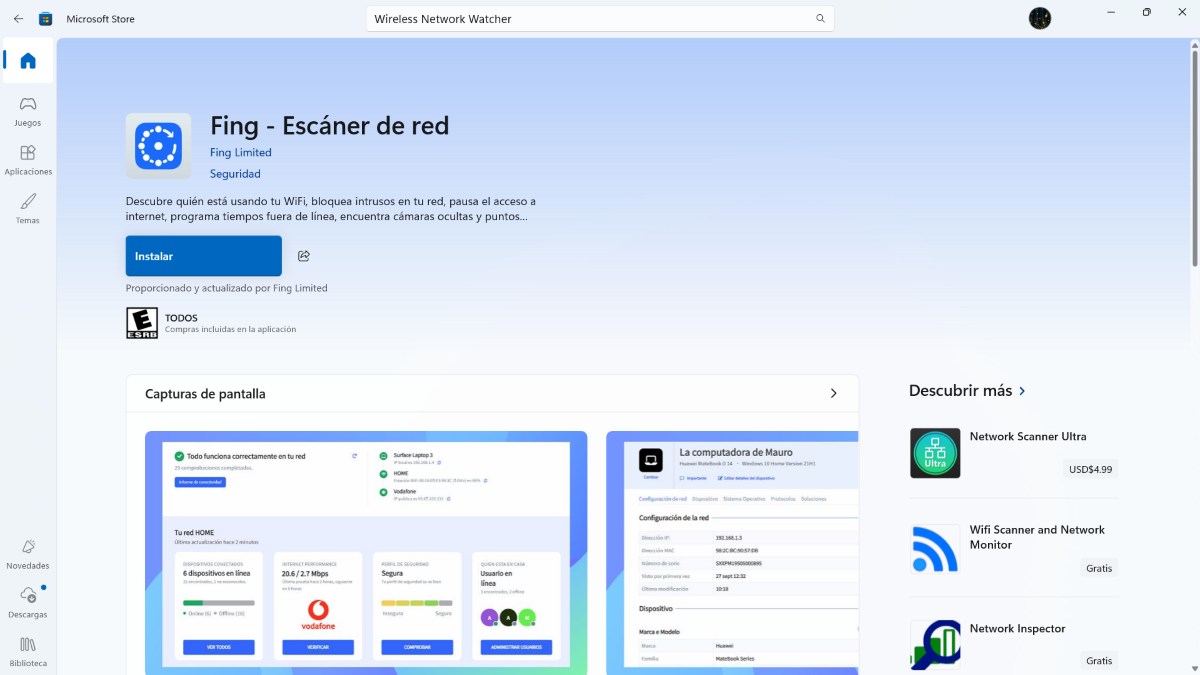
Another third-party tool that is very popular and visually appealing is FingThis application Identify what type of device is connected to your network (For example, an iPhone 15, an LG Smart TV, or a Philips Hue smart bulb). You can also set it up to notify your phone if a new device connects to your network. How do I use Fing?
- Search Fing in the Microsoft Store and install it.
- As soon as you open it, it will detect your network.
- It will show you a clean list with icons for each device, its IP address, and its brand.
- To view devices connected to your network from Windows using Fing, It is not necessary to use the paid versionThe free version is sufficient.
The foolproof method: Access your router's settings
A precise method to find out if there are devices connected to your network from Windows is accessing your router settingsThe router is the "network boss" and knows exactly who is allowed to be there. But how can you log in? You typically use numbers to access it. 192.168.1.1 or 192.168.0.1Now, in order to know exactly which number you should enter into the browser, do the following:
- Open System symbol (Type cmd in the Windows Start menu).
- Writes ipconfig and press Enter.
- Look where it says Default gateway (for example: 192.168.1.1).
- Copy that number, Paste it into your browser's address bar and log in with your credentials (usually, these credentials are on a label underneath the router).
- Look for a section called List of devicesDHCP Client List or Network Map. There you can see all the devices connected to your network from Windows.
When is it advisable to view devices connected to your network from Windows?
Monitoring your network is not just an act of technical curiosity, It's one of the best digital cleanup practicesThis means that there are situations where it's necessary, and even advisable, to view devices connected to your network from Windows. Below, we'll discuss these specific situations.
When there is inexplicable slowness
Come on, who doesn't think their Wi-Fi is being stolen when their The connection becomes slow for no explanation.If you're trying to watch a series or play online and the lag is unbearable, or if downloads are going at a snail's pace despite having a good plan, there could be an intruder using your connection to download large files (or to do something else).
After setting up a new smart device
If you set up a new smart device such as light bulbs, plugs, or Wi-Fi cameras, It is appropriate to verify that the device appears with the correct name.Check that there are no phantom devices that appeared right after installing that dubious app to control your lights.
After receiving visits or sharing your key
Who hasn't shared their Wi-Fi password with a neighbor in an "emergency"? If you recently hosted a gathering at your home with several neighbors, it's time to check if their devices are still connected to your network. Many phones, tablets, and computers automatically save network information. Checking the list will help you see if they're still connected and whether it's time to change your password.
Suspected vulnerabilities
Do you have serious suspicions that Some equipment in your home has been infected by a virus Or perhaps you were a victim of phishing? Since some viruses try to spread to other computers using the same network, seeing which devices are visible helps you isolate them quickly.
What should you do if you see a device you don't recognize?
So, what should you do if you find devices connected to your network from Windows? If you see a device you don't recognize, The best solution is to change your Wi-Fi password immediately. From the router settings. Once inside, do the following:
- Look for the Wireless / Security section.
- Change the network name and, above all, the password.
- Use WPA2 or WPA3 encryption (avoid WEP or WPA as they are very easy to hack).
Don't forget that once you change your password, You will need to reconnect all your devicesIt's a bit of a hassle, but it's the only way to guarantee that the intruder stays out of your network.

From a young age, I've been fascinated by all things scientific and technological, especially those advancements that make our lives easier and more enjoyable. I love staying up-to-date on the latest news and trends, and sharing my experiences, opinions, and tips about the devices and gadgets I use. This led me to become a web writer a little over five years ago, focusing primarily on Android devices and Windows operating systems. I've learned to explain complex concepts in simple terms so my readers can easily understand them.