- GameBarPresenceWriter.exe manages game presence and integrates Xbox Game Bar.
- There are multiple versions and hashes; the legitimate file resides in System32.
- It can cause resource consumption and stuttering if you don't use captures.
- There are safe ways to disable it: Settings, Services, and Registry.
If you're playing on a Windows PC, you've probably seen the GameBarPresenceWriter.exe process in Task Manager or received some annoying notifications. This component is part of the Xbox Game Bar ecosystem and game capture, and although it is useful for those who record or transmit, can become a nuisance if you don't use any of those features.
In this complete guide we are going to break down what exactly Game Bar Presence Writer is, how it works on Windows 10 and later, what problems users report and, above all, How to safely disable it with different methods (from Windows tweaks to Registry changes, services, and more). We'll explain in detail, including all the paths, keys, and options involved.
What is GameBarPresenceWriter.exe and what is it used for?
GameBarPresenceWriter.exe is a Win32 EXE executable included in Windows 10 and later versions, associated with the Windows gaming settings and the Xbox Game Bar experience. Its main purpose is to manage the presence state of the game (if a game is active in the foreground, if the window loses focus, or if it closes) and communicate it to the Xbox ecosystem when appropriate.
By default, if the user has the Xbox app installed, is signed in to their account, and has allowed presence to be set. Xbox Live when playing on PC, This component updates that state automaticallyThis way, your contacts can see that you're in a game session. Application developers can override this Windows-provided behavior with their own implementation.
According to Microsoft's technical documentation, Game Bar Presence Writer exists in Windows 10 and later and relies on an out-of-process COM server. This means that Windows can call a specific implementation of the presence writer. to communicate events when a game is detected.
How it works underneath: interface, events and logging
The implementation provided by Windows exposes an interface called IPresenceWriter and a runtime class called PresenceWriter. The key interface offers the UpdatePresence method with the necessary parameters to describe the game context and focus changes:
- Window handle of the game (a handle to the active window; in the technical definition it is typed as a UINT64-based WindowId).
- Notification event from the game: possible values None, GotFocus (gained focus), LostFocus (lost focus), or AppClose (closed).
- Application identifier of the game (appId): This can be the AUMID (Application User Model Id) or the Xbox Live TitleId.
- Identifier type (appIdType): Aumid or TitleId, to indicate what the previous field corresponds to.
When you launch a game, Windows invokes UpdatePresence with this data so the implementation can set presence or do whatever is appropriate. If a developer wants to provide their own Presence Writer, you must provide an out-of-proc COM server that implements that interface.
For a custom deployment to run, the system requires a registry value pointing to the path of the server executable. Specifically, the key is: HKEY_LOCAL_MACHINE\SOFTWARE\Microsoft\WindowsRuntime\Server\Windows.Gaming.GameBar.Internal.PresenceWriterServer\ExePath. The data type is REG_SZ and its content must be the full path to the executable. which acts as a server for Presence Writer.
Additionally, in advanced scenarios a class has been documented that can be activated in the Registry under Windows.Gaming.GameBar.PresenceServer.Internal.PresenceWriter, where some users have manipulated the ActivationType value. Below you will see how it is used in one of the methods to stop presence telemetry..
Location, versions and integrity checks
On standard Windows installations, the binary is located at C:\Windows\System32\GameBarPresenceWriter.exe. There are multiple builds, sizes, and checksums. depending on the edition and version of the system:
- Tamaño aproximado 83 KB, MD5 d040264ba57bb72554c345f64ec635db, SHA1 50c3677a29cc809e3aa2c373c3df11eb14b99614, CRC32 ec32d073. Common in Windows 10 1607 both x86 and x64, and available in Education, Enterprise, and N variants.
- Tamaño aproximado 110 KB, MD5 f12fea49547eef195c422fcbca7ef575, SHA1 f87082cf430ddffff57f3aae53cc16d9175202a8, CRC32 fcaa6d1d. Common in Windows 10 Enterprise 2016 LTSB x64.
- Tamaño aproximado 205 KB, MD5 0c0f21df984fbfb430679f8120c12341, SHA1 e9af59525554c3690ce187175b28c4d15112b356, CRC32 604c0840. Associated with Windows 10 1703 on x86 and x64, including Education, Enterprise, and N editions.
- Tamaño aproximado 282 KB, MD5 6ae8f6709012bcbf6a92ac574b589d70, SHA1 a32f43636f59353ad6eed2d41f359ec6f9926e8c, CRC32 09cea85c. Seen in Windows 10 1703 x64 builds.
These values are repeated in file listings for different Windows images and SKUs (Home, Pro, Education, Enterprise, N), helping you verify authenticity if you suspect a malicious variant. Checks that the file resides on System32 and matches known sizes and hashes to rule out malware masquerading as this component.
Common problems reported by users
Although it serves a clear purpose at the system level, many players report that the service activates without their request and displays alerts when they open a game. The most repeated symptoms when talking about Game Bar Presence Writer include:
- Bandwidth usage unnecessary in the background.
- High CPU usage in modest equipment or during long sessions.
- Memory occupied when nothing is being recorded.
- FPS drop or stuttering noticeable in certain titles.
- Slowdowns general game settings when switching windows.
If you never record, clip, or stream, this whole layer can become unnecessary and a nuisance. The good news is that it can be disabled in several ways., from the most harmless to the most advanced. We recommend always starting with system settings before touching the Registry or file permissions.
How to Disable Game Bar Presence Writer: 11 Proven Solutions
Before we get into it, two important tips: only change what you know and create a restore point or copy of the Registry. Editing the Registry or disabling services carelessly can cause unwanted effects.If you rely on recording or streaming features, keep in mind that disabling Game Bar means you lose that convenience (though your games will still work).
1) Disable Game DVR and Game Bar from Registry
This method cuts out several capture-related functions at the root. Back up the Registry from File > Export in Registry Editor before touching anything.
- Open the Run box Press Windows + R, type regedit and confirm.
- Go to
HKEY_CURRENT_USER\Software\Microsoft\Windows\CurrentVersion\GameDVRand locate the value AppCaptureEnabled. Change it to 0. - Now navigate to
HKEY_CURRENT_USER\System\GameConfigStoreand put GameDVR_Enabled in 0. - En
HKEY_LOCAL_MACHINE\SOFTWARE\Policies\Microsoft\Windows\GameDVRestablishes AllowGameDVR 0. - En
HKEY_CURRENT_USER\Software\Microsoft\GameBaradjust AutoGameModeEnabled 0. - Restart your computer to apply the changes. After the reboot, background capture should be disabled..
2) Disable Xbox Game Monitoring (xbgm)
Windows includes a monitoring service for Xbox that you can disable using the Registry. This prevents some of the gaming-related oversight..
- Open the Registry Editor.
- Go to
HKEY_LOCAL_MACHINE\SYSTEM\CurrentControlSet\Services\xbgm. - In the value Start (REG_DWORD), change the data from 3 to 4.
- With 4, the service is disabled. If you want to revert it, go back to 3.
3) Take control of the file and delete it (not recommended)
Some users choose to take ownership of the executable and delete it so that it cannot be loaded again. We do not recommend it unless you are clear about what you are doing., because it is a system file and you could break dependencies.
- Locate
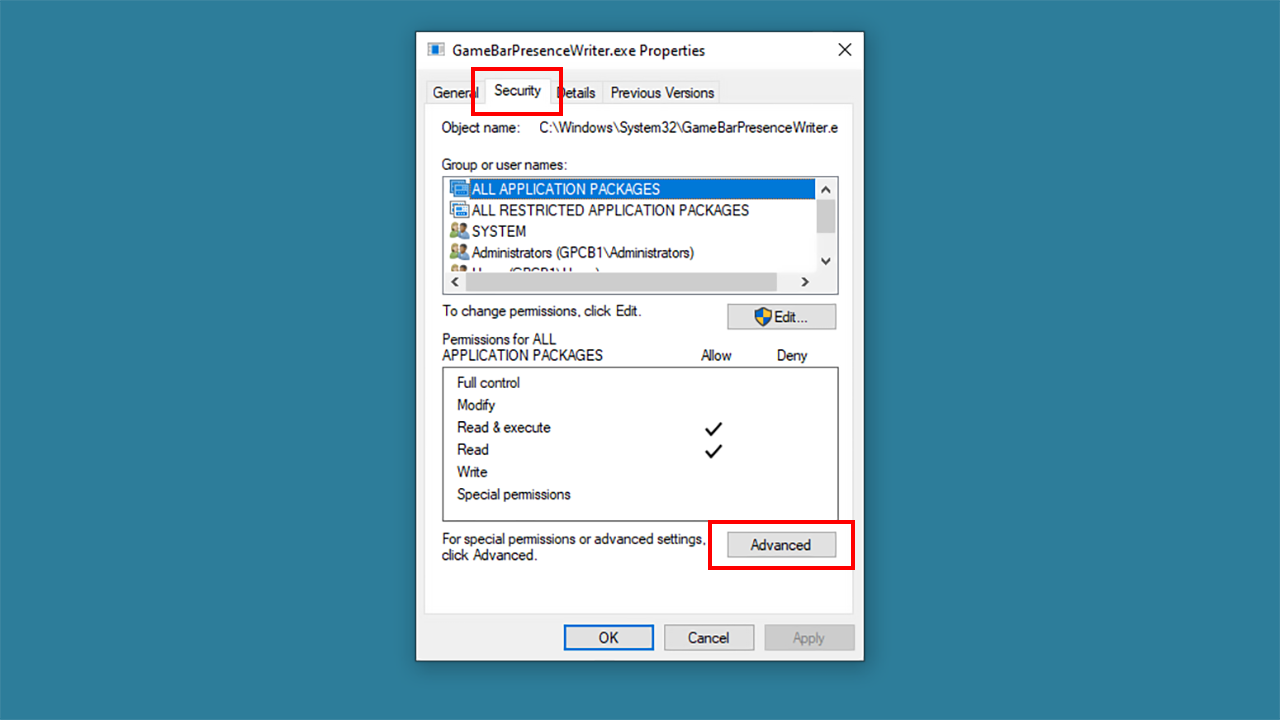
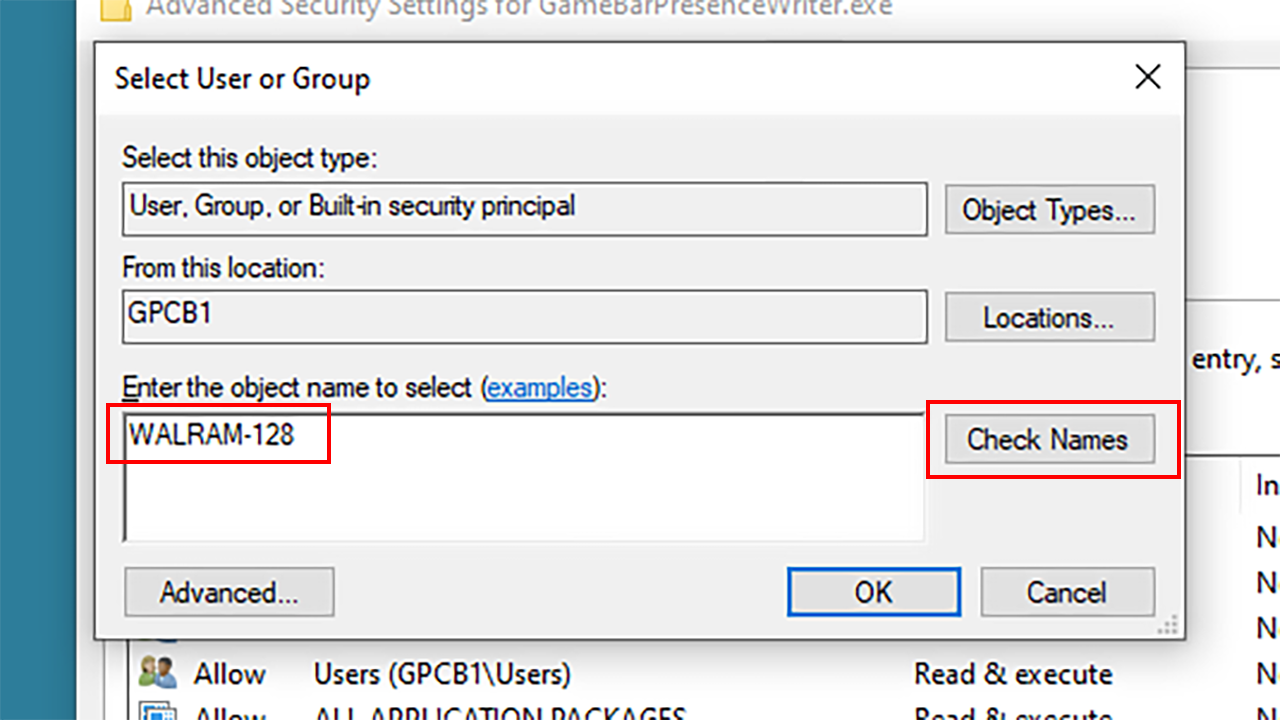
C:\Windows\System32\GameBarPresenceWriter.exefrom the search engine. - Open Properties > Security tab > Advanced, change the owner (TrustedInstaller) to your admin user and apply.
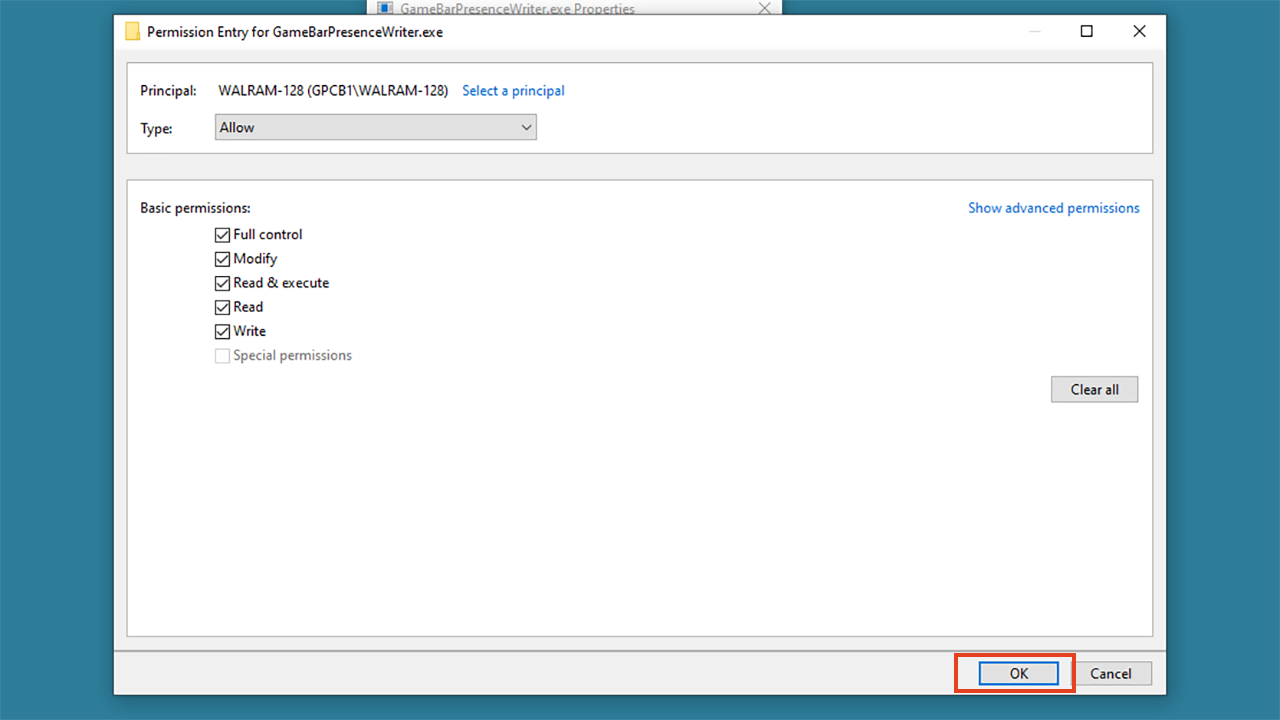
- Under Permissions, add your user and select Full Control. Accept the notices.
- Once you've granted control, delete the problematic executable. Note: Some tutorials also mention deleting gamebar.exe; consider whether this is worth it or if you prefer reversible methods.
4) Disable the activation of the presence telemetry class
This approach relies on changing the activatable class related to PresenceWriter to prevent it from loading. Use it if the above settings do not work..
- Go to
HKEY_LOCAL_MACHINE\SOFTWARE\Microsoft\WindowsRuntime\ActivatableClassId\Windows.Gaming.GameBar.PresenceServer.Internal.PresenceWriter. - In Permissions > Advanced, change the owner to your user and grant yourself full control (same as in step 3).
- Modify the value ActivationType 0. This prevents automatic activation of the class..
5) Stop the GameDVR and Broadcast User Service
From the services console you can stop the user part that manages captures and retransmissions. It is a fast and reversible method.
- Open Run, type
services.mscand press OK. - Seeks GameDVR and Broadcast User Service, right click and choose Stop.
6) Close the process from the Task Manager
If you want to stop the current session, simply end the process. It's not permanent, but it cuts the problem off immediately..
- Right click on the taskbar and choose Task Manager.
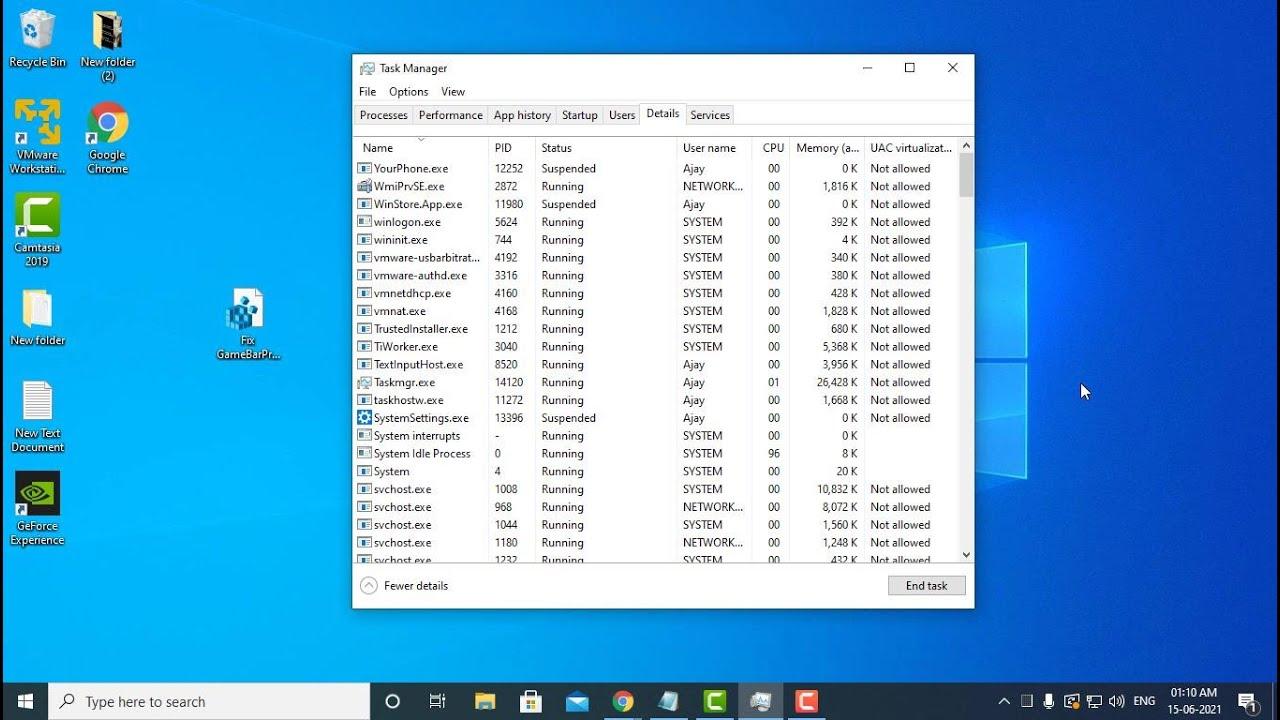
- In the Processes tab, locate Game Bar Presence Writer and press End Task.
7) Disable from the Xbox Game Bar overlay
The Game Bar itself allows you to turn off options that feed presence and capture. It is the friendliest way.
- Open a game; if the Game Bar isn't displayed, press Windows + G.
- Enter the gears of Settings.
- Uncheck at least: 'Record in background', 'Open Game Bar with controller', 'Show Game Bar in verified full screen games', and 'Remember this as a game'. The fewer active options, the less it will interfere.
8) Turn off Game Bar from the Xbox app
The Xbox app also links to capture settings. From there you can go to system settings and disable background logging..
- Open the Xbox app and go to Settings.
- En Captures, go to the Windows Settings link and turn off background recording.
- Restart your computer to consolidate changes. After the restart, presence activity should cease..
9) Disable Game Bar from Windows Settings
Windows 10 includes a 'Games' section in Settings. Turn off the general option of the Game Bar And that's it.
- Open Settings > Games.
- On the Game Bar tab, turn off 'Record game clips, screenshots, and broadcast with Game Bar'. This prevents loading and overlapping..
10) Set Captures: No background recording or audio
Another crucial point is in Screenshots within the Game settings. Turn off background recording and audio from recordings.
- In Games > Captures, turn off 'Record in the background while I play' and 'Record audio when I record gameplay'. This way you minimize activity and consumption.
11) Disable Game Mode
Some computers react better with Game Mode turned off, especially if there are conflicts with automatic optimizations. Try it if jerks or focus shifts persist..
- In Games > Game Mode, turn it off.
Important notes and alternatives
In several forums it is suggested to uninstall Xbox Game Bar. It is feasible and, as a general rule, The games will continue to run without the overlay or screenshotsHowever, you'll lose those features. Before taking drastic measures, it's recommended to create a full system backup, try reversible adjustments first, and keep Windows up to date.
In addition to the 11 methods, there are other ideas that some users have applied: Limit network usage of the Game Bar Presence with firewall rules, resort to third-party utilities to prevent it from starting or remove the service, or uninstall the Xbox app itself if you don't use it. Remember that it's preferable lock and disable vs. delete system files to avoid side effects in future updates.
For teams that need more detailed control, it's a good idea to review the key technical points outlined by Microsoft: Out-of-process COM server that implements IPresenceWriter, with the PresenceWriter execution class, enumerations of game notification events (None, GotFocus, LostFocus, AppClose) and identifier types (Aumid, TitleId), and the UpdatePresence method with the four parameters: window, event, identifier, and type.
If you deploy your own implementation, make sure to correctly register the executable path in HKEY_LOCAL_MACHINE\SOFTWARE\Microsoft\WindowsRuntime\Server\Windows.Gaming.GameBar.Internal.PresenceWriterServer\ExePath as REG_SZ. Without that value, Windows will not be able to locate your custom presence server.In locked-down environments, the ActivationType value of the activatable class has also been used to prevent its automatic initialization.
As for versions, there are references to builds dating back to Windows 10 1507/1607 with a consolidated presence in 2015 at the launch of Windows 10, and version entries like 10.0.16299.1004 (WinBuild.160101.0800) cited in file databases. In any case, the feature is available on Windows 10 and later and integrates with the Xbox Live experience if the user allows it.
Reference table of the Record for custom servers (according to documentation):
| Value name | Guy | Content |
|---|---|---|
| ExePath | REG_SZ | Full path to the Presence Writer server executable |
Finally, if you manage a fleet of devices, consider implementing policies to disable capture and Game Bar where not needed, and document the changes. The more reversible the measure, the easier it will be for you to maintain and update the system..
With all of the above, you now know what GameBarPresenceWriter.exe does, why it sometimes causes consumption and inconvenience, and what levers you can tap to stop it without any headaches. Start with Windows Settings, then back up Services and Registry, reserving destructive measures as a last resort.; this way you'll have control without sacrificing team stability.

Editor specialized in technology and internet issues with more than ten years of experience in different digital media. I have worked as an editor and content creator for e-commerce, communication, online marketing and advertising companies. I have also written on economics, finance and other sectors websites. My work is also my passion. Now, through my articles in Tecnobits, I try to explore all the news and new opportunities that the world of technology offers us every day to improve our lives.