
Do you need to know what the Service Host: Shell Hardware Detection is? Perhaps your computer is having trouble recognizing a USB device. Or the "AutoPlay" window doesn't appear after inserting a memory stick. These and other problems are directly related to Shell Hardware Detection (ShellHWDetection)We'll tell you what its function is, the most common problems, and how to solve them.
What is the Service Host: Shell Hardware Detection?
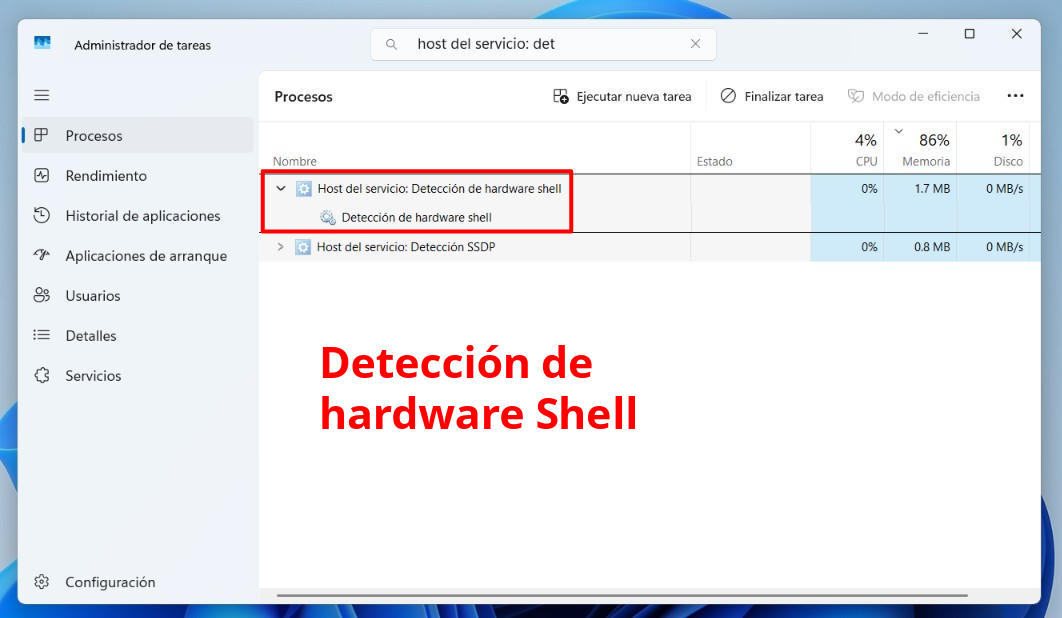
What is the Host: Shell Hardware Detection service? Basically, it's a Service Host instanceThe mechanism Windows uses to run certain system services. In Task Manager, it may appear under the general process svchost.exe.
And what does it do? Its main function is Provide notifications for autoplay hardware eventsIn other words, Shell Hardware Detection acts as a receptionist for the system hardware. When you connect a removable device or storage medium, the Shell Hardware Detection service detects it and notifies the Windows shell.
In turn, the Windows shell (File Explorer and the desktop environment) triggers the corresponding behavior: “AutoPlay” or “AutoRun”. Types of devices monitored by this service include, among others:
- USB flash drives and external hard drives.
- Discs inserted into CD/DVD drives.
- SD cards and other flash media.
- Digital cameras, MP3 players, and other portable devices.
When these devices are connected to the system, The service detects the type of content on the device. (such as images, music, or videos). It then prompts the system to display a selection menu, asking how you want to open or play the content. This way, you don't have to guess which specific software is needed to process a particular type of content.
Why does it appear as "Service Host"?
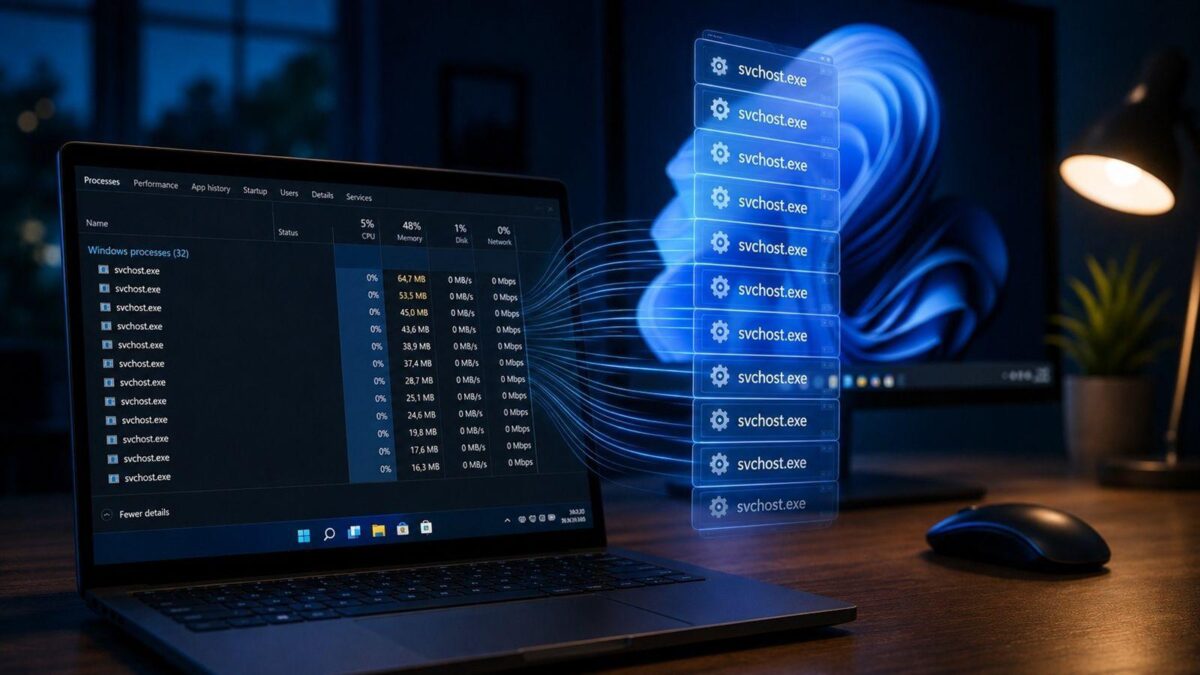
As we mentioned, Shell Hardware Detection appears under a general process or service hostThis expression can be somewhat confusing because it doesn't identify a specific program. Rather, it refers to an architecture used by Windows to host services.
The executable that usually appears behind these processes is svchost.exe, a legitimate Windows file which can run multiple times simultaneously. So it's perfectly normal to see multiple Service Host entries in Task Manager. Each one can group one or more different services.
Furthermore, terminating an svchost.exe process without knowing what services it contains is not recommended. It can cause problems. Certain Windows features may temporarily stop workingTherefore, when investigating one of these processes, it's not enough to simply look at the service's hostname; you need to verify which specific service is hosted on it. (See the topic How to find out which service is behind each svchost.exe).
Shell hardware detection: Common problems and configuration recommendations
It's clear that the Shell Hardware Detection service is a native and essential component of Windows. What it does is notify the system about hardware events related to autoplayIt goes unnoticed by most users until it stops or becomes misconfigured, causing problems such as the following.
The drive does not appear in Explorer
This is the most common situation that leads any average user to notice the existence of the Shell Hardware Detection service. Connect an external memory or disk to your PC, and The drive letter does not appear in "This PC"But the device was recognized: it rings, turns on, or appears listed in Device Manager.
Why does this happen? This problem is usually directly related to the fact that The service is not started or has been disabled.The solution? Restore the service again by following these steps:
- Open the Run dialog box (Win + R).
- Type services.msc and press Enter.
- Locate "Shell Hardware Detection" and double-click on it.
- Change the startup type to "Automatic" and press the "Start" button.
- After restarting the computer, drive recognition should return to normal.
Conflicts with autoplay and notifications
It also happens that you insert a device into the computer and You wait for the AutoPlay window to appearBut nothing happens. The service might be running, but for some reason the AutoPlay setting has been disabled. Or vice versa: scan and repair notifications keep popping up over and over again when USB drives are connected.
Again, manually resetting the service and restarting your computer usually resolves the AutoPlay window issue. Disabling the service simply to eliminate annoying USB scanning notifications is not recommended. In this particular case, the best course of action is disable autorun From Settings – Bluetooth and devices – Autoplay.
It uses too much CPU
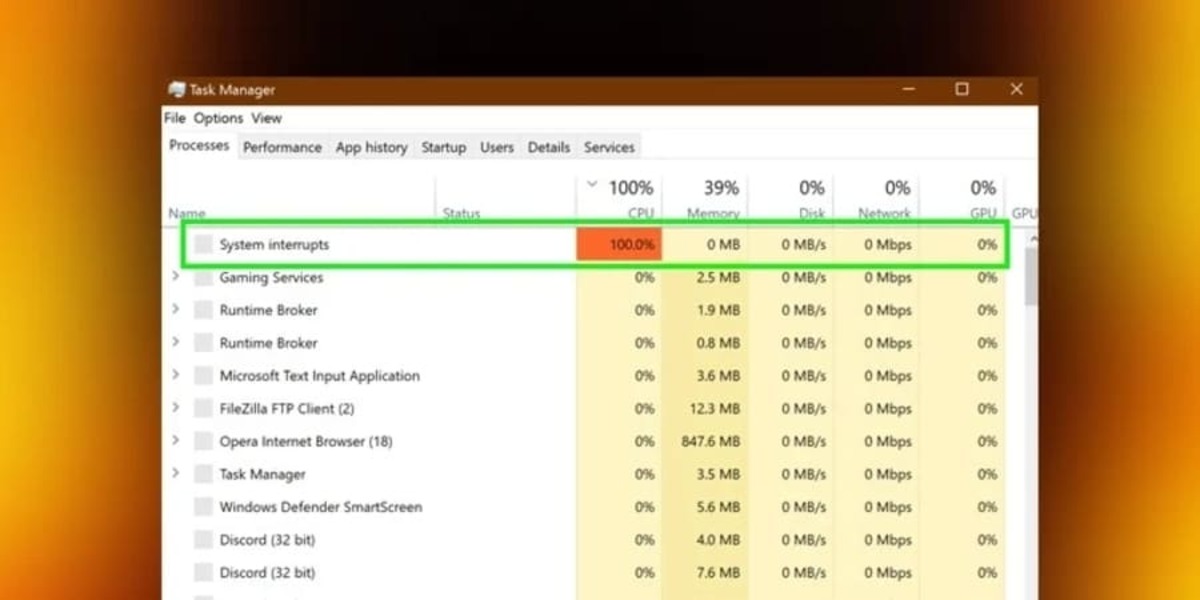
It's normal for the Shell Hardware Discovery service to increase resource consumption after connecting a device. It's also normal for it to return to normal after disconnecting it. What's not normal is that It consumes too much CPU or remains active even when no devices are connected..
If the problem disappears after removing a specific device, there may be an issue with that hardware or its drivers. And if it continues to draw high power, try... restoring or updating the drivers of the USB ports. You can do this from Device Manager, looking at categories such as Universal Serial Bus controllers, Imaging devices, and Disk drives.
Shell hardware detection: a normal and essential function
Now you know what the service host is: Shell Hardware Detection, and that you only notice it when it starts to fail. It's a normal and essential function of the Windows operating system which allows hosting services related to certain hardware detection and management functions. If there are problems, the best thing you can do is Leave it running with its default settings..
And if the need arises to modify its behavior, do so gradually and never disable it completely. Most problems associated with this service are easily resolved. verifying that it is started and set to automaticMore aggressive interventions are rarely necessary: doing so usually makes things worse.

Index