- Hiding your own view removes your screen thumbnail, but other participants can still see your video.
- To restore your image, open the View menu and select Show self view during meeting.
- Hiding your video from the screen does not activate or mute the microphone you use in Zoom.
- Stopping the video does prevent others from seeing your camera's signal during the meeting.

If constantly seeing yourself on a video call distracts you, you can Hide your image on Zoom without turning off your cameraThe option is called Hide your own view: Remove your thumbnail from your screen, while other participants continue to watch your live video.
It's a change in how you view the meeting. It doesn't stop the camera, replace your image with a photo, or change the microphone's status. You can return to your own view whenever you want to check the framing.
How to hide your image on Zoom without turning off your camera
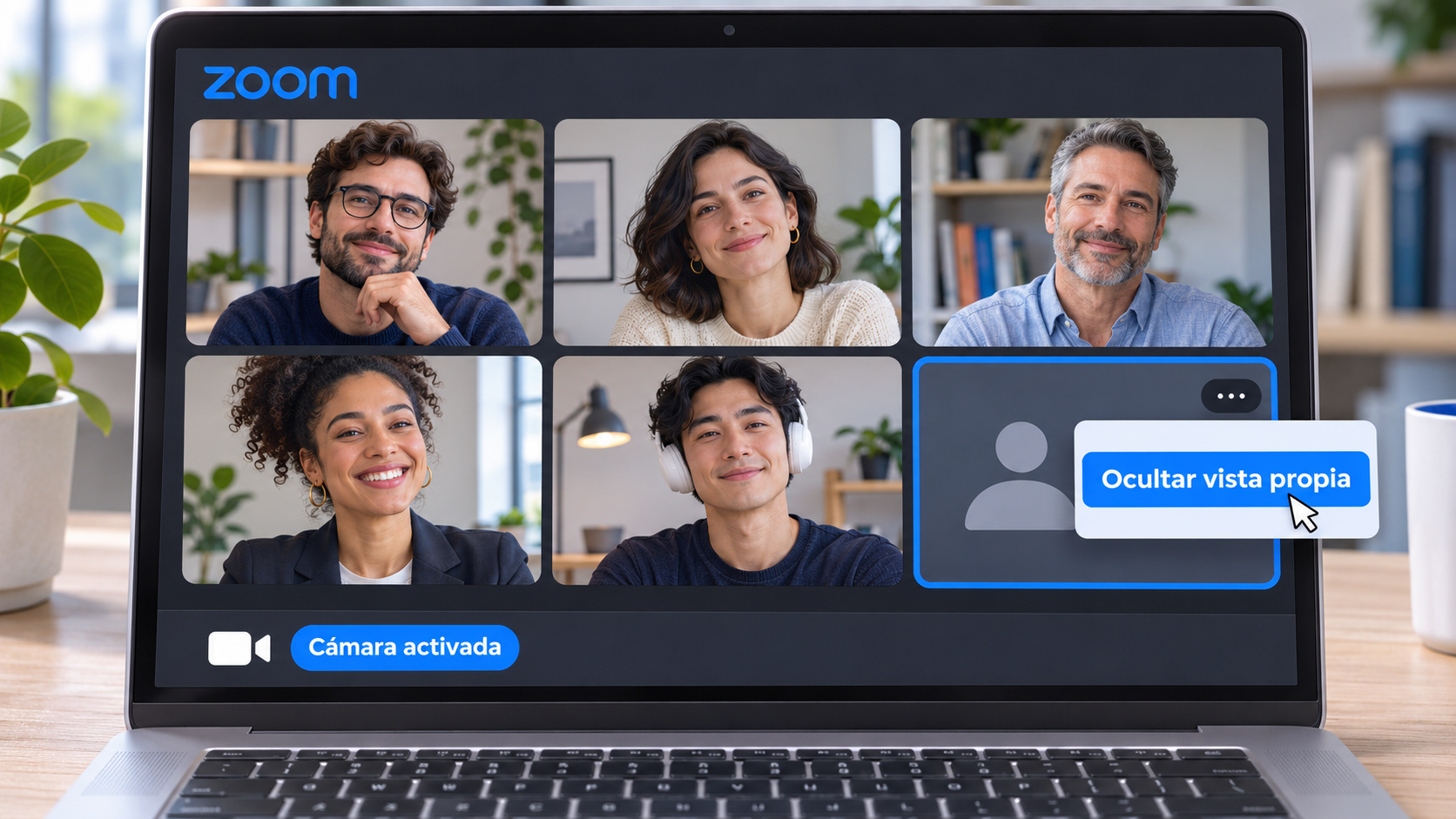
In the Zoom Workplace desktop application:
- Start a meeting or join one that's already in progress.
- Activate your video if you want others to continue seeing you.
- Place the pointer over your own box and press the button three points.
- Select Hide your own view, either Hide Self View if you use Zoom in English.
You can also find the option in the menu. See, located in the upper right part of the meeting window, depending on the distribution and version of the application.
Your thumbnail will no longer be displayed on your screen. Other people will still receive the signal from your camera. If you want them to stop watching you, use the control to stop the video.
How to show your own view again in Zoom
To retrieve your box during the meeting:
- Open the menu See in the upper right part of the window.
- Select Show own view, either Show Self View.
You don't need to open another participant's video menu. When you show your image again, you can review the framing, lighting, or background and hide it again if you prefer.
What changes when you hide your view, and what do others still see?
These functions have different effects:
| Action | What changes | What do others receive? |
|---|---|---|
| Hide your own view. | Your video disappears from your screen. | They can still see your live camera if video is enabled. |
| Stop the video. | You stop sending the camera image. | They stop seeing your video; your photo or name may be displayed, depending on the settings. |
| Mute the microphone. | You stop transmitting the sound from that microphone. | The video continues if you haven't stopped it. |
| Activate or deactivate the Zoom mirror effect. | Change the horizontal orientation of your preview. | That preview adjustment does not, by itself, modify the video they receive. |
Hiding your own view is not the same as blurring the background or applying a virtual background. Those settings modify the video's appearance; your own view controls whether you see your frame.
Is it necessary to use a virtual camera?
You don't need to install an additional app to stop seeing yourself. A virtual camera, like the one included in OBS StudioIt allows you to send a scene from the program to Zoom as a video source. Therefore, you can change the content that others see and it serves a different purpose.
If you just want to remove your thumbnail from the screen, use Hide your own viewYou also don't need to freeze the image or play a looped video to achieve this.
The Zoom web application also includes a setting to hide your own view:
- Join the meeting from the Zoom web application.
- Open Configuration o Settings.
- Enter the section Video.
- Active Hide your own view o Hide Self View.
The position of the controls may differ from the desktop application. Do not confuse this option with the one that disables video when joining a meeting.
How to use a profile picture when you decide to turn off video
If you want others to stop seeing your camera, stop the video. In that case, Zoom may still display your profile picture, although whether it appears depends on your meeting settings and account.
To add or change your photo from the website:
- Log in to the Zoom web portal with the account you use for meetings.
- Open the menu using your photo or initials and enter Profile.
- Tap on the avatar or current photo to add or change the image.
- Adjust the crop and save the changes.
If you can't change it, your account administrator may have restricted that option. Additionally, the host or organization can hide profile pictures during meetings, so You shouldn't assume that your photograph will always appear..
This alternative requires pausing the video. Hiding your own view will not pause a video that was already playing.
What happens to the microphone when you hide your image?

Hiding your own view does not activate or mute the microphone. If it was open, it will continue streaming; if it was muted, it will remain muted.
Manage both controls separately:
- So that others don't hear you: Mute your microphone from the audio controls.
- To stop seeing yourself on your screen: Use Hide Self-View.
- To make others stop seeing you: Stop the video.
Before hiding your box, you can check the framing and then check the microphone icon to see if it's open or muted.
What to check if you can't find the option or your video doesn't appear
The "Hide self-view" option does not appear.
Search both in your video's three-dot menu and in SeeIf you are screen sharing or using a minimized window, return to the main window to locate the controls.
Also, make sure you're using an updated version of Zoom. The menu layout may change between versions and between the desktop and web applications.
You've hidden your view, but you want to check if the camera is still on.
Re-display your own view and check the video controls. The absence of your thumbnail does not mean you have turned off the camera.
Others can't see your video either.
This requires checking the camera or the stream, not just your own view. Verify the selected device, permissions, and that the video is running. If you're using Windows, you can expand the checks when An application is not detecting the camera in Windows 11.
If the problem occurs when logging in from Chrome, also check what to do when Chrome doesn't remember that you allowed the camera on a website..
Frequently Asked Questions
How can I stop seeing myself on Zoom without others noticing?
You need to go into your own video box options and select the "Hide self-view" function. This removes your image from your screen but keeps the stream active for the other participants.
Is it possible to put a photo in Zoom without turning off the camera?
To achieve this, you need to use a virtual camera like OBS Studio or CamHold. These applications trick the system by sending a still image or black background as if it were a live video signal.
Where do I change the photo that others see when I turn off the video?
The image is changed from the account profile on each platform. In Zoom, it's done in the profile settings; in Meet, the photo is changed in the Google account; and in Teams, it's changed in the Microsoft account.
What happens to the microphone if I use a still image or camera filter?
The audio works independently of the video, so the microphone will remain open. You need to mute yourself manually from the video call application to prevent background noise from being heard.
Why does the text in my image appear upside down on my screen?
Most video calling applications display a mirrored preview for the user's convenience. Other participants see the image in the correct orientation, and the text is readable normally.
What is Zoom dysmorphia and how can it be fixed?
It's the anxiety or dissatisfaction with one's own image caused by constantly seeing oneself on screen. It can be mitigated by turning off self-view to focus on the conversation and not on the virtual mirror.
Index
- 1 How to hide your image on Zoom without turning off your camera
- 2 How to show your own view again in Zoom
- 3 What changes when you hide your view, and what do others still see?
- 4 How to hide your view if you're using Zoom from your browser
- 5 How to use a profile picture when you decide to turn off video
- 6 What happens to the microphone when you hide your image?
- 7 What to check if you can't find the option or your video doesn't appear
- 8 Frequently Asked Questions
