Do you need to access an HTTP website but Firefox won't let you? Don't worry: the browser is just protecting you. There are also several alternatives to allow an HTTP website When Firefox has HTTPS-only mode enabled, we'll tell you what those are and how to use them securely.
Allowing an HTTP website when Firefox has HTTPS-only mode enabled

Allowing an HTTP website when Firefox has HTTPS-only mode enabled is simple, but has its risksTherefore, before doing so, it's important to understand what HTTPS-only mode is and why it's enabled by default. All modern browsers (Firefox, Chrome, Edge, Safari, etc.) include this security feature, just with different names.
HTTPS-only mode in Firefox forces all connections to be made using HTTPS. secure HTTPS protocolThis protocol encrypts data using TLS or Transport Layer Security (Transport Layer Security). Basically, its three main functions are:
- Encryption: Converts the data you send and receive (passwords, bank details, messages) into unreadable text for anyone trying to intercept them on the network.
- AuthenticationVerify that the server you're communicating with is indeed who it claims to be (that's why digital certificates exist). In other words, avoid spoofing attacks.
- Integrity: Ensures that the data has not been modified in transit between your browser and the server.
It's clear why it's so important and necessary for a web browser to use the HTTPS protocol to communicate with a server. That's why, if you type or access an HTTP link, Firefox will first attempt to connect using HTTPS.If the website supports secure connections, everything will work normally.
However, if the server does not have HTTPS or cannot properly establish an encrypted connection, Firefox will display a warning. The webpage will not load automatically. And you'll only be able to visit it under certain conditions. In most cases, you appreciate that Firefox does this; other times, it's annoying because you really need to allow an HTTP website.
How to allow an HTTP website when Firefox has HTTPS-only mode enabled
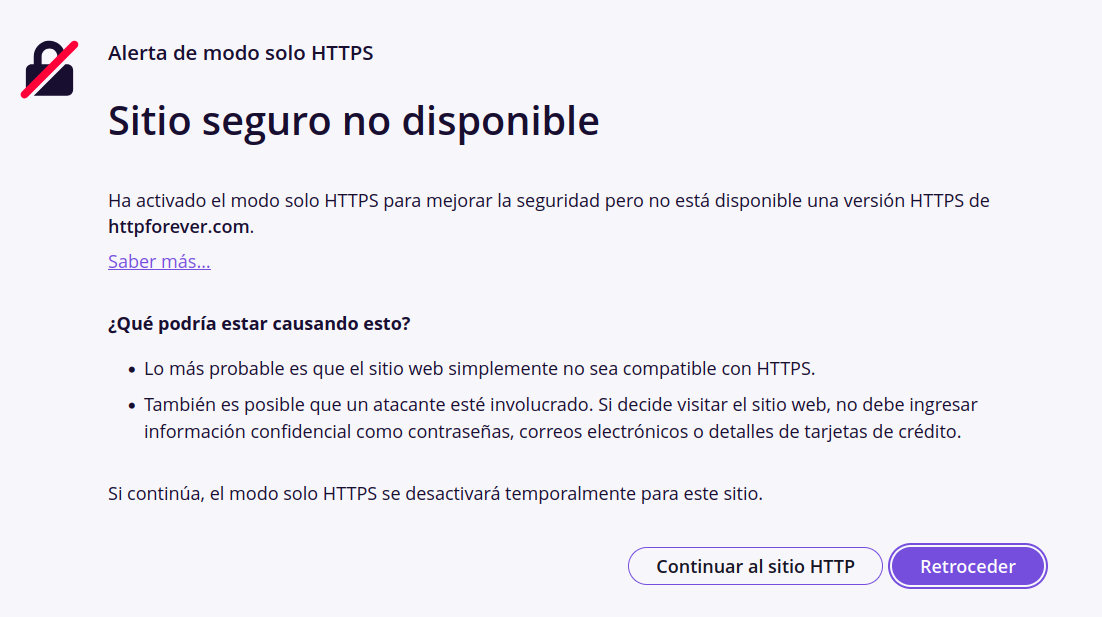
Today, the vast majority of websites use encrypted HTTPS connections. However, there are still some. legitimate cases where allowing an HTTP website is essential. For example, you might be trying to open a router control panel, a local development server, or a corporate intranet that operates solely over HTTP.
If Firefox refuses to open these links, there are easy ways to bypass the restriction. However, before doing so, it's advisable to... double-check that you know what you're getting intoThat said, let's see how to allow an HTTP website when Firefox has HTTPS-only mode enabled.
Method 1: The quick exception from the address bar
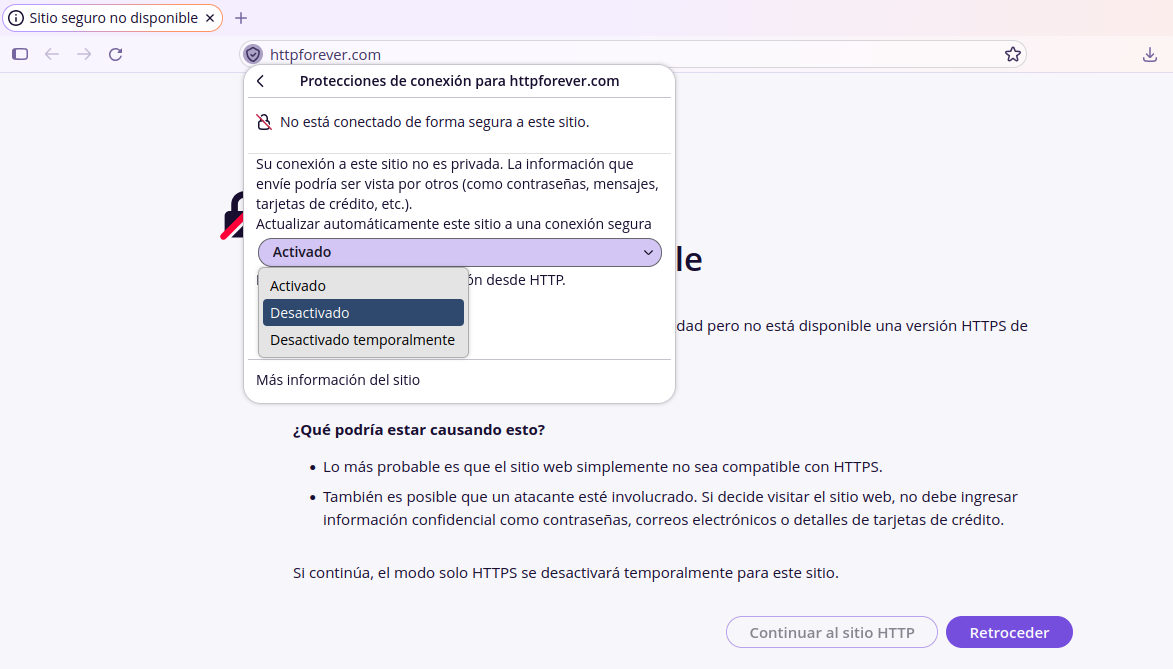
Do you only need to allow HTTP access for one website on a specific occasion? The quickest way to do this is from the site information panelWhen Firefox displays the error page blocking access, look for the shield or padlock icon in the address bar and click on it.
In the drop-down panel, you'll see security information related to the site. Click the Secure Connection button in the upper right corner. Under the heading Automatically update this site to a secure connection There's a drop-down menu; click on it.
In the drop-down menu you will see three options Activated, Deactivated y Temporarily deactivatedSelect the latter if you only want to visit the site once; choose Disabled to permanently remove the HTTPS restriction from that site. In most cases, this action will allow an HTTP website to access the site in Firefox.
Method 2: Managing exceptions from settings
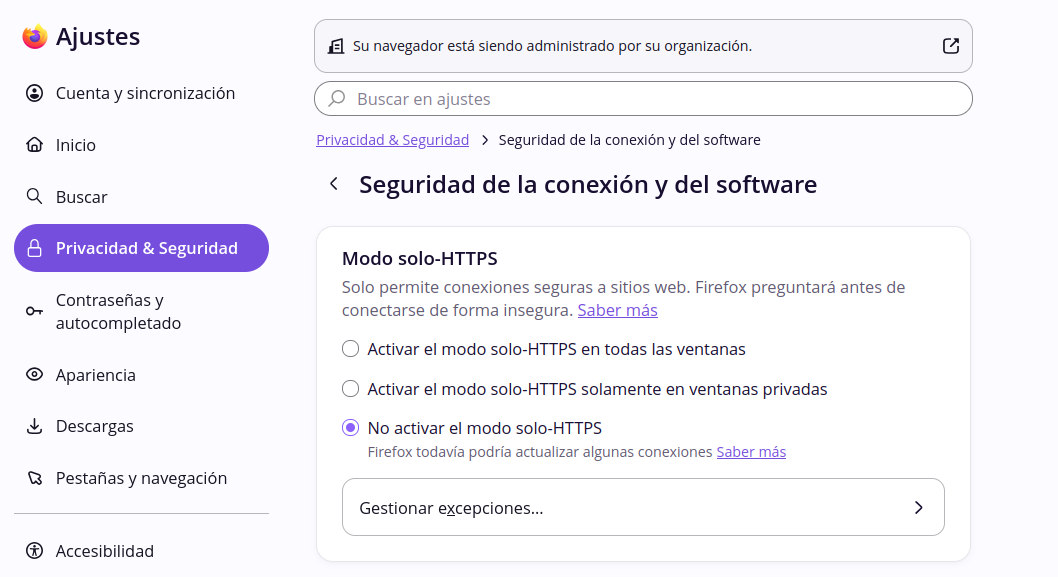
Let's suppose that There are several HTTP websites that you need to visit frequently. and you'd like to allow them permanently. For these cases, it's best to go to your browser settings and add those web addresses as an exception to HTTPS-only mode. The exact path to do this is:
- Open the Firefox menu by clicking on the three horizontal lines menu in the upper right corner.
- Select Settings and go to the section Privacy and Security.
- Scroll down until you find the section Connection and software security and click on Advanced settings.
- First you will find the section HTTPS-only modeThere, click on the button Managing exceptions…
- A window will open where you can type the exact address of the HTTP site you wish to allow (for example,
http://192.168.1.100ohttp://intranet.local). - Select Deactivate for the exception to be permanent, or Temporarily deactivate if you only need to allow one HTTP website for the current session.
- Guard the changes.
Method 3: Global deactivation (least recommended)
Global disabling is the most drastic method for allowing an HTTP website when Firefox has HTTPS-only mode enabled. In the same Privacy & Security section, instead of selecting "Enable HTTPS-only mode in all windows," you can choose "Do not enable HTTPS-only mode"After restarting the browser, all HTTP websites will work again."
However, this option removes an important layer of protection. Therefore, you should only consider using it if you are in a controlled environment and know exactly what you are doing. In fact, some users have reported that, after recent updates, Certain DNS over HTTPS (DoH) configurations may interfere with exceptions, causing the blocking to persist even after adding the exception.
Other solutions to allow an HTTP website when Firefox has HTTPS-only mode enabled

Is Firefox still determined not to allow an HTTP website? The site might be on the HSTS preload list (HTTP Strict Transport SecurityThis means the browser remembers that this domain must use HTTPS, regardless of the HTTPS-only mode setting. Solution? Force HTTP login from about:config.
Writes about:config in the address bar and accept the risk. Then, look for the preference. network.stricttransportsecurity.preloadlist and change it to false. Now Verify that the HTTP site is working.Otherwise, return the entry to true to prevent other risks.
Finally, if nothing works and You need to access a specific HTTP website, try from the mobile version of FirefoxThis version has more permissive settings than the desktop version (the same applies to Chrome and other browsers). As you can see, allowing HTTP access in Firefox is possible: it's recommended not to disable protection globally, but rather to use the exceptions system for legitimate cases.
Index

From a young age, I've been fascinated by all things scientific and technological, especially those advancements that make our lives easier and more enjoyable. I love staying up-to-date on the latest news and trends, and sharing my experiences, opinions, and tips about the devices and gadgets I use. This led me to become a web writer a little over five years ago, focusing primarily on Android devices and Windows operating systems. I've learned to explain complex concepts in simple terms so my readers can easily understand them.