- Steam Families shares compatible games between six accounts belonging to the same household.
- Each available copy allows only one person from the family group to play simultaneously.
- Adults manage members, purchases, schedules, and restrictions applied to child accounts.
- Leaving a family can trigger waiting periods of up to a year.

Buying multiple copies of the same game for home use can be unnecessary, especially when each person has their own Steam account. For these situations, there are... Steam Families, a system that brings together the compatible libraries of household members without forcing them to share passwords, saved games, or profiles.
A Steam family can consist of a maximum of six accountsincluding the person who creates the group. Each member keeps their purchases, achievements, and save data, but gains access to compatible games contributed by others.
The process for Configure Steam Families It's simple, although it's advisable to familiarize yourself with the roles, residency restrictions, and waiting periods beforehand. Making the wrong choice could prevent a user from leaving the group normally or leave a spot blocked for months.
What you need before creating a Steam family
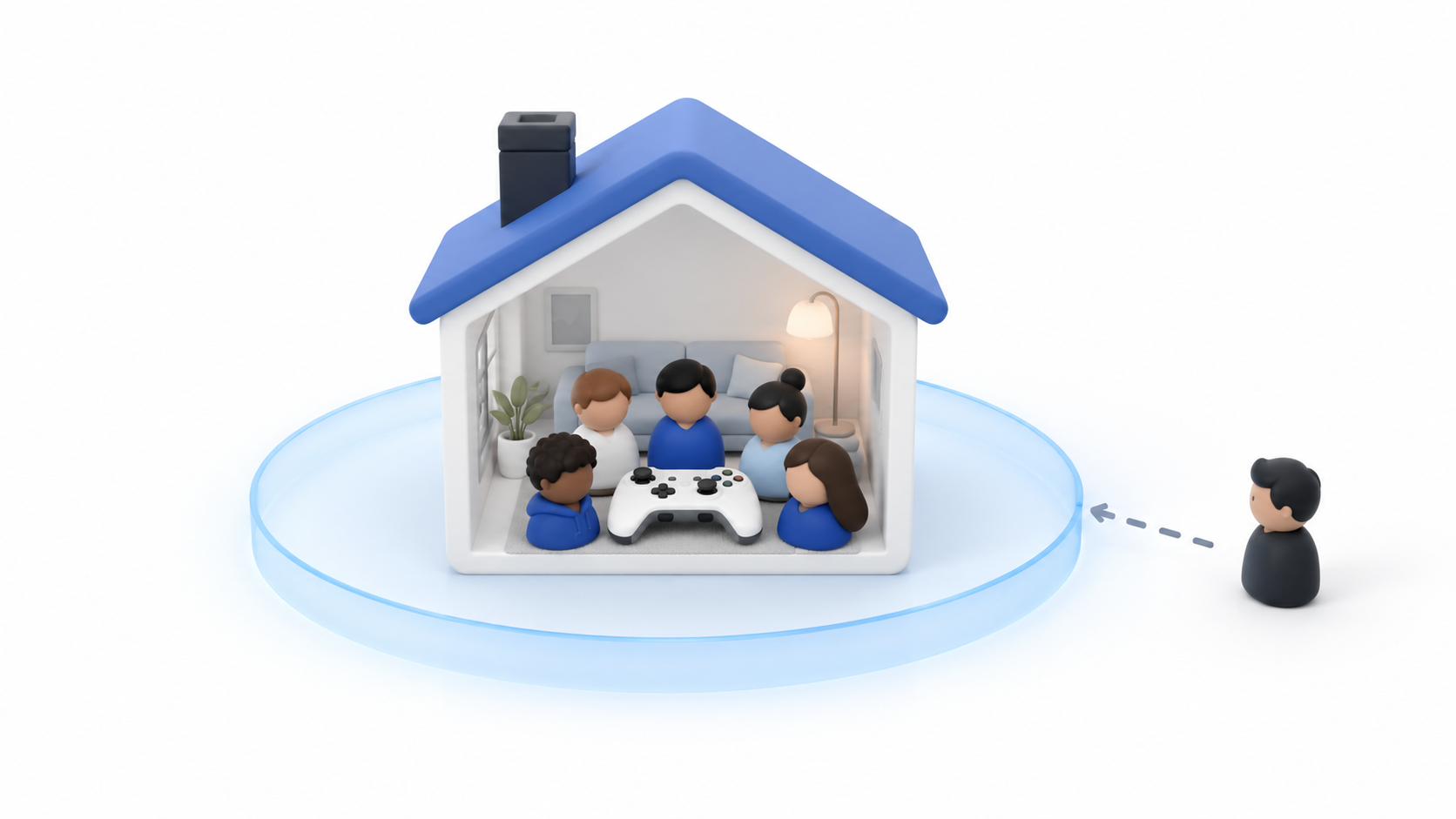
Steam Families is available to all users, so It is no longer necessary to activate any beta versionBefore you begin, install or update the client from the official website. If you don't already have it on your computer, you can check [link to relevant documentation]. How to download Steam and log in correctly.
You must also check the following requirements:
- Each member needs one separate Steam account.
- Members must belong to same home.
- The group admits a maximum of six members in total.
- The invited account must not belong to another family.
- There should not be a active waiting period from a previous group.
- It is advisable to keep it activated Steam Guard to protect all accounts.
There's no need to log in with someone else's account or manually authorize each computer, as was the case with the old Family Sharing. Invitations and the shared library are managed directly from the family group.
How to set up Steam Families step by step

To create the group from the desktop client, follow these steps:
- Open Steam and log in with the account that will initially manage the family.
- Press Steam in the upper left corner and enter Parameters.
- Select the section Family.
- Press the option to create or manage a Steam family.
- Write a name to identify the group.
- Select Invite a member.
- Find the account using your friends list or enter your login details.
- Choose whether the person will join as adult or minor.
- Send the invitation and wait for the recipient to accept it from their own account.
The options may also appear within the account details and family managementDepending on the client version. If the menu doesn't appear, update Steam, restart the program, and log in again.
Once you accept the invitation, compatible games will be automatically added to your family library. There's no need to reinstall Steam or manually move game folders.
How to choose between an adult account and a child account
Choosing the role is one of the most important steps in the setup. adult member You can manage the family, invite or remove members, and set restrictions for child accounts.
Minors, on the other hand, may be subject to different parental controls. Adults may:
- Decide which games the child can access.
- Restrict the store, community, and chat.
- Establish daily playtime limits.
- Define time slots in which playing is allowed.
- View activity reports.
- Approve or reject purchase requests.
- Recover access if the child forgets their PIN.
You shouldn't use the child role simply to temporarily restrict another adult. Younger members don't have the same autonomy to leave the group, so it's best to assign each category according to the account's actual use.
How the shared library works
When a person joins the group, Steam combines the compatible titles of all members into one family libraryOwnership of the games does not change: each purchase remains linked to the account that made it.
Each user maintains their own:
- Save files and games stored on Steam Cloud.
- Achievements and statistics personal.
- Workshop Content to which I am subscribed.
- Supported preferences and settings.
This means two members can play the same game without their progress merging. If you have questions about where the data is stored, you can check how save a game on Steam and check compatibility with Steam Cloud.
Steam Families does not allow you to manually select a list of titles you want to lend. Compatible games are added automatically, while those excluded by the developer or due to technical limitations will not appear as available.
How many people can play at the same time?
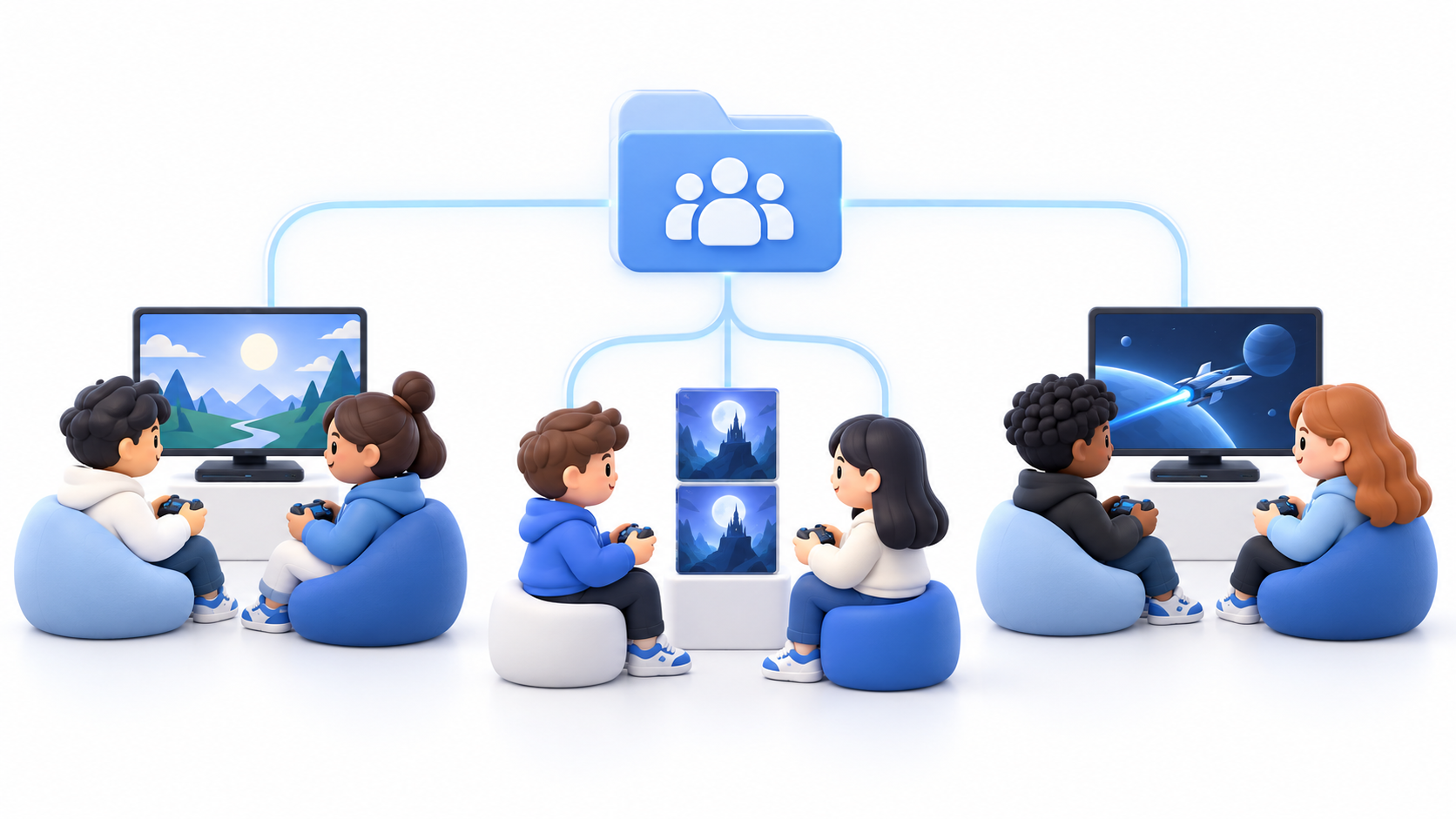
The family library can be used simultaneously, but availability is calculated according to the number of copies of each game.
If only one person in the group owns a game, only one member can play it at a time. If two accounts have purchased the same game, two copies will be available, and two members can play simultaneously.
For example:
- Ana owns a game and Luis does not: only one of the two can use it at any given time.
- Ana and Luis have the same game: two members can play it simultaneously.
- One person uses a game from Ana: the others can continue playing other titles provided by their library.
Unlike the old system, which treated the owner's collection as a single block, Steam Families manages availability game by gameThe owner also does not automatically kick the guest out for opening another title from their collection.
Which games cannot be shared
Not all of Steam's catalog is compatible with Family Sharing. A game may be excluded if its developer chooses not to participate or if it relies on external systems that prevent proper sharing.
Common examples include:
- Games that require a external account or key.
- Titles associated with a third-party subscription.
- Free content that each user can add directly to their account.
- DLC whose functionality depends on the user owning the base game.
- Games with incompatible regional restrictions.
- Titles that the editor has decided Exclude from Steam Families.
Availability can be checked from the game's page and from the family library. A title not appearing does not necessarily mean the family is configured incorrectly.
The requirement of belonging to the same household
Steam Families is designed for close relatives who live in the same householdValve may check account activity before allowing a person to accept an invitation.
Steam does not publish all the criteria used to perform this check. Therefore, it's not possible to say that it depends solely on the IP address. It may also consider other usage patterns and modify its requirements as the system evolves.
If a family member lives permanently in another city or country, Steam may reject the invitation. Using a VPN or sharing credentials to simulate residency is not a secure solution and may result in additional account checks.
You also shouldn't give your password or Steam Guard codes to anyone else. Steam Families allows Share access to games without sharing your Steam accountTherefore, each member must accept the invitation from their own profile.
What happens when a member leaves or is removed?
An adult can leave a family voluntarily, but they won't necessarily be able to join another one immediately. Steam applies a waiting period of up to one year, calculated from the moment the account entered the previous group.
Places are also subject to restrictions. If you expel someone or they leave the family, the space may remain vacant. one year reuse period before accepting a replacement.
These measures prevent users from constantly switching between groups to exchange libraries with different people. Before removing someone, check the date and the notification displayed by Steam, because recreating the invitation does not cancel the waiting period.
Safety and responsibility when sharing games
Each member uses their own account, so they don't need to know the owner's credentials. This separation protects payment methods, inventory, and personal information.
However, you should only invite people you trust. If a member cheats while playing with a copy provided by another account, the consequences can also affect the other member. owner of that copyValve recommends paying special attention to games protected by VAC.
To reduce risks:
- Keep on Steam Guard.
- Do not share passwords or confirmation codes.
- Carefully review who you add as an adult.
- Do not accept purchase requests without verifying their contents.
- Explain to children the consequences of using cheating programs.
Common mistakes when setting up Steam Families
One of the most common mistakes is following a guide from the old Family Loan program and looking for options to authorize computers. Steam Families uses a different system based on members, roles, and available copies.
You should also avoid these mistakes:
- Invite more than five people: The family admits six accounts in total, including the creator's.
- Assigning the role incorrectly: A child account has less ability to manage or leave the group.
- To expel someone in order to do a test: The position may be blocked for a year.
- Invite an account belonging to another household: Steam may reject it after analyzing your activity.
- Wait for all games to appear: Some titles do not allow family loans.
- To mistake a library for a copy: Two people can only run the same game if two copies are available.
- Share the password: No step in the setup process requires giving credentials to another member.
If you see a residency message, an invitation can't be accepted, or shared games aren't showing up, check out our guide on what to do when... Steam Families is not workingSeparating the initial configuration from troubleshooting allows you to check each requirement without unnecessarily modifying the group.
Setting up Steam Families correctly allows you to share compatible games across six separate accounts, keep progress separate, and apply parental controls without sharing passwords. The key is choosing the right roles, inviting only members of the same household, and understanding that availability depends on the number of copies of each game in stock.

I am a technology enthusiast who has turned his "geek" interests into a profession. I have spent more than 10 years of my life using cutting-edge technology and tinkering with all kinds of programs out of pure curiosity. Now I have specialized in computer technology and video games. This is because for more than 5 years I have been writing for various websites on technology and video games, creating articles that seek to give you the information you need in a language that is understandable to everyone.
If you have any questions, my knowledge ranges from everything related to the Windows operating system as well as Android for mobile phones. And my commitment is to you, I am always willing to spend a few minutes and help you resolve any questions you may have in this internet world.