- Teams custom isolation requires a voice profile and may depend on the organization's settings.
- Windows Studio Effects is not available on all Windows 11 PCs.
- Zoom has its own filters; your Teams profile is not transferred to Zoom.
- Accumulating multiple filters can damage the voice.

You're in a meeting, and just as you start speaking, you hear a dog barking, a nearby conversation, or street noise. If you're using Windows 11, you can reduce what reaches others, but The correct setting depends on the application and the equipmentThere is no single "voice isolation" switch that works the same on all computers.
Microsoft Teams offers a feature that can distinguish your voice from others using a personal profile. Some PCs also include Voice focus Among the effects in Windows Studio, there's noise suppression, while Zoom has its own. Let's see how to check which option you have and when it's worth using.

What is the difference between voice isolation and noise suppression?
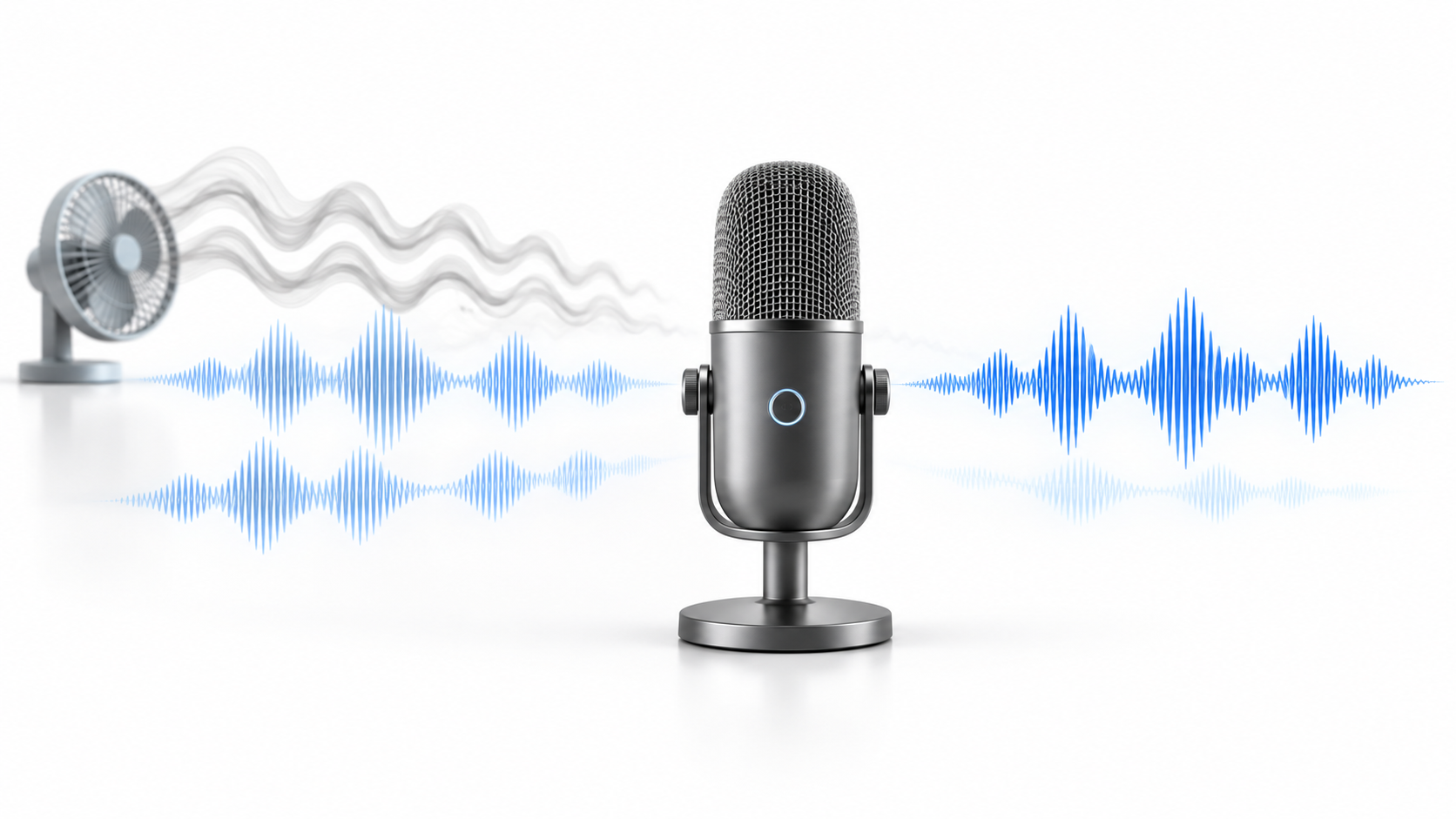
La noise suppression It tries to reduce background noises, such as a fan or traffic. custom voice isolation It goes a step further: it uses a profile of your voice to try to preserve it and attenuate, among other things, the voices of other people nearby.
None of these systems guarantees absolute silence. Furthermore, overly intense noise suppression can clip syllables or make your voice sound artificial. Therefore, it's advisable to test the system before an important meeting and use headphones if speaker sound is still picked up by the microphone.
How to enable voice isolation in Microsoft Teams

To use the Teams voice isolationFirst, you need to create a voice profile. This option may depend on the permissions set by your organization. If the Recognition section doesn't appear, contact your Teams administrator.
- Open Teams on your computer and log in Settings and more > Settings.
- Select Recognition and look for the option to create voice profile.
- Choose the microphone you are going to use and follow the instructions to read the text aloud.
- When you're finished, log in Settings > Devices and check that the selected microphone is the correct one and that voice isolation is available.
- Make a test call to hear the result.
Teams can also offer profile creation during an eligible meeting if your organization allows it. The profile can be updated or deleted from the Recognition settings.
If you want someone else in a meeting to be heard, open the menu next to the microphone and disable the corresponding isolation or suppression. Otherwise, Teams might attenuate your voice because it doesn't recognize it as yours.
What to do if Teams isolation doesn't appear or fails

If you can't create the profile, start by recording it in a relatively quiet place. Then, verify that Teams is using the intended microphone, disconnect and reconnect it if necessary, restart the application, and check for updates. If the profile exists but the result is still poor, you can update it or create it again.
There are two situations that should be distinguished:
- Recognition is not shown: The organization may not have enabled profile creation. Changing a Windows sound setting will not fix this.
- Teams warns that the device is overloaded: Close other applications that consume resources and reactivate the function.
If you only need to reduce ambient noise and don't have access to the voice profile, check if Teams allows you to use the conventional noise suppressionIt's not the same as isolating your voice using a profile, but it can help you in a call.
Check the microphone and voice effects in Windows 11
When the voice sounds bad in several applications, check first. Settings > System > Sound > InputSelect the correct microphone and use the available test to check if Windows is receiving your voice clearly. Then, verify in Teams or Zoom that they haven't selected a different input device.
On certain compatible computers, Windows Studio Effects includes Voice focusThis feature reduces background noise. Its availability depends on the hardware, specifically having a compatible neural processing unit. If you don't see this effect in your computer's settings, it doesn't necessarily mean Windows is broken: your computer may simply not support it.
If your voice sounds choppy, metallic, or overly processed, check if you have multiple filters active at the same time: for example, effects from your laptop manufacturer, Voice Focus, and Teams Noise Suppression. Try disabling them. one at a time and compare short recordings. On some devices, disabling microphone audio enhancements also helps diagnose sound problems.
If what others hear is a repetition of their own voice, also see how to fix a microphone with echoThe source could be the speakers, the selected device, or the audio effects.
Adjust noise suppression in Zoom
Zoom processes audio independently. In its desktop application, go to Settings > Audio and check the microphone modes. For a typical video call, start with Noise cancellation and the automatic level; if you work in a very noisy place, try a more intense level and listen to whether it harms your voice.
Zoom can also offer custom sound isolation through a voice profile. This is a different option from Teams isolation: setting up a profile in one application does not automatically activate it in the other.
The mode Original sound for musicians It is intended for cases where it is important to preserve instruments or a less processed audio capture. Do not disable echo cancellation as a general solution for meetingsIf you use speakers, others might hear their own voice back.
Alternatives if you need to use the same filter in multiple applications

If you make calls and recordings with different programs, you might appreciate tools like NVIDIA Broadcast o KrispThese process the audio and provide a virtual microphone that you then select as an input in Teams, Zoom, or the corresponding application. Check their requirements before installing them: NVIDIA Broadcast needs a Compatible RTX GPU.
If you use one of these filters, avoid stacking them without testing each application's noise cancellation. Applying multiple filters to the same voice can worsen the result.
Finally, a microphone close to the mouth and headphones are usually as helpful as software adjustments. A USB microphone or audio interface may offer better control or more accurate pickup, but They do not, on their own, disable all the effects of Windows or applications.You will also need to check what processing is active.
The most reliable way to improve your calls is to first identify where the problem originatesChoose a single main noise reduction system and test how others hear you before finalizing the setup.

Index
- 1 What is the difference between voice isolation and noise suppression?
- 2 How to enable voice isolation in Microsoft Teams
- 3 What to do if Teams isolation doesn't appear or fails
- 4 Check the microphone and voice effects in Windows 11
- 5 Adjust noise suppression in Zoom
- 6 Alternatives if you need to use the same filter in multiple applications