- Search featured items and web results are different features.
- Adjusting the featured items cleans up the panel, but it doesn't guarantee the removal of Bing.
- The documented policy for blocking web results is not available for all editions of Windows.
- Registry changes in Home or Pro should be presented as reversible tests, not as universal solutions.
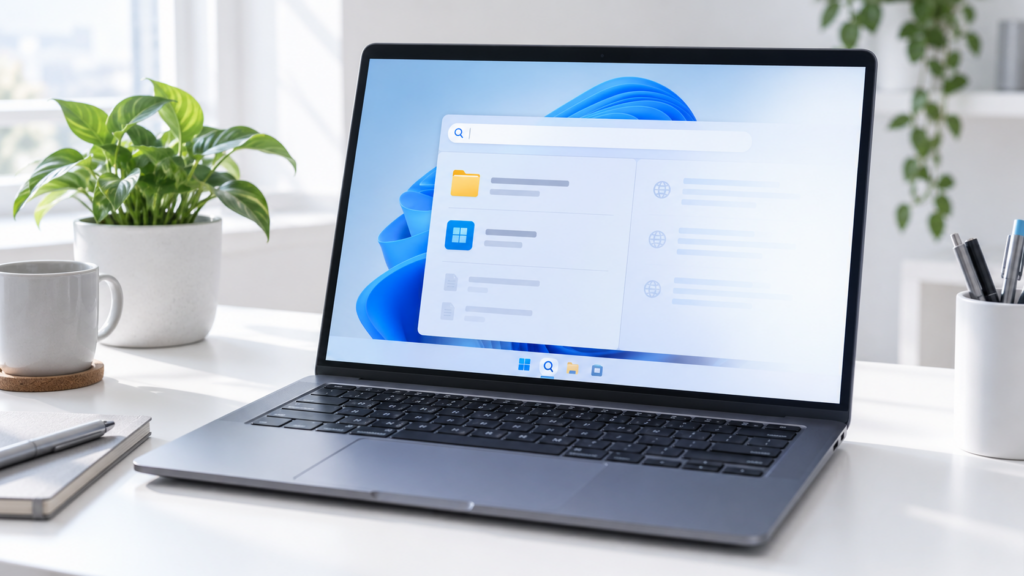
You type the name of a document into the Windows 11 search bar, and suggestions for searching for it on Bing appear among the applications and files. If you primarily use the Start menu for Finding content on your computer, those links can be annoying.
Before changing anything, it is advisable distinguish web results of other elements of the search panelWindows also displays highlights, such as important dates or suggested content, and allows you to search for files in cloud services. These are different functions and are not necessarily disabled with the same setting.
What do you want to remove from Windows 11 search?

If you see information about events, images, or suggestions when you open the search. before writing, it's probably the search highlightsIf you type a query and an option appears to search for it on Bing, you're seeing web results or suggestions.
The distinction matters: disabling highlights might make your screen look cleaner, but It does not guarantee that the web links will disappear. when you search for a file or an application.
Turn off featured items from Settings
If what bothers you is the content that appears when you open the search panel, start with this setting, which doesn't require modifying the Registry:
- Open Configuration with Windows + I.
- Enter Privacy and security and search Search permissionsThe name or exact location may vary between versions.
- Deactivate Show search highlights if it appears among the options.
- Open the search again and check what content has disappeared.
This change affects featured items. Don't confuse it with a master switch to disable Bing.Similarly, hiding the search icon from the taskbar only hides that access: you can still open search from Start or with Windows + S.
Remove web results on managed computers
On systems with a compatible edition and configuration, there is a policy called "Do not search the web or show web results in Search"Microsoft documents it for Windows Enterprise and Education, among other business editions; it should not be assumed to be available on all computers with Windows 11 Pro or Home.
If you administer the computer and the policy appears in the Group Policy Editor, follow these steps:
- Press Windows + R, writes
gpedit.mscand press Enter. - Go to Computer Configuration > Administrative Templates > Windows Components > Search.
- Find the directive "Do not search the web or show web results in Search"Its name may vary slightly depending on the language of the templates.
- Open it, select Enabled and apply the change.
- Restart your computer and check the result with a test search.
If this is a work or school computer, check with your administrator first: other organizational policies may determine which settings are available. The Microsoft documentation on search policy specifies the supported editions and their effects.
What to do in Windows 11 Home or Pro
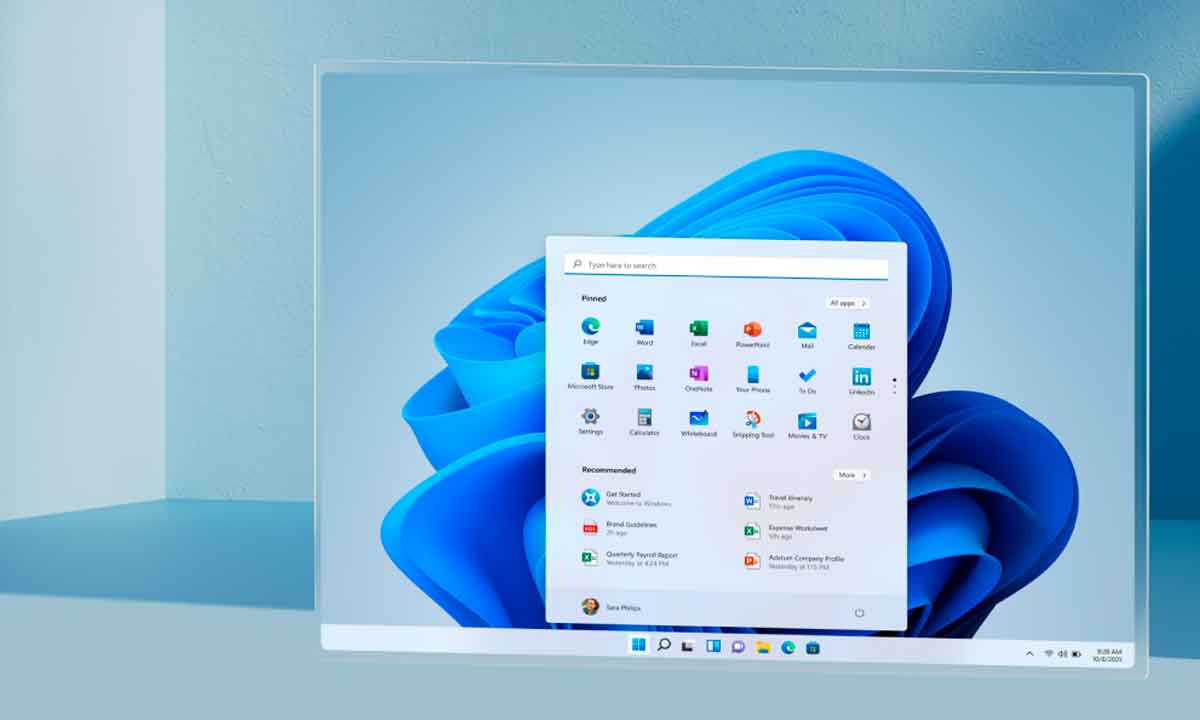
In these editions, It should not be assumed that Search Permissions includes a universal switch to remove all Bing results.Some guides resort to creating value DisableSearchBoxSuggestions en HKEY_CURRENT_USER\SOFTWARE\Policies\Microsoft\Windows\ExplorerIt's a setting you can find in tutorials, but Its effect on Start search is not guaranteed in all versions of Windows 11.
If you decide to try it, do it like solution not guaranteed and reversible:
- Open
regeditand locateHKEY_CURRENT_USER\SOFTWARE\Policies\Microsoft\Windows\Explorer. - Before modifying anything, select the key
Explorerand uses File > Export to save a copy. If the key does not exist, note that fact before creating it. - Create value DWORD (32 bits) called
DisableSearchBoxSuggestionsand assign it1. - Restart your computer and search for a term that previously displayed web links. Check if they have actually disappeared.
If you don't notice any changes or prefer to go back, restores the exported key Or delete only the value you just created, provided it didn't exist before. Don't delete the folder. Explorer nor other values in the Registry.
We do not recommend using it as an automatic alternative. BingSearchEnabled Nor commands copied from old guides: finding an instruction for another version of Windows does not prove that it will still work on your current installation.

If the problem is with the search for local files
Removing Bing suggestions and finding your documents more easily are separate issues. If Windows can't locate a file you know exists, check the locations included in the indexing and file search settings. Disabling web content does not add folders to the index or fix local search on its own.
You can also search from the corresponding folder in the File Explorer, where it is easier to limit the query to a specific location.

Check the result before considering the change complete.
After applying any adjustments, open Start, type the name of an installed app, and then try a term that would normally display a Bing link. Check separately whether the initial featured results have disappeared and whether web results still appear when you type.
The appearance and controls of the search may change with updates. Therefore, what's important is not whether an option is listed in a guide, but rather... Check on your device which element has stopped displayingThere's no reason to promise an overall speed improvement or to modify the Registry if you only wanted to hide the featured items.

Index