- The failure to log in to Fortnite is usually due to a combination of network, system, and game settings factors.
- Typical solutions (flushing DNS, reinstalling, changing WiFi) don't always address the real source of the problem.
- An incorrect configuration in msconfig can limit the CPU and cause loading and login errors.
- Before resetting Windows, it is key to check CPU core usage and other advanced settings.

When Fortnite won't let you log in And after hours of trying things without success, frustration sets in. It's a bug that can appear suddenly, even if you were playing peacefully yesterday, and the worst part is the feeling that nothing you do fixes the problem.
Many players have gone through the same thing: constant error messages when connectingThe "Retry" button that leads nowhere, endless reinstalls of the game and the Epic Games launcher, network changes, Windows settings... and still, Fortnite still won't let you inBelow you will find a very detailed explanation of everything that is known about this flaw, the tests that users usually perform, why they sometimes don't work, and, above all, a little-known solution that in some cases has been the key.
Common reasons why Fortnite won't let you log in
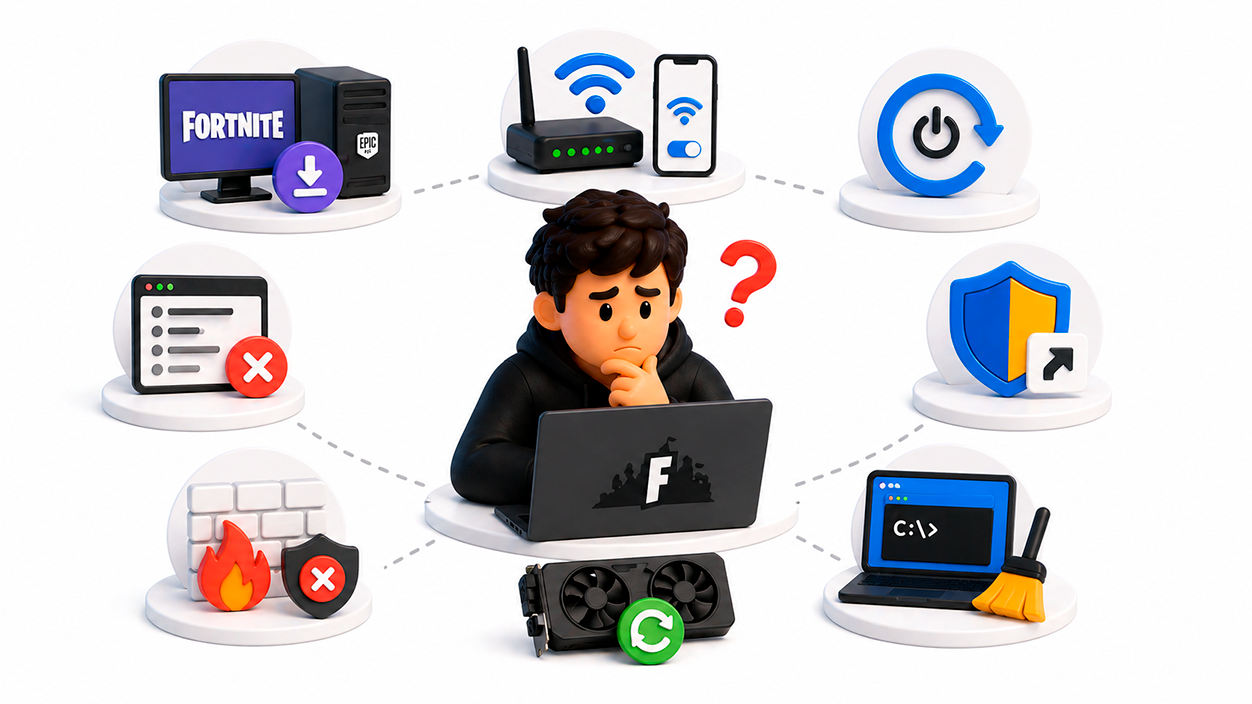
The first thing to understand is that The error when logging into Fortnite is not always due to the same thing.It could be a problem with the game itself, Epic Games' servers, your internet connection, your Windows settings, your CPU, or a combination of all of these. That's why sometimes a trick that works for one person doesn't work for another.
In many cases, the error message appears without giving too many details, simply indicating that We were unable to log in Or it might show a connection failure. Other times, it gets stuck on an endless loading screen, as if the game is trying to connect but never finishes. This leads many people to start trying things randomly, without really knowing what's wrong.
One important point is that, even if your PC is relatively powerful, Fortnite can take a long time to load or initialize certain processesThis causes the system or the Epic launcher itself to interpret that something is wrong and interrupt the login attempt. In other words, it's not always that your internet connection is bad or that Epic is down; it could be that your computer isn't using all its resources as it should.
It should also be noted that, at certain times, Epic Games servers may be overloaded or experiencing errorsIn those cases, anything you do on your computer will be of little use. However, many users report that the problem persists even when most players have no trouble logging in, which clearly points to a local issue on the PC.
Therefore, before making drastic decisions like Format or reset Windows because of FortniteIt is essential to review a series of points and test less invasive but much more specific solutions.
Typical solutions that most users have already tried
When Fortnite won't let you log in, the logical reaction is to start with the basics. Most players have already tried an almost endless list of troubleshooting steps, often without success. It's important to review these because they help rule out simple problems before moving on to more advanced settings.
One of the first things people usually do is empty or clear the DNS cacheThis is usually done from the Windows command prompt (CMD) with commands like ipconfig /flushdnsRestarting your computer or router afterward may resolve some domain name resolution issues, but in many cases it won't fix the specific Fortnite problem at all.
Another very typical action is Reinstall Fortnite and the Epic Games launcher completelyEverything is uninstalled, any remaining folders are deleted, and then the official installer is downloaded again. While this may fix corrupted file errors, it doesn't address underlying issues related to hardware or advanced system settings.
Many players have also tried connect to another WiFi network or use your mobile phone as a hotspotthinking that perhaps their usual connection had some kind of block or NAT problem; they may even need access the router settings to review rules or blocks that affect the game. Sometimes this network change improves the situation, but it's not a guarantee. In many cases, even after changing connections, the login failure remains exactly the same.
Another widespread recommendation is Run the Epic Games launcher as administratorThis is done by right-clicking on the launcher icon and choosing "Run as administrator," hoping that this will remove permission restrictions when starting Fortnite. While this is a reasonable test, for many users it makes no difference: the game still won't let them in.
In the end, many people get stuck in a troubleshooting loop: restarting their PC, closing all background programs, temporarily disabling their antivirus or firewall, checking their graphics card drivers, updating Windows, and so on. Even with all this, The error persists and frustration increasesbecause it gives the impression that "everything" has already been tried.
Why some of these tests only work sometimes
There are some very curious cases where, after trying several times, the game loads only once and then crashes again. Some users report that, after pressing “Retry” ten or fifteen times after the error messageThey suddenly managed to access Fortnite… but when they closed the game and tried to log back in, the problem reappeared as if nothing had happened.
This indicates that, in certain equipment, the failure is not entirely permanent, but depends on specific moments when the system or network responds a little fasterIt's as if some part of the loading or authentication process is too slow and, every now and then, by chance, it falls within the time that the launcher or servers consider acceptable.
It's also important to keep in mind that the perception of "I've tried everything" often stems from having followed the same generic recommendations that circulate in forums and networksFlushing the DNS, reinstalling, switching Wi-Fi networks, or restarting the router are logical steps, but they all point to the network environment or the game installation. If the real problem lies in how Windows manages the CPU or in a misconfigured limit, those solutions will never get to the root of the problem.
In other scenarios, seemingly unrelated changes, such as Perform a complete PC restart after modifying any optionThese measures can cause the system to correctly detect the hardware again or for certain services to start in a different order. This can lead to temporary improvements that are mistaken for a real solution, when in reality the underlying problem remains.
For all these reasons, before giving up on the case and considering something as radical as Format Windows and reinstall all applicationsIt is worth taking a close look at the internal configuration of the system, especially regarding CPU usage and advanced boot parameters.
Why resetting your PC because of Fortnite is not a good idea
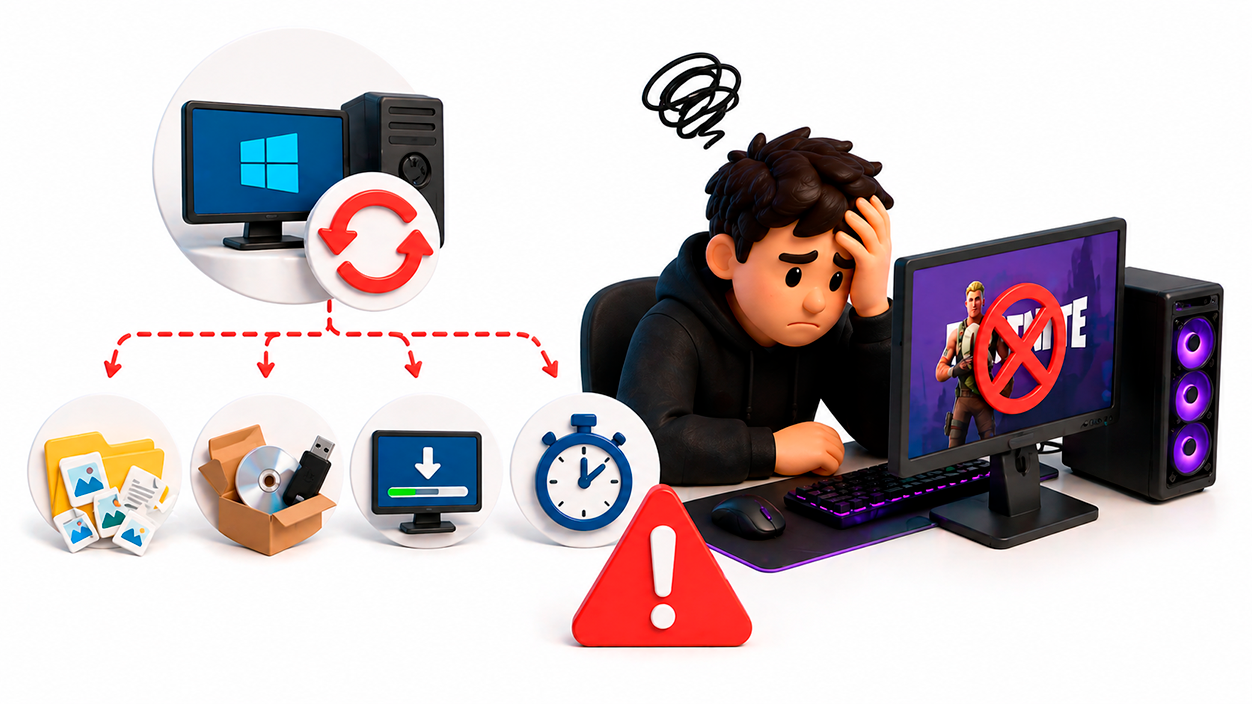
When you reach a point of despair, it's easy to think: "maybe if If I restore Windows or reset it to factory settings, Fortnite will work again.However, this option is very risky and is almost never justified solely by a login problem in a game, no matter how popular it is.
Resetting the PC often involves having to reinstall a huge number of programs, games, and utilitiesReconfigure accounts, recover files, restore custom settings, profiles, and much more. It's a tedious process that can take days, especially if you have many games installed and a large digital library.
The most frustrating thing of all is that, according to numerous users, Even after restoring Windows from scratch, the Fortnite error remained exactly the same.This clearly indicates that the problem isn't always corrupted files, viruses, or the like, but rather a configuration or incompatibility that persists even after formatting, such as login settings that should be reviewed (see how). Remove automatic login).
Furthermore, on a PC with many apps and games, you are very likely to also have Important data that you don't want to lose or have to complicate backing up and restoring.Risking all that content because of a login failure that could be due to a simple incorrectly checked box in the system settings is not worth it at all.
Therefore, before resorting to extreme measures, it is much wiser to review lesser-known options that have a huge impact, such as certain advanced Windows boot parameters related to the number of processorsIn some specific cases, that has been the key to preventing Fortnite from crashing upon entry.
The role of the CPU and boot configuration in the problem
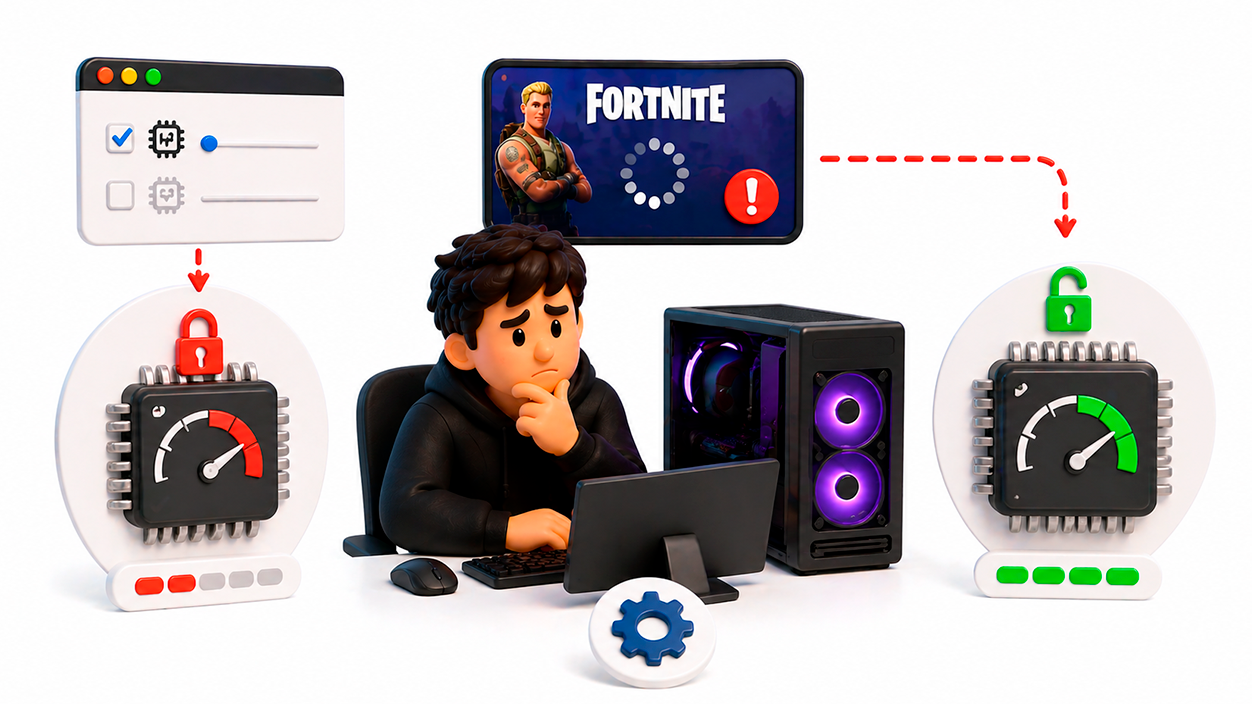
One of the most striking examples of this error is related to something that almost no one notices: Limiting the number of CPU cores from the Windows boot configurationAlthough it sounds strange, it's quite easy to understand when explained step by step.
Windows includes a tool called System configuration, which is accessed by writing msconfig in the Windows Run dialog box (the one that opens with the Windows + R key combination). Within this utility, there is a Boot section and, in turn, an Advanced Options section, where you can manually limit how many processors (or cores) the system uses.
On some computers, for whatever reason, this option appears selected and configured so that Windows only uses half of the processor's actual coresThe user may never have consciously touched that setting, but the result is that the system functions as if it had a much less powerful CPU than the one actually installed.
When this happens, applications that demand a certain level of performance at startup, such as Fortnite, can take significantly longer than usual to load or to execute all the processes necessary to validate the session. It's as if the game were trying to launch on a "crippled" PC without the owner's knowledge, resulting in very slow response times and potential timeout errors.
Several users who experienced the login block describe how, upon observing their computer's behavior, They noticed that the CPU didn't seem to be working at the level it should be.This led them to investigate and find this msconfig option, discovering that they had the "Number of processors" box enabled with a value far below what their physical processor supports.
Once this relationship between boot configuration and overall computer performance is understood, it becomes much clearer why Fortnite can take so long to load and crash right at the moment of logging in, while other games or programs may not show such obvious symptoms.
The little-known solution that has worked for some players
In one of the most detailed accounts of this problem, a player described how, after trying virtually everything imaginable, I had only managed to get into Fortnite once.And that was after repeatedly clicking "Retry" more than a dozen times when the error appeared. From then on, the error was constant again.
Desperate, he began to suspect that his computer wasn't using all the available power, because in theory his CPU It was more than enough to run Fortnite without any problems.Through investigation, he eventually accessed the system configuration tool using Windows + R and the command msconfig, then going to the Startup tab and the Advanced Options.
Within that menu, he found that the option related to the “number of processors”Upon expanding it, he saw that the selected value was equivalent to approximately half of his CPU's actual cores, meaning that Windows was running in a limited way, as if the computer were considerably less powerful than it actually was.
The action he took was very clear: completely unchecked the “Number of processors” boxThis allowed Windows to automatically manage all available processor cores again, without any manual restrictions. After applying the change and restarting the PC, he noticed that the system booted up more smoothly and applications opened faster.
From that moment on, Fortnite's behavior changed radically: The game started loading much faster and allowed me to log in without errors. in all subsequent attempts. From being stuck in a loop of failures and "Retry" messages, it went to consistently getting in on the first try, without the need for additional tricks or reinstalls.
This specific case demonstrates that, under certain circumstances, the problem of Fortnite not allowing logins can be closely linked to a internal system configuration that limits CPU usageand not so much to the connection, but to the Epic launcher or corrupted game files. Unlocking that full use of the cores can make all the difference.
Final recommendations before giving up on the login error
If you've been struggling with Fortnite not letting you log in for a while and feel like you've already tried all the usual suggestions, It's always a good idea to review some key points before throwing in the towel.The important thing is to avoid irreversible decisions while there are still adjustments to be reviewed.
On the one hand, it is important to make sure that The internet connection is stable and there are no obvious blocks.Try a different network, restart your router, avoid large background downloads, and check if other online games are working properly. This doesn't guarantee that Fortnite will be fixed, but it helps rule out common bottlenecks.
On the other hand, it is essential to review the software part: Keep your drivers updated, especially those for the graphics card and chipset.Close programs that may interfere (such as VPNs or aggressive optimization tools) and check that the system is not overloaded with unnecessary processes when trying to start the game; in some cases it is advisable Disable automatic login to debug the user session.
If after all that the error persists, it makes a lot of sense to take a look at advanced boot configuration using msconfigCheck that the system doesn't have any absurd limitations on the number of processors used. While it might seem daunting to touch this setting, simply unchecking the box to allow Windows to automatically manage the CPU is a reversible and quite safe change.
Ultimately, when Fortnite refuses to let you log in, it's not always a problem with the servers, your account, or your connection; Sometimes the root of the problem lies in a hidden setting that reduces the real power of your PC without you knowing it.Before you consider formatting your entire system and wasting hours reinstalling programs, it's worth taking a moment to calmly review these hidden details that, as some users have shown, can bring the game back to life overnight.
Index
- 1 Common reasons why Fortnite won't let you log in
- 2 Typical solutions that most users have already tried
- 3 Why some of these tests only work sometimes
- 4 Why resetting your PC because of Fortnite is not a good idea
- 5 The role of the CPU and boot configuration in the problem
- 6 The little-known solution that has worked for some players
- 7 Final recommendations before giving up on the login error

I am a technology enthusiast who has turned his "geek" interests into a profession. I have spent more than 10 years of my life using cutting-edge technology and tinkering with all kinds of programs out of pure curiosity. Now I have specialized in computer technology and video games. This is because for more than 5 years I have been writing for various websites on technology and video games, creating articles that seek to give you the information you need in a language that is understandable to everyone.
If you have any questions, my knowledge ranges from everything related to the Windows operating system as well as Android for mobile phones. And my commitment is to you, I am always willing to spend a few minutes and help you resolve any questions you may have in this internet world.